Landlord Gas Safety Tracker Excel Template – Free (2026)
4
Free download
Freezer inventory Excel template for cafés, caterers and food businesses, with batch tracking, stock value, expiry prompts, reorder warnings and dashboard.


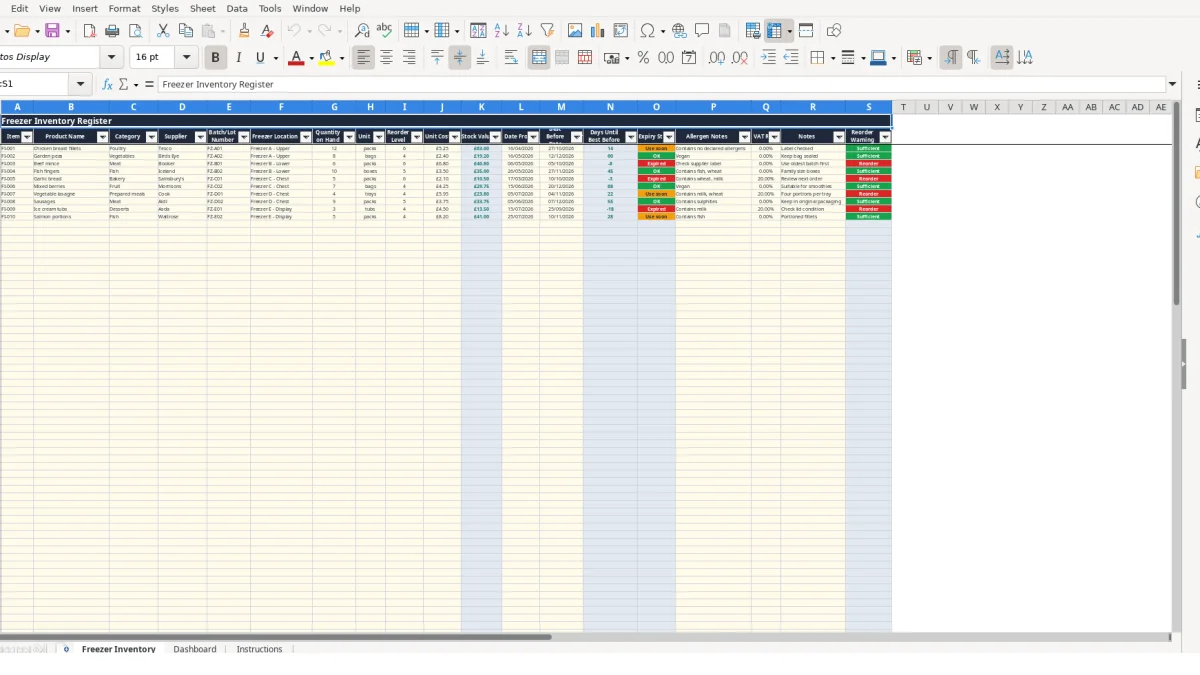
This freezer inventory Excel template records products, batches, suppliers, freezer locations, quantities, unit costs, dates and allergen notes. It calculates stock value, days until best before, expiry status and reorder warnings across up to 100 inventory rows, with a linked dashboard.
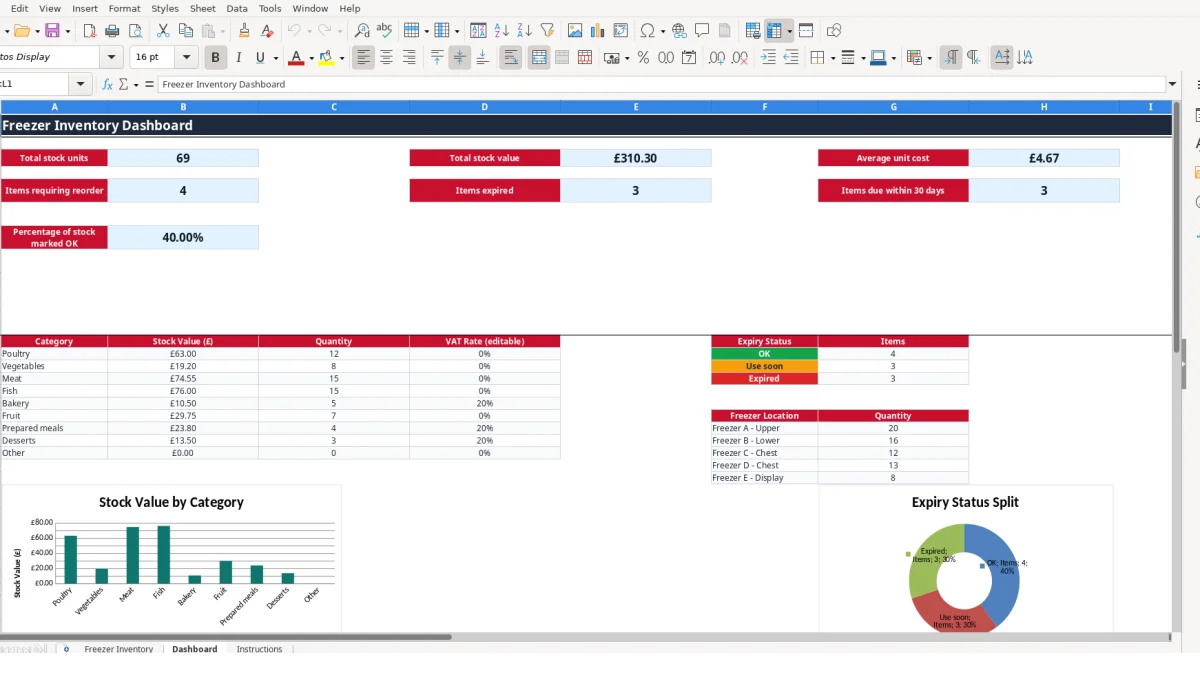
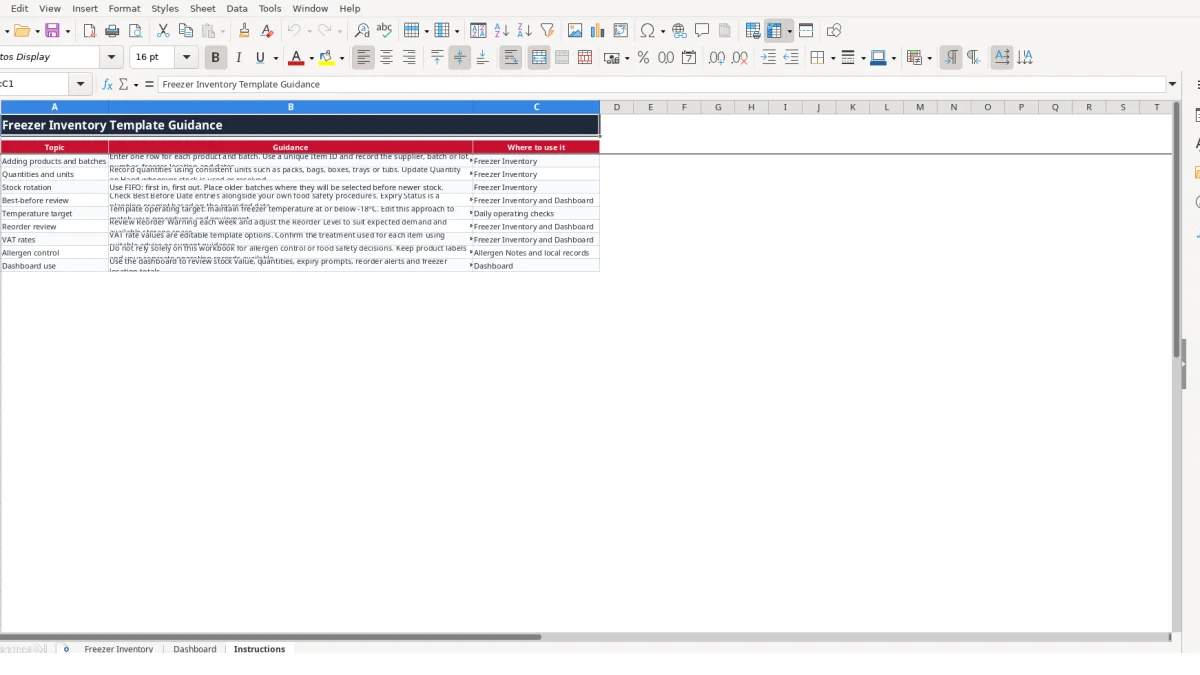
Use the Freezer Inventory sheet for detailed records, Dashboard for stock summaries and charts, and Instructions for the workbook’s operating guidance. Sample rows include chicken breast fillets, garden peas and beef mince, which you can replace with your own stock.
A freezer inventory is useful wherever food is bought in batches and must be found quickly later. A café manager can use it after a delivery to record frozen bakery products, prepared meals and ingredients; a caterer can use it before an event to confirm that enough portions are available; and a small food producer can use it to keep supplier and batch details together.
The workbook’s 100-row Freezer Inventory table suits a modest commercial freezer operation, community kitchen or household with several storage areas. Each row represents one product and batch rather than just one product name. That distinction matters when two batches of beef mince have different best-before dates or are stored in different freezer compartments.
Suppose a business records 12 packs of chicken breast fillets in Freezer A - Upper, with item ID FI-001, supplier Tesco and batch FZ-A01. A second record can identify 6 packs of beef mince in Freezer B - Lower, with batch FZ-B01. Searching the list then tells the user where to look before opening several drawers or boxes.
The Unit field supports packs, bags, boxes, trays, tubs, kg and portions. For example, 8 bags of garden peas should not be entered as 8 packs simply because both are convenient descriptions. Consistent units make the Dashboard’s total stock units meaningful.
A kitchen supervisor might update quantities after the final service of the week, while a caterer might check the register immediately after unloading a delivery. The Instructions sheet recommends one row for each product and batch, consistent units and FIFO, meaning first in, first out.
The workbook is a record-keeping tool, not a substitute for product labels or separate food-safety procedures. Its sample allergen notes and expiry prompts help organise information, but the Instructions sheet specifically says not to rely solely on the workbook for allergen control or food-safety decisions.
The Freezer Inventory sheet separates information you type from outputs calculated by Excel. You enter fields such as Quantity on Hand, Reorder Level, Unit Cost (£) and Best Before Date; the workbook calculates Stock Value (£), Days Until Best Before, Expiry Status and Reorder Warning for rows 3 to 102.
Stock Value (£) uses the equivalent of IF and multiplication: if Quantity on Hand and Unit Cost are present, Excel multiplies them. In the sample, 12 packs at £5.25 gives £63.00. Garden peas show 8 bags at £2.40, giving £19.20. Leaving either input blank leaves the calculated result blank rather than displaying a misleading zero.
The Dashboard then uses SUM for total units and stock value and AVERAGE for average unit cost. Category summaries use SUMIF, while counts use COUNTIF. This gives you a single place to review the effect of changes made in the inventory table.
Days Until Best Before subtracts TODAY() from the recorded Best Before Date. Expiry Status returns Expired when the result is below zero, Use soon when it is 30 or fewer days, and OK otherwise. For example, a date 12 days ahead produces Use soon; a date one day in the past produces Expired.
Reorder Warning compares Quantity on Hand with Reorder Level. If 6 packs are on hand and the reorder level is 6, the result is Reorder, not Sufficient, because the formula treats equal quantities as the reorder point. That is a useful technical choice: the alert appears before stock falls below the chosen level.
Four list validations constrain Category, Freezer Location, Unit and VAT Rate. The available VAT options are 0%, 5% and 20%; treat these as editable template options and confirm the treatment for each item using suitable current guidance. Do not overwrite the formula columns K, N, O and S.
The most expensive freezer-record errors are usually small inconsistencies repeated over several checks. If one person enters 12 as packs and another enters 12 as kg for similar stock, the Dashboard can still total the numbers, but the total no longer represents a reliable physical quantity. The Instructions sheet therefore tells you to use consistent units.
Days Until Best Before and Expiry Status depend on Best Before Date. If the date is missing, those calculated cells remain blank, so the Dashboard cannot count the item as Expired, Use soon or OK. In a hypothetical register of 40 rows, 5 missing dates would leave 12.5% of the records without a date-based status.
Entering a date as text rather than a real Excel date can create a similar problem. Use the workbook’s date format, DD/MM/YYYY, and check that the calculated days change when you correct an entry. A product with a recorded date 18 days away should show Use soon; if it remains blank, inspect the input before relying on the status.
If the freezer contains 10 trays but Quantity on Hand still says 14, Stock Value is overstated. At a unit cost of £7.50, that four-tray difference represents a hypothetical £30.00 error. If a reorder level remains at 2 after demand increases, the Reorder Warning may appear too late for the operating pattern.
Another common failure is overwriting a calculated cell with a typed value. If K3 is replaced with £63.00 and the quantity changes from 12 to 10, the stock value will not update. Keep user inputs in the labelled input columns and preserve the formulas in K, N, O and S.
Allergen Notes also require discipline. A note such as Contains no declared allergens is only a recorded statement for that product; it does not replace checking packaging, supplier information or separate local records. The Instructions sheet explicitly warns against using the workbook alone for allergen control.
A freezer register works when updating it is attached to an existing task rather than postponed indefinitely. Choose one fixed review point, such as after the weekly delivery check or at the end of the final service, and compare the physical stock with Quantity on Hand. A 20-minute review of 30 rows is more useful than an occasional complete rebuild after records have drifted.
For example, if a Friday review finds 6 packs of beef mince against a reorder level of 6, the Dashboard should show one reorder item for that row. If the same review finds a best-before date 20 days away, it should also contribute to Items due within 30 days. Those two signals support different actions: review purchasing and plan stock use.
Do not insert ad hoc wording into validated fields. Select the existing category, location, unit or VAT option so Dashboard summaries continue to group records correctly. Keep the Instructions sheet with the file and use the sample rows as a reference before replacing them.
The workbook is suitable while the register fits its 100 available inventory rows and one person or small team can maintain it. Consider a dedicated stock system when multiple users need simultaneous access, you need transaction history, barcode scanning, purchase-order integration or an audit trail that this workbook does not provide.
It tracks Item ID, Product Name, Category, Supplier, Batch/Lot Number, Freezer Location, Quantity on Hand, Unit, Reorder Level, Unit Cost (£), dates, allergen notes, VAT Rate and Notes. It also calculates stock value, days until best before, expiry status and reorder warning.
The Freezer Inventory sheet has inventory rows 3 to 102, providing space for 100 product or batch records. Use one row for each batch where dates, suppliers or locations differ.
Excel calculates Days Until Best Before by subtracting TODAY() from Best Before Date. Expiry Status shows Expired for a past date, Use soon for 30 days or fewer, and OK for a later date. A missing date leaves the status blank.
Reorder Warning compares Quantity on Hand with Reorder Level. It shows Reorder when the quantity is equal to or below the level and Sufficient when it is above the level. Both input fields must be completed for the warning to appear.
Yes. VAT Rate is an editable field with list options of 0%, 5% and 20%, and the Dashboard also contains editable VAT rate reference values. Confirm the appropriate treatment for each item using suitable current guidance; the workbook does not determine tax treatment.
No. The Instructions sheet says the workbook should not be relied on alone for allergen control or food safety decisions. Keep product labels and separate operating records available, and use the expiry prompts as planning information based on the dates you record.
Excel template by
Guide written by