Classic Car Restoration Excel Template – Free (2026)
0
Free download
Plan funeral costs with Excel sheets for supplier quotes, VAT, payments, budget variance and category totals. Suitable for UK families and executors.


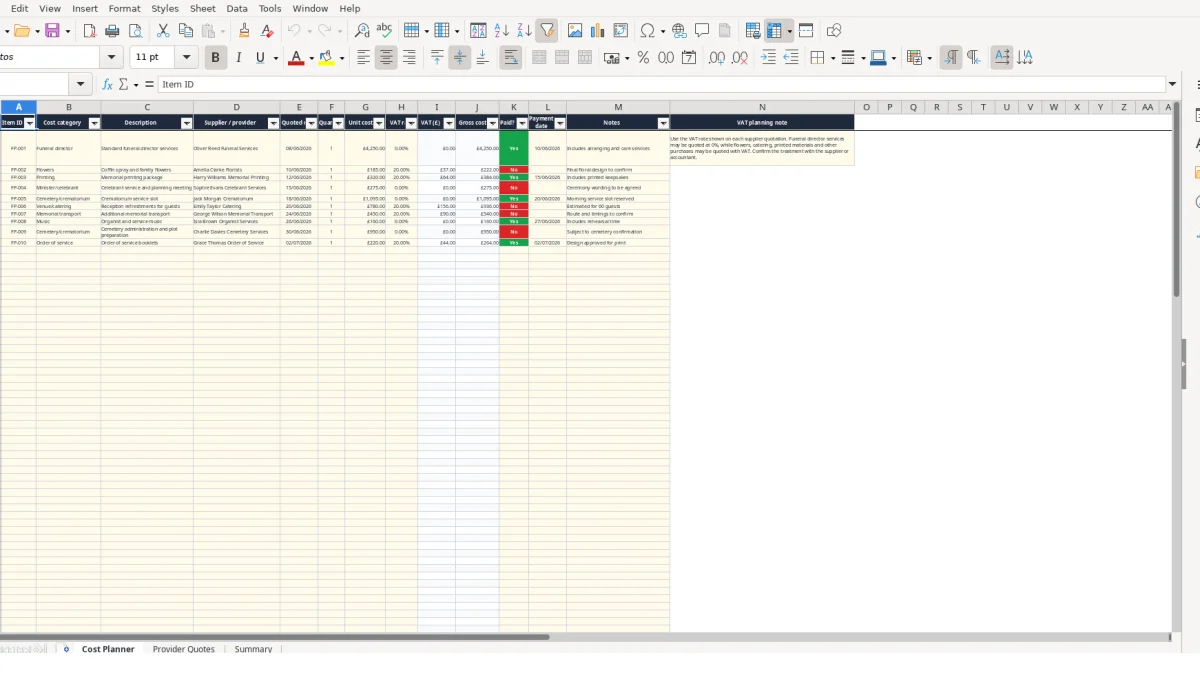
This funeral cost planner Excel template records funeral-related quotations, quantities, unit costs, VAT rates, payments and notes in one workbook. It contains a Cost Planner for up to 100 cost lines, a Provider Quotes sheet for comparing suppliers, and a Summary sheet showing totals against an £8,500 illustrative budget.
Use it to bring funeral director services, flowers, printing, transport, venue costs and other arrangements into a single working record. The workbook separates supplier comparison from committed costs, while calculated VAT, gross cost, paid-to-date and outstanding figures reduce manual arithmetic.
A funeral cost planner is useful when several people are arranging one funeral and information is arriving from different providers. An executor, family member or funeral organiser can use it to keep the funeral director's quotation separate from flowers, printed materials, celebrant services, transport, catering and cemetery or crematorium charges.
The workbook's Cost Planner includes categories such as Funeral director, Coffin/casket, Hearse, Cemetery/crematorium, Minister/celebrant, Flowers, Order of service, Venue/catering, Music, Donations, Memorial transport and Printing. That range matters because a funeral director's main quotation may not include every purchase the family later approves.
Suppose a family records a funeral director line of £4,250, flowers at £185 and memorial printing at £320. Those illustrative sample lines have different providers and quotation dates, so entering them separately gives a clearer record than writing one combined figure in a notebook.
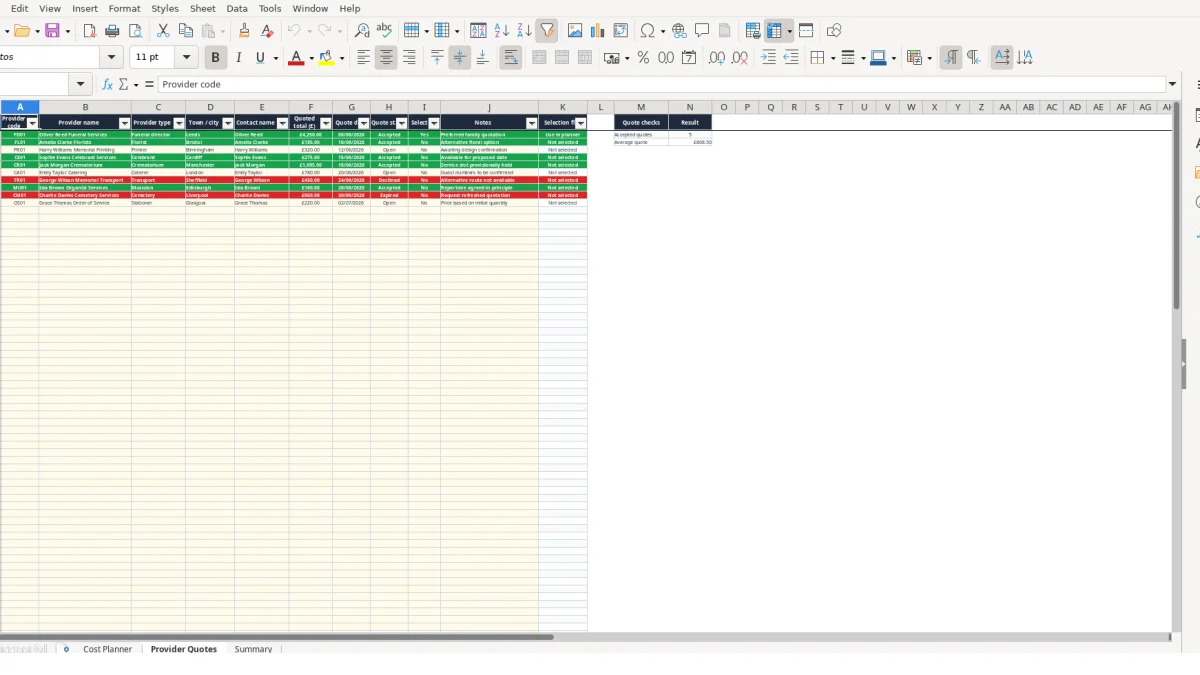
The Provider Quotes sheet is suited to the comparison stage. For example, a funeral director quotation can be marked Accepted and Selected? as Yes, while a florist's alternative quotation remains Accepted but No. The Selection flag then distinguishes Use in planner from Not selected.
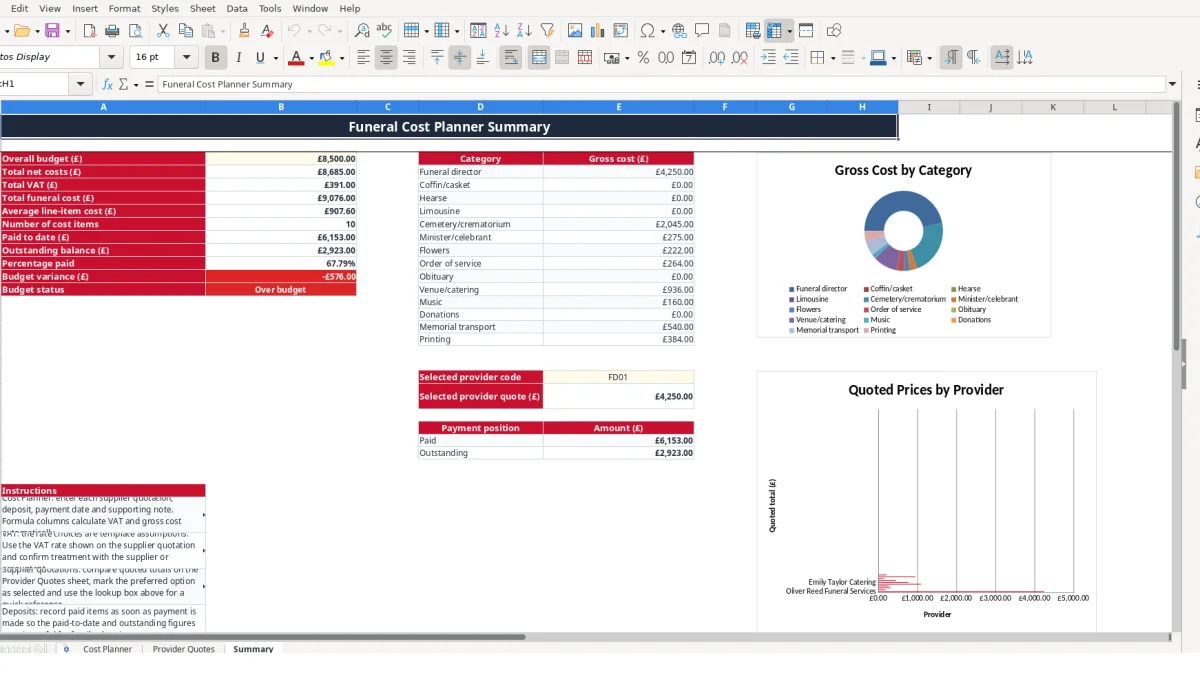
At a weekly planning call, one person can update provider status while another checks the cost lines. The Summary sheet groups gross costs by category and shows payment position, making it easier to discuss whether an apparent saving comes from removing an item or simply leaving it unpaid.
The workbook is a planning and record-keeping tool, not a replacement for checking each supplier's written quotation. Where a quotation says a service is included, record that detail in Notes and avoid entering the same charge again as a separate line.
After the service, the completed workbook can help locate the supplier, quotation date and payment entry for each cost. The Summary instructions also direct you to retain invoices, quotations, receipts and payment evidence with the estate paperwork.
The Cost Planner separates inputs from calculated outputs. You enter Quantity in column F, Unit cost (£) in G and VAT rate in H. VAT (£) in column I calculates unit cost multiplied by the VAT rate, while Gross cost (£) in J adds VAT to the unit cost. If either cost input is blank, the formula leaves the calculated cell blank rather than displaying a misleading zero.
For a clearly labelled hypothetical example, one quantity at £185 with a 20% VAT rate produces £37 VAT and £222 gross cost. A quantity of 2 at £50 with a 5% rate produces £5 VAT and £105 gross cost. These are workbook calculations, not claims about the correct VAT treatment of any particular funeral service.
Cost category cells use a list, as do VAT rate and Paid?. The available VAT choices are 0%, 5% and 20%; select the rate shown on the supplier quotation and use the workbook's planning note to confirm treatment with the supplier or an accountant. Do not type variations such as zero-rated or standard, because inconsistent text would make category review less reliable.
Provider Quotes uses controlled lists for provider type, quote status and Selected?. Status choices are Open, Accepted, Declined and Expired. The selection formula returns Use in planner when Selected? is Yes and Not selected when it is No.
Summary uses SUM for net costs, VAT and gross costs, SUMIF for category totals and paid or outstanding amounts, COUNTIF for cost-item and accepted-quote counts, and AVERAGE for average line-item and provider quote figures. If the sample lines are entered as one £4,250 item, one £185 item and one £320 item, the net total is £4,755 before any other rows are added.
The Summary budget variance compares the budget with total funeral cost. A positive £500 variance would indicate £500 remaining against the entered budget; a negative figure would produce the Over budget status.
The most damaging error in a funeral cost record is often duplication. A family may enter a funeral director's package at £4,250 and then add a separate hearse or care charge without checking whether the quotation already includes it. The Summary would calculate both lines correctly, but the total would still be wrong because the input has been duplicated.
Use the Description and Notes columns to state what each quotation includes. In a hypothetical example, adding a £600 transport line twice turns a £6,000 working total into £6,600, creating a £600 planning difference that is caused by record structure rather than a supplier price.
Another problem is treating Paid? as a quotation status. A quotation can be Accepted on Provider Quotes while its corresponding Cost Planner item remains No because it has not been paid. If the family marks every accepted item as paid, the Summary will understate the outstanding balance.
For example, three gross items of £4,250, £222 and £384 total £4,856. If only the £4,250 item has actually been paid, Paid to date should be £4,250 and the outstanding amount £606. Marking all three Yes would remove that distinction.
The rate list prevents free-form variations, but it cannot decide which rate applies to a supplier's service. Selecting 20% for every line could overstate a quoted total; selecting 0% for every line could understate purchases such as flowers or printed materials. Use the supplier's written quotation and keep an explanation in Notes where the treatment needs clarification.
Blank quotation dates, payment dates and provider codes make follow-up harder. If two providers are both called Printer, a code such as PR01 and a named provider reduce the risk of attaching an invoice to the wrong line. A payment marked Yes without a payment date also weakens the audit trail, even though the Summary can still calculate the amount.
The workbook works best when one person owns the update routine and another family member can review the Summary. Set a fixed time after each supplier conversation to enter the quotation, then update Cost Planner only when the family has decided that the item belongs in the working plan. This avoids mixing possible options with committed costs.
For example, if four providers are added on Monday and two are selected by Friday, the Selection flag gives a quick check before those amounts are carried into the planner. If a £185 floral alternative is not selected, leaving it out of the committed plan prevents the Summary from showing a cost the family has not approved.
Use the Summary after adding a major service, before approving optional items and after recording payments. Watch the £8,500 sample budget only as an initial illustrative value: replace it with the figure relevant to your planning and check whether the displayed budget status changes when a new gross cost is entered.
Keep the workbook alongside quotations and receipts rather than relying on memory. The Summary's category chart and payment chart can support a discussion, but the underlying rows remain the authoritative working record because they contain the provider, dates and notes.
Consider a more formal system if several people edit the file at once, if hundreds of transactions need reconciliation, or if you need controlled access and a documented approval trail. Until then, the workbook's 100-row input areas, validation lists and formula outputs provide a defined routine without requiring manual recalculation.
It contains three sheets: Cost Planner, Provider Quotes and Summary. Cost Planner records up to 100 cost lines, Provider Quotes compares up to 100 provider records, and Summary calculates totals, budget variance, payment position and category figures.
Yes. Enter the unit cost, quantity and one of the available 0%, 5% or 20% VAT rates on Cost Planner. The workbook calculates VAT (£) and Gross cost (£); use the rate shown on the supplier quotation and confirm treatment with the supplier or an accountant.
Yes. Provider Quotes includes provider code, name, type, town or city, contact, quoted total, quote date, quote status, selection and notes. The Selection flag shows Use in planner when Selected? is Yes and Not selected when it is No.
On Cost Planner, choose Yes or No in Paid? and enter a Payment date where applicable. Summary then calculates Paid to date, Outstanding balance and Percentage paid from the gross-cost entries.
Yes. The £8,500 value is an illustrative sample in Summary. Replace it with your own planning figure in Overall budget (£); the workbook uses that value to calculate Budget variance and show Within budget or Over budget.
No. It is a planning and record-keeping workbook. It does not decide which services are included in a quotation or which VAT treatment applies, so check supplier documents and obtain appropriate advice where needed.
Excel template by
Guide written by