Funeral Cost Planner Excel Template (2026)
0
Free download
Home contents inventory Excel template for recording possessions, replacement costs, evidence, condition, cover status and category summaries.


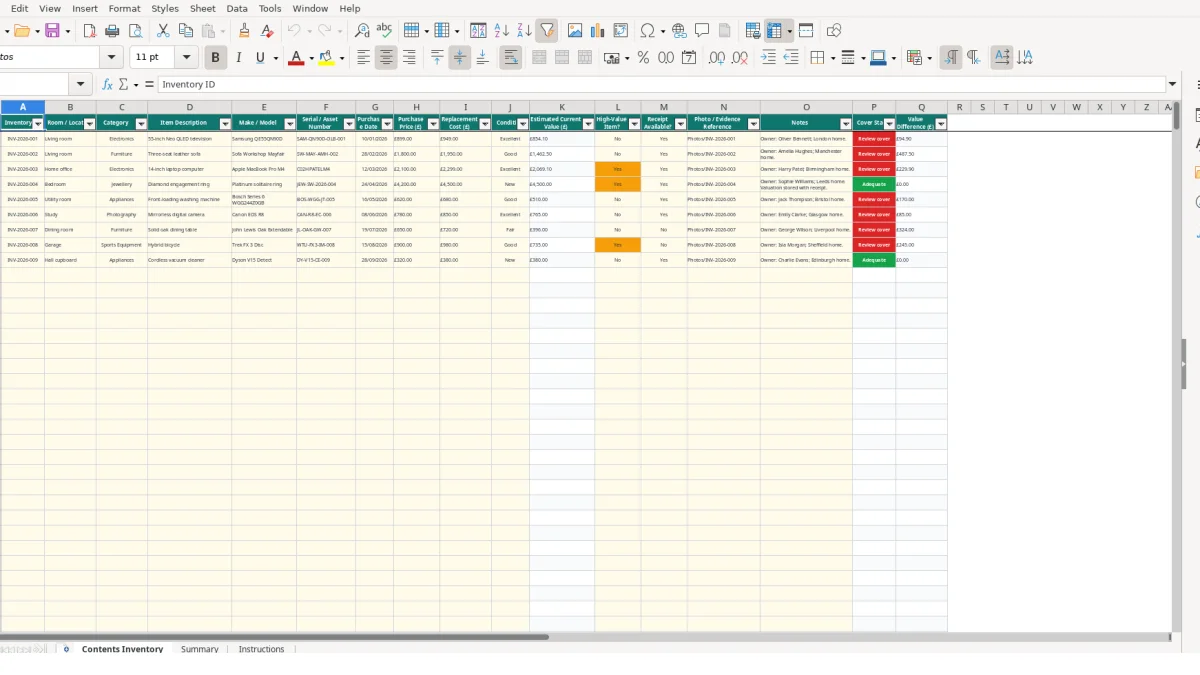
This home contents inventory Excel template records possessions, locations, descriptions, purchase details, replacement costs, evidence references and condition. It calculates estimated current value, highlights items marked for cover review and summarises household contents across six categories.
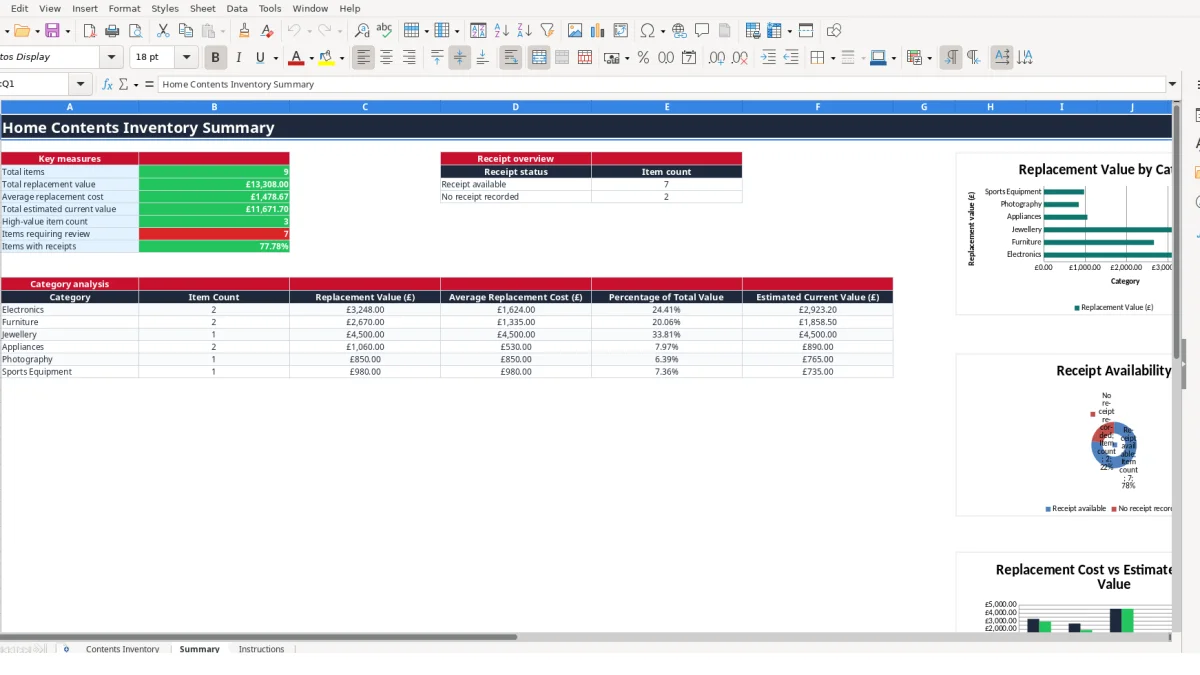
Use the Contents Inventory sheet for up to 1,000 entries, the Summary sheet for totals and category analysis, and Instructions for the workbook guidance and editable condition factors. Sample rows show how a television, sofa and laptop can be documented.
A home contents inventory is useful for householders, tenants, landlords recording furnished properties and anyone organising evidence for possessions. It is most effective when you create it room by room rather than trying to remember every item from memory at the end of the year.
For example, a householder starting in the living room might enter the sample 55-inch Neo QLED television as inventory ID INV-2026-001. The row records a £899 purchase price, £949 replacement cost, Samsung QE55QN90D model, serial or asset number, purchase date of 10/01/2026, receipt availability and a photo reference.
Start with a defined location such as Living room, Home office or Bedroom. In the sample data, the three-seat leather sofa is recorded separately from the television, even though both are in the living room. That separation matters: a £1,950 sofa and a £949 television need different descriptions, evidence and replacement-cost checks.
Move next to rooms containing portable or higher-value possessions. The sample Home office entry for an Apple MacBook Pro M4 has a £2,299 replacement cost and is marked High-Value Item? Yes. Recording the model, serial or asset number and the photo reference makes the item identifiable without relying on a general description such as laptop.
Add an entry when you buy an item rather than leaving several months of receipts in a folder. A household that adds five possessions each month will create 60 records over a year; entering them promptly is more reliable than reconstructing the list later.
The workbook also suits a move between homes. Filter or review the Room / Location and Photo / Evidence Reference fields to check that possessions have not been omitted. The Summary sheet then provides a single view of 60 records, their combined replacement value and the categories contributing most to that total.
The workbook separates entered facts from calculated outputs. You enter Replacement Cost (£), Condition and the supporting item details on Contents Inventory; the formulas in Estimated Current Value (£), Cover Status and Value Difference (£) then respond to those inputs.
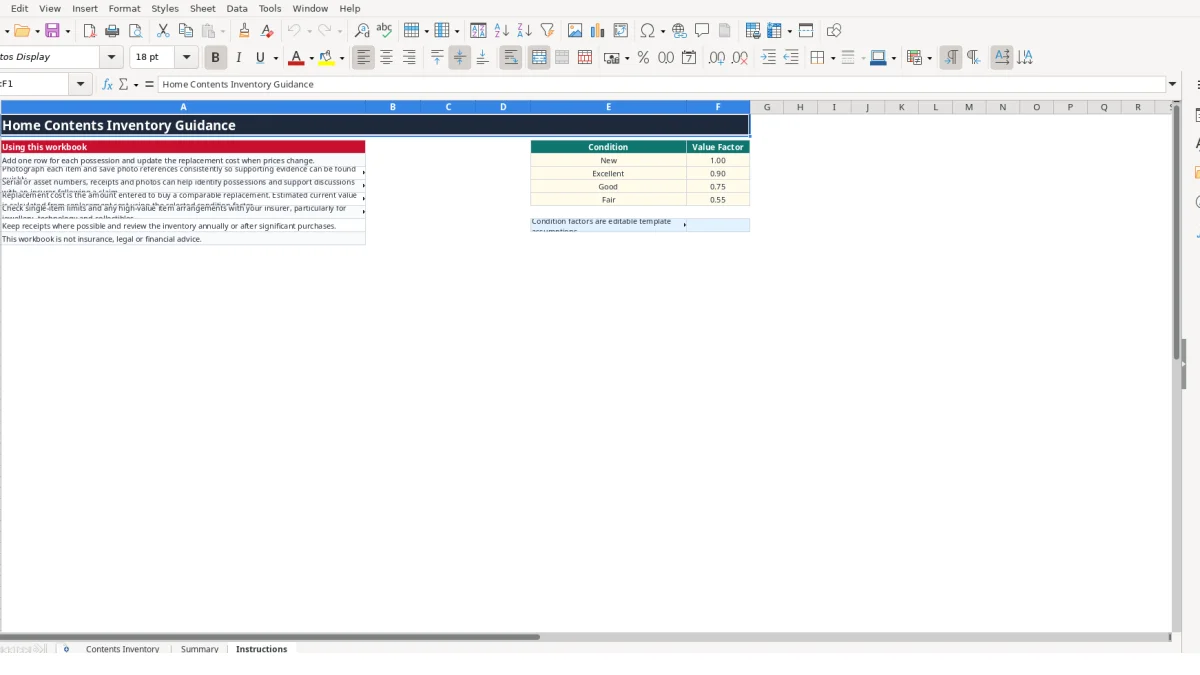
Instructions lists four condition assumptions: New has a factor of 1, Excellent 0.9, Good 0.75 and Fair 0.55. These are template assumptions, not an external valuation. If a replacement cost is £2,299 and the condition is Excellent, the calculated current value is £2,069.10 because £2,299 × 0.9 equals £2,069.10.
Estimated Current Value uses VLOOKUP to find the selected condition in Instructions!E4:F7. The formula leaves the result blank when the inventory ID, replacement cost or condition is missing. This is preferable to displaying a misleading zero for an incomplete row.
Cover Status compares estimated current value with replacement cost. With a replacement cost of £949 and a New factor of 1, the result is Adequate because £949 is equal to £949. With a £1,950 replacement cost and a Good factor of 0.75, the calculated value is £1,462.50, so the status becomes Review cover.
Value Difference (£) shows replacement cost less estimated current value. In that £1,950 example, the difference is £487.50. If a required input is absent, the formula leaves the difference blank, avoiding a false comparison.
Summary counts inventory IDs, adds replacement costs and estimated current values, averages replacement cost, counts high-value items and counts entries marked Review cover. It also counts receipt availability and uses SUMIF and COUNTIF for the six category rows, so a category with 10 items can be compared with another containing 3 without manual arithmetic.
The main weakness in a contents inventory is not the number of rows; it is ambiguous or incomplete evidence. A row saying television, bought recently, with no model, serial number, receipt status or photo reference may be difficult to distinguish from another television when you need to check the record.
Entering the same item twice inflates the total. If a £949 television is listed twice, Summary adds £1,898 rather than £949. Use the Inventory ID as a practical uniqueness check and scan descriptions, locations and serial or asset numbers before adding a new row.
Leaving Replacement Cost (£) blank also prevents the current-value formula from producing a useful result. If 12 of 80 rows have no replacement cost, the Summary total excludes those 12 items, so the household view understates the value of the recorded contents.
The validation lists are there for a reason. Selecting Excellent rather than Good changes a £1,000 replacement cost from £750 to £900 under the workbook factors. Free-text alternatives such as Very good or Used will not match the defined lookup values and can leave the calculated output at zero through the formula's error handling.
Similarly, marking Receipt Available? as No when a receipt exists affects the receipt count on Summary. With 30 records and five incorrect No selections, the receipt overview is understated by five items even though the files may be present elsewhere.
A photo reference such as image 1 is weak if the home contains 40 photographed possessions. The sample format Photos/INV-2026-001 is more useful because it connects the evidence to the inventory ID. Apply the same convention to receipts and photographs, and avoid replacing a clear reference with a note such as stored somewhere in cloud storage.
Finally, do not treat Cover Status as an insurance decision. It is a workbook comparison based on the entered replacement cost and condition factor; it does not confirm any arrangement with an insurer.
The workbook becomes useful when updating it takes less time than postponing the work. Set a fixed household records session, such as the first Saturday after a major shopping trip, and add new possessions while purchase details and receipts are still available.
A six-item monthly update should take less effort than reconstructing six purchases at year-end. For example, entering a £300 appliance, a £1,200 camera and four smaller possessions during one scheduled session preserves the descriptions, dates and evidence references while they are easy to verify.
Use the drop-down lists rather than typing alternative condition or category names. Keep one row per possession, retain the existing formulas in columns K, P and Q, and avoid overwriting calculated cells with manual values. The workbook has 1,000 prepared inventory rows, so adding data to the next blank row is safer than inserting unrelated calculations elsewhere.
Review the Instructions assumptions when your approach changes. The condition factors are editable template assumptions, so document any deliberate change before relying on comparisons made across earlier and later entries.
A 1,000-row workbook is practical for a household record, but it may no longer suit multiple homes, many users, frequent transactions or formal evidence management. If several people edit the file simultaneously, version control becomes difficult; that is the point to consider a dedicated inventory system with controlled access and an audit trail rather than adding more manual workarounds.
The Contents Inventory sheet has prepared formulas and validation through row 1,001, providing 1,000 inventory rows below the header. Enter one possession per row and do not overwrite the formula columns K, P or Q.
Replacement Cost (£) is the amount you enter for buying a comparable replacement. Estimated Current Value (£) is calculated from that amount using the selected condition factor: for example, £1,000 at Good uses the 0.75 factor and produces £750.
Yes. The factors are shown on the Instructions sheet beside New, Excellent, Good and Fair. They are editable template assumptions, so record and review any change carefully because it will affect calculated current values and Cover Status results.
No. Cover Status is a workbook calculation only. It returns Not assessed, Adequate or Review cover by comparing calculated current value with replacement cost; it does not confirm an insurer's terms, limits or arrangements.
Use the item description, make or model, serial or asset number, purchase date, purchase price, replacement cost, High-Value Item? selection, Receipt Available? selection and Photo / Evidence Reference. The Instructions sheet specifically suggests checking high-value item arrangements with your insurer.
Summary counts inventory IDs, totals replacement value and estimated current value, calculates average replacement cost, counts high-value items and entries marked Review cover, and reports receipt counts. Its category analysis covers Electronics, Furniture, Jewellery, Appliances, Photography and Sports Equipment.
Excel template by
Guide written by