Funeral Cost Planner Excel Template (2026)
0
Free download
Plan holiday packing costs with an Excel workbook covering items, quantities, estimated and actual prices, packing status and category summaries.


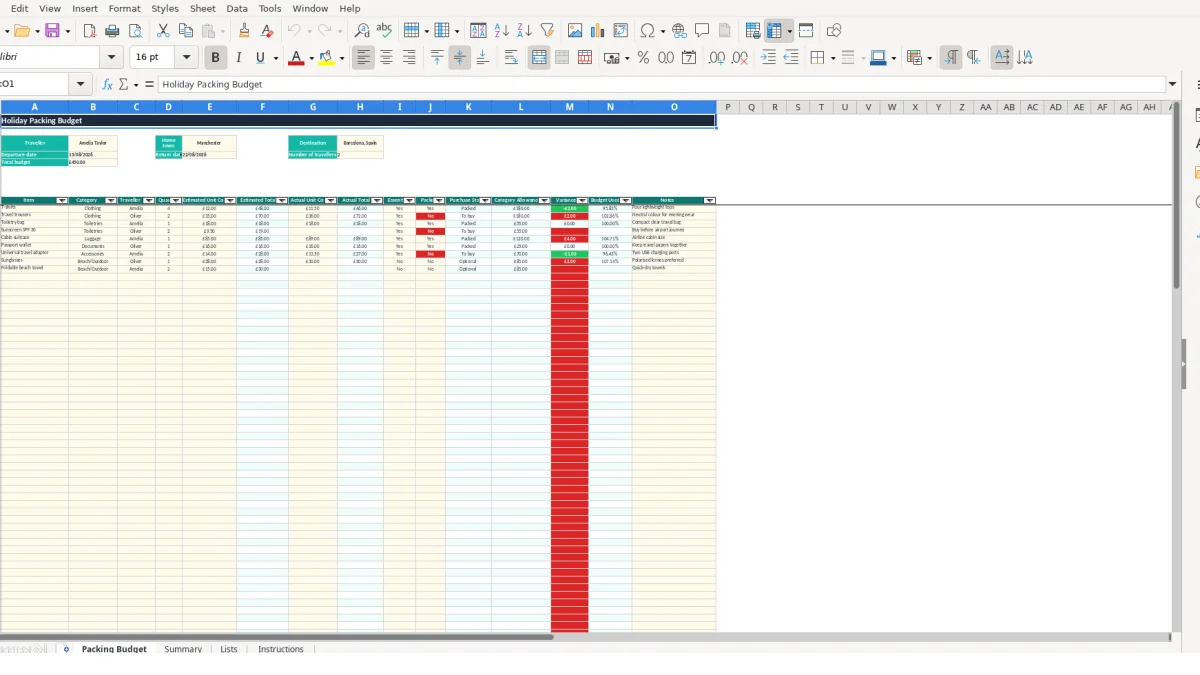
This holiday packing budget Excel template records what you need to buy or pack, how much each item costs and whether spending remains within budget. It includes a Packing Budget sheet for trip and item details, a Summary sheet for totals and charts, plus Lists and Instructions sheets.
Use it for a personal holiday, family trip or shared packing plan. The sample workbook shows a £450 budget for two travellers travelling from Manchester to Barcelona between 15/08/2026 and 22/08/2026, but you can replace the sample values.
A holiday packing budget spreadsheet suits anyone who needs to decide what to buy before travelling without losing sight of the total trip allowance. A parent organising two children, a couple preparing for a week abroad, or a solo traveller replacing luggage can all record purchases in one item-level list.
The workbook’s Traveller field supports separate ownership of items. In the sample, Amelia has four T-shirts at an estimated £12 each, giving an estimated total of £48. Oliver has two pairs of travel trousers at £35 each, giving £70. These rows make it easier to see who needs to pack or purchase each item.
For a family of four, you could create separate rows for each person’s footwear, clothing and toiletries rather than combining everything into one vague £200 entry. That decision gives you a clearer outstanding list when one person has finished packing but another has not.
Use the workbook during a weekly preparation session, then update it after shopping. For example, an estimated £12 T-shirt may cost £11.50 in the shop. Quantity 4 produces an actual total of £46, so the row shows a £2 difference between estimated and actual spending.
The Packing Budget sheet also records the departure date, return date, destination and number of travellers. A holiday planner can therefore keep the list tied to one defined trip instead of mixing purchases for several journeys.
Categories include Clothing, Toiletries, Luggage, Documents, Accessories and Beach/Outdoor. A traveller expecting to spend £55 on toiletries and £70 on accessories can compare those allowances with actual totals rather than relying on memory or receipts scattered across email and paper.
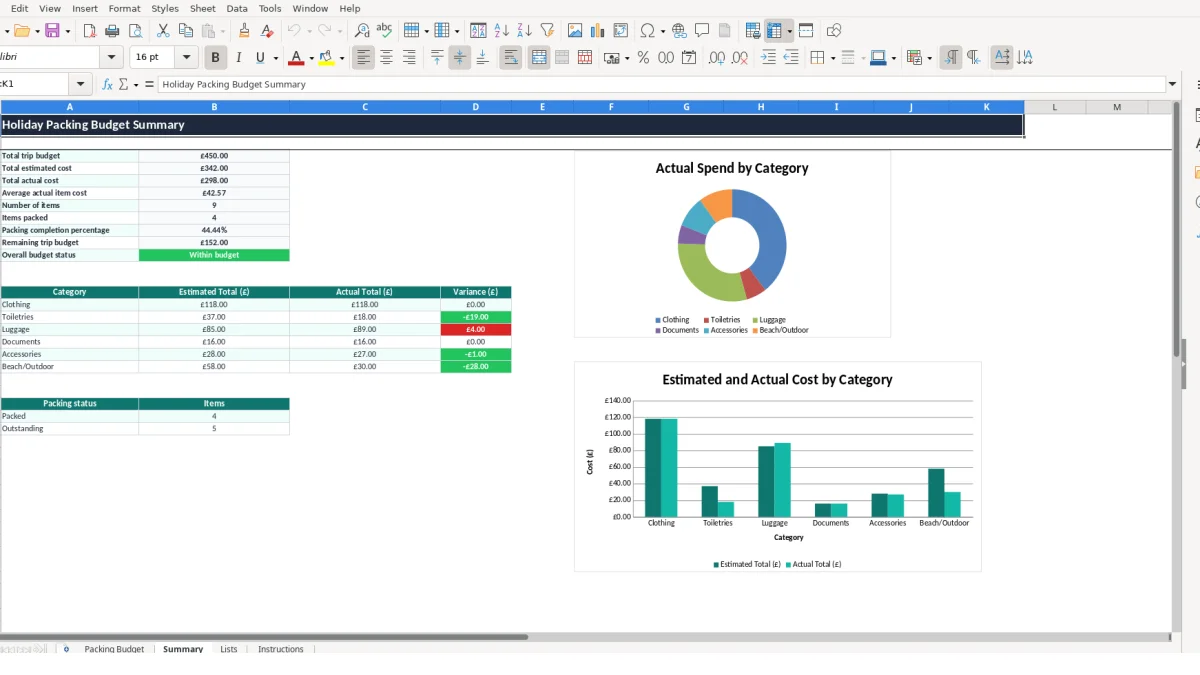
The Summary sheet consolidates the list into total estimated cost, total actual cost, average actual item cost, number of items, items packed and packing completion percentage. Its category table and two charts give you a quick view when a long 100-row list becomes difficult to scan.
The workbook separates information you enter from values it calculates. On Packing Budget, you enter Item, Category, Traveller, Quantity, Estimated Unit Cost (£), Actual Unit Cost (£), Essential?, Packed? and Notes. The calculated columns are Estimated Total (£), Actual Total (£), Purchase Status, Category Allowance (£), Variance (£) and Budget Used (%).
Estimated Total multiplies Quantity by Estimated Unit Cost, while Actual Total multiplies Quantity by Actual Unit Cost. If either input is blank, the formula returns a blank result. For a hypothetical quantity of 3 at an estimated £18, the estimated total is £54; an actual unit price of £16.50 gives an actual total of £49.50.
Variance is calculated as actual total minus estimated total. In that example, the variance is -£4.50. Budget Used (%) divides actual total by estimated total, with a zero estimate handled as 0 rather than producing an error.
Dropdown validation covers Category, Traveller, Essential? and Packed?. Quantity accepts whole numbers from 0, while estimated and actual unit costs accept decimals from 0. These controls are preferable to free text: entering Packed, packed and Yes in different forms would make a manual review less reliable.
Purchase Status is formula-driven: a Yes value in Packed? produces Packed; otherwise a Yes value in Essential? produces To buy; other populated rows produce Optional. Category Allowance uses VLOOKUP against the Lists range, so the category spelling must remain aligned with the six category entries.
Summary links the £450 sample trip budget from Packing Budget. It adds estimated and actual totals, calculates the average actual item cost, counts populated items and packed items, then reports the remaining budget and either Within budget or Over budget. Category rows use SUMIF to compare estimated, actual and variance totals.
The most damaging error is entering a cost in the wrong unit. If you enter £36 as the actual cost for two pairs of trousers when £36 is the price per pair, the workbook correctly calculates £72. If £36 was intended as the combined price, the recorded total is £36 too high. Decide whether every cost is per item before filling the price columns.
Calculated totals stay blank when the required quantity or unit cost is missing. A list of 20 items with only 15 actual prices will therefore show an incomplete actual spend, not a reliable final total. For example, if 5 items estimated at £25 each are left without actual prices, the Summary actual total excludes £125 until those rows are completed.
Do not enter zero simply to make a row appear complete unless the item genuinely cost £0. The percentage formula treats a zero estimated total as 0, which avoids an error but does not confirm that a price was reviewed.
Packed? controls the Purchase Status result. Marking an item Yes before it has physically been prepared makes the list report Packed even if the item is still in a cupboard or needs washing. In a hypothetical 30-item list, one premature Yes changes the completion percentage from 20 out of 30, or 66.67%, to 21 out of 30, or 70%.
Similarly, Essential? and Packed? are separate questions. An essential item marked No under Packed? becomes To buy, while a non-essential item marked No becomes Optional. Review those choices rather than overwriting the calculated Purchase Status.
A misspelled category may prevent the VLOOKUP allowance from returning a value and can also exclude the row from the matching Summary category. If £40 of beach equipment is entered under a non-matching label, the Beach/Outdoor total will not show the full spend. Use the Category dropdown and inspect the six Summary categories before relying on comparisons.
A packing budget works best when you attach it to a fixed preparation routine rather than opening it only when you remember. Set up the trip details when you book or begin planning, add likely purchases during the week, and complete a final review before departure. The sample contains 2 travellers and a £450 budget; those two figures provide a useful starting point for testing your own process.
Keep one brief session for adding items and another after shopping. During the shopping review, enter actual unit costs and check the Summary’s remaining trip budget. If ten items have an estimated total of £180 and actual spending reaches £195, the £15 variance is visible before more optional items are bought.
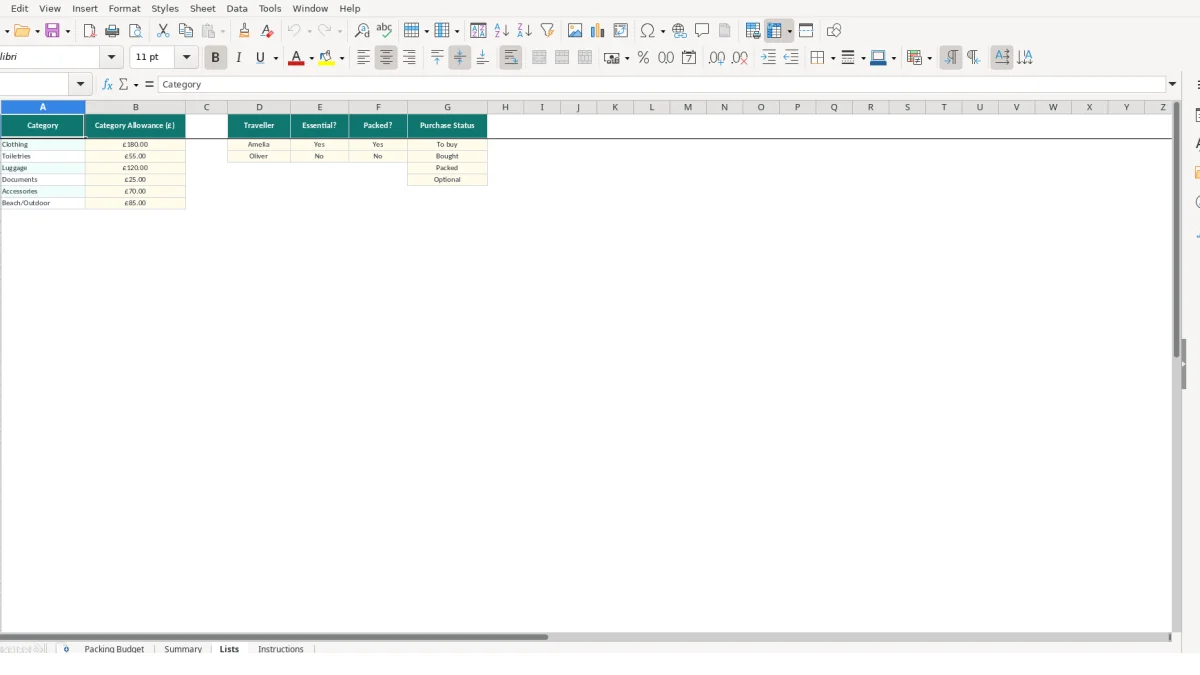
Lists contains six categories with allowances, including £180 for Clothing, £55 for Toiletries and £120 for Luggage in the sample. Adjust those figures for the trip, and update the traveller and choice lists if the workbook is reused. Because Category Allowance uses a lookup, changing a value in Lists updates the linked allowance rather than requiring repeated edits on the main sheet.
This workbook is suitable for a defined personal packing budget with up to 100 item rows. If several people edit separate copies, you manage many concurrent trips, or you need receipt storage and purchasing history, a dedicated system may be more appropriate. Keep the spreadsheet for the simple case and move when duplicate versions, missing updates or repeated manual reconciliation take longer than the planning itself.
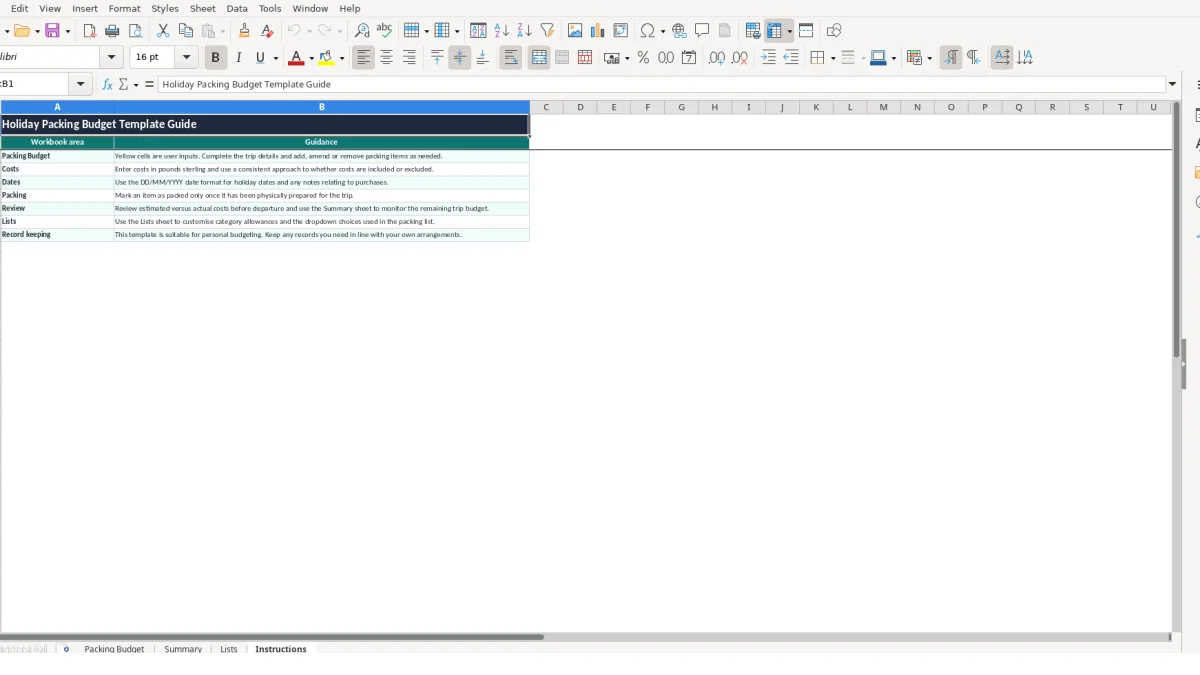
There are four sheets: Packing Budget, Summary, Lists and Instructions. Packing Budget holds trip details and item records; Summary calculates totals and displays two charts; Lists stores categories, allowances and dropdown options; Instructions explains the intended workflow.
Yes. Replace the sample traveller, home town, destination, departure date, return date, number of travellers and total budget on Packing Budget. The sample shows Amelia Taylor, Manchester, Barcelona, Spain, two travellers and a £450 budget for illustration.
The Packing Budget table runs from row 11 to row 110, providing 100 item rows. Each row has fields for the item, category, traveller, quantity, estimated and actual unit costs, essential and packed choices, status, allowance, variance, percentage and notes.
Actual Total (£) is calculated by multiplying Quantity by Actual Unit Cost (£). For example, 4 items at £11.50 each produce an actual total of £46. The Summary sheet adds all actual totals to show total actual cost.
Purchase Status is calculated from Essential? and Packed?. A packed item is shown as Packed. If it is essential but not packed, it is shown as To buy; other populated items are shown as Optional. Use the dropdown choices and do not replace the calculated result.
Yes. Lists contains six sample categories and allowances: Clothing £180, Toiletries £55, Luggage £120, Documents £25, Accessories £70 and Beach/Outdoor £85. You can amend the Lists entries, while keeping category names consistent with the dropdown and Summary rows.
Excel template by
Guide written by