Funeral Cost Planner Excel Template (2026)
0
Free download
Track UK moving costs, VAT, payments, due dates and category totals with a four-sheet Excel budget for homeowners and renters.


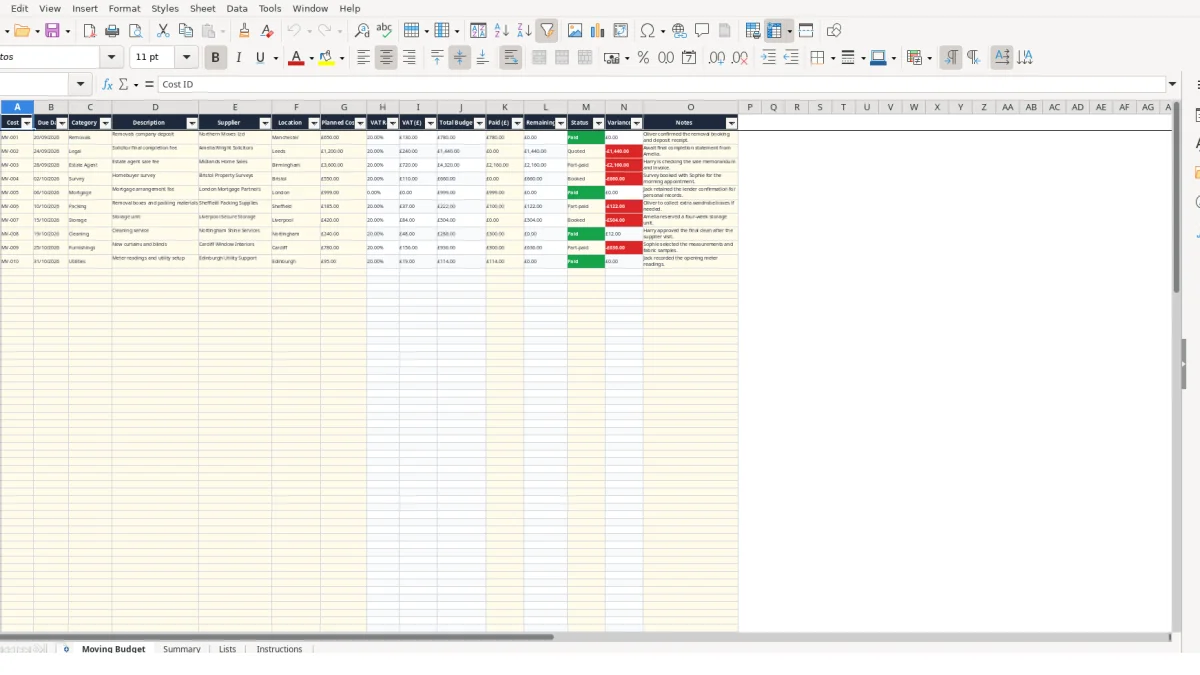
This moving house budget Excel template records expected costs, supplier details, due dates, VAT, payments and outstanding balances in one workbook. It includes a 100-row Moving Budget sheet, a Summary sheet with category totals and charts, plus Lists and Instructions sheets.
Use it for a house purchase, sale, rental move or relocation. Enter one cost per row, select a category and update payments as deposits and invoices are paid; the workbook calculates VAT, total budget, remaining amounts and variance.
A moving house budget is useful when several costs arrive from different people and businesses at different stages. A buyer may be tracking a solicitor, surveyor, removals company, mortgage-related costs, storage provider and cleaners, while a seller may also record an estate agent fee and final utility-related expenses.
Enter a solicitor's quoted £1,200 completion fee as Legal, a £3,600 estate agent sale fee as Estate Agent and a £650 removals deposit as Removals. These are illustrative sample values already represented in the workbook, not a forecast of what your move should cost.
Due Date gives you a practical sequence for reviewing commitments. For example, rows dated 20/09/2026, 24/09/2026 and 28/09/2026 can be checked in order during a weekly planning session, with Paid (£) updated as each supplier receives money.
A tenant can use the same rows for packing materials, storage, cleaning, furnishings and utilities. A household with 12 planned costs can keep each quote separate rather than hiding several suppliers inside one total, which makes the Summary category figures more useful.
The workbook is also suitable when two people share the administration. One person can enter supplier quotes and the other can update payments, while Notes records details such as a booking confirmation or an invoice still awaited. The Location field helps distinguish suppliers in different places, such as Manchester, Leeds and Birmingham.
Use the file as a planning record rather than evidence that a charge is correct. The Lists sheet includes default VAT rates, but its note says VAT treatment can vary by supplier, so review the invoice and retain the supporting record before relying on the default.
Moving Budget separates entered values from calculated outputs. You type into fields such as Due Date, Description, Supplier, Location, Planned Cost (£), Paid (£), Status and Notes. Category, VAT Rate and Status use controlled lists, while VAT (£), Total Budget (£), Remaining (£) and Variance (£) are formula-driven.
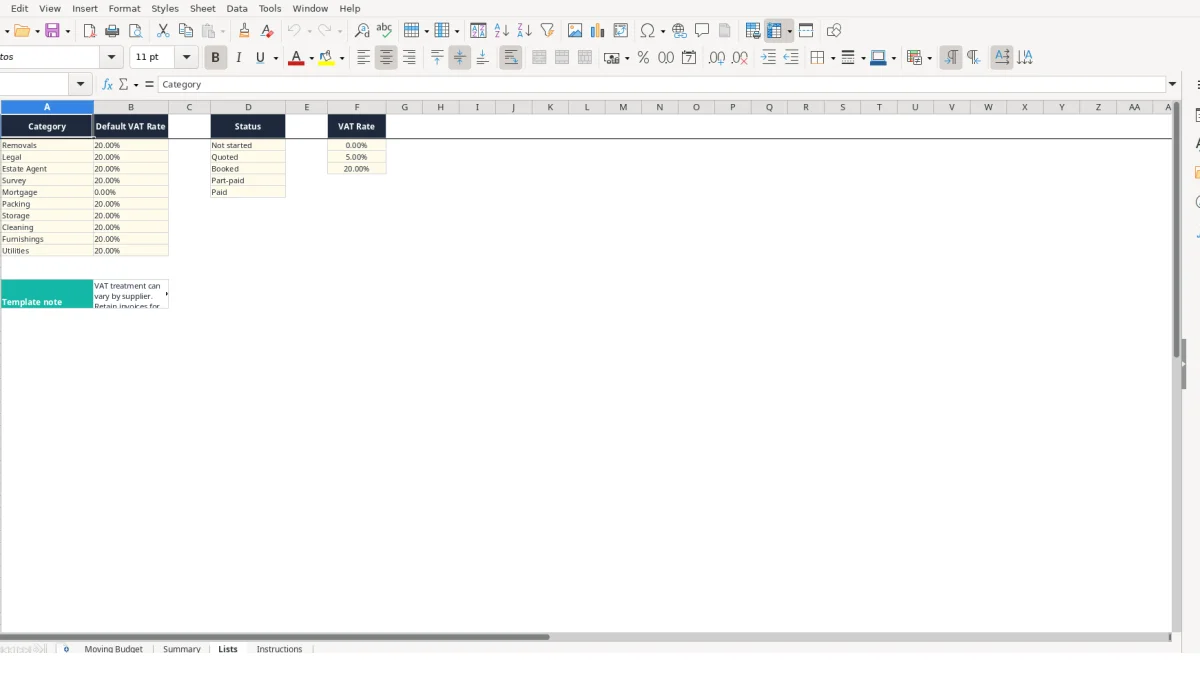
When you select Removals, Legal or another category in C2:C101, VLOOKUP retrieves the matching default rate from Lists. The supplied list contains 0%, 5% and 20% options in the VAT-rate validation list, while category defaults include 20% for Removals and Legal and 0% for Mortgage.
For a hypothetical planned cost of £1,000 at 20%, VAT (£) becomes £200 and Total Budget (£) becomes £1,200. If Paid (£) is £300, Remaining (£) is £900 and Variance (£) is -£900. This illustrates the workbook's arithmetic; it is not advice about the VAT treatment of a particular supplier.
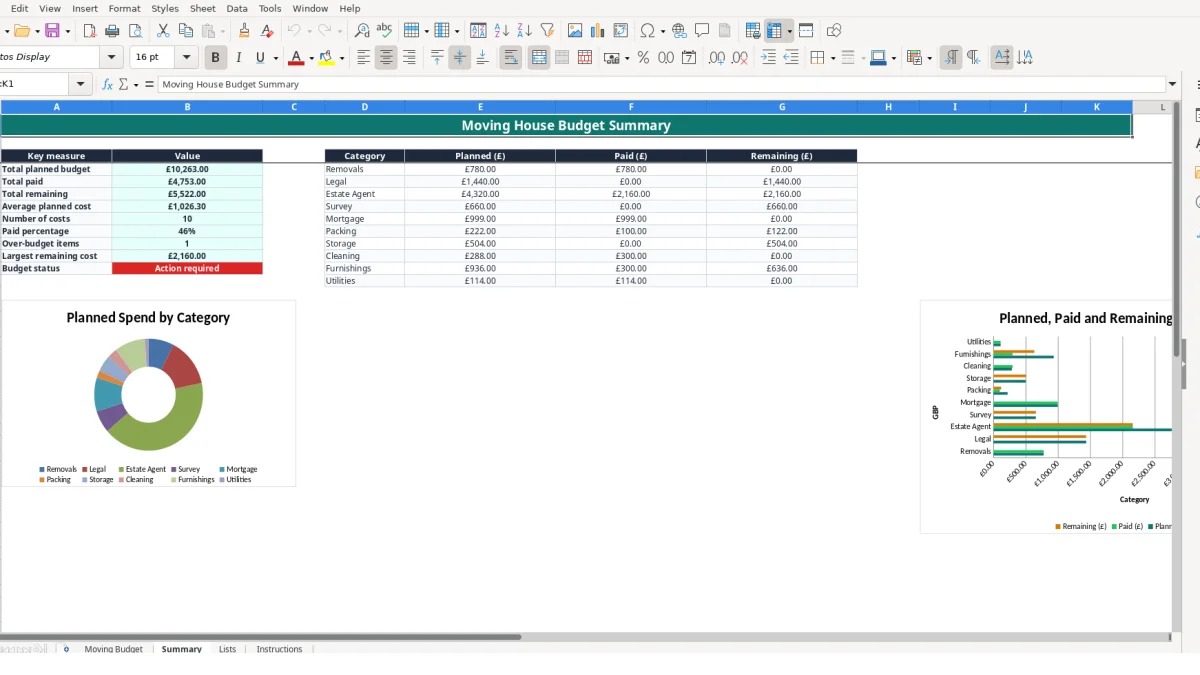
Summary uses SUM to total Total Budget (£), Paid (£) and Remaining (£). SUMIF groups those figures by each category, AVERAGE calculates the average planned total, and COUNTIF counts populated Cost IDs. The page also contains measures for paid percentage, over-budget items, largest remaining cost and budget status.
The Moving Budget sheet has formulas through row 101, an auto-filter across A:O and frozen row 1. Decimal validation prevents negative entries in Planned Cost (£) and Paid (£), but it does not verify whether a supplier's quote or invoice is accurate.
The most expensive errors in a moving budget usually come from mixing quote values, VAT treatment and payments. If you enter a £650 deposit as the planned cost but later discover the supplier's full charge is £780, the row no longer describes the whole commitment. Use the description and Notes to distinguish a deposit from the final amount, or create a separate row when they are separate costs.
Category drives both the default VAT lookup and the Summary grouping. If a £1,200 solicitor fee is entered as Removals, the retrieved rate and category total may not represent the underlying document. Correct the category rather than typing over the calculated VAT Rate cell, because the formula is designed to follow the Lists mapping.
Paid (£) should contain the amount paid to date, not only the latest instalment. For a £3,600 total with a £2,160 payment, the remaining amount is £1,440. Entering only a later £500 instalment would make the workbook show £3,100 outstanding, overstating the balance by £1,660 in this hypothetical example.
A row marked Paid with £0 in Paid (£) is a clear internal contradiction, even though the workbook cannot independently validate the supplier's records. Similarly, an overdue unpaid entry may be highlighted for review while its status still says Quoted. Review Due Date, Paid (£) and Status together rather than treating any one field as definitive.
Do not delete the category or status options casually from Lists. A missing lookup match can leave VAT Rate blank, which then prevents the downstream VAT and total formulas from producing a useful result.
The workbook works best when updating it is attached to an existing moving task. Set aside 15 minutes after each quote, deposit or invoice arrives. Enter the document immediately, then revisit the same rows during a fixed weekly review so Planned Cost (£), Paid (£), Due Date and Status do not drift apart.
For example, if a move has 18 recorded costs and three payments arrive in one week, update those three rows first. If the £3,600 estate agent item changes from £2,160 paid to £3,600 paid, Summary's Estate Agent remaining figure should fall to zero after recalculation.
Use the dropdowns instead of free-text categories or statuses. If you regularly add a new category, update Lists carefully and test a blank row and a populated row afterwards; the Summary formulas currently group the listed categories from Removals through Utilities.
Keep quotes, invoices and payment confirmations alongside the workbook. The file is a planning tool, so the Notes column should point you to the relevant record rather than replace it.
Consider a more structured system when several people edit the file simultaneously, you need an audit trail for every change, or the 100 available cost rows are regularly exhausted. Until then, consistent weekly entry and a short Summary review are more reliable than opening the workbook only on moving day.
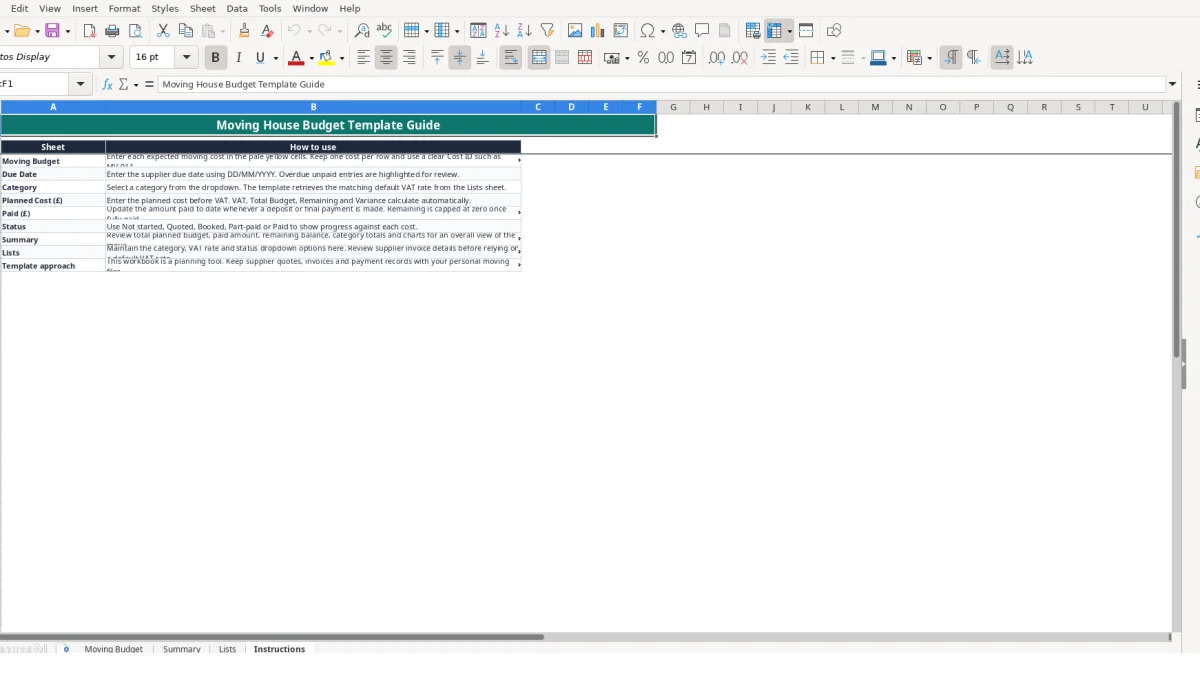
It contains four sheets: Moving Budget, Summary, Lists and Instructions. Moving Budget provides 100 entry rows and calculates VAT, total budget, remaining and variance; Summary provides headline figures, category totals and two charts.
The supplied categories are Removals, Legal, Estate Agent, Survey, Mortgage, Packing, Storage, Cleaning, Furnishings and Utilities. You can record the description, supplier, location, due date, planned cost, payment, status and notes for each item.
Yes. Selecting a category retrieves its default VAT rate from Lists using VLOOKUP. The workbook then calculates VAT (£) and Total Budget (£). Review supplier invoices because the Lists sheet notes that VAT treatment can vary by supplier.
Yes. Enter the cumulative amount paid in Paid (£) and choose Part-paid or Paid in Status as appropriate. Remaining (£) calculates the unpaid balance and is capped at zero once payments meet or exceed the total budget.
Summary shows total planned budget, total paid, total remaining, average planned cost, number of costs, paid percentage, over-budget items, largest remaining cost and budget status. It also compares planned, paid and remaining amounts by category.
The Lists sheet holds the category, VAT-rate and status options used by the dropdowns. You can maintain these lists carefully, but changing category names can affect lookup results and Summary grouping, so check existing formulas after making an alteration.
Excel template by
Guide written by