Funeral Cost Planner Excel Template (2026)
0
Free download
Track renovation budgets, VAT, actual costs, payments and category spend with this Excel workbook for UK homeowners and project managers.


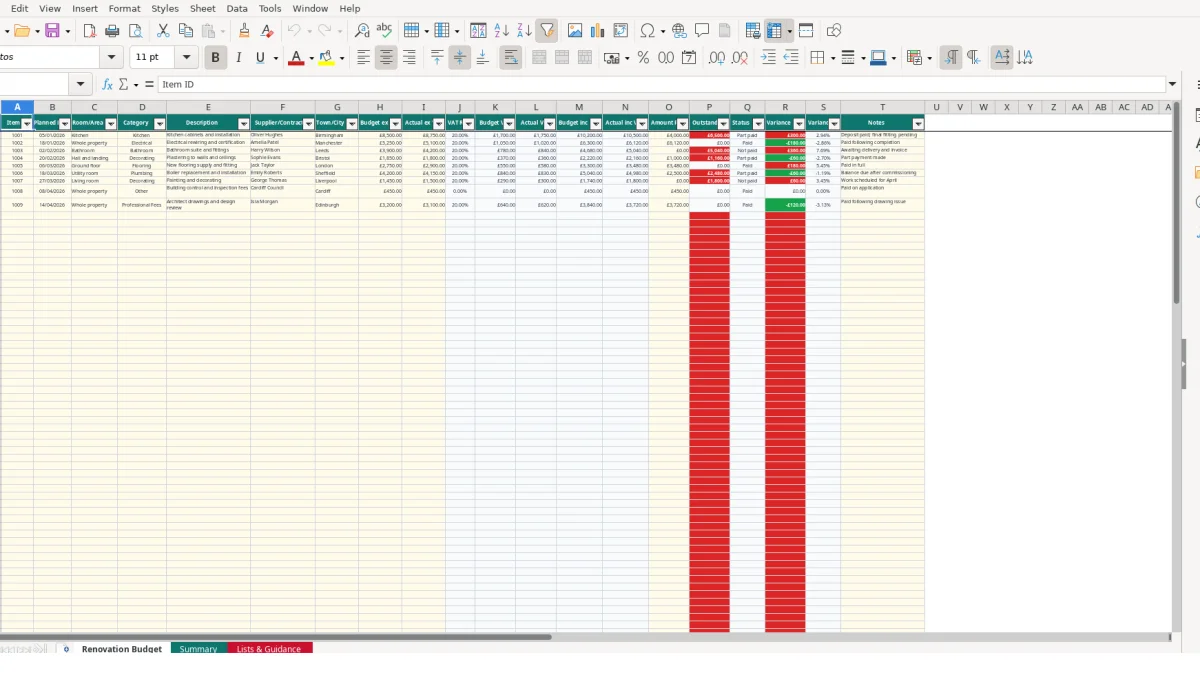
A home renovation budget Excel template records planned and actual costs for building work, materials and professional services. This workbook contains a Renovation Budget sheet for item-level tracking, a Summary sheet for totals and category analysis, and Lists & Guidance for editable categories and VAT reference rates.
Enter costs exclusive of VAT, choose a renovation category and record payments as the project progresses. Excel calculates VAT, total costs including VAT, outstanding amounts, payment status and variance against budget.
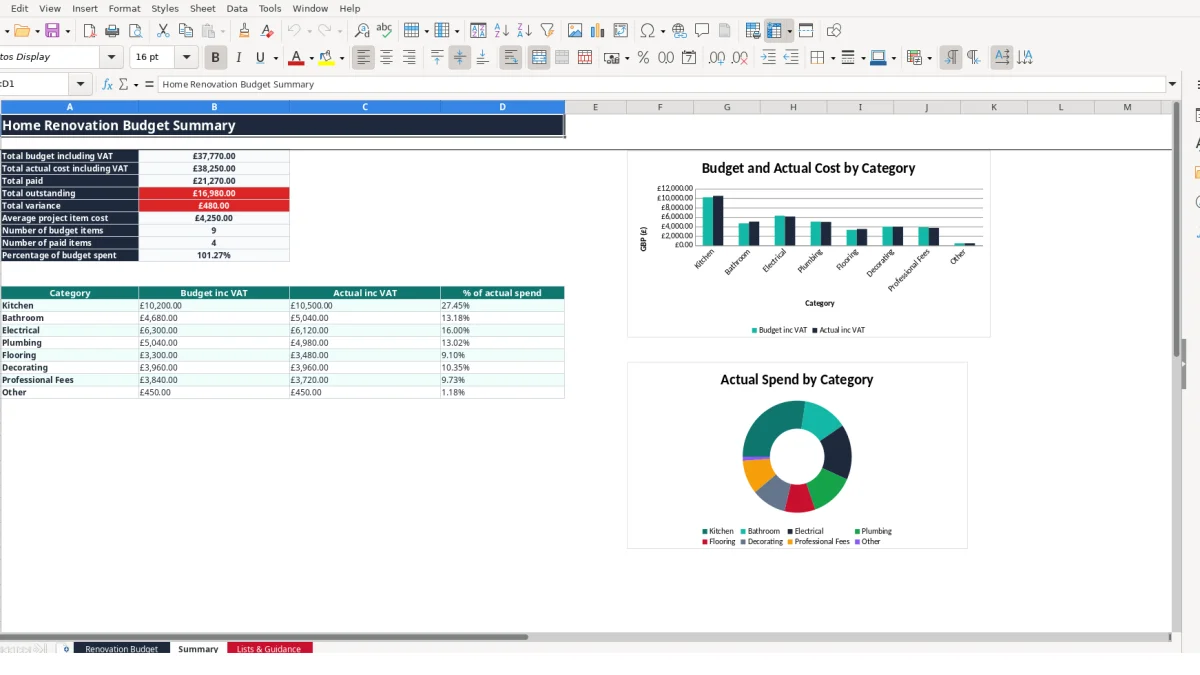
A homeowner can use this workbook to control a kitchen, bathroom or whole-property project without mixing supplier quotes, deposits and final invoices in separate notes. A project manager, landlord or property investor can also use it to compare planned and actual commitments across rooms, trades and professional fees.
The Renovation Budget sheet is suited to a weekly project review. You can filter the records by the planned date, room or area, category, supplier or contractor, or town or city, then check which costs have changed since the last review. The sample data demonstrates the intended level of detail: item 1001 covers kitchen cabinets and installation in Birmingham, with a budget ex VAT of £8,500, an actual ex VAT cost of £8,750 and £4,000 recorded as paid.
Before approving a quotation, enter the planned cost in Budget ex VAT and describe exactly what it covers. For example, a bathroom line with a planned ex VAT cost of £3,900 can remain separate from a flooring line, even if both will be installed during the same phase. This gives you a more useful category view than one broad renovation total.
Use Room/Area to distinguish a kitchen from a whole-property job, while Category gives the consistent classification used by the Summary sheet. Supplier/Contractor and Notes provide context when two quotes appear similar but cover different work or payment stages.
At each payment review, update Actual ex VAT and Amount Paid rather than overwriting the original budget. In the sample electrical row, the budget is £5,250 ex VAT, the actual is £5,100 ex VAT and £6,120 has been paid including the workbook's calculated VAT treatment. The payment and variance fields then show how that line stands against its plan.
This approach is useful when a project has deposits, staged invoices and final balances. It also gives a homeowner a record of whether an apparent underspend is a genuine saving or simply an item where the final invoice has not yet arrived.
The workbook separates entered values from calculated outputs. You enter the planned and actual amounts exclusive of VAT in columns H and I, then select a category in column D. The VAT Rate in column J uses a VLOOKUP against the category and rate list on Lists & Guidance, so the rate is not repeatedly typed into every renovation row.
For a category with a reference rate of 20%, a budget ex VAT entry of £8,500 produces £1,700 of Budget VAT and £10,200 of Budget inc VAT. If the actual ex VAT entry is £8,750, Actual VAT becomes £1,750 and Actual inc VAT becomes £10,500. These are workbook calculations based on the editable reference list, not a determination of the correct treatment for a particular purchase.
Do not type over formula columns J to S. Columns K and L calculate VAT from the two ex VAT inputs; M and N add the relevant VAT to the budget and actual amounts. This structure is technically preferable to manually entering totals because changing one underlying cost updates the dependent figures consistently.
Amount Paid in column O is an input. Outstanding in column P subtracts it from Actual inc VAT, treating a blank payment as zero. Status in column Q then returns Not paid, Part paid or Paid. For example, if Actual inc VAT is £10,500 and Amount Paid is £4,000, the outstanding balance is £6,500 and the status is Part paid.
Variance in column R compares Actual inc VAT with Budget inc VAT, while Variance % divides that difference by the budget including VAT. In the kitchen example, the £300 difference between £10,500 actual including VAT and £10,200 budget including VAT is a £300 variance, or approximately 2.94%.
The Summary sheet uses SUM for total budget, actual cost, paid amount, outstanding balance and variance. It uses AVERAGE for average project item cost, COUNTIF for item and paid-item counts, and SUMIF for category totals. The two charts use the category budget and actual ranges, so their figures change when the detailed records change.
A renovation budget becomes unreliable when a quote, invoice and payment are treated as the same figure. If a kitchen contractor receives a £4,000 deposit against an actual including VAT cost of £10,500, entering £4,000 as the actual cost would make the project appear £6,500 cheaper than it is. The correct place for that deposit is Amount Paid, while the full known cost belongs in Actual ex VAT or the appropriate cost input.
Another costly error is entering a quoted total including VAT into the ex VAT column. For example, entering £10,200 into Budget ex VAT when £10,200 is already the intended total including the workbook's 20% reference rate causes Excel to add VAT again. The resulting Budget inc VAT would be £12,240 rather than the intended £10,200.
Use the Notes field to record whether a supplier's figure was quoted as ex VAT or including VAT, then enter it on the correct basis. The Lists & Guidance sheet specifically advises you to confirm quoted prices and VAT treatment with each supplier.
If one bathroom purchase is entered as Bathroom and another as Other, the category analysis no longer represents the project. A hypothetical project with £6,000 of bathroom work split into £4,500 under Bathroom and £1,500 under Other would understate the Bathroom total by 25% of that category's spend and weaken the two Summary charts.
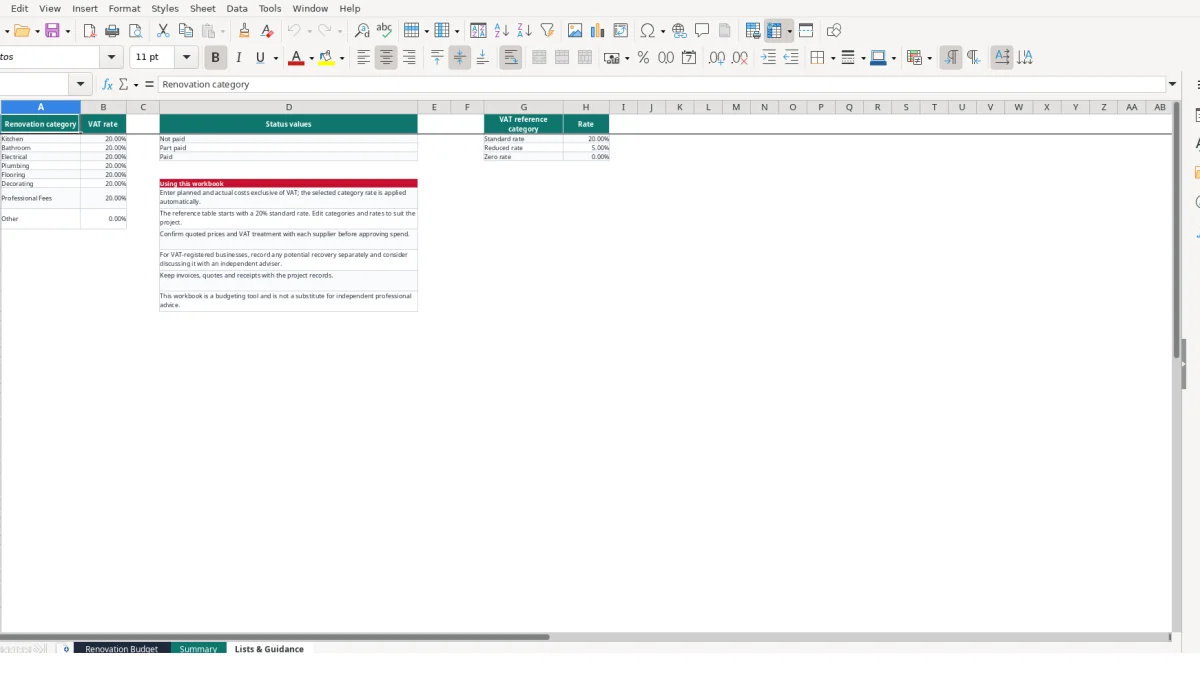
Use the validated category list instead of free-text variations such as Bathrooms, bathroom work or Bath. The available categories are Kitchen, Bathroom, Electrical, Plumbing, Flooring, Decorating, Professional Fees and Other. If the list does not suit the project, edit the reference list deliberately rather than creating spelling variations in the detail sheet.
A single payment covering several invoices can also mislead the outstanding total if it is assigned entirely to one item. For instance, a £6,120 payment recorded against a £5,100 actual ex VAT electrical item may show that line as Paid while another completed item remains Not paid. Allocate payments to the relevant rows and use Notes to explain deposits, combined invoices or staged work.
Set one fixed review point each week, such as the evening after the contractor's progress update. Spend 10 minutes matching new quotes, invoices and receipts to Item IDs, then update only the relevant actual cost and payment fields. A project with 25 active items is easier to maintain through five weekly updates than through one large catch-up after three months.
This order prevents a common routine failure: recording the bank payment but forgetting to record the invoice value. It also means the Summary sheet is reviewed after the underlying records have been updated, rather than being treated as a separate manual report.
Review Lists & Guidance before the first supplier comparison and only change categories or reference rates when you have a clear project reason. The category lookup depends on the text in column D matching the list, so changing a category name after entries exist can affect the lookup result.
Keep quotes, invoices and receipts with the project records as instructed on the guidance sheet. The workbook does not store those documents, so use the Item ID, supplier name and Notes field to create a reliable link to your separate paperwork.
This workbook is appropriate while one person or a small project team can keep the 100 detail rows complete and reviewed. Consider a dedicated project-cost system when you need purchase-order approval, document attachments, multiple users editing simultaneously, formal audit trails or detailed cash-flow scheduling that is not provided by these three sheets.
It includes Renovation Budget, Summary, and Lists & Guidance sheets. You can record 100 renovation items with planned dates, rooms, categories, descriptions, suppliers, costs, VAT, payments, status, variance and notes.
Enter Budget ex VAT and Actual ex VAT in the Renovation Budget sheet. The selected category rate is then used to calculate VAT and totals including VAT. Confirm the correct VAT treatment and quoted price basis with each supplier before entering the figures.
Yes. Enter deposits and other payments in Amount Paid. The workbook calculates Outstanding and returns Not paid, Part paid or Paid based on the amount paid compared with Actual inc VAT.
The reference list includes Kitchen, Bathroom, Electrical, Plumbing, Flooring, Decorating, Professional Fees and Other. Category selection is validated in the Renovation Budget sheet and drives the Summary analysis.
It calculates total budget including VAT, total actual cost including VAT, total paid, total outstanding, total variance, average project item cost, number of budget items, number of paid items and percentage of budget spent. It also compares budget and actual spend across the eight categories.
Yes. The rates are held on Lists & Guidance and can be edited to suit the project. The sheet includes a reference table with 20%, 5% and 0% examples, but you should confirm the applicable treatment with each supplier or an independent adviser.
Excel template by
Guide written by