Funeral Cost Planner Excel Template (2026)
0
Free download
Track UK electricity and gas bills, meter readings, tariffs, VAT, payments and balances in one Excel workbook for homes or businesses.


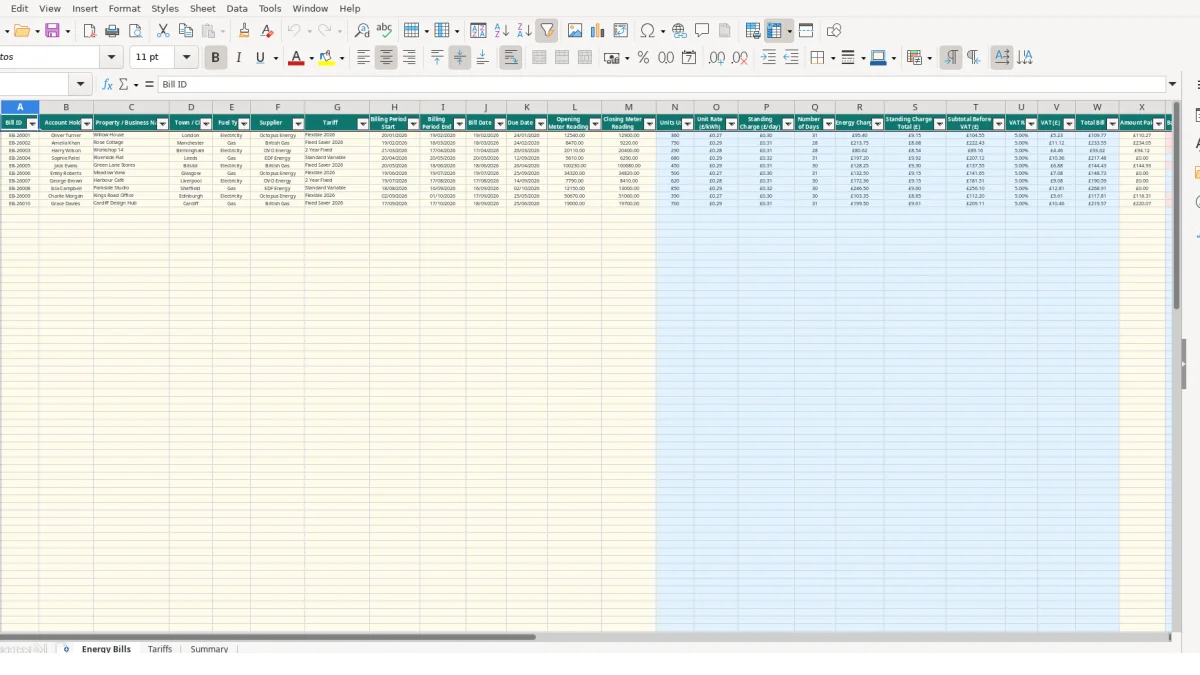
This energy bill Excel template records electricity and gas bills for homes or businesses, calculates usage and charges, and tracks payments. It contains Energy Bills, Tariffs and Summary sheets, with fields for meter readings, billing dates, supplier, tariff, VAT, amount paid, balance due and payment status.
Enter each bill in the Energy Bills sheet and maintain matching supplier and tariff information in Tariffs. Summary then shows total bills, billed amounts, payments, outstanding balances, average bill value, paid percentage and an overdue alert.
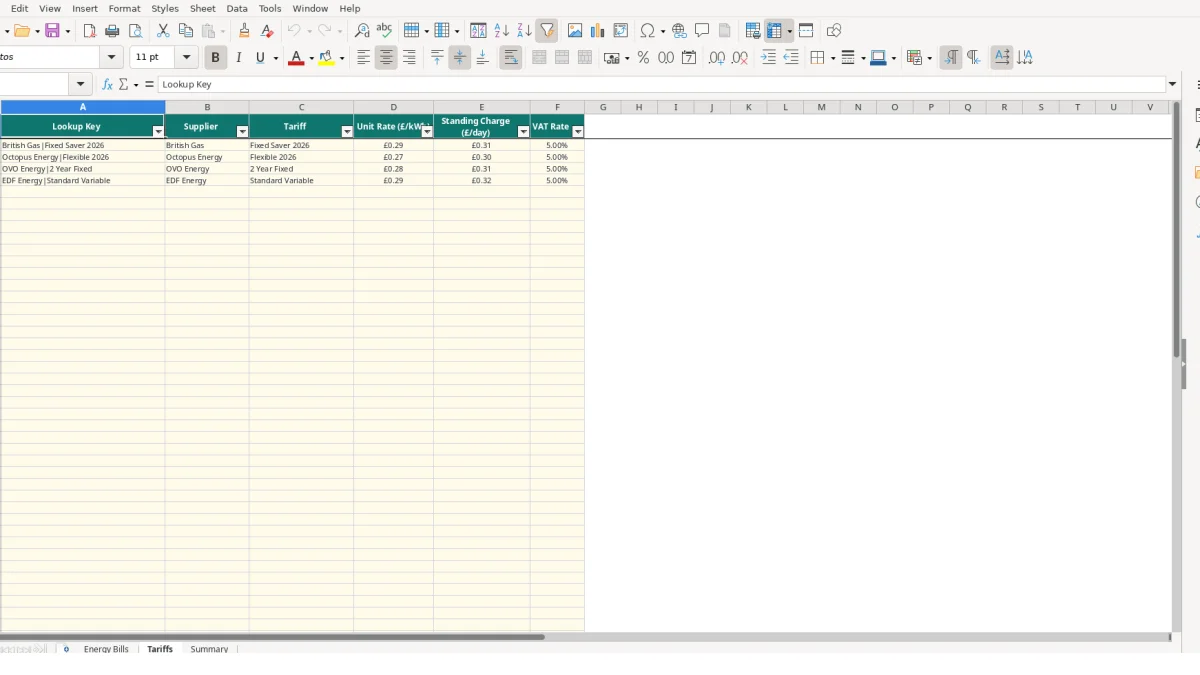
An energy bill tracker suits a household managing several properties, a landlord monitoring tenant accounts, or a small business recording utility costs for an office, shop or workshop. The Energy Bills sheet includes Account Holder, Property / Business Name and Town / City, so you can distinguish Rose Cottage in Manchester from Workshop 14 in Birmingham.
A landlord could enter one row for each bill received across three properties. The sample gas record for Amelia Khan covers Rose Cottage from 19/02/2026 to 18/03/2026, while another property can have a different supplier, tariff and due date. Bill ID provides a reference for checking the original statement.
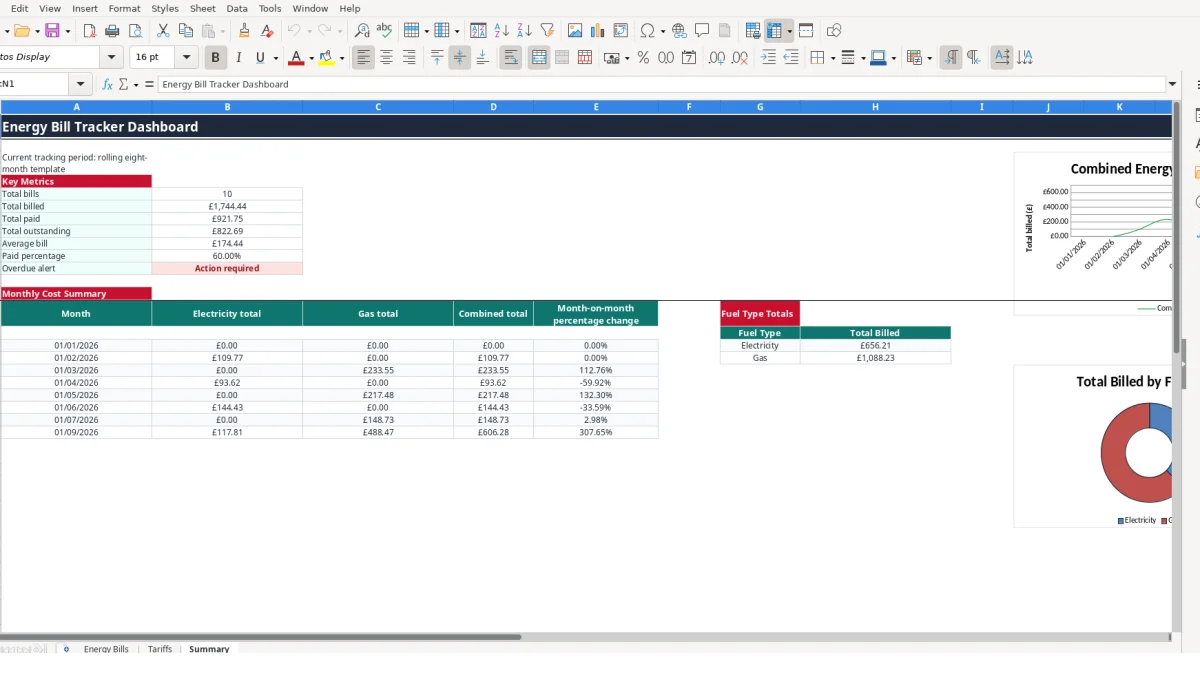
The Fuel Type list contains Electricity and Gas. This lets you separate seasonal electricity and gas costs rather than combining different fuels in an unlabelled payment list. The distinction also feeds the Summary sheet, where both fuels have separate monthly columns before the combined total is calculated.
A café owner, studio operator or workshop manager can use the same structure for business premises. The sample electricity record for Workshop 14 has an opening meter reading of 20,110 and a closing reading of 20,400, producing 290 units through the Units Used calculation.
Enter records when bills arrive, then review them during a monthly finance check. The Summary sheet contains monthly cost rows and fuel type totals, allowing a business owner to compare electricity and gas charges without rebuilding the calculation each time. Check the supplied Summary dates before interpreting the trend because the displayed period labels are not a complete consecutive sequence.
The workbook separates inputs from calculated outputs. You enter meter readings, dates, supplier, tariff and amount paid in Energy Bills; Tariffs stores the rates, and formulas calculate usage and charges. This is preferable to typing rates repeatedly because a matching supplier and tariff record can supply the calculation consistently.
Units Used equals Closing Meter Reading minus Opening Meter Reading. In the sample electricity row, 12,900 minus 12,540 produces 360 units. Number of Days uses the billing period dates plus one, so 20/01/2026 to 19/02/2026 produces 31 days under the workbook formula.
Energy Charge equals units used multiplied by Unit Rate. Using the sample 360 units and the Tariffs rate of £0.265 per kWh gives an illustrative £95.40. At a standing charge of £0.295 for 31 days, the illustrative standing charge total is £9.15 and the subtotal before VAT is £104.55.
Supplier and Tariff form a lookup key such as Octopus Energy|Flexible 2026. VLOOKUP retrieves the unit rate, standing charge and VAT rate from Tariffs. If the key does not match, IFERROR returns a blank for the looked-up rate, so correct the Tariffs record instead of treating the missing value as a valid rate.
Total Bill adds VAT to the subtotal, while Balance Due subtracts Amount Paid from Total Bill. Payment Status returns Paid when the balance is zero or below, Overdue when a positive balance remains after the due date, and Due otherwise.
Errors often begin with a mismatch between the bill and the row. If a closing meter reading of 12,900 is entered as 12,090 against an opening reading of 12,540, the calculated usage becomes negative and the charge no longer represents the statement. Enter both readings directly from the source bill and check the resulting Units Used figure.
The lookup uses the exact Supplier and Tariff combination. Selecting Octopus Energy with Fixed Saver 2026 does not match the supplied Tariffs entry Octopus Energy|Flexible 2026, so the lookup can return blank values. Do not type a substitute rate in the bill row; correct or add the relevant tariff record in Tariffs.
Changing a tariff without retaining the rate used by an existing bill can also distort comparisons. For example, a difference of £0.020 per kWh across 1,000 units changes the illustrative energy charge by £20 before standing charge and VAT. Keep the tariff record aligned with the bill being entered.
Entering £110.27 as Amount Paid against the wrong Bill ID can make one bill appear settled while another remains outstanding. Match the payment to the supplier reference, property and bill date before entering it. If a £250 bill has £100 paid, the expected illustrative balance is £150.
Reversed billing dates can produce an unexpected Number of Days, while an incorrect due date can change the calculated status. Review the Summary month labels as well: a missing month means the displayed sequence is not a complete uninterrupted monthly comparison.
Make entry part of the same routine as opening bills or checking the business bank account. When a bill arrives, create its Bill ID, enter the dates and readings, select the supplier and tariff, and save the source document using that reference. This is faster than searching through email at month end.
Use the supplied lists consistently for Fuel Type, Supplier and Tariff. Validation restricts the main choices and limits dates, meter readings and payments to suitable input types. Keep rate maintenance in Tariffs rather than duplicating rates in Energy Bills; a single reference table is easier to check.
The workbook provides 100 Energy Bills rows and eight monthly Summary rows. If you manage substantially more properties, need concurrent editing, document storage, approval history or automated bank reconciliation, dedicated utility or accounting software may be more suitable. Until then, a monthly review of the table and two Summary charts can keep the process manageable.
It tracks electricity and gas bills, account and property details, suppliers, tariffs, billing dates, meter readings, usage, unit rates, standing charges, VAT, payments, balances and payment status.
The workbook contains Energy Bills for bill records, Tariffs for supplier and tariff rates, and Summary for key metrics, monthly costs, fuel type totals and two charts.
Yes. The Fuel Type validation list contains Electricity and Gas, and Summary reports separate electricity and gas totals alongside a combined total.
Select Supplier and Tariff in Energy Bills. VLOOKUP combines those selections into a lookup key and retrieves the matching unit rate, standing charge and VAT rate from Tariffs.
Balance Due subtracts Amount Paid from Total Bill. Payment Status then shows Paid, Overdue or Due according to the balance and due date.
The Energy Bills table covers rows 2 to 101, providing space for 100 bill records. Tariffs also covers rows 2 to 101 for tariff reference entries.
Excel template by
Guide written by