Funeral Cost Planner Excel Template (2026)
0
Free download
Track employee and employer pension contributions, tax relief, payroll details and review statuses across 110 contribution records.


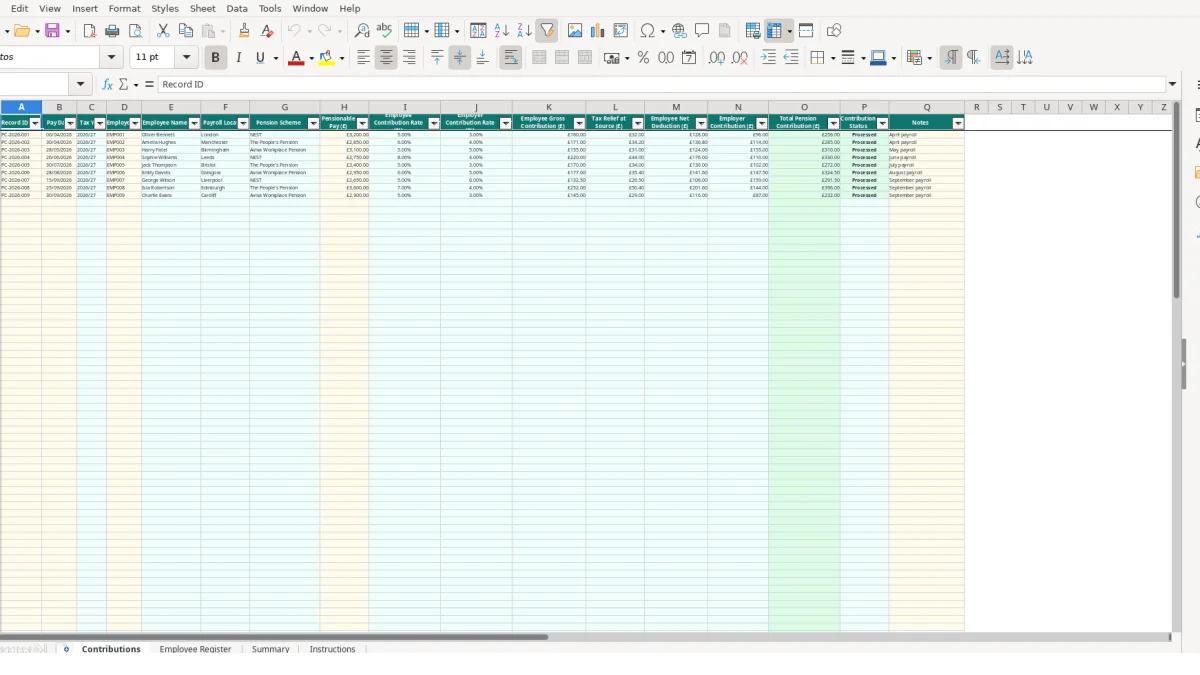
This pension contribution tracker Excel template records pay dates, employees, pensionable pay, contribution rates, employee deductions, tax relief, employer payments and total contributions. It includes Contributions, Employee Register, Summary and Instructions sheets, with space for 109 contribution rows and linked calculations.
Enter payroll information in the Contributions sheet and maintain employee details in Employee Register. Excel formulas retrieve the relevant employee data, calculate contribution amounts and feed management totals, selected tax year figures and three Summary charts.
A pension contribution tracker is useful for a small employer, payroll administrator, bookkeeper or finance manager who needs a separate operational record alongside normal payroll. It is particularly practical when employees use more than one workplace pension scheme or when payroll information is assembled from several locations before being checked against provider reports.
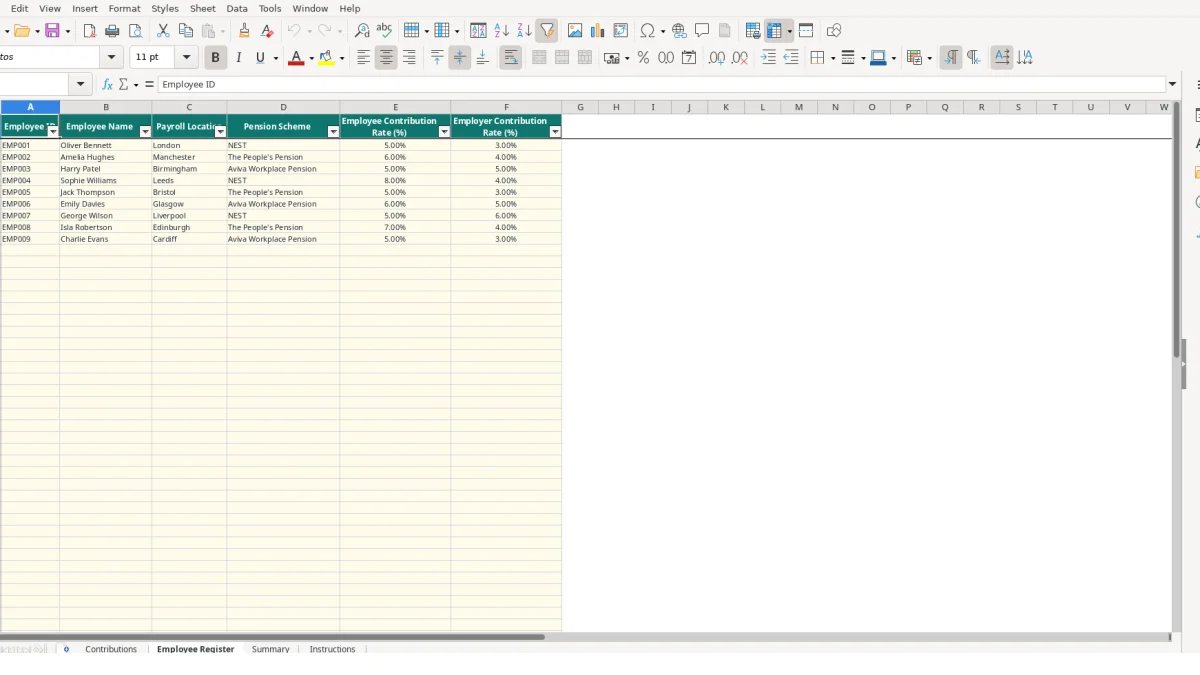
The workbook contains sample records for EMP001 to EMP007 and examples including Oliver Bennett in London on NEST, Amelia Hughes in Manchester on The People's Pension and Harry Patel in Birmingham on Aviva Workplace Pension. These are illustrative workbook values, not instructions to use those schemes or rates for your own staff.
Use Contributions after each payroll run. For example, the sample record PC-2026-001 has a pay date of 06/04/2026 and pensionable pay of £3,200, while PC-2026-002 has a pay date of 30/04/2026 and pensionable pay of £2,850. A payroll administrator can add one row per employee payment and use Notes to distinguish April payroll from a later adjustment.
That row-level approach is more useful than keeping only a monthly total. If 12 employees each generate five payroll records, 60 rows can be tied to individual dates and Employee IDs rather than reconstructed from a single figure at year end.
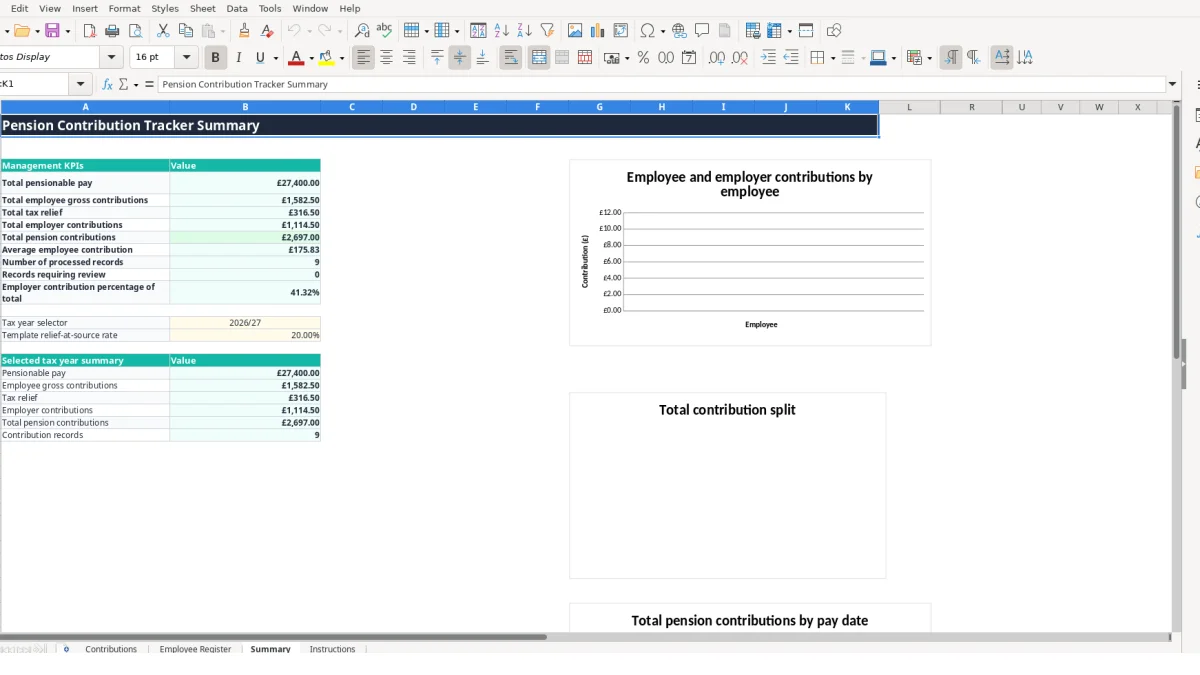
The Summary sheet gives management KPIs such as total pensionable pay, total employee gross contributions, total tax relief, total employer contributions, total pension contributions, average employee contribution, processed records and records requiring review. Its selected tax year summary provides a second reporting view, while the linked data supports charts by employee, contribution type and pay date.
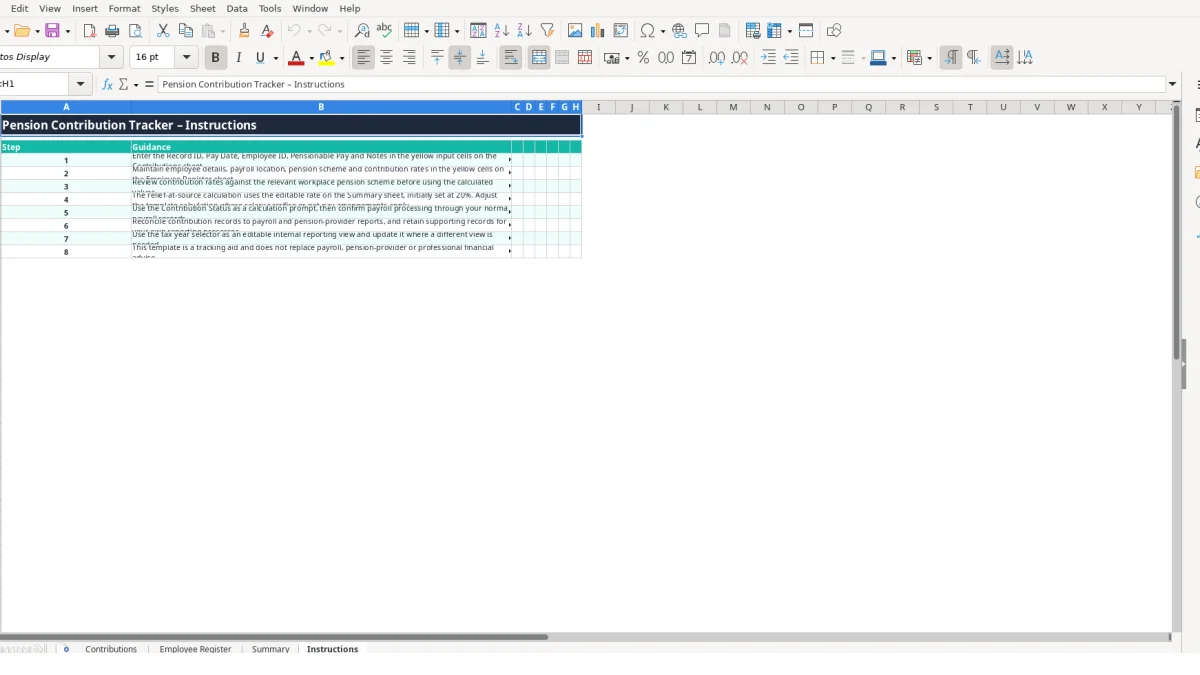
Use the workbook to prepare a controlled review pack, not as a substitute for your payroll system or pension-provider records. The Instructions sheet specifically directs you to reconcile entries with those records and retain supporting information for your own reporting processes.
The workbook separates source data from calculated outputs. Employee Register stores six fields: Employee ID, Employee Name, Payroll Location, Pension Scheme, Employee Contribution Rate (%) and Employer Contribution Rate (%). Contributions then uses the selected Employee ID to retrieve the other five employee details with VLOOKUP.
Contributions accepts dates in B2:B110, Employee IDs from the Employee Register list in D2:D110 and non-negative decimal pensionable pay in H2:H110. Employee and employer rates in Employee Register are also restricted to decimal values from 0 to 1, so a rate such as 5% is stored as 0.05 and displayed using a percentage format.
This distinction matters. If you type 5 rather than 5%, the stored value represents 500% under the workbook's percentage convention. Enter the rate as 5% or 0.05, then check the displayed percentage before relying on the result.
Suppose pensionable pay is £3,200, the employee rate is 5% and the employer rate is 3%. The employee gross contribution is calculated as £3,200 × 5% = £160.00; the employer contribution is £3,200 × 3% = £96.00; and the total pension contribution is £256.00.
The Summary relief-at-source rate is an editable input initially set to 20%. At that setting, £160.00 produces £32.00 of calculated tax relief, and the employee net deduction becomes £128.00. These are workbook calculations: review the rate and arrangement before use, particularly because the Instructions sheet refers to salary sacrifice and net-pay arrangements as cases requiring adjustment.
Blank pay, rate or employee cells leave dependent calculations blank. Contribution Status returns Processed when the calculated total is above zero; otherwise it returns Review. This is a prompt for checking, not proof that payroll processing or payment has taken place.
The most expensive errors in this workflow usually begin with a mismatch between the payroll record and the employee register. A contribution row can contain a valid-looking Employee ID while the register still carries an old pension scheme or rate. Because the Contributions sheet retrieves those fields automatically, every linked calculation can be consistently wrong until the source row is corrected.
Consider a hypothetical employee with £3,000 pensionable pay. A rate entered as 0.05 gives a £150.00 employee gross contribution, but entering 5 as a percentage value gives a £15,000.00 result. The decimal validation permits values up to 1 in Employee Register, so a value of 5 should be rejected there; nevertheless, always check the displayed percentage and the resulting pounds.
A smaller error can also accumulate. If an employer rate is recorded as 3% instead of the intended 4% for six monthly records at £2,850 pensionable pay, the difference is £28.50 per row, or £171.00 across those six records. That is a hypothetical illustration of why the register should be reviewed before repeated payroll entries are added.
Leaving Pensionable Pay or a contribution rate blank prevents some calculated amounts from appearing. A row may therefore look unfinished without producing an obvious numeric error. Record IDs and Notes should identify the payroll run, while the Contribution Status column should be reviewed for Review entries rather than treated as a final reconciliation.
The tax relief figure also depends on Summary cell B15. If the editable 20% starting value is left unchanged when the relevant arrangement requires a different treatment, the relief and net deduction outputs will not represent the intended calculation. The Instructions sheet explicitly tells you to adjust the calculation where salary sacrifice or a net-pay arrangement applies.
Another practical failure is comparing only the total contribution figure. The workbook separates employee gross contribution, tax relief, employee net deduction and employer contribution. For example, £160.00 gross employee contribution, £32.00 relief and £96.00 employer contribution should be checked as separate components, not only as the £256.00 total.
The workbook becomes reliable when you attach it to a fixed payroll routine rather than updating it whenever someone remembers. Choose one point after each payroll run to enter the Record ID, Pay Date, Employee ID, Pensionable Pay and Notes, then make the Summary review part of the same close-down task.
Start with Employee Register changes, then add Contributions rows, then review calculated outputs. This order protects the VLOOKUP links: the employee and rates exist before the new contribution record attempts to retrieve them.
Use the Summary tax year selector as an internal reporting view. The available list includes 2026/27, 2027/28 and 2028/29, so choose the relevant value rather than manually changing formula cells. If 20 employees produce three records each, the 60-row Contributions history gives you a more useful audit trail than repeatedly replacing one monthly total.
The three Summary charts can support a regular review of employee and employer amounts, contribution types and pay-date totals. They do not remove the need to inspect the underlying rows, particularly where a total changes after an employee rate or pensionable pay is amended.
This template has 109 contribution rows and is suited to a controlled register of that size. If several payroll users need simultaneous access, your organisation needs automated provider submissions, or reconciliation routinely involves more rows and exceptions than the workbook can comfortably handle, move to a dedicated payroll or pension administration system while retaining appropriate supporting records.
The Contributions sheet records Record ID, Pay Date, Tax Year, Employee ID, Employee Name, Payroll Location, Pension Scheme, Pensionable Pay, employee and employer rates, employee gross contribution, tax relief at source, employee net deduction, employer contribution, total contribution, Contribution Status and Notes.
The Contributions and Employee Register sheets run from row 2 to row 110, providing 109 available rows beneath the headers. The workbook includes sample values in some of those rows, which you should replace or extend carefully for your own records.
Select an Employee ID in Contributions. VLOOKUP formulas retrieve the employee name, payroll location, pension scheme and both contribution rates from the Employee Register sheet.
Summary cell B15 contains an editable starting rate of 20%. The Contributions formulas use it to calculate Tax Relief at Source from the employee gross contribution. Review and adjust the calculation for the relevant pension arrangement; the Instructions sheet specifically mentions salary sacrifice and net-pay arrangements.
The formula returns Processed when the calculated total pension contribution is greater than zero and Review otherwise. It is a calculation prompt only, so confirm actual payroll processing against your normal payroll and pension-provider records.
Yes. The Summary selector currently offers 2026/27, 2027/28 and 2028/29. It is an editable internal reporting view; use the Instructions sheet and update the selector when a different view is needed.
Excel template by
Guide written by