Funeral Cost Planner Excel Template (2026)
0
Free download
Track emergency fund contributions, withdrawals, interest, balance and target progress with a UK Excel workbook for personal budgeting.


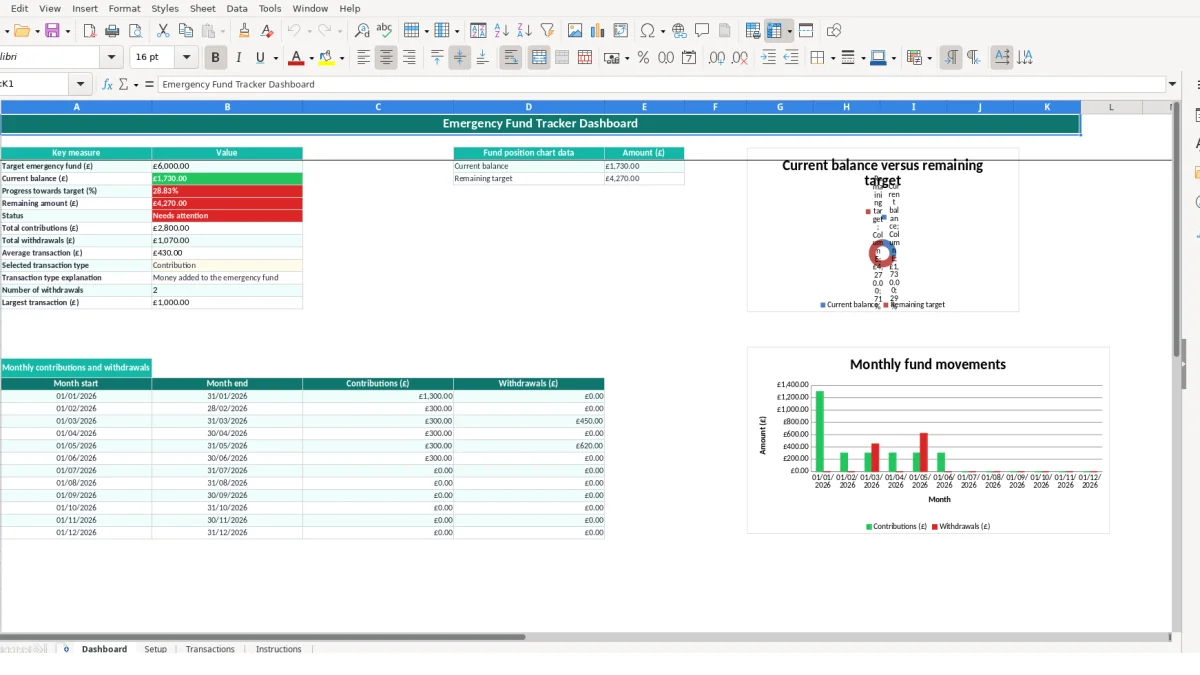
An emergency fund Excel template is a personal budgeting workbook for recording money added to or taken from your emergency savings. It contains Setup, Transactions, Dashboard and Instructions sheets, with formulas for the current balance, target progress, withdrawals, interest and monthly movements.
Set a target, monthly savings goal and essential monthly expenses on Setup. Record each contribution, withdrawal or interest entry on Transactions, then use Dashboard to see the running balance, remaining target, status and monthly contribution and withdrawal totals.
An emergency fund tracker suits anyone who wants a clear record of savings held for unexpected household costs. It can be used by an employee reviewing savings after payday, a household sharing contributions, or a self-employed person separating personal reserves from day-to-day spending.
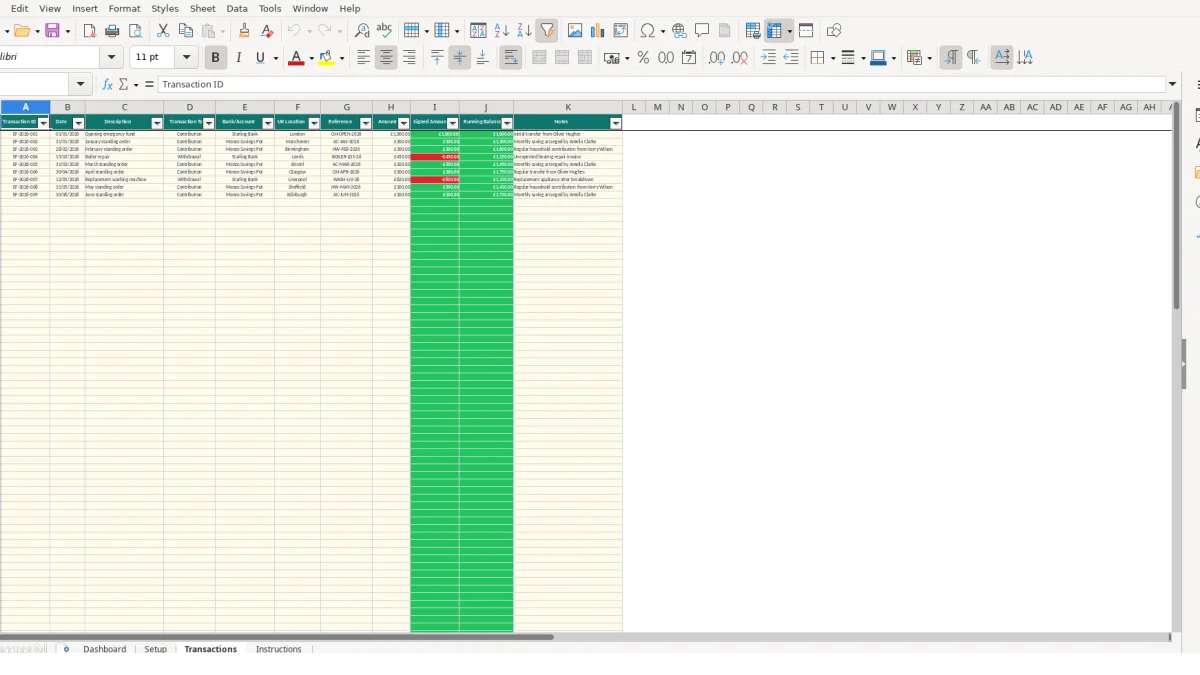
The workbook is particularly useful when money is held across more than one account. The Transactions sheet includes Bank/Account, UK Location and Reference fields, so a record can distinguish a contribution to a Monzo Savings Pot from a withdrawal paid from Starling Bank. That is more useful than keeping a single unexplained balance.
Suppose you start with the illustrative £1,000 opening contribution and add £300 in January and £300 in February. Before any withdrawals, the running balance reaches £1,600. Entering each movement separately shows when the balance changed and preserves the description of the transfer.
A household can use the file at a regular money meeting. One person might enter a standing order, while another records an interest credit or checks the balance against the savings account. The Transaction Type list keeps Contribution, Withdrawal and Interest consistent rather than relying on different spellings.
If a boiler repair costs a hypothetical £450, enter it as a Withdrawal with a positive £450 amount. The Signed Amount formula changes that entry to -£450 and the Running Balance formula reduces the cumulative fund. You can then see the effect on the target without manually editing earlier records.
The Dashboard provides a quick review for a monthly budgeting session. It shows the target, balance, remaining amount, percentage progress and status, while the monthly section compares contributions and withdrawals from January through December 2026.
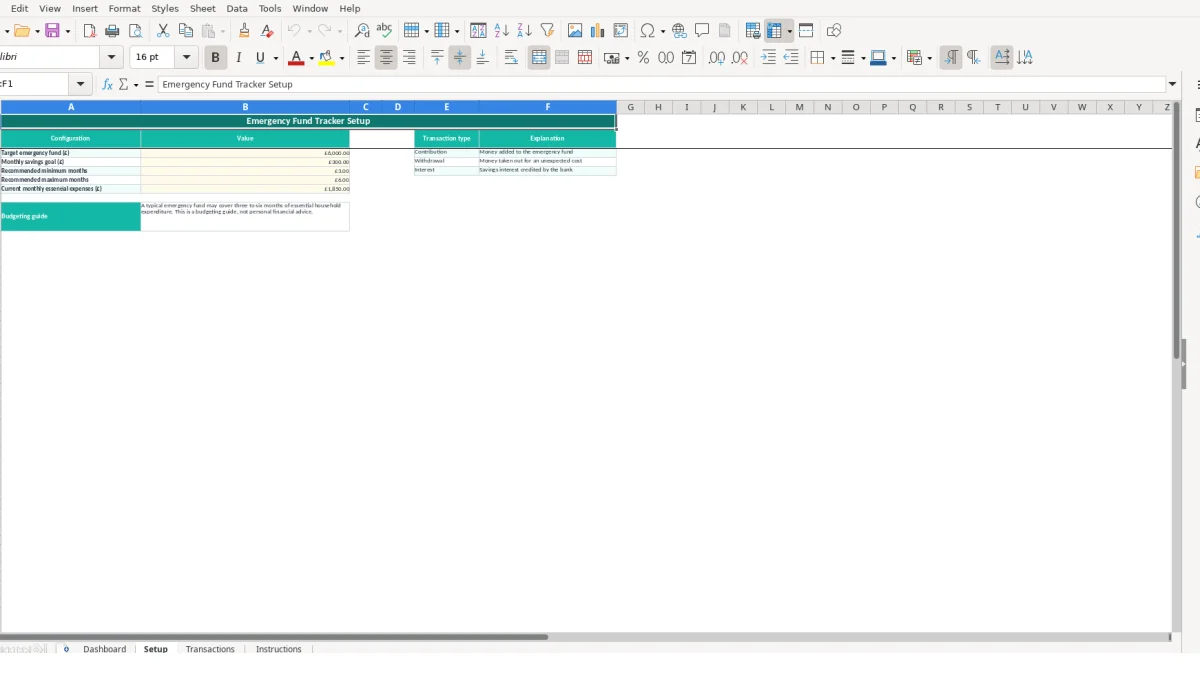
The workbook separates configuration, input records and calculated outputs. Setup contains the editable target, monthly savings goal, recommended minimum and maximum months, and essential monthly expenses. Transactions contains the movements you enter; Dashboard reads those records through formulas rather than asking you to duplicate totals.
Amount (£) uses decimal validation from zero upwards, so you enter a withdrawal such as £450.00 as a positive number. The Signed Amount column applies an IF formula: Withdrawal becomes negative, while Contribution and Interest remain positive. This is the correct workflow for this file; do not type minus signs into Amount (£).
The Running Balance column uses a cumulative SUM from the first signed amount through the current row. For example, £1,000.00 followed by £300.00, £300.00 and a £450.00 withdrawal produces £1,150.00. Blank amount cells remain blank in the calculated columns.
Current balance is the SUM of the signed transaction values. Progress towards target divides the current balance by the target, while Remaining amount uses MAX so it cannot show a negative amount after the target is exceeded. With a £6,000 target and a £1,150 balance, progress is approximately 19.17% and the remaining amount is £4,850.00.
The status uses IF tests at 50%, 75% and 100%, returning Needs attention, Halfway there, On track or Target reached. Dashboard also uses SUMIF for total contributions and withdrawals, AVERAGE for average transaction, COUNTIF for the number of withdrawals, MAX for the largest transaction and VLOOKUP to explain the selected transaction type.
The monthly section uses SUMIFS with date ranges. Its 2026 rows compare Contribution and Withdrawal totals between each month start and month end. Keep dates as genuine Excel dates in DD/MM/YYYY format so those ranges continue to work.
The most damaging error in this workbook is entering a withdrawal as a negative Amount (£). The formula already applies the negative sign. A hypothetical £450 withdrawal entered as -£450 would become a positive £450 in Signed Amount, increasing the balance instead of reducing it by £450.
Dashboard formulas look specifically for Contribution and Withdrawal. If you replace a controlled list entry with text such as Saving, Drawdown or Cash out, the transaction may not be included in the relevant total. The balance formula still uses the row, but the contribution or withdrawal summary can become incomplete.
For example, three £300 contributions should total £900 in the contribution measure. If one row is typed as savings rather than Contribution, the displayed total could be £600 even though the running balance includes the positive amount. Use the validation list instead of creating your own labels.
A date typed as text may not fall inside the monthly SUMIFS criteria. A March entry dated correctly as 15/03/2026 belongs in the March row, whereas an unrecognised text value may be omitted from the monthly chart data. Check the date format and avoid pasting values that Excel cannot interpret as dates.
Do not overwrite formulas in Signed Amount, Running Balance or Dashboard. If a user replaces the Running Balance formula in one row with a fixed £1,150.00 value, later rows no longer represent a reliable cumulative record. With 100 available transaction rows, one broken formula can affect every subsequent balance.
A dashboard balance of £1,150.00 is only useful if it agrees with the savings account record. If the bank shows £1,450.00, investigate a missing £300 contribution, a duplicated withdrawal or an entry assigned to the wrong transaction type before relying on the status or chart.
Make the workbook part of an existing money habit rather than treating it as a one-off planning exercise. A practical routine is to update Transactions when the monthly standing order clears, then review Dashboard immediately afterwards. If the sample £300 monthly goal is used, twelve successful entries would represent £3,600 of contributions before withdrawals or interest.
This sequence takes less time than rebuilding a balance from memory. It also makes the £1,850 sample essential-expenses figure and the £6,000 target visible when deciding whether your configuration still reflects your circumstances.
Do not insert personal calculations into the formula columns. Use Description, Reference and Notes for context, and keep each fund movement on its own row. If you need to review only one category, select the transaction type on Dashboard; the linked explanation is returned from Setup.
Save a dated copy after a significant withdrawal or an annual review, but continue entering new movements in the active file. The workbook has 100 transaction rows, so it may be suitable for a modest personal record. If you regularly need more rows, several funds, bank feeds, user permissions, automatic reconciliation or detailed forecasting, move to dedicated budgeting software rather than extending formulas informally.
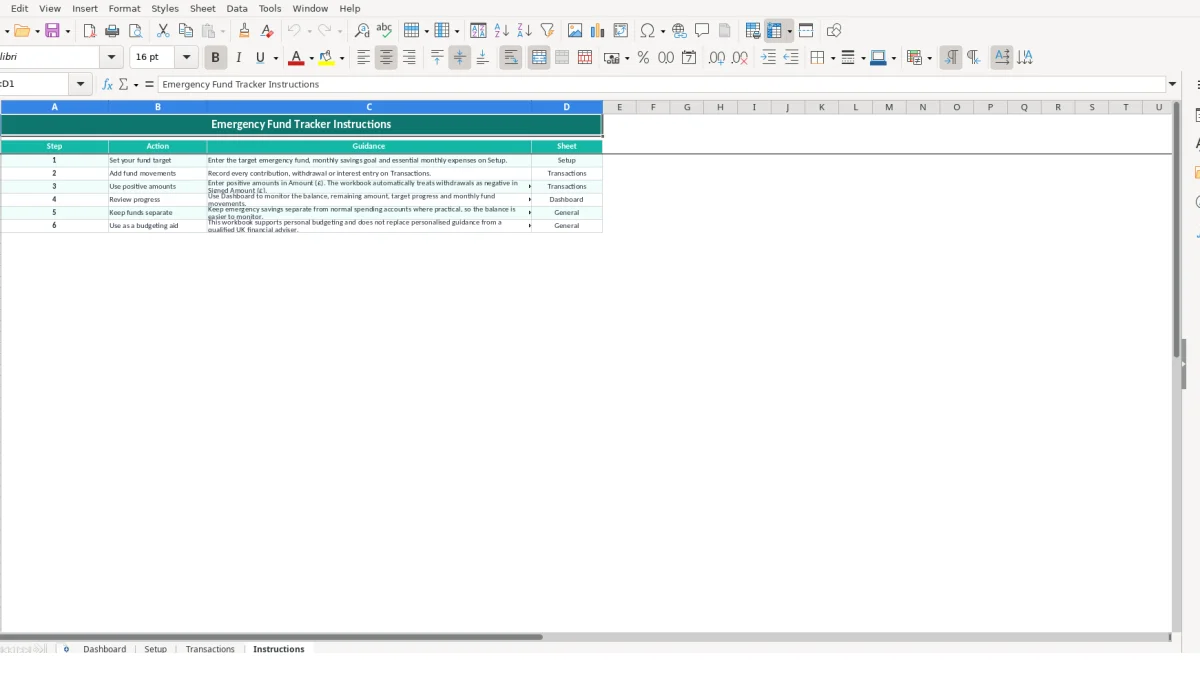
The Instructions sheet provides six steps, including setting the target, adding movements, using positive amounts, reviewing progress, keeping funds separate where practical and treating the workbook as a budgeting aid rather than personalised financial advice.
The workbook contains Dashboard, Setup, Transactions and Instructions sheets. It includes target and savings inputs, 100 transaction rows, automatic signed amounts and running balance calculations, dashboard summaries, monthly 2026 movement totals and two charts.
No. Enter a withdrawal as a positive value in Amount (£) and select Withdrawal in Transaction Type. The Signed Amount formula automatically changes it to a negative value for the balance calculation.
Yes. The £6,000 figure is an illustrative sample value in Setup. Replace it with your own target, along with the monthly savings goal and essential monthly expenses. Dashboard outputs update from the Setup value.
The controlled list contains Contribution, Withdrawal and Interest. Setup provides an explanation for each type, and Transactions uses the same list for consistent dashboard calculations.
Dashboard sums the Signed Amount column on Transactions. Contributions and interest add to the balance, while withdrawals subtract from it. The Running Balance column shows the cumulative result row by row.
No. The workbook is a personal budgeting aid. Its three-to-six-month figures are presented as a budgeting guide in the Setup sheet, not personalised financial advice. Consider seeking appropriate guidance for your circumstances.
Excel template by
Guide written by