Funeral Cost Planner Excel Template (2026)
0
Free download
Track UK council tax instalments, payments, balances and status across 100 rows, with example rates, dashboard totals and payment charts.


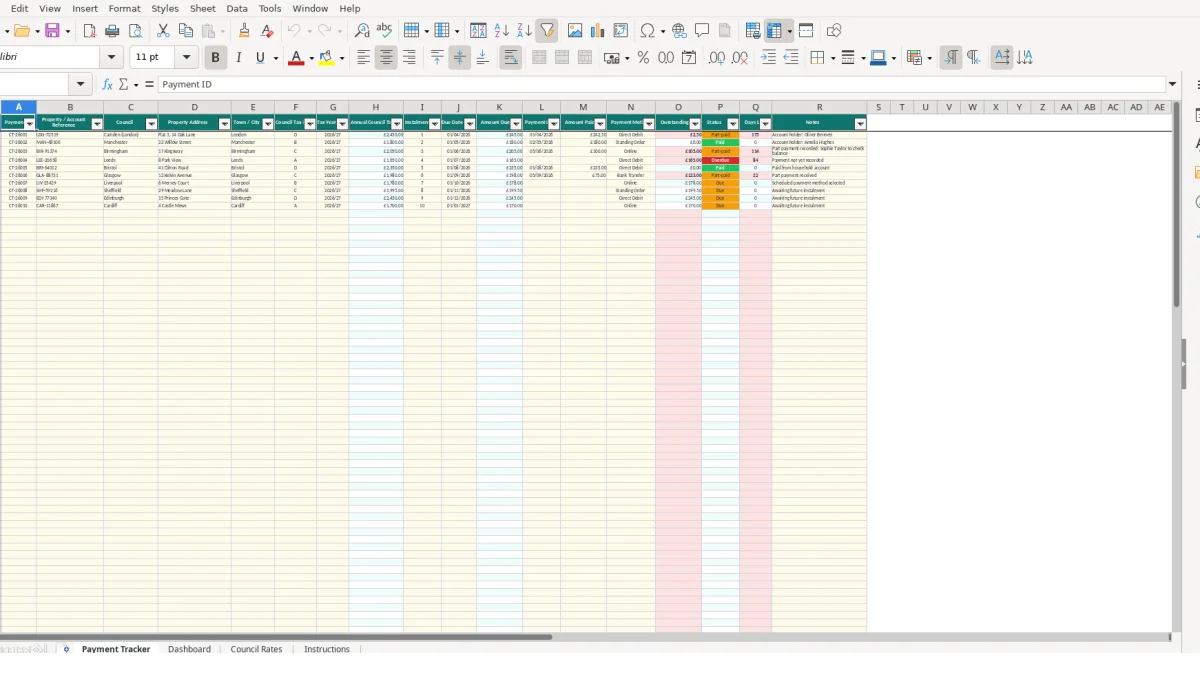
This council tax payment tracker Excel template records each instalment for up to 100 payments, including the property reference, council, band, tax year, due date, amount paid and payment method. It calculates the annual charge, instalment amount, outstanding balance, status and days late, then summarises the records on a Dashboard.
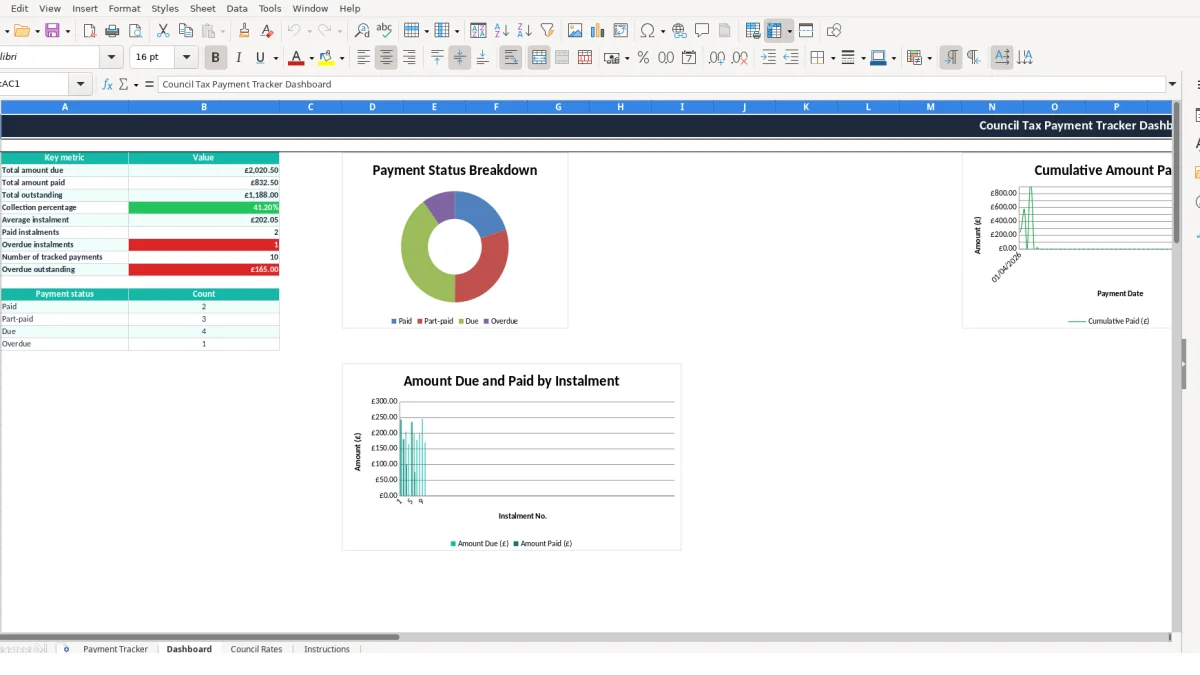
Use the Payment Tracker for one row per instalment and the Dashboard for totals, collection percentage, status counts and overdue outstanding balances. The Council Rates sheet contains example planning figures only, so check your council-issued bill before relying on any amount or schedule.
A council tax payment tracker is useful when you manage more than one property, keep household records, or need a simple schedule beside your bank statements. A landlord, property administrator or household finance manager can enter one row for every instalment rather than relying on separate reminders or email searches.
The workbook includes records for examples such as Camden (London), Manchester and Birmingham. For instance, the sample Payment Tracker includes a Camden property in band D for tax year 2026/27, with a first instalment due on 01/04/2026 and £242.50 recorded as paid by Direct Debit.
If you oversee three properties, the Property / Account Reference and Payment ID distinguish the records even when two payments fall on the same date. The sample references include LDN-72519, MAN-48106 and BIR-91374, showing how a short account code can sit alongside the full address.
Enter the council, property address, town or city and band as shown on the bill. Do not treat a council name or band as sufficient evidence of the actual bill amount; the Council Rates sheet is explicitly labelled as example planning figures.
A household can use the tracker during a regular money review to check whether the expected instalment was paid and whether the bank amount matches the record. A Manchester example shows £180 paid by Standing Order against instalment 2, while a Birmingham example records £100 by Online payment and a note that the balance needs checking.
The Dashboard turns those entries into a summary. If ten planned instalments were entered at £220 each, the total amount due would be £2,200 in that hypothetical example; the Dashboard would compare the recorded payments with that total rather than requiring a separate calculation.
The Payment Tracker separates information you enter from values it calculates. You enter fields such as Council, Council Tax Band, Tax Year, Instalment No., Due Date, Payment Date, Amount Paid and Payment Method. Columns for Annual Council Tax, Amount Due, Outstanding, Status and Days Late contain formulas and should not be overwritten.
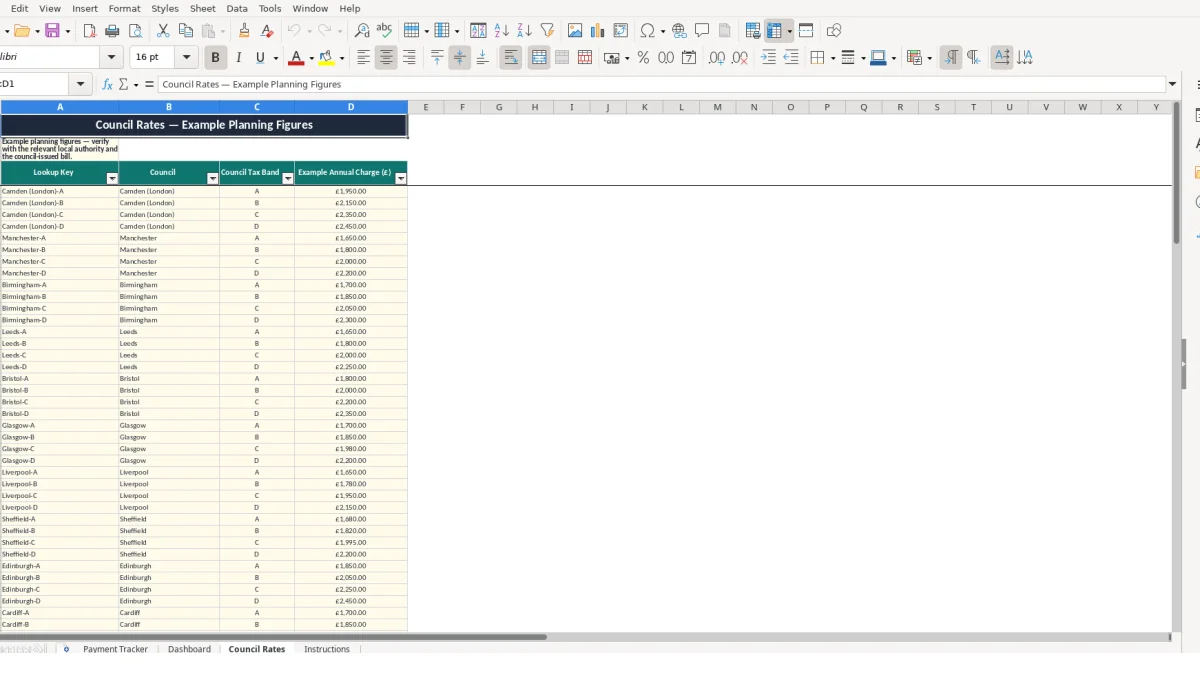
The annual charge uses a VLOOKUP against Council Rates. It joins the selected council and band, such as Manchester-B, then retrieves the matching example annual charge. The workbook contains Manchester band B at £1,800 as an illustrative figure, so the calculated Amount Due is £180 when divided by 10.
This is a useful technical choice for a tracker because one rate value can be maintained in the lookup sheet instead of being typed repeatedly. It also means a missing or mismatched council-band combination can leave the annual charge blank, which is safer than silently applying a different figure.
Outstanding is calculated as the amount due less the amount paid, with a minimum of zero. If a hypothetical £180 instalment has £100 recorded, the outstanding result is £80 and the status becomes Part-paid. If £180 or more is recorded, the status becomes Paid.
Where no payment is recorded, the status is Due until the due date has passed, then Overdue. Days Late is calculated only where an outstanding amount remains after the due date. Because the formula uses TODAY, the label can change as the calendar moves; it is a tracker alert for review, not a conclusion about the account.
The Dashboard uses SUM, AVERAGE and COUNTIF-based calculations to total amounts, calculate collection percentage, average instalment and status counts across rows 2 to 101.
The most damaging errors in a council tax tracker usually come from mixing bill details, payment evidence and assumptions. A blank or incorrectly typed council-band combination can prevent the lookup from returning an annual charge. The resulting Amount Due may also remain blank, so the status and outstanding figures will not provide a useful check.
Council Rates contains example planning figures, including Camden band D at £2,450 and Birmingham band C at £2,000. Those figures are not a substitute for the council-issued bill. If a hypothetical bill differs by £150 from the example, ten calculated instalments would each be wrong by £15 unless you correct the source information or record the bill-specific schedule accurately.
Suppose Amount Due is £200 and Amount Paid is entered as £100. The tracker correctly shows £100 outstanding and Part-paid. If someone enters £200 because that was the intended payment rather than the amount actually taken, the record changes to Paid and the Dashboard understates the outstanding total by £100.
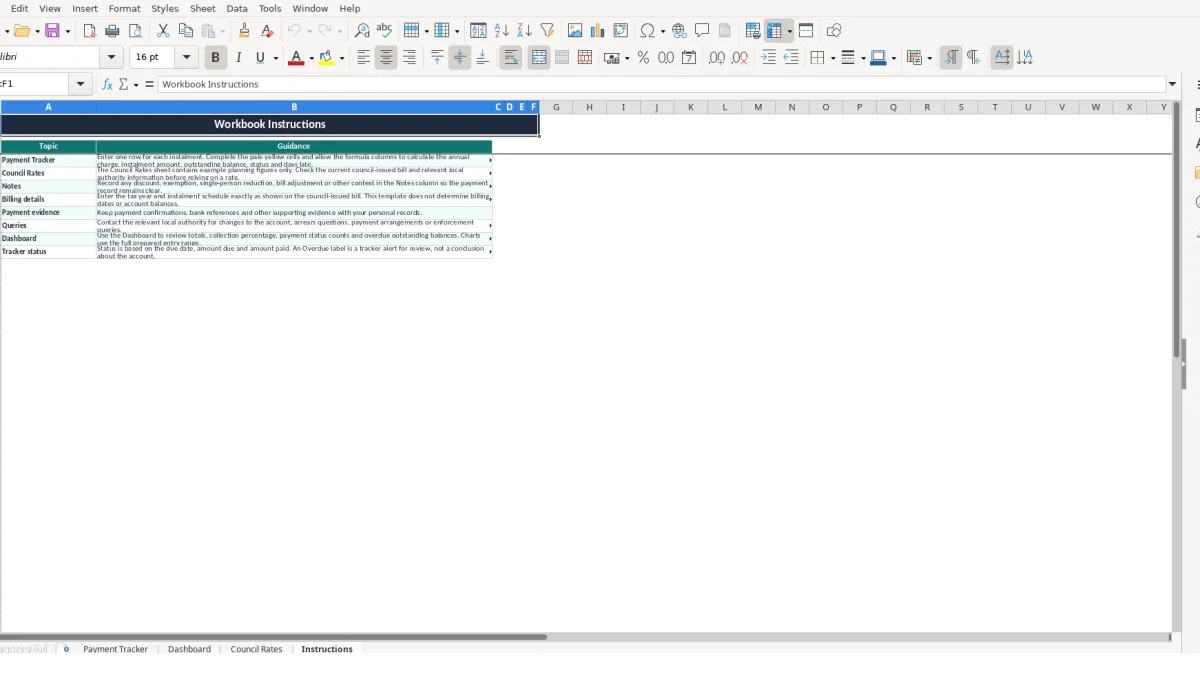
Payment Date and Amount Paid should describe what happened, not what was scheduled. The Notes field is the right place to explain a bank adjustment, discount, exemption, single-person reduction or bill change, while supporting confirmations should remain with your own records.
The workbook includes a Status validation list, but the status column is also formula-driven. Manually replacing a formula with a typed label can make one row disagree with its amount and due date. For example, a £75 shortfall should not remain marked Paid simply because that label was typed earlier.
Another issue is entering instalment numbers outside the validated range of 1 to 10. The workbook is designed around ten instalments when calculating the example amount due, so an instalment number such as 12 should be checked against the actual bill rather than used casually.
The tracker works best when you update it at a fixed point linked to the payment itself. For example, review the relevant row after checking the bank statement on the first working day of each month, then compare the payment date and amount with the council-issued bill or confirmation.
A five-minute review after each payment is more reliable than entering ten historical rows at the end of the year. If three properties each have ten instalments, that is 30 rows to check; a missed £80 part-payment can remain visible when every row has a current amount and status.
Use Property / Account Reference consistently and avoid replacing a full address with a nickname. Put context in Notes, such as the sample note explaining that a Birmingham part-payment needs checking, but do not use Notes to replace the actual amount or date fields.
Do not overwrite the lookup and formula columns to force a preferred result. If the Dashboard does not match the bill, first check the council, band, tax year, instalment amount and payment entry. Confirm disputed figures with the relevant local authority.
This workbook is suitable for a prepared range of 100 payment rows. Consider a dedicated property or finance system when you need bank-feed matching, multiple users, automated reminders, audit history, permissions or records beyond the prepared range. Until then, keep a dated copy and retain payment evidence separately.
It tracks one row per instalment, including the payment ID, account reference, council, address, town or city, band, tax year, due date, payment date, amount paid, payment method and notes. It calculates the annual charge, amount due, outstanding balance, status and days late.
The Payment Tracker has prepared entry rows from row 2 to row 101, giving space for 100 payment records. Each row is intended for one instalment rather than one property.
No. The Council Rates sheet contains example planning figures only. Check the current council-issued bill and relevant local authority information before relying on an annual charge, instalment amount or billing schedule.
The workbook subtracts Amount Paid from Amount Due and prevents the calculated Outstanding figure from falling below zero. For example, £100 paid against £180 due produces £80 outstanding.
The status becomes Overdue when no payment is recorded, the due date has passed and the row still has an outstanding amount. The Instructions sheet states that this is a tracker alert for review, not a conclusion about the account.
The Dashboard summarises total amount due, total amount paid, total outstanding, collection percentage, average instalment, paid instalments, overdue instalments, tracked payments and overdue outstanding. It also includes charts for payment status, payment amounts and cumulative payments.
Excel template by
Guide written by