Funeral Cost Planner Excel Template (2026)
0
Free download
Track UK payroll records, expected and actual student loan deductions, variances, plan settings and year-to-date totals in Excel.


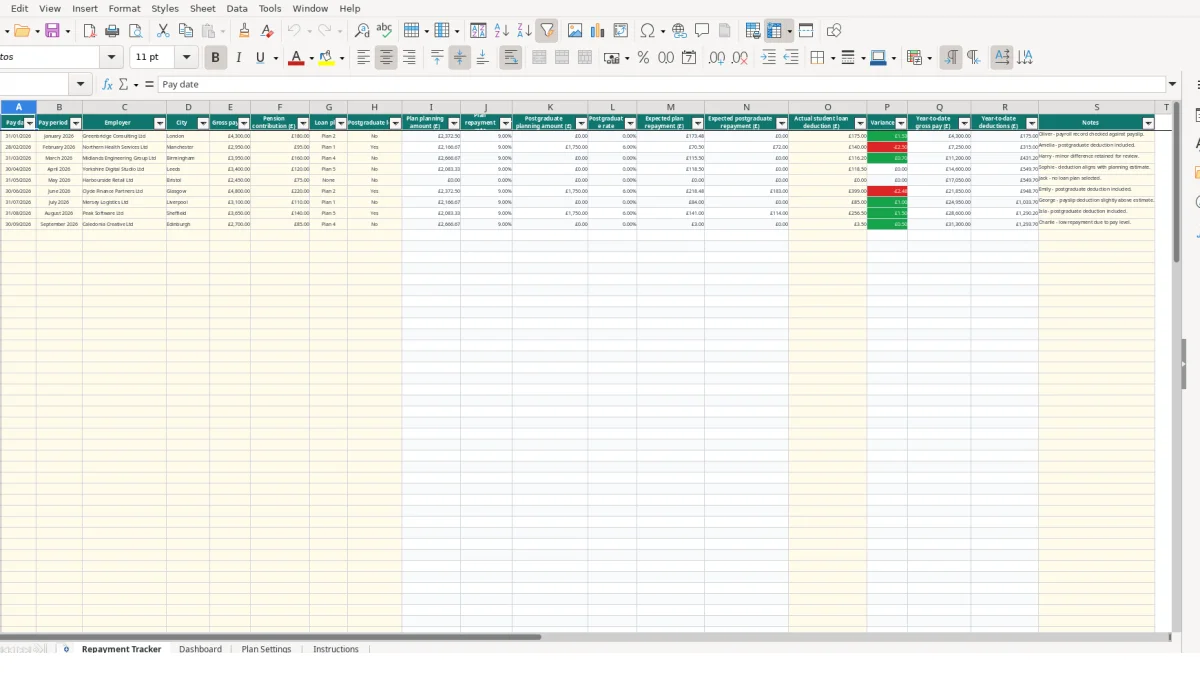
A student loan repayment tracker Excel template records each payroll payment, loan plan, expected repayment, actual deduction and variance. It contains a 100-row Repayment Tracker, linked Dashboard, editable Plan Settings and Instructions sheet for checking payroll figures.
Use it to compare payslip deductions with planning estimates without losing the underlying payroll detail. The workbook includes fields for gross pay, pension contribution, employer, city, postgraduate loan status, notes and year-to-date totals.
This workbook suits employees who want a structured record of deductions across changing employers, payroll teams checking payslips, and bookkeepers maintaining a client’s personal payroll file. It is also useful when a graduate moves between monthly jobs and wants one chronological view rather than separate notes for each employer.
Suppose Oliver records a January 2026 payment from Greenbridge Consulting Ltd in London. The row shows £4,300 gross pay, a £180 pension contribution, Plan 2, no postgraduate loan and a £175 actual student loan deduction. The employer and city fields make that record identifiable if a later payslip query arises.
Amelia’s February 2026 example is different: £2,950 gross pay from Northern Health Services Ltd, Plan 1 and a postgraduate loan marked Yes. Her £140 deduction can be reviewed against both expected components rather than treated as one unexplained figure.
A payroll administrator can use the same row structure for a March entry from Midlands Engineering Group Ltd: £3,950 gross pay, £160 pension contribution, Plan 4 and an actual deduction of £116.20. The Notes field can preserve the reason for a review without changing the calculated columns.
Keep entries in pay-date order. That matters because the year-to-date gross pay and deductions use cumulative SUM formulas from row 2 down to the current row. The workbook is therefore best used as a continuing payroll register, not as a collection of isolated monthly calculations.
The calculation workflow separates information you enter from outputs generated by Excel. You enter pay date, pay period, employer, city, gross pay, pension contribution, loan plan, postgraduate status, actual deduction and notes. The workbook calculates the planning amounts, rates, expected repayments, variance and cumulative figures.
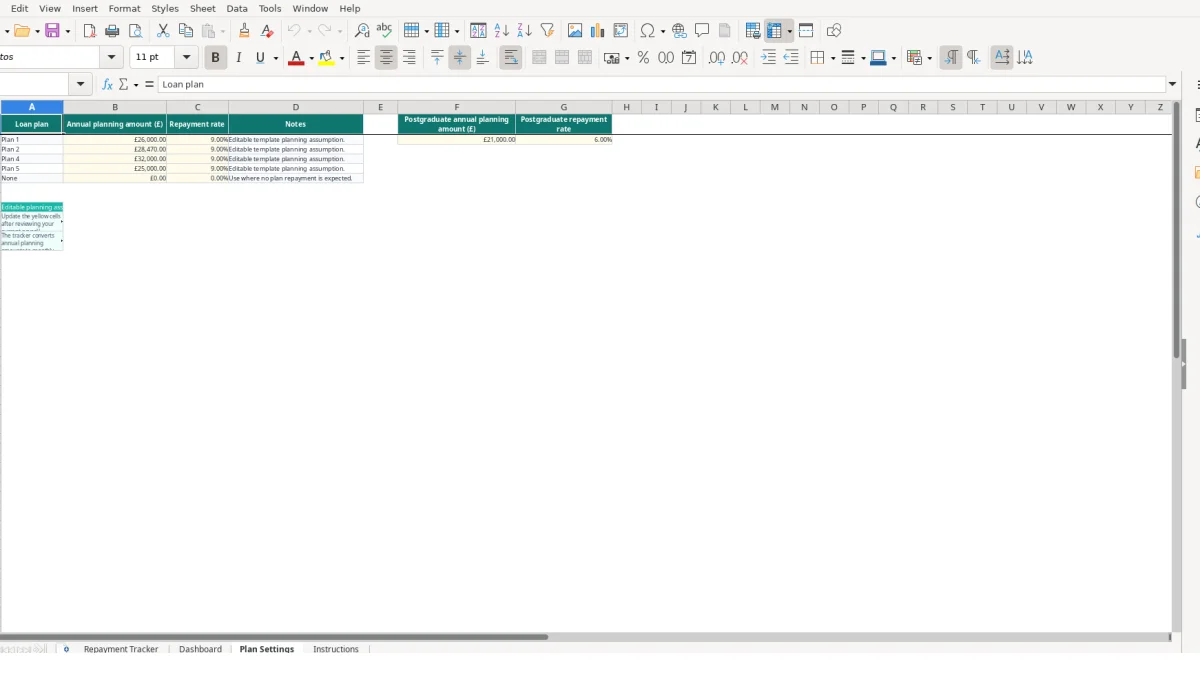
Plan Settings contains editable planning assumptions for Plan 1, Plan 2, Plan 4, Plan 5 and None, plus postgraduate planning values. For example, the supplied Plan 2 row contains an annual planning amount of £28,470 and a repayment rate of 0.09. The tracker converts the annual planning amount to a monthly figure by dividing it by 12.
When a row contains Plan 2, VLOOKUP retrieves the matching amount and rate from Plan Settings. When the postgraduate field is Yes, the separate postgraduate annual planning amount and rate are applied; when it is No, those expected values are zero. This is a sound design choice because assumptions are changed once rather than copied into 100 payroll rows.
Expected plan repayment uses gross pay less the monthly planning amount, multiplied by the plan rate, with MAX preventing a negative result. Expected postgraduate repayment follows the same pattern. Variance is actual deduction minus the two expected amounts: if a row contains £140 actual deduction and £135 combined expected repayment, the variance is £5.
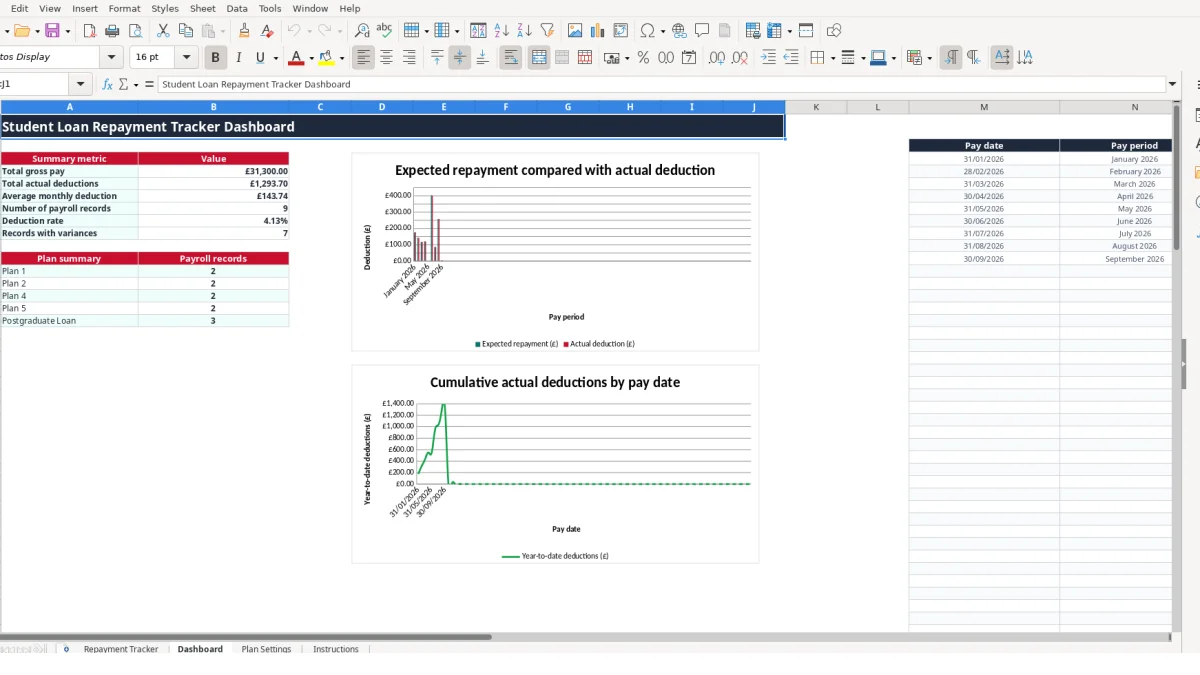
Use the decimal validation to keep pay and deduction inputs at zero or above, and use the dropdowns rather than typing plan names. The Dashboard then uses SUM, AVERAGE and COUNTIF calculations to summarise the prepared tracker rows.
The most expensive errors in this workflow are usually small omissions repeated across several pay periods. A missing postgraduate selection, an incorrect plan choice or an actual deduction copied from the wrong payslip can make the comparison misleading even though the spreadsheet itself is calculating correctly.
Consider a hypothetical £2,950 monthly payroll record that should contain Plan 1 and a postgraduate loan, like the supplied February example. If the postgraduate field is accidentally left at No, the postgraduate expected repayment becomes £0. The row may still look complete, but the combined expected amount is understated and the variance is overstated.
Similarly, selecting Plan 2 instead of Plan 4 changes both the planning amount and rate returned from Plan Settings. Because the formulas use an exact VLOOKUP match, a valid but wrong dropdown choice is more dangerous than an obvious spelling error: Excel can calculate a plausible number from the wrong assumption.
If March is entered above February, the year-to-date columns no longer represent a clean chronological progression. For example, three rows with gross pay of £4,300, £2,950 and £3,950 should build to £4,300, then £7,250, then £11,200 when entered in the supplied order. Reordering them changes the intermediate totals even though the final sum remains £11,200.
Leaving Actual student loan deduction blank also prevents the variance formula from returning a comparison for that row. Do not replace calculated columns with typed figures to fix a discrepancy; correct the input, check Plan Settings and record the explanation in Notes. That preserves the audit trail and keeps the Dashboard linked to the tracker.
The tracker works best when you update it at the same point in each payroll cycle, immediately after the payslip is available. A fixed monthly routine prevents three months of deductions being entered together, when it becomes harder to identify which employer, pay period or plan selection caused a difference.
For each pay period, enter the pay date shown on the payslip, label the period clearly, and copy the actual deduction rather than estimating it. Then review the expected plan repayment, expected postgraduate repayment and variance. A £5 variance on one £140 deduction may be a query to note; four similar variances across four records require a more deliberate review.
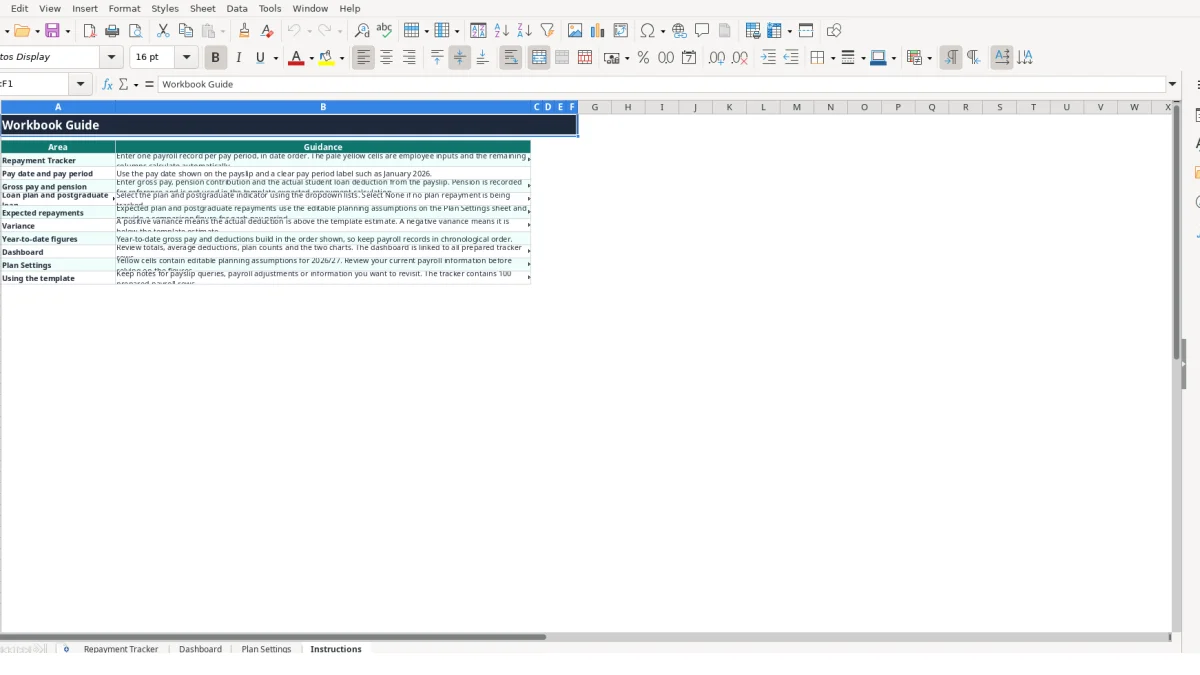
The workbook provides 100 prepared tracker rows. If your payroll history exceeds that capacity, or if you need several employees, multiple deduction types, automated payroll imports or formal approval controls, move to a payroll or accounting system rather than extending formulas ad hoc. Keep this spreadsheet as a review tool only when its fixed structure still matches your records.
It records pay date, pay period, employer, city, gross pay, pension contribution, loan plan, postgraduate loan status, actual deduction and notes. It also calculates expected repayments, variance and year-to-date figures.
The Plan Settings sheet includes Plan 1, Plan 2, Plan 4, Plan 5 and None. The Repayment Tracker uses a dropdown list so you can select one of these options for each payroll row.
Yes. Select Yes or No in the Postgraduate loan? field. When Yes is selected, the workbook uses the postgraduate planning amount and rate from Plan Settings to calculate an expected postgraduate repayment.
Enter the amount shown on the payslip in Actual student loan deduction (£) on the Repayment Tracker sheet. The workbook compares it with the expected plan and postgraduate amounts and returns the difference in Variance (£).
Yes. Plan Settings contains editable planning assumptions, including annual amounts and repayment rates. Review your current payroll information before relying on the comparison figures; the workbook describes these values as planning assumptions.
The Dashboard shows total gross pay, total actual deductions, average monthly deduction, number of payroll records, deduction rate, records with variances and plan counts. It also contains two charts linked to the tracker records.
Excel template by
Guide written by