Funeral Cost Planner Excel Template (2026)
0
Free download
Track classic car restoration invoices, VAT, parts, labour and budget status in Excel, with a dashboard for UK owners and restorers.


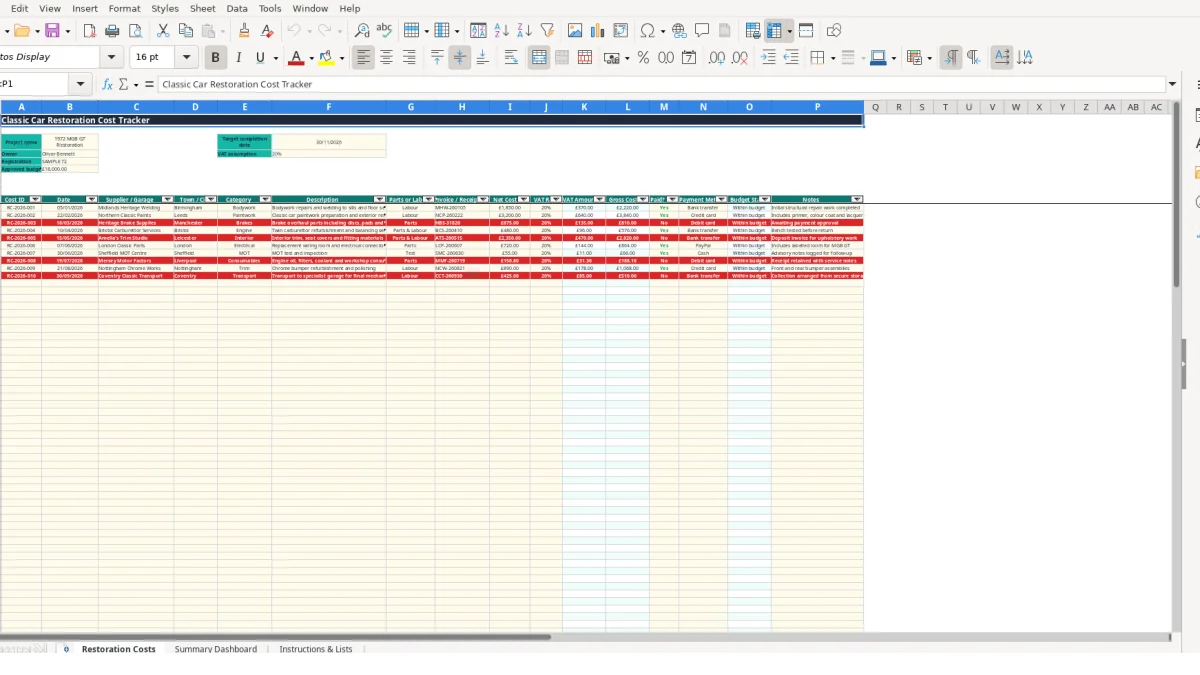
This classic car restoration cost tracker Excel template records each invoice, receipt or garage payment, calculates VAT and gross cost, and compares cumulative spending with your approved budget. It includes a Restoration Costs log, Summary Dashboard and Instructions & Lists sheet.
Enter the project name, owner, registration, target completion date, VAT assumption and approved budget at the top of the workbook. The sample project is a 1972 MGB GT restoration with an approved budget of £18,000, but you can replace these illustrative values with your own project details.
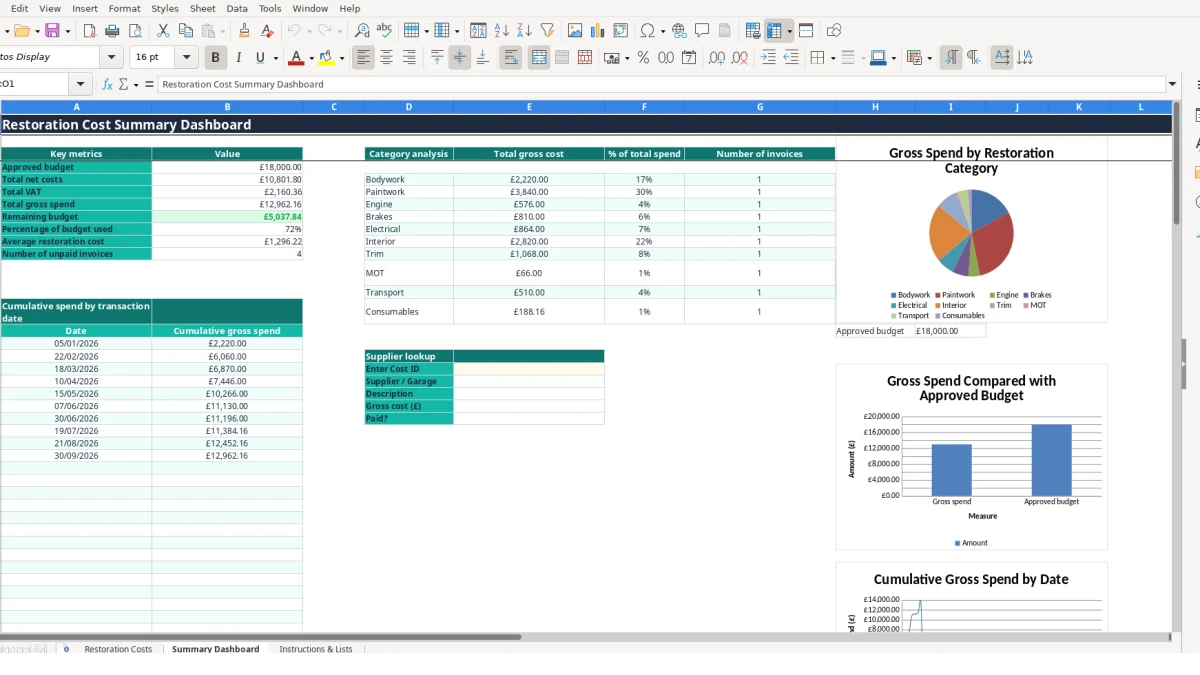
Use it for parts, labour and specialist work such as bodywork, paintwork, engine, brakes, electrical, interior, trim, MOT, transport and consumables. The dashboard then summarises net costs, VAT, gross spend, unpaid invoices, category totals and remaining budget.
A classic car owner can use this workbook whenever restoration spending starts to spread across a home workshop, specialist garages and parts suppliers. A project such as the sample 1972 MGB GT Restoration may involve bodywork in Birmingham, paintwork in Leeds, engine parts from another supplier and transport costs before the car is finished.
The useful point is not simply recording a final total. You can enter the structural repair as a Labour cost, log replacement panels as Parts, and record a combined engine job as Parts & Labour. Those distinctions help you see whether the budget is being consumed by fabrication, bought-in components or specialist time.
For a private owner, the log can be updated each time an invoice arrives or once a week after reviewing receipts. For example, three entries of £1,850, £420 and £275 net at a 20% VAT rate would create £2,220, £504 and £330 gross costs respectively. The dashboard would then include £3,054 in gross spend from those three entries.
The supplier, town or city and invoice or receipt number fields give each cost a useful audit trail. If the same car visits two garages for bodywork, you can keep the category consistent while distinguishing the suppliers and descriptions.
A restorer managing work for a family member or project group can use the Cost ID to discuss a specific charge rather than searching through email. The dashboard's supplier lookup accepts a Cost ID selected from the restoration log and returns the linked supplier, description, gross cost and payment status.
This is especially useful at a weekly project review. Instead of asking whether the budget is still realistic, you can check the approved budget, cumulative gross spend and category analysis together. The workbook is a cost tracker, so keep source invoices and receipts with the project records rather than treating the spreadsheet as the only evidence.
Start with the input fields on Restoration Costs. Net Cost (£) and VAT Rate are the key numeric inputs. For each populated row, the VAT Amount (£) formula multiplies the net cost by the selected VAT rate, and Gross Cost (£) adds the result to the net amount. If the net cost is £1,850 and the rate is 20%, the calculated VAT is £370 and gross cost is £2,220.
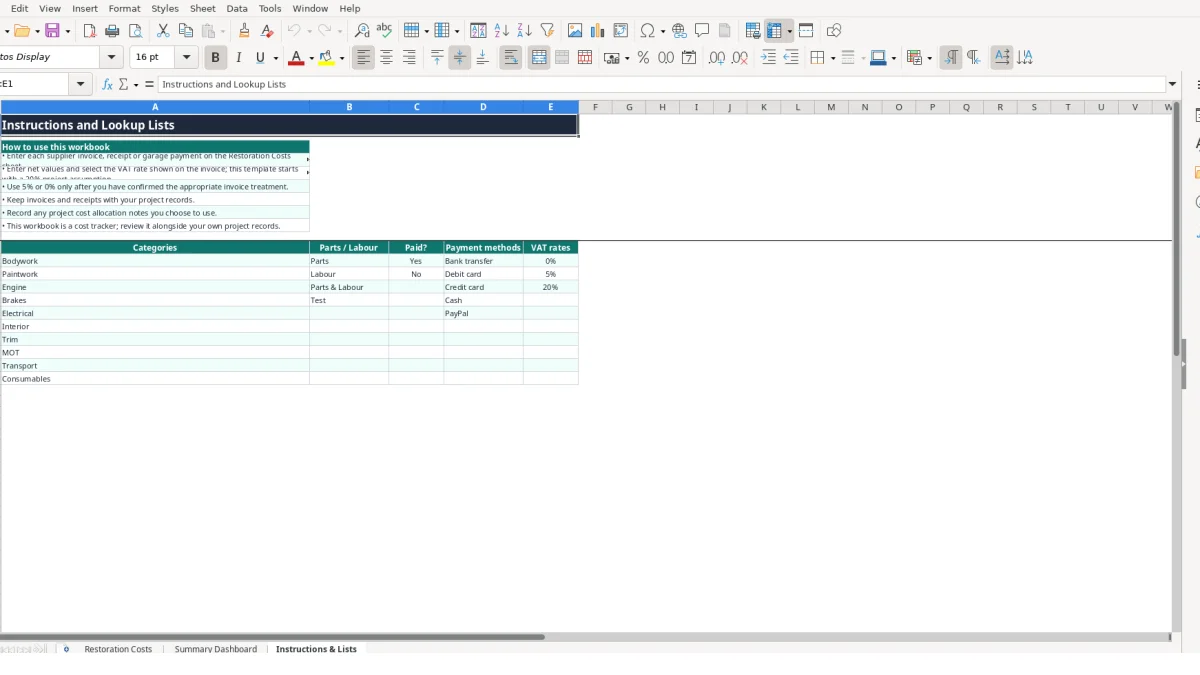
The VAT dropdown contains 0%, 5% and 20%. Select the rate shown on the relevant invoice and confirm the treatment for your own records; the workbook does not decide which rate applies. The Instructions & Lists sheet stores these choices and the other validation lists.
Category, Parts or Labour, Paid?, Payment Method and VAT Rate use dropdown validation across the entry area. This is a sound design choice: selecting Engine is more reliable for dashboard formulas than entering variations such as engine, Engines or motor work. The available categories include Bodywork, Paintwork, Engine, Brakes, Electrical, Interior, Trim, MOT, Transport and Consumables.
Restoration Costs contains 100 planned rows, from row 11 to row 110. The auto-filter covers the data range, while the headings are frozen at row 11 so you can keep the field names visible when reviewing a long list.
Summary Dashboard uses SUM for net, VAT and gross totals, SUMIF for category gross totals, COUNTIF for invoice counts and unpaid entries, and AVERAGE for the average restoration cost. If five invoices total £6,000 gross, the dashboard's average restoration cost is £1,200 before any other populated rows are included.
Budget Status compares the running gross total with the approved budget in B6. With an £18,000 budget, a cumulative total of £17,500 remains Within budget; the next £700 gross entry takes the running total to £18,200 and returns Over budget. The budget comparison and cumulative-spend chart provide a second way to review that position.
The most expensive mistake is often recording the wrong amount basis. If a garage invoice shows £1,000 net and £200 VAT but you enter £1,200 as Net Cost (£) and also select 20%, the workbook calculates £240 VAT and £1,440 gross. That hypothetical error overstates the project by £240 and distorts the dashboard's net, VAT and category figures.
Use the amount printed as the invoice's net value in Net Cost (£). Enter the rate shown on the document in VAT Rate, and check the resulting VAT Amount (£) and Gross Cost (£) against the invoice before moving on.
Typing categories manually would make category reporting fragile, so the workbook uses validation. If one paint invoice is entered as Paint and another as Paintwork, a category calculation looking for Paintwork would not group them together. Selecting the supplied Paintwork option keeps both costs in the same analysis row.
The same issue applies to payment status. A value such as Paid, yes or settled will not match the supplied Yes or No list consistently. If a £750 invoice is marked No instead of Yes, the dashboard's unpaid invoice count remains one higher than it should and the supplier lookup shows the wrong payment position.
A blank Invoice / Receipt No. or vague description makes a £2,400 restoration entry difficult to match to a document later. If 12 entries are reviewed at month-end and four have no reference, even a five-minute search per item creates 20 minutes of avoidable work, based on that hypothetical example.
Do not overwrite calculated VAT Amount (£), Gross Cost (£) or Budget Status cells with typed figures. Those formulas are the link between the inputs and the dashboard. If a formula is replaced in one row, the totals may continue to look plausible while that individual transaction no longer responds when the net cost or VAT rate changes.
Choose one fixed update point that matches how the car project is managed. A Friday evening review works for an owner ordering parts during the week; a workshop coordinator may update the file after each supplier payment. The aim is to enter the invoice while the supplier, description and payment method are still clear.
Use a short routine rather than waiting for a large reconciliation. For example, five new invoices at £180, £650, £1,200, £95 and £2,400 gross take only a few minutes to enter while the documents are open, but become harder to classify after several weeks of mixed receipts.
Save the workbook with a clear project filename and retain the supporting invoices and receipts in the same project filing system. Do not create separate unofficial totals in email or on paper: the dashboard is designed to bring the net, VAT and gross figures together.
This workbook is suitable for a restoration with up to 100 cost rows and a straightforward budget review. If several people need simultaneous access, the project contains many more transactions, or you need stock control, purchase orders, document storage or detailed workflow permissions, consider moving to a dedicated system.
Before changing systems, use the dashboard to identify the information you actually rely on: supplier, category, payment status, gross value and budget position. That gives you a practical specification rather than carrying every informal note into a more complex process.
It records Cost ID, date, supplier or garage, town or city, category, description, Parts or Labour, invoice or receipt number, net cost, VAT rate, VAT amount, gross cost, payment status, payment method, budget status and notes.
The supplied category list includes Bodywork, Paintwork, Engine, Brakes, Electrical, Interior, Trim, MOT, Transport and Consumables. Use the Category dropdown on Restoration Costs rather than creating alternative spellings.
Enter the invoice's net value and select a VAT rate from the dropdown. The workbook calculates VAT Amount (£) by multiplying those inputs, then adds it to Net Cost (£) to calculate Gross Cost (£). The available rates are 0%, 5% and 20%; confirm the appropriate treatment for your own records.
Yes. Select Yes or No in the Paid? field and choose a payment method where applicable. Summary Dashboard includes a Number of unpaid invoices metric, and the supplier lookup can show the payment status for a selected Cost ID.
Each populated cost row compares cumulative gross spending with the Approved budget entered at the top of Restoration Costs. The result is Within budget while the running total is within that figure and Over budget after it exceeds the figure.
The dashboard shows approved budget, total net costs, total VAT, total gross spend, remaining budget, percentage of budget used, average restoration cost and unpaid invoices. It also includes category totals, percentage of total spend, invoice counts, budget comparison, cumulative spend by transaction date, three charts and a Cost ID supplier lookup.
Excel template by
Guide written by