Childminder Register Excel – Free Template (2026)
1
Free download
Free annual leave tracker Excel template for UK teams. Log requests, half days and approvals, with balances by employee and leave year and a department summary.



An annual leave tracker should give the same remaining balance when an employee books a second holiday, and it should not deduct sickness from their holiday allowance. This revised Excel file records requests and decisions, keeps balances by employee and leave year, and provides a department summary for a small team.
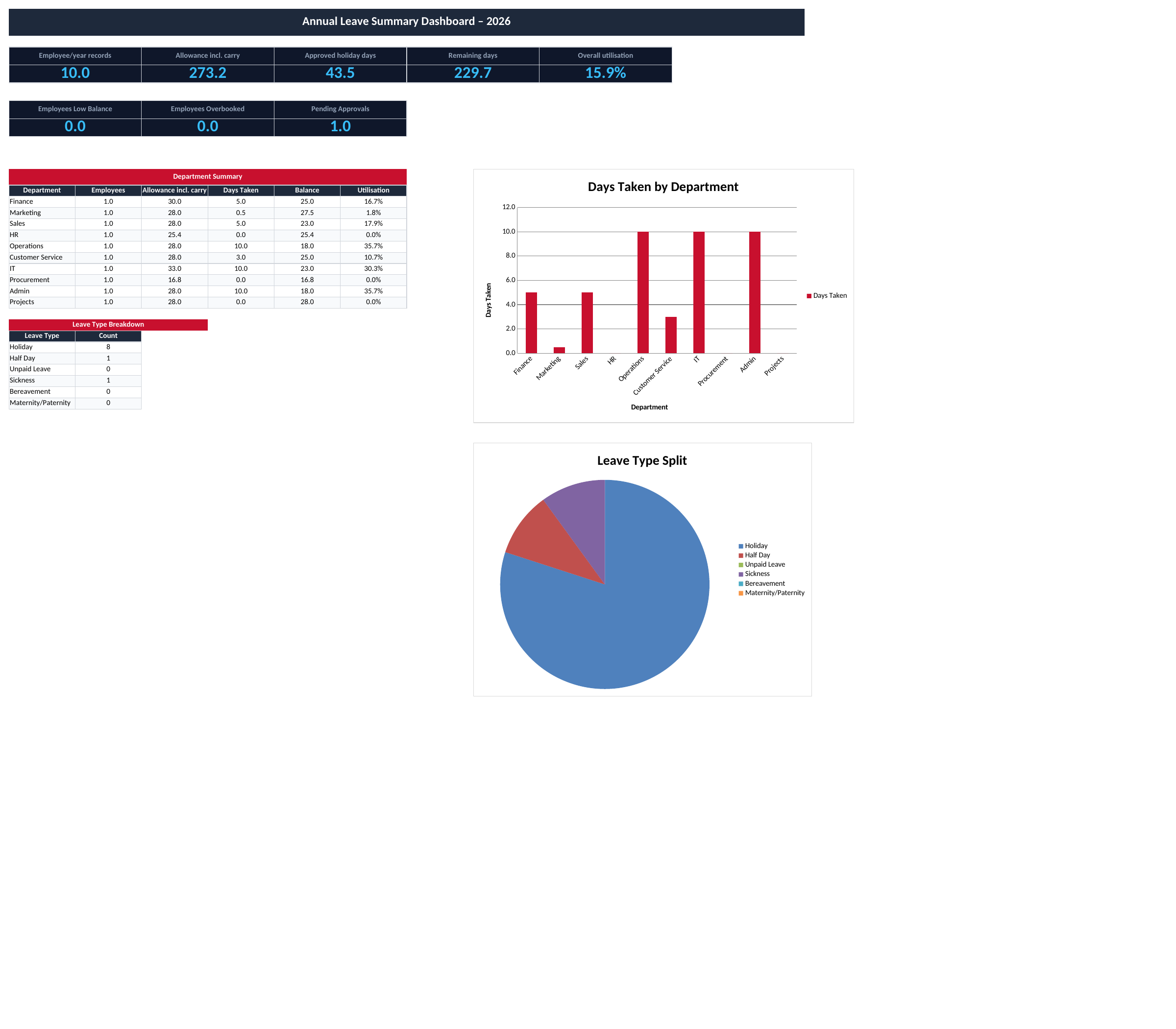
The download contains Leave Log, Summary Dashboard and Instructions. Start by replacing the fictional employees and deciding which leave year the file will cover. For the clearest report, keep one leave year per working file. The example uses 1 January to 31 December 2026, but the year-start and year-end fields are editable.
Enter each person’s agreed annual entitlement in H and any confirmed carry forward in I. The spreadsheet records those figures; it does not calculate a legal entitlement from a job title, employment type or start date. Part-time, irregular-hours and part-year arrangements need the correct entitlement worked out before it is entered.
Most workers are entitled to 5.6 weeks’ paid annual leave, with the statutory days cap and the working pattern affecting the calculation. Bank holidays can form part of that entitlement. Check the GOV.UK entitlement guidance and your contract or policy when setting the allowance; the sample numbers are not a personalised entitlement calculation.
Be explicit about bank holidays. If they are included in the allowance you enter, record the days charged to that allowance consistently. If your organisation tracks an allowance excluding separately managed bank holidays, document that method. Automatically omitting every bank holiday while entering an inclusive allowance produces a misleading remaining balance.
Use a stable Employee ID in A. Names can change or be shared by two people, so the balance uses the ID together with the leave-year start and end dates. Repeat those three fields exactly for later requests by the same employee. Keep the department, entitlement and carry-forward amounts consistent as well.
Enter the start and end of the absence in J and K, choose the leave type in L and enter the number of scheduled working days in M. The dates do not calculate the day count. A Monday-to-Friday span may be five working days for one employee and three for another; use the person’s actual working pattern.
For a half day, choose Half Day and enter 0.5. Do not enter a clock time such as 12:00 or text such as “half”. Select Requested while a decision is pending, and change it to Approved only when that decision has been made. Approver and Notes provide context, but the spreadsheet does not send the request to a manager.
Rows 2 to 1000 have the balance, utilisation and warning formulas prepared. Enter new requests in the input columns and retain the formulas in Q to S. The hidden helper columns support the summary; leave them intact when copying or clearing records.
Suppose an employee has 28 days of entitlement and 2 days carried forward. Their starting allowance is 30 days. An approved five-day holiday and an approved half day use 5.5 days, leaving 24.5. That same balance appears on every row for the employee and leave year, so each request remains connected to the overall allowance.
| Record | Status | Effect on holiday balance |
|---|---|---|
| Holiday, 5 days | Approved | Deduct 5 days |
| Half Day, 0.5 days | Approved | Deduct 0.5 day |
| Sickness, 3 days | Approved | No holiday deduction |
| Holiday, 2 days | Requested | No deduction while awaiting approval |
Only Approved records whose type is Holiday or Half Day reduce the holiday balance. Rejected, Cancelled and Requested records do not. Unpaid Leave, Sickness, Bereavement and Maternity/Paternity are kept as other absence types and do not reduce it through these formulas.
Future approved bookings are included as well as holidays already taken. The remaining figure is therefore the allowance left after approved bookings, not necessarily the balance after absences completed to today. The file has no separate “taken versus booked” date-based calculation.
Requests with a different leave-year start or end belong to a different balance. Split a booking that crosses two leave years into separate rows with the correct dates and day quantities for each year. Do not assign the entire absence to one year merely because its first day falls there.
Q shows days remaining, R shows utilisation and S gives a review flag. A balance of five days or fewer is Low Balance; a negative balance is Overbooked. These thresholds help you find entries to discuss, but they do not approve a request or determine whether carry forward should be allowed.
“Check allowance” means the same employee and leave year has conflicting entitlement or carry-forward figures. Correct the repeated inputs before interpreting the totals. “Check dates/days” points to a missing or invalid date, an absence outside the stated year or a day quantity that needs checking.
A duplicate booking can still be entered twice. The tracker does not compare overlapping absence periods, calculate staffing coverage or stop two people from booking the same dates. Review the log for duplicates and conflicts as part of the approval process.
The Summary Dashboard counts each employee/year combination once for the allowance and remaining balance. It includes carry forward, so adding a second request does not add a second annual allowance. Overall utilisation is approved holiday days divided by that total allowance. The department table uses the same basis.
Two charts draw on department and leave-type summaries. The leave-type chart counts records, not days: a ten-day holiday and a half-day request are each one record in that view. The department list is predefined in the sample, so add a new department to the summary and check the chart range when adapting it.
Agree who updates the live workbook and where the approved copy is held. If both an employee and a manager edit separate copies, the formulas cannot tell which version contains the latest decision. A clear file owner and a dated record of changes are useful even for a small team.
Keep notes brief and relevant to scheduling. Avoid adding medical detail where an absence category is sufficient, and limit access to people who need the full team record. An individual employee normally needs their own position, rather than a copy of everyone’s absence history.
This is an allowance and request tracker, not a payroll calculator. It does not calculate holiday pay, statutory sick pay, accrued entitlement for irregular hours or the legal treatment of carry forward. Resolve those questions through your organisation’s process and appropriate current guidance, then enter the agreed figures.
For day-to-day coverage, use the weekly rota template alongside the approved leave record. The two files do not synchronise automatically, so an approved absence must be reflected in the rota by the person maintaining it.
Archive the completed year before setting up the next one. Confirm the new entitlement and any permitted carry forward instead of treating the old balance as an automatic carry-forward amount. Update the year dates on every active employee’s new records and clear the previous requests from the input columns.
Within the first 1000 rows, the prepared formulas handle additional requests. If you expand beyond that limit, extend the balance ranges, summary helpers, dropdowns and dashboard references together. Test a second request for one employee after making structural changes, because a correct-looking first row does not test repeated bookings.
For sharing, choose the summary or the relevant employee’s rows and check the print preview. The log is wide, and its initial print area covers only the sample records; extend it when you add rows. Keep the Excel file for ongoing edits and export a PDF only when you need a fixed snapshot of the reviewed position.
No. Column M is a manual working-day quantity. Review it whenever the absence dates or working pattern change; the file has no automatic weekend or bank-holiday calendar.
Each request has its own row, while the summary counts each employee ID and leave-year combination once. That prevents repeated requests from duplicating the allowance.
Excel template by
Guide written by