IR35 Status Excel Template – Free UK (2026)
0
Free download
Plan offered zero-hours shifts, calculate paid hours and labour cost, track responses and review staffing on a dashboard.


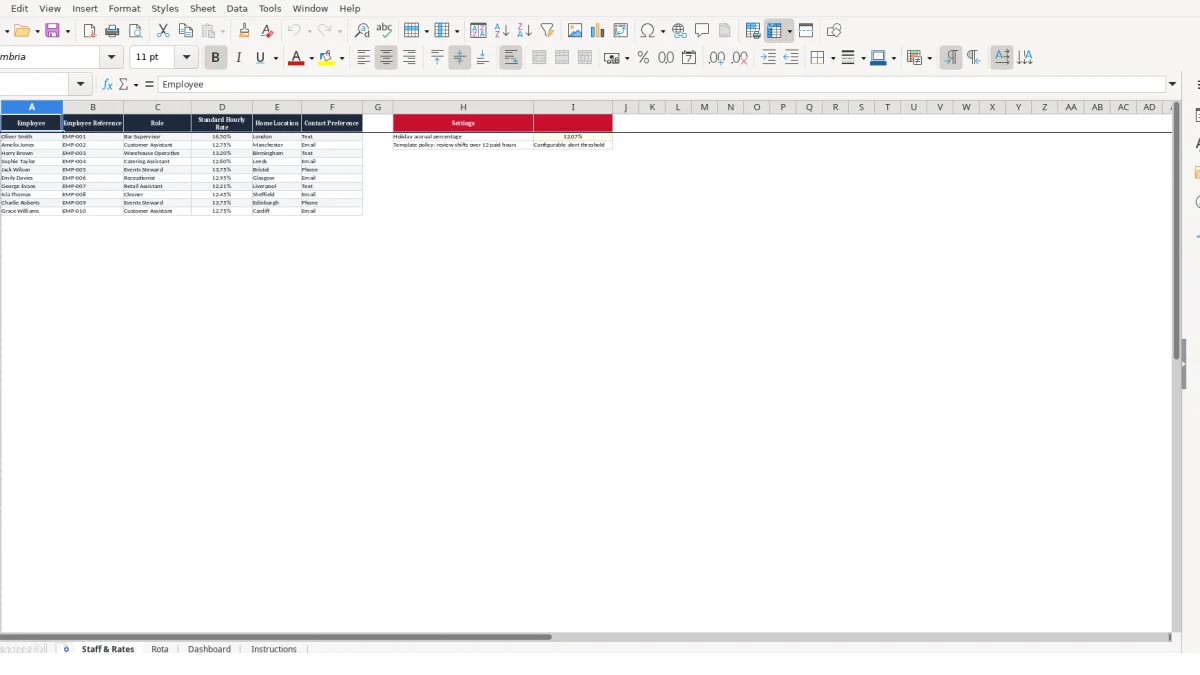
This zero hours rota Excel template helps UK businesses record offered shifts, worker responses, paid hours and labour costs. It includes Staff & Rates, Rota, Dashboard and Instructions sheets, with automatic calculations for shift pay, holiday accrual and total labour cost.
You enter one offered shift per row on the Rota sheet, then record whether it was accepted, declined, cancelled or completed. The workbook looks up each worker's role and hourly rate, while the Dashboard turns those entries into staffing, cost and confirmation measures.
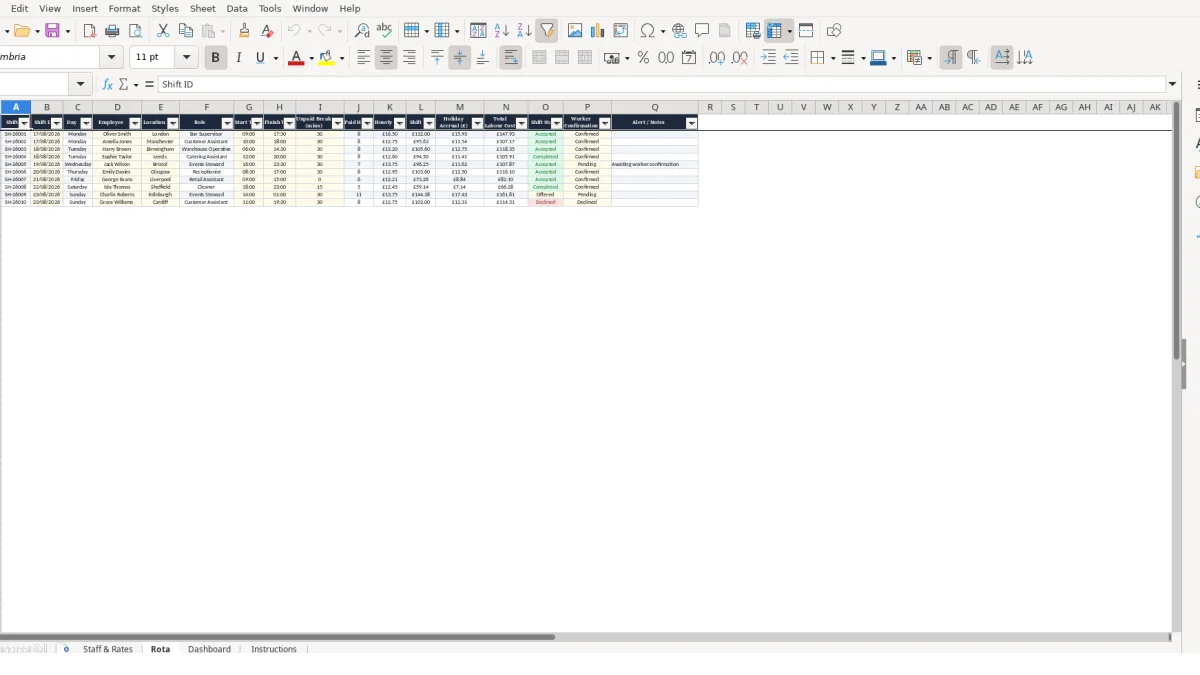
A zero-hours rota is useful where demand changes from day to day and managers need a clear record of shifts offered to individual workers. Hospitality venues, warehouses, catering teams and retail operations can use it to separate the initial offer from the worker’s eventual response.
The workbook is designed around one row per offered shift. That is the right unit of record: if a bar needs cover from 09:00 to 17:30 with a 30-minute unpaid break, it is one shift entry with 8.00 paid hours, not a vague note against a person’s name.
A pub manager might offer Oliver Smith, listed as a Bar Supervisor at £16.50 per hour in the sample data, an 8.00-hour shift. The calculated shift pay is £132.00 before the workbook’s holiday accrual calculation, giving the manager a specific cost to compare with the expected takings or staffing budget.
For an event team, several offers can be entered before all replies arrive. A shift marked Offered should remain distinct from one marked Accepted or Completed; otherwise the rota can overstate the people actually expected on site.
A shop supervisor can record an afternoon shift for a Customer Assistant, including the branch location and the worker’s contact preference held on Staff & Rates. This is practical when a Manchester branch needs cover but the team list also contains workers associated with other locations.
For example, a 10:00 to 18:00 shift with a 30-minute break produces 7.50 paid hours. At the illustrative £12.75 hourly rate, the shift pay calculation produces £95.63 after rounding to two decimal places.
Warehouse managers can use the same row-based rota for dispatch peaks, late deliveries and stock counts. A Warehouse Operative shown at £13.20 per hour can be assigned a specific start and finish time, rather than being assumed available for an entire day.
The strongest operational judgement is to record an offer only after it has actually been made, as the Instructions sheet directs. That creates a usable history of offered, declined and cancelled cover rather than a draft plan that cannot explain why a shift was unfilled.
The Rota sheet keeps user inputs separate from calculated outputs. You enter Shift Date, Employee, Location, Start Time, Finish Time, Unpaid Break, Shift Status and Worker Confirmation; the workbook calculates Day, Role, Hourly Rate, Paid Hours, Shift Pay, Holiday Accrual and Total Labour Cost.
This separation matters because roles and rates are held once on Staff & Rates. The Rota uses VLOOKUP against cells A2:F11 to retrieve the selected employee’s role and standard hourly rate, avoiding repeated manual rate entry on every shift.
Paid Hours uses the difference between finish and start time, converted to hours, then subtracts the unpaid break in minutes. The MOD calculation handles a finish time after midnight: a 22:00 to 06:00 shift with a 30-minute break calculates as 7.50 paid hours rather than a negative number.
For a same-day 09:00 to 17:30 shift with a 30-minute break, the result is 8.00 hours. Excel rounds the result to two decimal places, which is preferable to carrying long time-conversion decimals into pay calculations.
Shift Pay is Paid Hours multiplied by Hourly Rate and rounded to two decimals. If 8.00 hours are worked at £16.50, the calculated pay is £132.00; Holiday Accrual (£) then applies the configurable percentage in Staff & Rates cell I2, and Total Labour Cost adds the two amounts.
The sample setting is 12.07%, but it is a configurable workbook setting rather than a figure you should alter casually. Confirm your organisation’s approach separately with payroll or HR advisers before using the resulting cost figures in a budget.
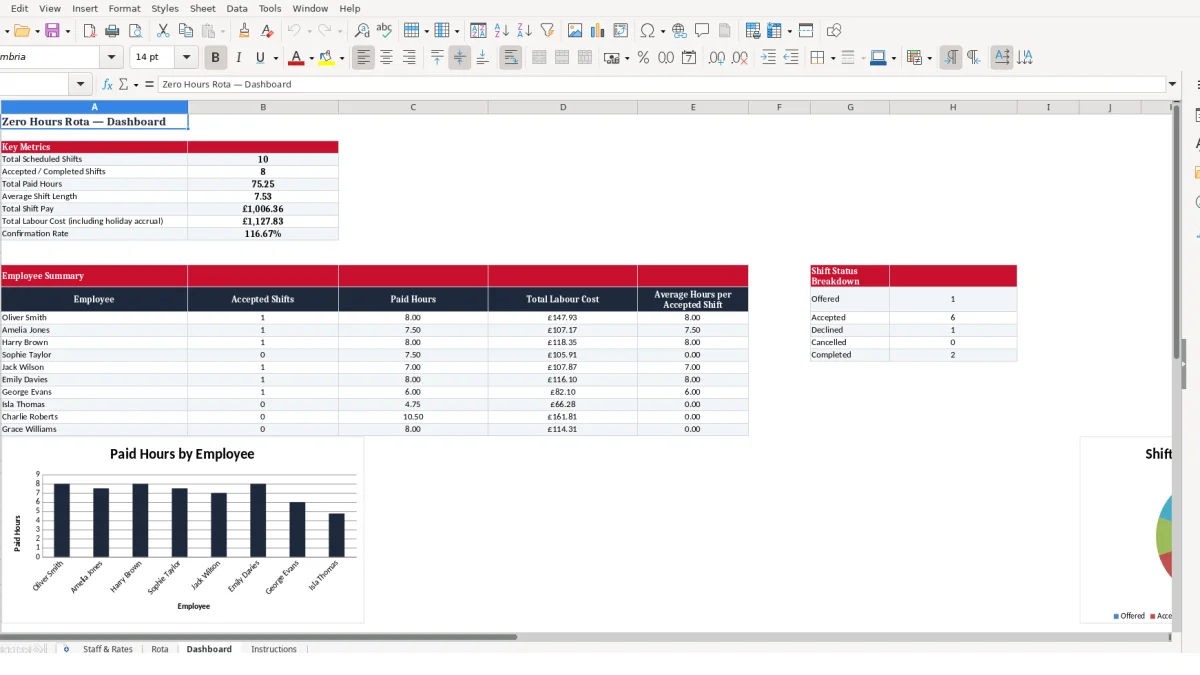
The Dashboard uses SUM for total paid hours and labour costs, and COUNTIF for shift counts and status measures. Its employee summary uses SUMIFS to total accepted-shift hours and labour cost by named worker, so you can compare, for example, two accepted shifts totalling 15.50 hours with one accepted 7.50-hour shift.
The alert formula also identifies paid shifts above 12 hours for review and accepted shifts without Confirmed worker confirmation. Treat these as operational prompts, not legal determinations.
The most expensive rota errors usually begin before a formula runs: an unoffered shift is entered as accepted, a reply is recorded in a message but not in the workbook, or a manager changes a time without revising the break. The Rota sheet is only reliable when each row reflects one specific offered shift and its current status.
A practical consequence is easy to see. If four 8.00-hour shifts at £16.50 are treated as accepted when only two workers agreed, the apparent shift pay is overstated by £264.00 before holiday accrual is included.
Shift Status and Worker Confirmation are separate fields for a reason. An Accepted shift with a value other than Confirmed in the confirmation field produces the Alert / Notes message Awaiting worker confirmation.
Do not remove that distinction by typing the same value into both fields at the point of offer. A manager can otherwise read the Dashboard’s confirmation rate as a completed communication process when the worker response has not been recorded properly.
Hourly Rate is calculated from the employee name on Staff & Rates, so the employee list is the source record for standard rates. Typing a worker name differently from the staff record can leave the lookup unable to find a rate, returning 0 rather than a plausible labour-cost estimate.
For example, a 7.50-hour shift that should use £12.75 produces £95.63 shift pay. If the lookup returns 0 because the employee reference data is not maintained consistently, the row shows £0.00 and can make a staffing plan look artificially affordable.
Entering 30 as a time rather than as 30 unpaid-break minutes changes the meaning of the data. The workbook expects the break column in minutes and subtracts I/60 from calculated shift duration.
Likewise, do not enter an overnight finish as though it occurred before the start on the same date and then override the output. The existing MOD formula is built to calculate 22:00 to 06:00 correctly; retain it rather than replacing it with copied arithmetic.
The 12 paid-hour alert is a configurable template policy, not a conclusion about compliance. A 12.50-hour calculated shift deserves a manager’s review for a recording error, break omission or operational decision before it is relied on for scheduling or payroll preparation.
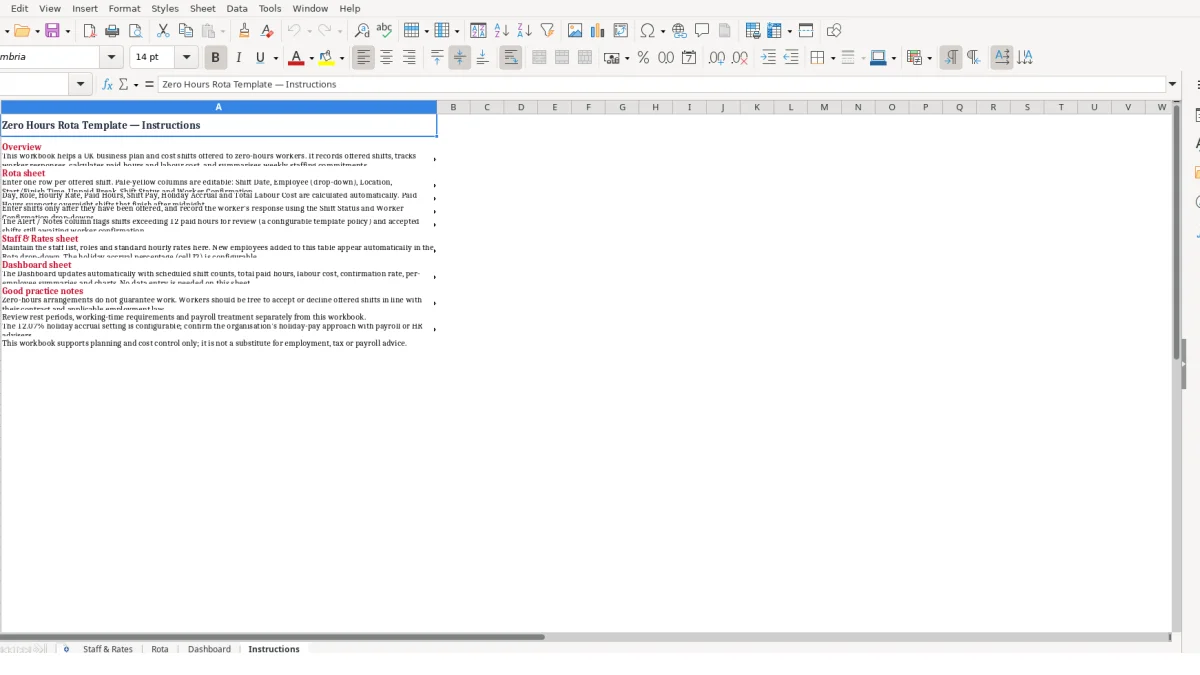
A rota becomes useful when it is updated at the same point in the staffing cycle, not when someone remembers after a busy service. Set one owner for entering offers and a second check before the next week’s plan is treated as final.
For a team offering 10 shifts in a week, a 10-minute review can identify the difference between 10 scheduled rows and, for example, 7 accepted or completed shifts. The Dashboard calculates both measures automatically, but only after Shift Status is kept current.
Link the check to an existing event, such as the daily opening routine or weekly manager handover. Use the Contact Preference field on Staff & Rates as a prompt for how the offer is communicated, while keeping the Rota as the record of the outcome.
Maintain names, roles and rates in Staff & Rates rather than overwriting calculated Rota cells. This is the sounder design because a rate change is made once at the source, while the lookup supplies the matching rate on new or revised shift rows.
Before a new planning period, replace or clear illustrative shifts carefully and preserve the formulas in columns C, F and J:N. A 7.50-hour shift at £13.20 should calculate to £99.00 shift pay; that quick check confirms the core hours-and-rate chain is still intact.
This template is suitable for planning and cost control across its supplied 10-row rota area. If several managers are changing shifts simultaneously, workers need self-service availability tools, or payroll requires automated approvals, move the workflow to a system designed for shared access and audit controls.
Until then, keep the spreadsheet as one controlled file and use the Dashboard’s confirmation rate, employee summary and status breakdown in the weekly staffing review. Do not use it as a substitute for employment, tax or payroll advice.
Yes. Paid Hours uses a MOD time calculation, so a shift starting at 22:00 and finishing at 06:00 can calculate correctly after the unpaid break is deducted.
Enter one row per offered shift: shift ID, date, employee, location, start and finish times, unpaid break, status and worker confirmation. Day, role, hourly rate, paid hours and cost fields calculate automatically.
Yes. The percentage is held in cell I2 on Staff & Rates and feeds the Holiday Accrual (£) calculation. Confirm the appropriate approach with your payroll or HR advisers before changing it.
The alert appears where Shift Status is Accepted but Worker Confirmation is not Confirmed. Update the worker confirmation field once that confirmation has been recorded.
The workbook flags a shift with more than 12 paid hours for review. It is a configurable template policy prompt, so review the time, break and operational decision separately.
The Dashboard shows total scheduled shifts, accepted or completed shifts, paid hours, average shift length, shift pay, total labour cost and confirmation rate. It also includes employee summaries, a shift-status breakdown and two charts.
Excel template by
Guide written by