IR35 Status Excel Template – Free UK (2026)
0
Free download
Plan hospitality shifts, hours and estimated basic pay with a weekly rota, dashboard and instructions sheet for UK venues.


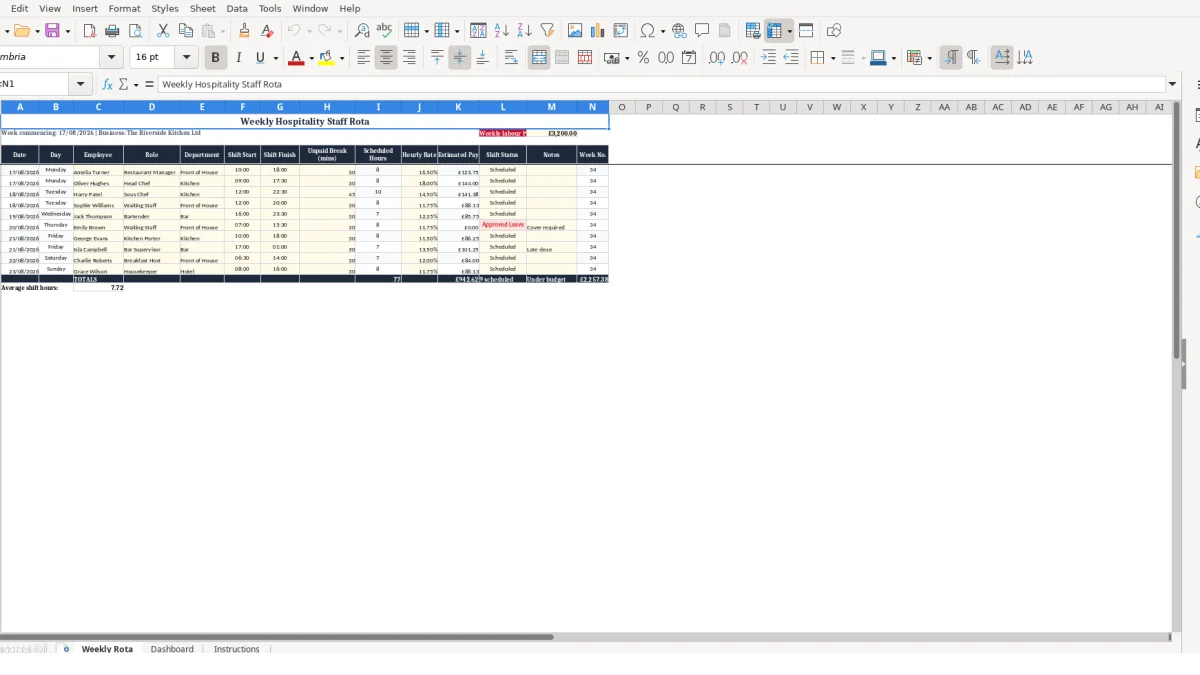
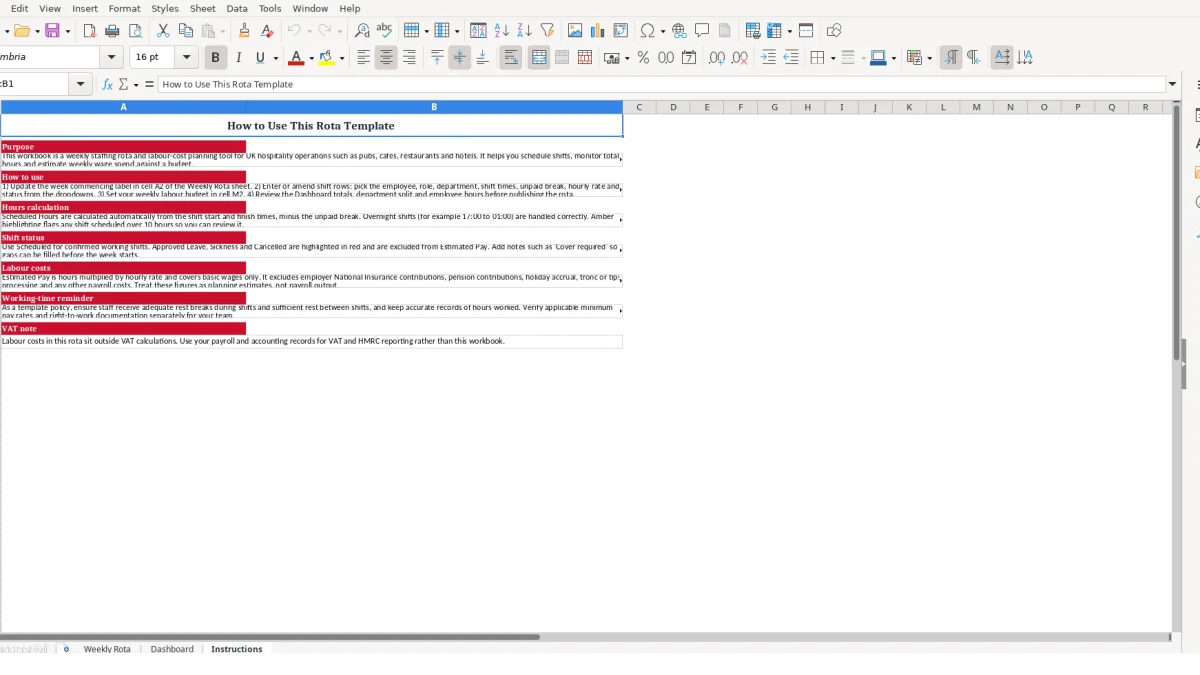
This hospitality rota Excel template is a weekly staffing and labour-cost planning workbook for UK pubs, cafés, restaurants and hotels. It includes a Weekly Rota for up to 10 shift rows, a Dashboard for hours and estimated pay summaries, and an Instructions sheet explaining the calculations.
You enter each employee’s role, department, shift times, unpaid break, hourly rate and status. The workbook then calculates scheduled hours, estimated basic pay and weekly reporting figures without requiring you to build formulas from scratch.
Use it to turn a service plan into a clear staff rota before the week starts. Image 1 shows the Weekly Rota sheet, while image 2 is the Dashboard used to review labour hours and costs.
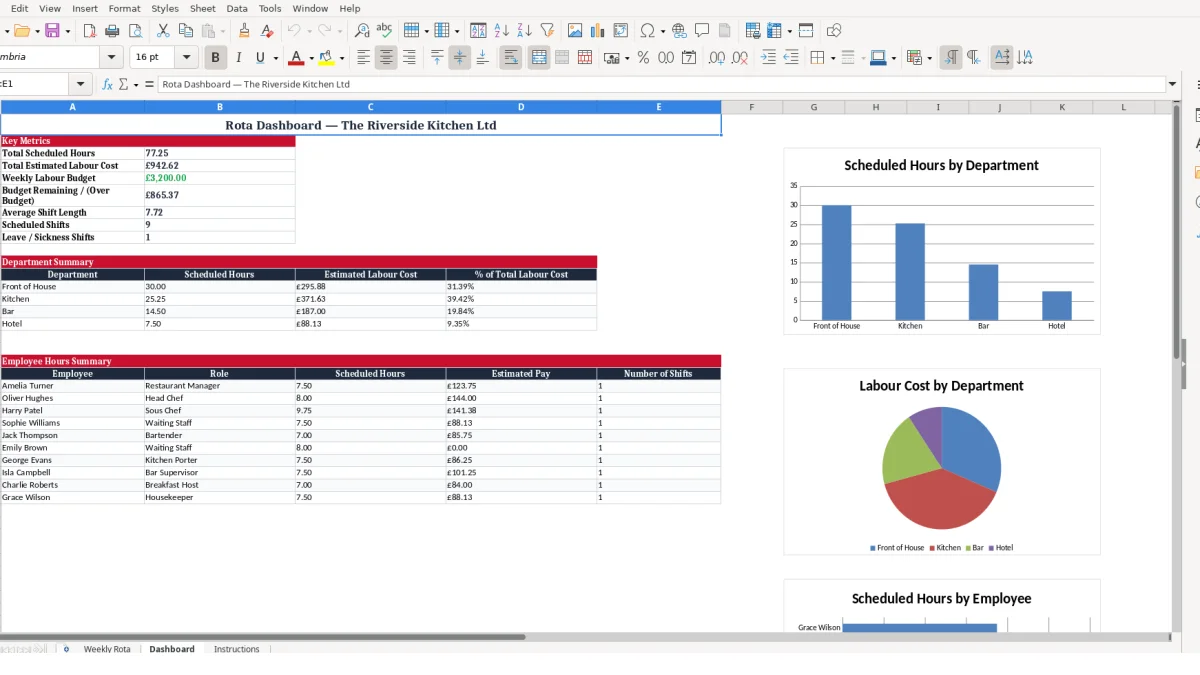
A hospitality rota is most useful when the person taking bookings, planning service and controlling labour is also responsible for putting people on shifts. A restaurant manager may build the week’s Front of House cover after confirming reservations, while a head chef may use the same file to set Kitchen hours around prep, lunch and dinner service.
The workbook is designed for weekly planning rather than a long-term employee database. Its 10 available shift rows suit a compact weekly schedule, a single department plan or a first working version that you extend carefully for a larger venue.
Consider a café manager planning a Monday opening shift. Amelia works 10:00 to 18:00 with a 30-minute unpaid break at £16.50 per hour: the rota calculates 7.5 scheduled hours and £123.75 estimated pay. A second row for Oliver, working 09:00 to 17:30 with the same break at £18.00 per hour, produces 8 hours and £144.00.
Those two rows give 15.5 scheduled hours and £267.75 of basic estimated pay. This is more useful than simply listing names on a wall rota because the manager can see the labour commitment attached to the opening shift.
A pub manager can allocate Bartender cover to the Bar department and waiting staff to Front of House, then use the Dashboard to separate their hours and pay. A hotel can use the Hotel department for reception or service shifts while retaining Kitchen and Front of House rows in the same weekly record.
The Department field matters because the Dashboard uses SUMIF to create departmental totals. Use one consistent department label per operational area; changing between Bar, bar and Bar team would fragment reporting rather than show one reliable total.
A supervisor can record an unavailable team member as Approved Leave or Sickness, then use Notes for an instruction such as cover required. For example, if a 6-hour £14.00 shift changes from Scheduled to Sickness, its £84.00 estimated pay is excluded, making the cost of any replacement shift visible when it is added.
This is a planning tool, not evidence of hours actually worked. Keep final payroll and attendance records separately, and use this rota to decide who should be present for the service you are planning.
The Weekly Rota separates your inputs from calculated outputs. You enter Date, Employee, Role, Department, Shift Start, Shift Finish, Unpaid Break, Hourly Rate, Shift Status and Notes; Day, Scheduled Hours, Estimated Pay and Week No. are formula-driven fields.
This separation is the right design for a rota because it prevents a manager from typing a total that no longer matches the underlying shift times. Leave the formula cells intact and amend the shift inputs instead.
Scheduled Hours uses IF, OR and MOD to calculate the time difference, subtracting unpaid-break minutes converted into hours. If either the start or finish time is blank, the result is 0 rather than a misleading partial figure.
For a 17:00 to 01:00 shift with a 30-minute unpaid break, the calculation is 8 hours minus 0.5 hours: 7.5 scheduled hours. The MOD element is important because it treats 01:00 as the next day rather than returning a negative duration.
Estimated Pay uses the scheduled-hours result multiplied by Hourly Rate only where Shift Status is Scheduled. At 7.5 hours and £16.50, the output is £123.75; the same row marked Cancelled returns £0.00.
The Instructions sheet states clearly that this is basic wages only. It excludes employer National Insurance, pension contributions, holiday accrual, tronc and other costs, so do not present the Dashboard figure as a full employment-cost forecast.
The Dashboard totals Scheduled Hours with SUM, counts Scheduled rows with COUNTIF, and uses SUMIF to report departmental hours and estimated pay. It also calculates each department’s share of total estimated labour cost, avoiding a divide-by-zero result where total cost is £0.00.
One formula deserves attention: Dashboard cell B6 is labelled Budget Remaining / (Over Budget), but the manifest formula subtracts total scheduled hours from total estimated labour cost. Those are different units. Treat B6 as a formula that needs reviewing before using it as a budget variance; compare B4 with the budget shown in B5 directly until it is corrected.
The most expensive rota errors usually begin with a plausible-looking row rather than an obvious spreadsheet failure. A start time entered correctly with an incorrect finish time, break or status can affect the Dashboard total immediately while still appearing like a normal planned shift.
Use the rota as a controlled planning record: one row for one person’s shift, one department label, one rate and one current status. Combining two people or two split shifts into a single row removes the employee-level clarity available in the Dashboard.
The Unpaid Break field is explicitly measured in minutes. Entering 0.5 for a 30-minute break subtracts 0.5 minutes, not 30 minutes, so an 8-hour span would calculate as roughly 7.99 hours rather than 7.5 hours.
At £16.50 per hour, that difference is about £8.09 on one shift. Across 10 similarly entered rows, the hypothetical overstatement is about £80.85, which is enough to distort a small weekly labour plan.
Estimated Pay is included only for Scheduled shifts. If a genuine working shift is left as Approved Leave, Sickness or Cancelled, its pay is £0.00 in the rota even though the venue may still need to budget for that work.
Conversely, leaving a cancelled 8-hour shift at £18.00 as Scheduled retains £144.00 in the estimated cost. Check the status whenever service changes, rather than deleting the row and losing the record of what was originally planned.
The Dashboard summary is set up for Front of House, Kitchen, Bar and Hotel. A row entered as FOH will not be included in the Front of House SUMIF result, even though its hours remain in the overall total.
This causes a reconciliation gap: for example, 6 hours at £14.00 entered as FOH adds £84.00 to total estimated labour cost but not to the Front of House summary. Use the Dashboard’s fixed department names exactly, or update the summary labels and formulas together.
Cell M2 contains the weekly labour budget input, illustrated as £3,200. Enter your own planning amount, then compare it with the total estimated labour cost in Dashboard B4.
Do not rely on the B6 label alone because its stated formula mixes a currency total and an hours total. That is not a meaningful comparison, and correcting or independently checking it is preferable to making a staffing decision from an invalid variance.
A rota becomes useful when it is updated at the same points as the service plan, not when it is opened only after a staffing problem appears. Set the week commencing date before you publish shifts, then make the Dashboard review part of your normal pre-service management routine.
For example, review the next seven days every Thursday afternoon after bookings and known absences are collected. If you plan 10 shifts averaging 7.5 hours, the Dashboard should show about 75 scheduled hours before you decide whether extra cover is needed.
This sequence gives you a stable handover point. A manager can check that a Kitchen shift has cover, while an owner can look at the same file to see the basic estimated wage commitment.
Copy the previous week’s shift pattern only after checking every date, employee, rate and status. A copied 10:00 to 18:00 shift with a 30-minute break calculates correctly, but it is still the wrong rota if it belongs to a different day, department or person.
Use the same labels as the Dashboard: Front of House, Kitchen, Bar and Hotel. This is a stronger control than allowing informal alternatives, because department totals depend on exact text matching through SUMIF.
This file is a weekly planning tool with 10 rota rows and a fixed employee summary area. Move to a dedicated workforce or payroll system when you need many more shifts, live availability, clock-in data, approved timesheets, complex pay rules or automated payroll processing.
Continue using the spreadsheet for a simple, reviewable planning cycle if its row limit and basic-wage calculation match your operation. Keep payroll, accounting and VAT records in their proper systems; the Instructions sheet confirms that rota labour costs sit outside VAT calculations.
It calculates the day from the date, scheduled hours from shift times minus unpaid-break minutes, estimated basic pay, week number and Dashboard summaries. Estimated Pay is included only where Shift Status is Scheduled.
Yes. The Scheduled Hours formula uses MOD, so a shift such as 17:00 to 01:00 can calculate across midnight. Enter the actual start and finish times plus the unpaid break in minutes.
Approved Leave, Sickness and Cancelled shifts are excluded from Estimated Pay. You can use the Notes field to record an operational action, such as cover required.
No. The Instructions sheet states that Estimated Pay covers basic wages only. It excludes employer National Insurance, pension contributions, holiday accrual, tronc and other costs.
Check the Department entry on the Weekly Rota. The Dashboard uses SUMIF against the labels Front of House, Kitchen, Bar and Hotel, so a different label such as FOH will not be grouped under Front of House.
No. Use it for weekly staffing and basic labour-cost planning. The workbook instructions say to use payroll and accounting records for VAT and HMRC reporting rather than this rota.
Excel template by
Guide written by