Freezer inventory Excel Template – Download (2026)
4
Free download
Track donated bakes, allergens, quantities, prices and sales with a Stock List, Dashboard and Instructions sheet.


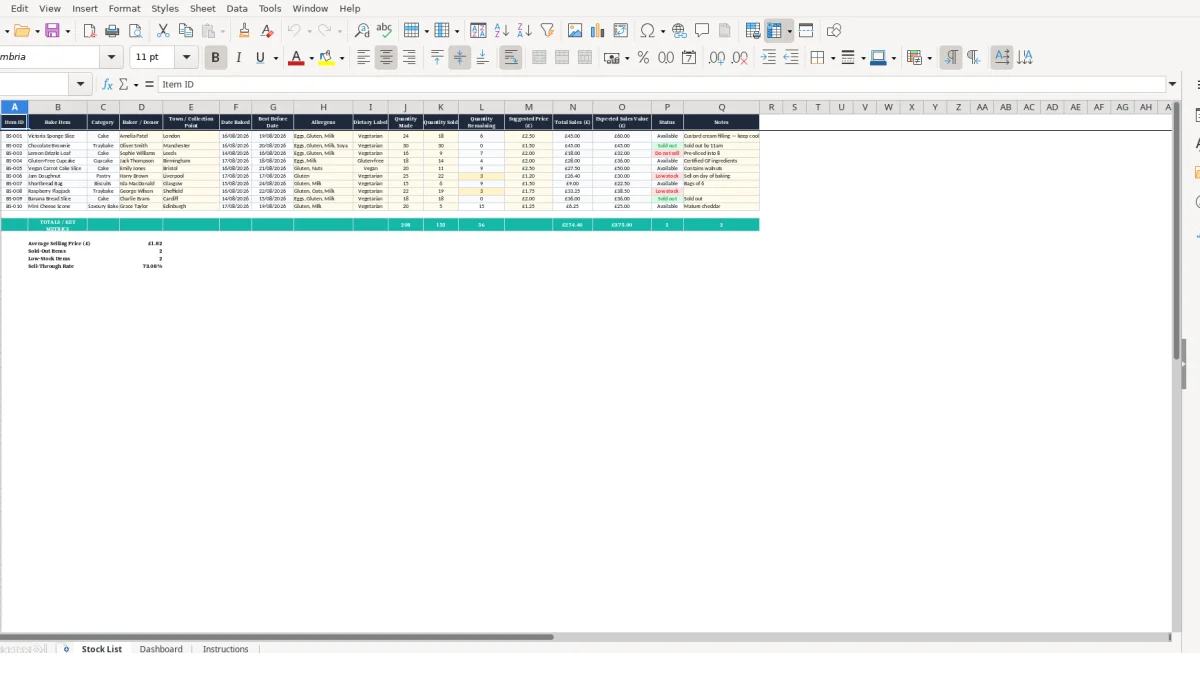
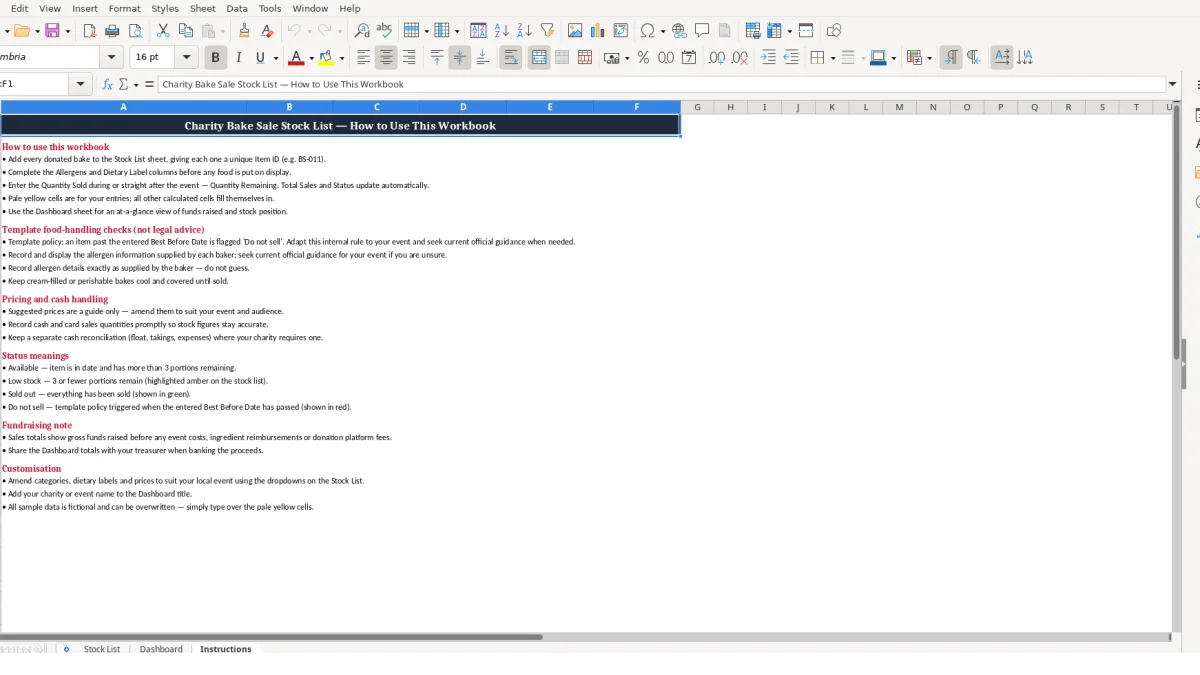
This charity bake sale stock list Excel template records each donated bake, its allergen details, quantities, suggested price and sales progress. It includes a Stock List for individual items, a Dashboard for selected totals and category figures, and an Instructions sheet explaining the workbook fields.
Use it when you need one clear list for cakes, traybakes, cupcakes, biscuits and savoury items before and during a fundraising event. You enter the bake details and quantities sold; remaining portions, sales values and stock status calculate automatically.
A school PTA, village hall committee, sports club or local charity volunteer can use this workbook when donated food begins arriving before a sale. The key moment is not only the event day: you need the Stock List when a volunteer collects 24 Victoria sponge slices from one baker and 30 brownies from another, often at different collection points.
The file gives each bake one record instead of treating a whole table of mixed food as anonymous stock. That matters when two donors both provide cupcakes, but only one batch has a particular dietary label or a shorter best-before date.
Assign an Item ID as each donation is received. BS-001 might be 24 Victoria sponge slices at £2.50 each, while BS-002 might be 30 brownies at £1.50 each; the expected values are £60.00 and £45.00 respectively.
Enter the baker or donor, town or collection point, date baked, best-before date, allergens and dietary label before stock reaches the display. The strongest approach is to make one volunteer responsible for checking that every physical tray has a matching Stock List line, rather than asking cash-table volunteers to reconstruct details later.
A cash-table volunteer can update Quantity Sold in batches during a rush, provided the count is based on actual portions leaving the table. If 18 of the 24 Victoria sponge slices have sold, the workbook calculates six remaining and £45.00 in sales for that line.
The Status field then provides an immediate stock cue: six remaining is Available, while three or fewer is Low stock. This lets the event lead decide whether to move another tray forward without relying on verbal estimates from several volunteers.
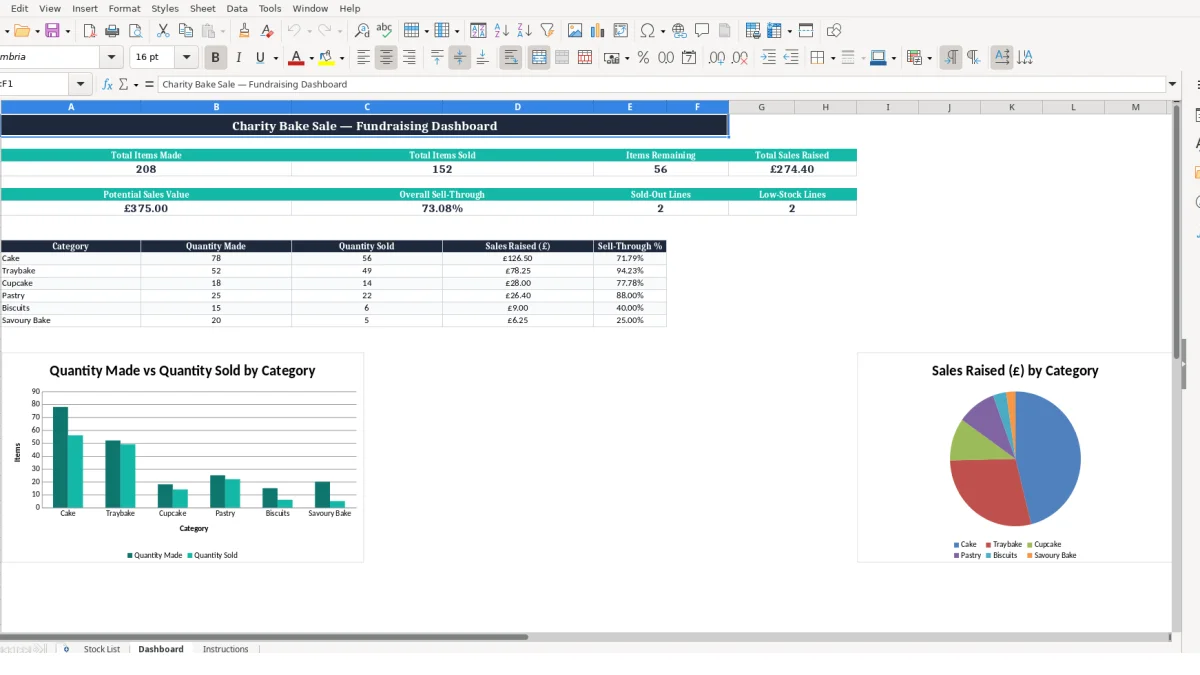
The treasurer or organiser can use the Dashboard as a quick handover view. Its category section lists Cake, Traybake, Cupcake, Pastry, Biscuits and Savoury Bake, allowing a committee to see which type sold most strongly without manually adding individual lines.
For a one-afternoon event, keep the workbook as the item and sales record, then retain any separate cash count alongside it. The sales figures are useful for reviewing the event, but they are gross funds raised before costs, reimbursements or platform fees.
The Stock List separates information you type from information Excel calculates. You enter columns A to K and M, plus Notes in Q; Quantity Remaining in L, Total Sales in N, Expected Sales Value in O and Status in P are formula-driven outputs.
This is the right design for a bake sale because the two quantities are entered once and reused consistently. Do not replace formulas with manual figures: a line with 30 made and 30 sold should calculate zero remaining, £45.00 sales at £1.50, and Sold out without a second calculation.
Quantity Remaining uses J minus K: Quantity Made less Quantity Sold. Total Sales uses Quantity Sold multiplied by Suggested Price, while Expected Sales Value uses Quantity Made multiplied by the same price.
For example, a tray of 16 cupcakes priced at £1.25 each has an expected value of £20.00. If 11 sell, Total Sales becomes £13.75 and Quantity Remaining becomes five; these outputs change as soon as you revise Quantity Sold.
The Status formula uses IF and checks conditions in a specific order. Zero remaining produces Sold out; otherwise, a best-before date earlier than today produces Do not sell; otherwise, three or fewer remaining produces Low stock; all other lines show Available.
That order is a sensible technical choice because it stops an empty line being presented as stock to remove. However, it also means your best-before date must be entered as a real Excel date in DD/MM/YYYY format, not as a note such as “Friday”.
The Dashboard category formulas use SUMIF over Stock List rows 2 to 11. Its headline formula examples reference row 13 of the Stock List, rather than a visible whole-range sum in the manifest.
For that reason, test the Dashboard carefully after adding your own records, particularly if you use more than 10 item lines. The dependable source record is the individual Stock List line; extend or check the Dashboard formulas before relying on its totals for a final handover.
A final handover often starts with the dispatch record, so it is worth checking that the line items and totals still match the source stock entries before anything leaves the warehouse.
The most expensive errors at a charity bake sale usually start with a mismatch between what is on the table and what is in the Stock List. A volunteer may write “brownies” on a paper sign while the workbook has two separate brownie lines with different donors, prices or allergen information.
Keep separate lines when the underlying item details differ. Combining 12 £1.50 brownies with 12 £2.00 brownies into one 24-item line at £1.50 understates the expected value by £6.00 and makes the final sale figure unreliable.
Quantity Remaining, Total Sales, Expected Sales Value and Status are not fields for manual stock-taking. If a volunteer types “4” into Quantity Remaining instead of changing Quantity Sold, the relationship between made, sold and remaining is broken and the sales value may no longer agree with the physical tray.
Use the two input quantities as the source of truth. For example, if 20 portions were made and four remain, enter 16 in Quantity Sold; Excel then derives four remaining and calculates the monetary total from the set price.
Leaving Allergens blank because a donor says a cake is “standard” creates an unresolved item at the point of sale. The Instructions sheet directs you to record details exactly as supplied rather than guessing, which is the correct operational stance for this workbook.
Notes can hold handling information that does not fit a main field, such as “Custard cream filling — keep cool”. Do not substitute Notes for the dedicated allergen, dietary-label or best-before columns, because volunteers need those facts in consistent locations.
The Dashboard category calculations shown in the manifest cover rows 2 to 11, and the headline examples pull values from row 13. If you enter 14 bake lines, the category view may not include every line unless its formulas are reviewed and extended.
A hypothetical sale with 12 lines at an average £18.00 each could leave £36.00 outside a summary limited to the first 10 lines. Before reporting funds raised, compare the Dashboard with the individual Total Sales figures in column N and correct any range issue rather than explaining a discrepancy afterwards.
That same range check matters when the sheet is tracking stock control records, because a summary that misses later rows can leave quantities and totals out of sync.
Make the Stock List part of the donation process, not a document saved for the morning of the sale. Start it when the first donor confirms a bake, then nominate one person to own entries and one person to check the physical labels against the completed lines.
A simple event with 10 items is manageable from one sheet; an event with 30 separately priced donations needs a fixed update rhythm. The technical priority is preserving one reliable record per bake line, rather than collecting several handwritten counts that must be merged after the event.
For example, if a cake line begins with 24 portions and the first count records 18 sold, the next volunteer starts from six remaining rather than recounting the entire display. This is faster and avoids two people each recording the same four sales.
Use the workbook’s available dropdown guidance for categories and dietary labels so category names do not drift between “Cake”, “cakes” and “cake slices”. The Dashboard uses SUMIF against category text, so a spelling variation can prevent a line being included in the intended category total.
Keep prices numeric and use the £ currency format already applied in the workbook. Entering £2.50 as text rather than a number risks preventing a correct multiplication in Total Sales and Expected Sales Value.
This template suits a contained bake-sale event with a manageable number of donated items and a small group of volunteers. Move to a dedicated point-of-sale or inventory system when several tills need live updates, stock is held across multiple events, or you need an auditable link between payments, refunds and item-level sales.
Until then, archive a copy after each event and begin the next one by overwriting the fictional sample data and checking the Dashboard ranges. That preserves the useful structure without carrying old quantities into a new fundraiser.
For each line, it calculates Quantity Remaining, Total Sales, Expected Sales Value and Status. Quantity Remaining is Quantity Made less Quantity Sold, while sales values are calculated from the suggested price.
Status shows Sold out when no portions remain, Do not sell when the best-before date is earlier than today, Low stock when three or fewer portions remain, and Available otherwise.
Yes. The Stock List includes dedicated Allergens and Dietary Label columns. Enter allergen information exactly as supplied by the baker and use Notes for additional handling information where needed.
The Dashboard lists Cake, Traybake, Cupcake, Pastry, Biscuits and Savoury Bake. It uses SUMIF formulas to show quantities made, quantities sold, sales raised and sell-through percentage for those categories.
No. The workbook calculates gross sales values from quantities sold and suggested prices. The Instructions sheet advises keeping a separate cash reconciliation where needed, and sales totals do not deduct event costs, reimbursements or fees.
You can add entries on the Stock List, but check the Dashboard formulas first. The category SUMIF examples in the manifest refer to Stock List rows 2 to 11, so additional rows may need the summary ranges extending.
Excel template by
Guide written by