Funeral Cost Planner Excel Template (2026)
0
Free download
Christmas savings workbook for UK households, clubs and workplace schemes, with monthly goals, payment records, dashboard summaries and instructions.


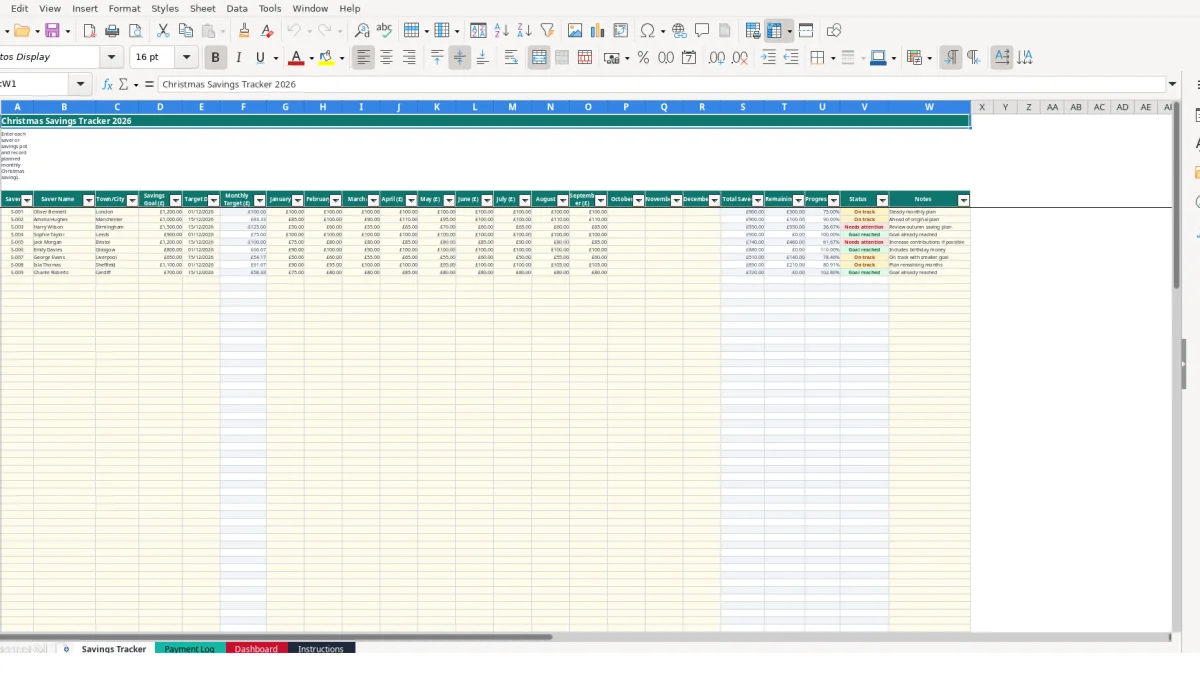
This Christmas savings Excel template helps you record savers, set individual goals, track January to December contributions and monitor progress towards a target date. It contains a Savings Tracker, optional Payment Log, Dashboard and Instructions sheet for organised household, club or workplace savings.
Enter each saver and their target on the Savings Tracker, then add planned or actual monthly amounts. The workbook calculates each saver’s monthly target, total saved, remaining balance, progress percentage and status automatically.
A Christmas savings spreadsheet suits a household planning ahead, a community club collecting regular contributions or a workplace scheme recording several savers. It gives each person a separate row, rather than mixing contributions in one running total. The workbook has prepared tracker rows from 5 to 104, so a scheme can record up to 100 saver entries without creating a new structure.
A household might create one row for each savings pot. For example, a £1,200 target for Oliver Bennett produces a calculated monthly target of £100 when divided across 12 months. His row can contain the target date, monthly entries from January to December and a note such as Steady monthly plan.
A second saver may have a £1,000 goal but contribute £85 in January, £100 in February and £90 in March. Recording the actual monthly figures makes the pattern visible instead of assuming every contribution matches the original plan.
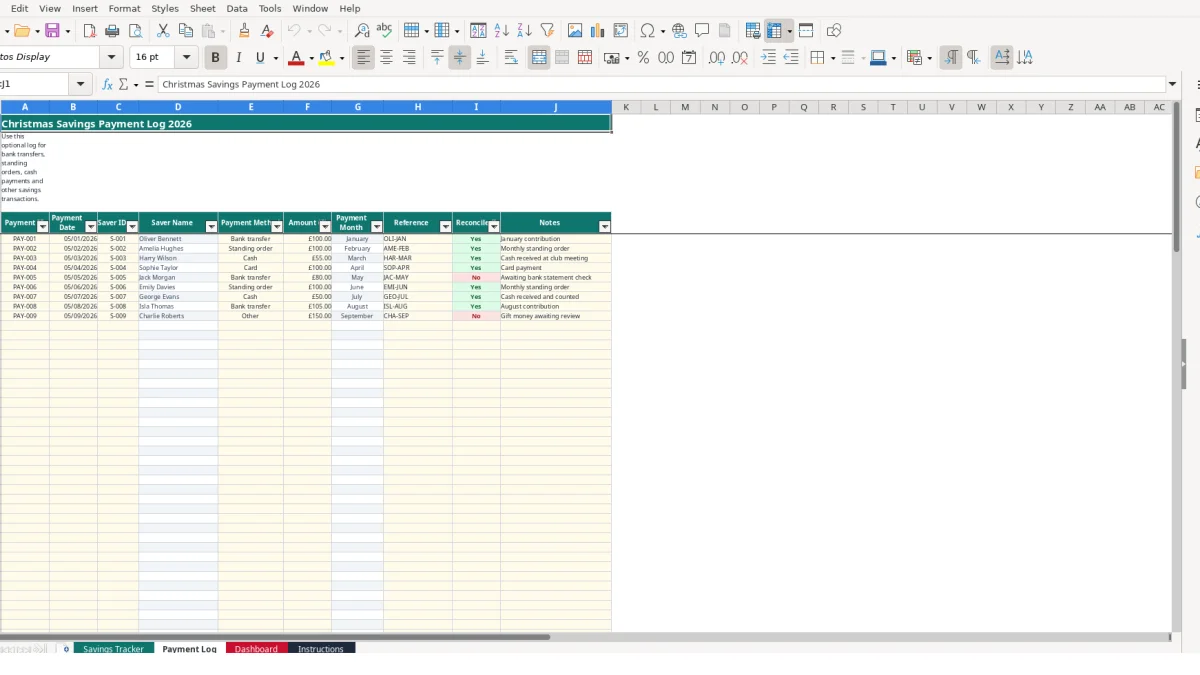
A savings club organiser can use Saver ID values such as S-001 and S-002, with town or city information to distinguish records. The Payment Log then provides a separate transaction trail: PAY-001 can identify a £100 bank transfer, while PAY-003 can identify a £55 cash payment received at a club meeting.
This separation is useful when the person managing the scheme is not the person making each payment. The Savings Tracker answers how much each saver has accumulated; the Payment Log answers when a transaction was recorded, how it was paid and whether it was reconciled.
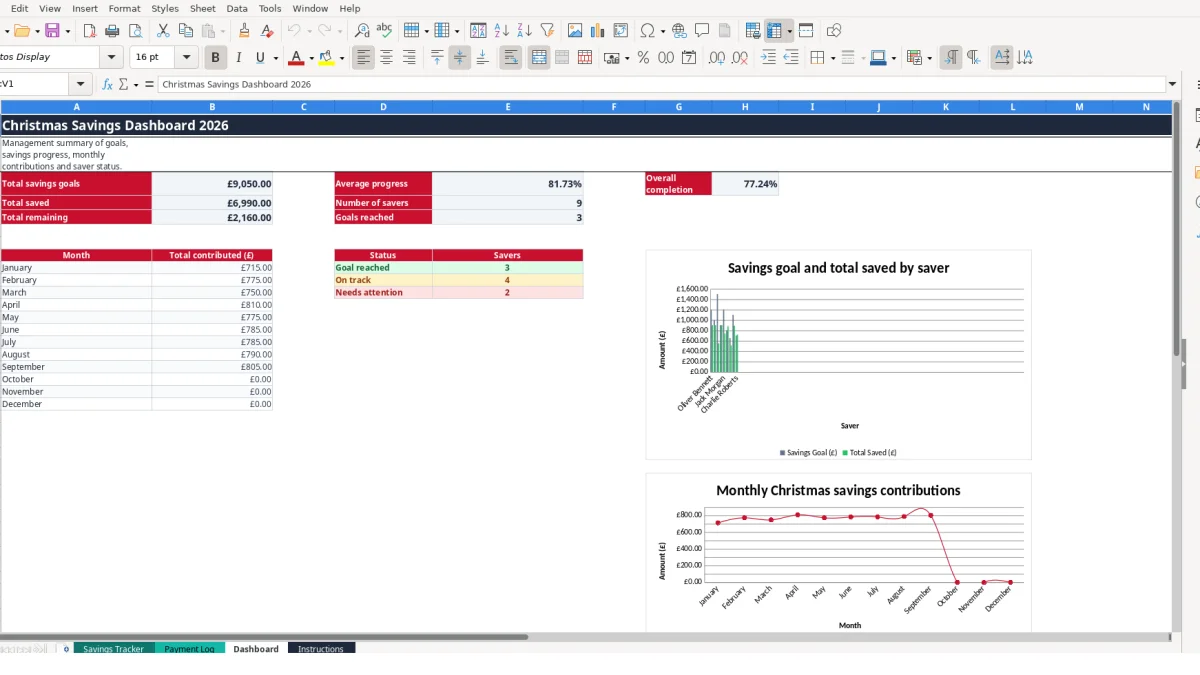
Use the target date field to record an individual plan, such as 01/12/2026 or 15/12/2026. The Dashboard then gives a management view of total goals, total saved, remaining balances and the number of savers in each status category.
The workbook separates editable inputs from calculated outputs. On Savings Tracker, you enter the Saver ID, name, town or city, savings goal, target date, monthly contributions and notes. The workbook calculates Monthly Target, Total Saved, Remaining, Progress (%) and Status, so you should not overwrite those output fields.
Monthly Target uses the formula savings goal divided by 12. A £1,500 goal therefore produces £125 per month. If the January to September entries total £555, Total Saved shows £555 and Remaining shows £945, provided the saver and goal fields are populated.
Total Saved adds the January through December cells. Remaining uses the goal less total saved, with a minimum of zero. This means a contribution total above the goal does not create a negative remaining balance in the calculated result.
Progress divides Total Saved by the savings goal and protects against a calculation error when the goal is empty or zero. Status then classifies the row as Goal reached when the total meets the goal, On track when it has reached at least 75% of the goal, or Needs attention otherwise.
For example, £900 against a £1,200 goal equals 75%, so the status is On track. £1,200 against the same goal is Goal reached. These labels are workbook calculations, not external financial or legal assessments.
Payment Log uses VLOOKUP to return the saver name from the Saver ID. Its payment month is calculated from the payment date, while drop-down lists restrict payment methods to five choices and reconciliation to Yes or No. Keep Saver IDs consistent: a mistyped ID can return Unknown saver rather than linking the transaction.
The most costly errors usually come from confusing a planned monthly amount with a confirmed payment. The Savings Tracker may show £100 in January, but the Payment Log may contain no matching transaction, or the payment may still be marked No under Reconciled?. Treat those as different records and investigate the difference rather than assuming the money arrived.
Suppose a £100 standing order is entered twice in Payment Log for the same saver and month. The transaction history then suggests £200 was received, even if the Savings Tracker contains only £100. Conversely, a £55 cash payment written in a notebook but never entered will leave the payment record incomplete.
Use a distinct Payment ID, date, Saver ID, reference and amount for every transaction. A reference such as AME-FEB or HAR-MAR makes two similar £100 entries easier to distinguish during checking.
The Payment Log finds the saver name using the Saver ID. If S-002 is entered as S-02, the formula can display Unknown saver. That is a reference-integrity problem, not a missing name on the Savings Tracker, and it should be corrected at the ID field rather than by typing over the calculated name.
Status is based on the calculated total against the goal. A saver with a £1,500 goal and £555 recorded has 37% progress and is Needs attention, even if their latest payment was made. A single recent payment does not prove that the full plan is on track.
Also check blank rows and dates. Entering a goal without a Saver ID, or a payment date without an amount, creates an incomplete record that can distort manual reviews even where formulas remain blank or protected by IF statements.
Make one person responsible for updating the workbook at a fixed point in the week or month. A practical routine is to enter payments after checking the bank statement or cash record, then update the corresponding month on Savings Tracker and review Dashboard totals.
For example, five payments of £100 create £500 of transaction value. If the tracker shows only £400, the £100 difference needs a specific explanation: it may be a missing monthly entry, a duplicate payment or an amount recorded against the wrong saver.
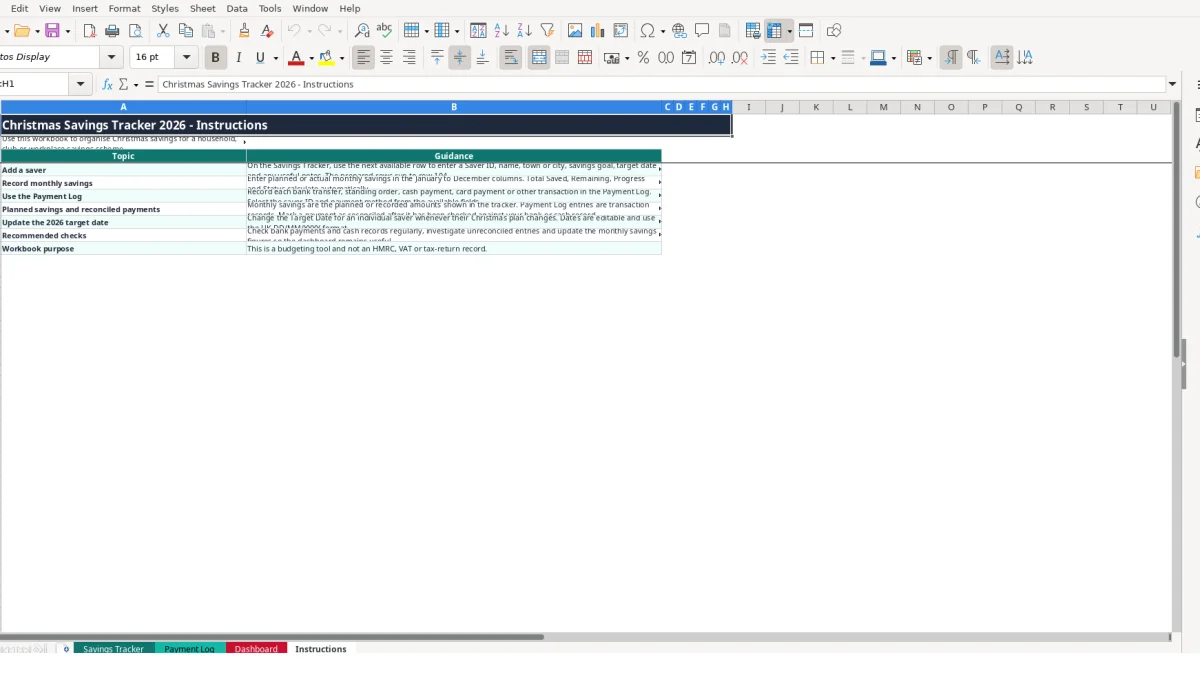
Use the existing rows and copy the workbook before making substantial changes. Preserve the calculated columns and use the Payment Log’s available lists instead of inventing new spellings for payment methods or reconciliation results.
Review target dates when plans change. A target originally entered as 01/12/2026 can be updated to a different date, but record the reason in Notes if that helps the next review. The Dashboard is most useful when the underlying monthly and transaction records are updated consistently.
This workbook is suitable for a structured list of up to 100 saver rows and 100 payment rows. If you need multiple currencies, user permissions, automated bank feeds, audit history or more capacity than the prepared ranges, move to a dedicated savings or accounting system rather than adding complex workarounds.
The workbook contains Savings Tracker, Payment Log, Dashboard and Instructions sheets. It records saver details, goals, target dates, monthly contributions, payment transactions, calculated progress and summary information.
Yes. The Instructions sheet identifies a household, club or workplace savings scheme as suitable uses. Use a unique Saver ID for each person and the Payment Log for individual bank, cash, card or standing order transactions.
Monthly Target is calculated as Savings Goal divided by 12. A £1,200 goal therefore produces a £100 monthly target. The calculation appears automatically when the saver and goal are entered.
Status compares Total Saved with Savings Goal. It returns Goal reached when the goal is met, On track when progress is at least 75%, and Needs attention below that level.
Yes. Payment Log includes a payment method list containing Standing order, Bank transfer, Cash, Card and Other. It also includes a Yes or No list for marking whether each transaction has been reconciled.
No. The Instructions sheet states that this is a budgeting tool and not an HMRC, VAT or tax-return record. Use it to organise Christmas savings and payment information only.
Excel template by
Guide written by