Landlord Gas Safety Tracker Excel Template – Free (2026)
0
Free download
Food cost calculator for UK cafés, restaurants and takeaways. Cost recipes, compare menu prices and review food cost per portion.


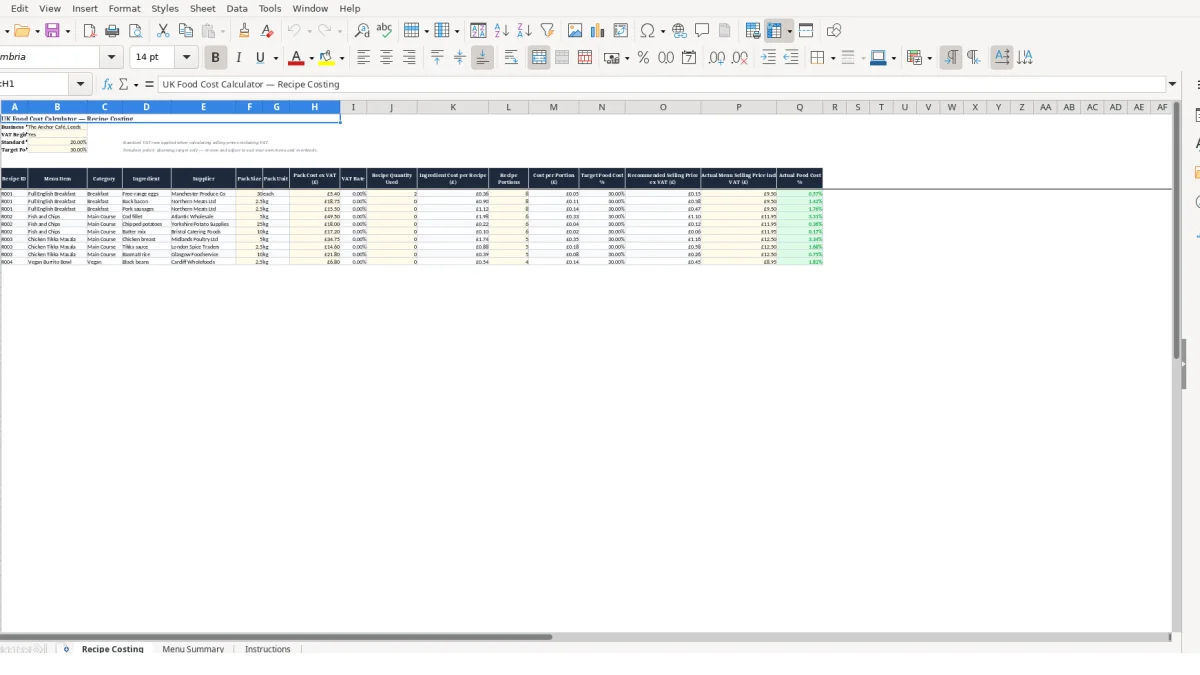
This food cost calculator Excel template helps UK cafés, restaurants and takeaways calculate recipe costs, cost per portion, selling prices and food cost percentages. It includes Recipe Costing, Menu Summary and Instructions sheets, with automatic calculations for ingredient costs, VAT-exclusive prices and gross profit per portion.
You enter supplier pack prices, pack sizes, quantities used and portions. The workbook then brings each recipe together in the Menu Summary so you can identify items that are on target or need a price review.
The supplied examples include a Full English Breakfast, Fish and Chips, Chicken Tikka Masala and Vegan Burrito Bowl. Replace these illustrative entries with your own recipes, supplier details and current menu prices.
A food cost calculator is most useful when you buy ingredients in supplier packs but sell dishes by the portion. A café owner, kitchen manager or independent caterer can use it when a supplier invoice changes, when a new menu item is tested, or before a menu refresh.
The workbook is designed around recipe-level ingredients rather than a single monthly food spend. That matters because a £5.40 pack of 30 eggs does not tell you the cost of one breakfast until you enter the quantity used and the number of portions produced.
The example Full English Breakfast has Recipe ID R001 and sits in the Breakfast category. If 2 eggs are used from a 30-egg pack costing £5.40 excluding VAT, the egg component is £0.36: £5.40 ÷ 30 × 2.
You can add bacon, beans, bread and other ingredients under the same R001 ID. The Menu Summary uses SUMIF to total those ingredient costs, so the dish is assessed as one menu item rather than as disconnected purchases.
A restaurant can keep Fish and Chips under R002 and Chicken Tikka Masala under R003, while a takeaway can apply the same method to wraps, bowls or meal deals. Categories such as Main Course and Vegan make the summary easier to scan when several dishes need a pricing decision.
For a hypothetical dish with £3.15 total recipe cost and 3 portions, the cost per portion is £1.05. If the net selling price is £5.25, the food cost is 20%; the workbook calculates this from the selling price excluding VAT, not from the customer-facing inclusive price.
Use the file when portion sizes are being tested. A change from 0.12 kg to 0.15 kg of an ingredient is not a minor note: it changes the ingredient cost formula immediately and may move the item above the target food cost percentage.
The technical choice to use one Recipe ID across ingredient rows is the right control for a small menu. It prevents you from manually adding ingredient lines for every review and keeps the summary tied to the detailed costing sheet.
The Recipe Costing sheet separates inputs from calculated results. You supply Pack Size, Pack Cost ex VAT, Recipe Quantity Used and Recipe Portions; the workbook calculates Ingredient Cost per Recipe, Cost per Portion, Recommended Selling Price ex VAT and Actual Food Cost %.
The core calculation is straightforward: pack cost excluding VAT ÷ pack size × quantity used. Excel uses IF and error handling in the calculated columns, so an incomplete row returns zero rather than displaying a division error.
Pack Size and Recipe Quantity Used must use the same unit. If a supplier pack is 1 kg and your recipe uses 120 g, enter the recipe quantity as 0.12, as stated on the Instructions sheet; entering 120 would multiply the ingredient cost by 1,000.
For a hypothetical £8.00, 2 kg pack where a dish uses 0.25 kg, the ingredient cost is £1.00: £8.00 ÷ 2 × 0.25. This is why matching units is more reliable than recording a loose description such as one portion.
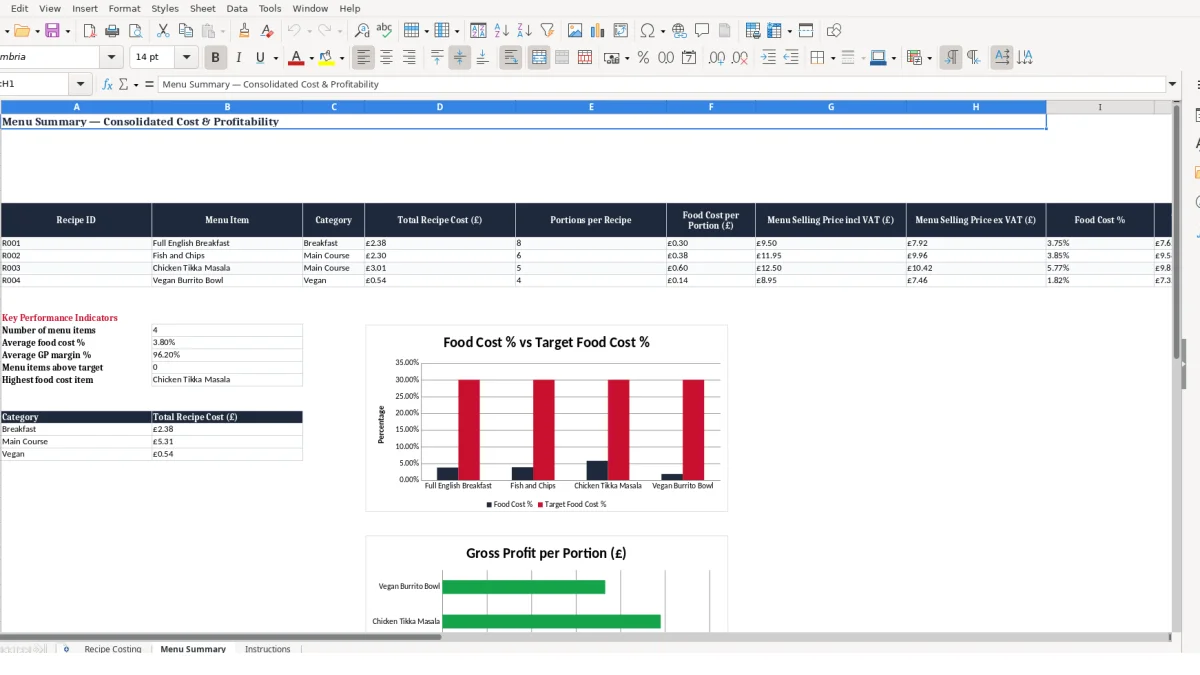
The template records Actual Menu Selling Price incl VAT, then calculates the equivalent price excluding VAT in Menu Summary. Actual Food Cost %, Gross Profit per Portion and GP Margin % are based on that net figure, allowing costs and sales to be compared on the same basis.
The workbook’s target food cost percentage is pulled from Recipe Costing cell B5 into each summary row. Use this as a planning benchmark, not as a substitute for assessing labour, rent, utilities, wastage, delivery-platform fees and the profit you need.
Menu Summary compares Actual Food Cost % with Target Food Cost % and shows PRICE REVIEW where the actual result is higher. For example, a hypothetical 32% actual result against a 30% target creates a 2 percentage-point variance and a PRICE REVIEW status.
Do not overwrite formula cells to force a result. Enter revised supplier costs, quantities, portions or menu prices in the source fields, then let the linked formulas and VLOOKUP result update through the summary.
Those source fields should stay tied to a stock control sheet, so revised supplier costs and portion changes flow into the same calculations without disturbing the formulas.
Recipe costing usually fails at the point where a kitchen measure is entered as though it were a supplier-pack measure. The workbook can calculate accurately only when Pack Size, Pack Unit and Recipe Quantity Used describe the same physical quantity.
A 1 kg pack and a recipe quantity of 120 are not compatible if 120 means grams. The resulting formula treats 120 as 120 kg, producing a cost that is 1,000 times too high and making a viable dish appear impossible to sell.
If eggs for a breakfast are entered as R001 but bread is entered as R010, the Menu Summary treats them as different recipes. Its SUMIF formula totals only rows matching the Recipe ID in the summary, so neither total represents the full breakfast cost.
In a hypothetical four-ingredient dish costing £0.36, £0.58, £0.42 and £0.64, splitting one line into another ID leaves R001 showing £1.36 instead of £2.00. A manager could then accept an unsuitable menu price because the apparent cost per portion is understated.
Pack Cost ex VAT belongs in column H, while Ingredient Cost per Recipe in column K is calculated. Typing a supplier’s £12.00 pack price into the calculated result cell would disconnect that row from the pack-size and quantity logic.
Keep supplier invoice values in the input field and preserve the formula in the calculated column. This workbook has 50 formulas on Recipe Costing, so formula integrity is more valuable than a quick manual correction.
Food Cost % is calculated in Menu Summary against the selling price excluding VAT. Comparing a net recipe cost with a customer-facing price including VAT outside the workbook can make the percentage look lower than the comparable calculation.
A hypothetical £2.40 cost divided by a £12.00 inclusive menu price gives 20%, but that is not the workbook’s like-for-like basis. Enter the inclusive selling price in its designated field and use the calculated net price, food cost and gross profit outputs for the review.
The same kind of like-for-like check applies to scheduled upkeep, where a boiler service reminder keeps the next date tied to the actual service interval rather than a rough estimate.
A recipe costing file works only when supplier prices and portion assumptions remain current. Link it to the routine already happening in the kitchen: the weekly supplier invoice check, menu planning meeting or stock order review.
The Instructions sheet suggests updating supplier pricing weekly or whenever invoices change. A fixed 15-minute review after an invoice is entered is more effective than waiting until a quarterly menu discussion, when several cost changes may be mixed together.
For example, if 6 supplier pack prices change in a week across 4 recipe IDs, update those 6 source rows rather than rebuilding 4 dishes manually. The summary formulas then refresh total cost, cost per portion and margin measures automatically.
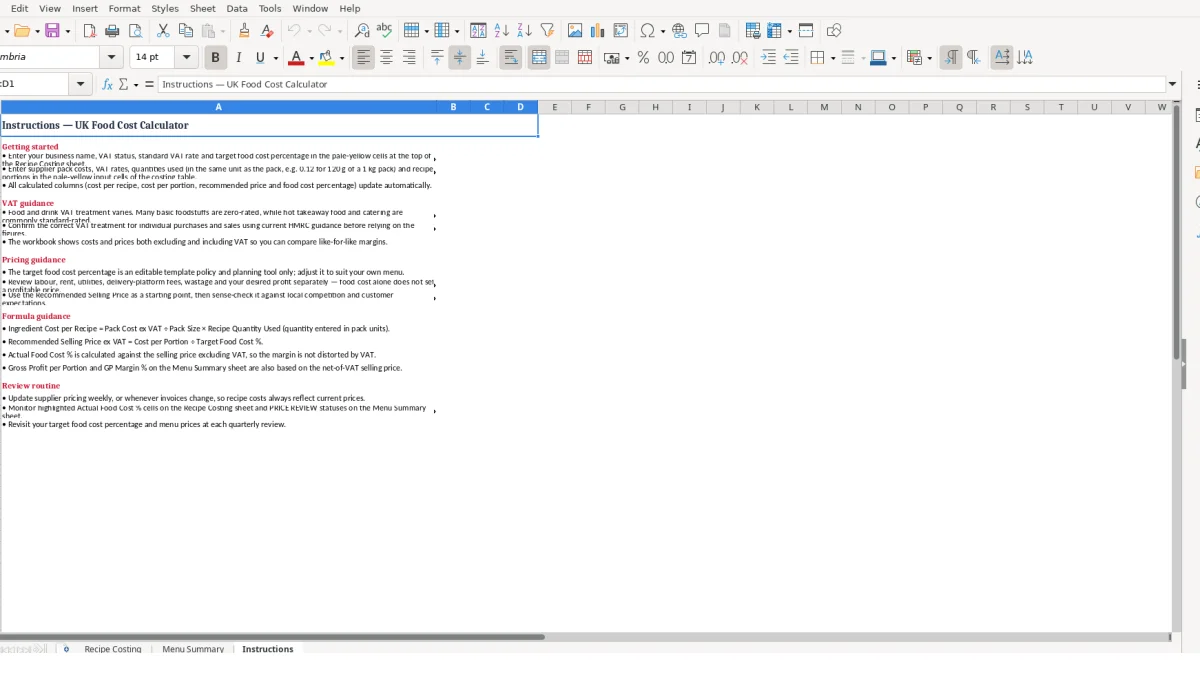
Use the same Recipe ID for every line of one dish and keep quantity units consistent. The workbook contains four data validations, but validation cannot repair a wrongly chosen unit, so a written kitchen convention such as kg for weight-based packs is still necessary.
Keep the target food cost percentage in the single input at the top of Recipe Costing. A single reference is preferable to entering a different target on each recipe because the Menu Summary draws its target from that one source cell.
This template is well suited to a defined menu with ingredient rows held in the Recipe Costing area and a concise summary of menu items. Move to a dedicated stock, purchasing or EPOS-linked system when frequent price changes, multiple sites, many suppliers or large recipe volumes make manual invoice updates too slow.
Until then, make the workbook part of the weekly purchasing rhythm and use the quarterly review noted in Instructions to reassess the target and menu pricing assumptions.
It calculates ingredient cost per recipe, cost per portion, a recommended selling price excluding VAT, actual food cost percentage, gross profit per portion and GP margin percentage. Menu Summary also shows a pricing status against your selected target food cost percentage.
Enter the pack cost excluding VAT, pack size and recipe quantity used. The workbook applies Pack Cost ex VAT ÷ Pack Size × Recipe Quantity Used; for example, £5.40 ÷ 30 × 2 gives £0.36.
Use the same unit as the pack size. If the pack is 1 kg and the recipe uses 120 g, enter 0.12 as the recipe quantity, as explained on the Instructions sheet.
You enter an actual menu selling price including VAT, and Menu Summary calculates the selling price excluding VAT. Food cost percentage, gross profit per portion and GP margin percentage use the net selling price so the comparison is like for like.
PRICE REVIEW appears when Actual Food Cost % is higher than Target Food Cost %. Review the supplier cost, quantity used, portions and menu price before deciding whether the recipe or selling price needs changing.
Yes. Enter each ingredient on its own Recipe Costing row and use the same Recipe ID for all ingredients belonging to that dish. Menu Summary uses that ID to total the recipe cost and consolidate the result.
Excel template by
Guide written by