Funeral Cost Planner Excel Template (2026)
0
Free download
Gym membership Excel template for UK gyms, with member records, payment status, expiry tracking, VAT-inclusive fees and a management dashboard.


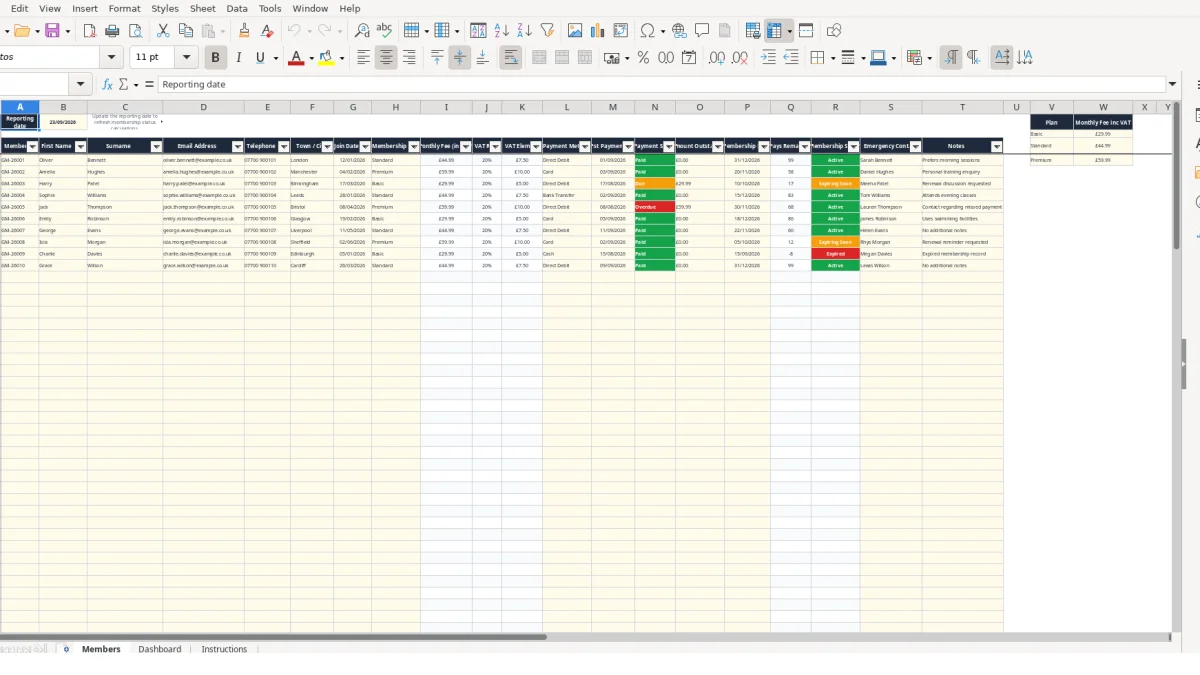
This gym membership Excel template is a member register and payment-monitoring workbook for UK gyms, fitness studios and independent operators. It contains a Members sheet for contact, plan, payment and expiry records, a Dashboard for key figures, and Instructions for the workflow.
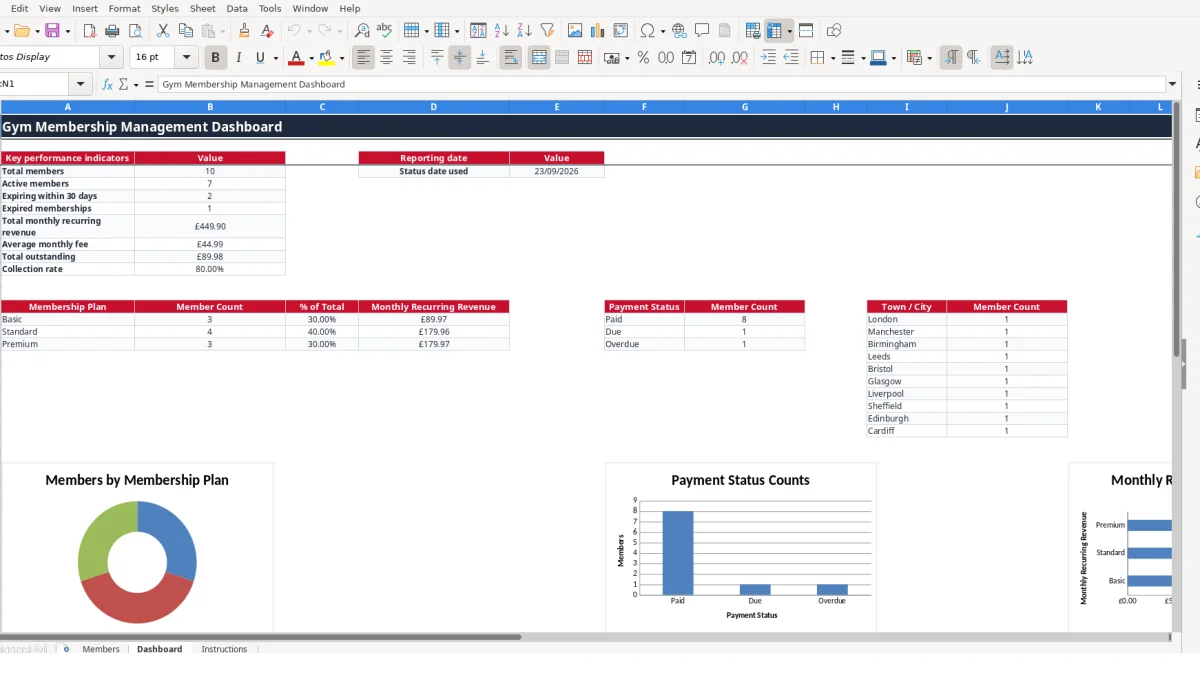
Enter each member once, select their plan and payment details, then use the calculated fee, VAT element, days remaining and membership status fields to support regular reviews. The Dashboard summarises member numbers, recurring revenue, outstanding balances, payment status and plan mix.
A gym membership tracker is useful when you need a working register rather than a list of names. An independent gym owner can use it after each sign-up, while a front-desk administrator can update payment and renewal details during a weekly membership review. A small fitness studio can also use the Dashboard when comparing plan numbers and expected monthly income.
Suppose a gym has 42 members: 18 on Basic, 16 on Standard and 8 on Premium. The Dashboard groups these plans, calculates each plan's member count and shows the related monthly recurring revenue, so you can compare the value of the membership mix without adding separate totals manually.
The Members sheet is designed for practical front-desk work. For example, you might add GM-26002 for Amelia, select Standard, record Card as the payment method, enter a renewal date and leave an internal note about a preferred contact method. The contact fields, emergency contact and Notes field keep operational information beside the payment record.
A membership administrator might update Last Payment Date and Payment Status after the weekly payment check, then review Amount Outstanding for Due or Overdue records. At month end, the owner can use the Dashboard to inspect total members, active memberships, expiring memberships, average monthly fee and total outstanding.
The reporting date makes the register usable for a specific review. If it is set to 23/09/2026 and a member's expiry date is 31/12/2026, the workbook calculates the number of days remaining and labels the record according to its status rule. Change the reporting date for a later review rather than changing every member's expiry date.
The workbook separates information you enter from values it calculates. On Members, the input fields include Member ID, contact details, dates, Membership Plan, payment fields, Amount Outstanding, Membership Expiry, Emergency Contact and Notes. Fee, VAT Element, Days Remaining and Membership Status are calculated columns, so you should not replace them with typed values.
Membership Plan uses a list containing Basic, Standard and Premium. The fee formula uses VLOOKUP against the plan list: Basic is shown at £29.99, Standard at £44.99 and Premium at £59.99. If a member is changed from Standard to Premium, the monthly fee updates from £44.99 to £59.99 and the Dashboard totals recalculate from the Members range.
The workbook's VAT Rate formula uses a 20% setting and treats the listed fee as VAT-inclusive. For a £44.99 fee, the VAT Element is calculated as £44.99 × 20% ÷ 1.20, which is approximately £7.50. This is a workbook calculation setting, not a substitute for confirming the gym's treatment with its accountant.
Days Remaining subtracts the reporting date in Members!B1 from Membership Expiry. Membership Status then returns Expired when the result is below zero, Expiring Soon when it is between 0 and 30, and Active when it is above 30. A date 12 days away therefore shows Expiring Soon; a date 45 days away shows Active.
Validation limits plan, payment method and payment status entries to the supplied choices. Date validation applies to Join Date, Last Payment Date and Membership Expiry, while Amount Outstanding accepts zero or positive decimals. These controls are preferable to free text because a spelling variation such as Over-due would not be counted by the Dashboard's COUNTIF formulas.
The most damaging error in a gym register is often a stale renewal date. If a member's expiry remains 30/09/2026 after they renew until 31/12/2026, the workbook can show an approaching or expired membership even though the member has paid. That creates avoidable follow-up and can lead staff to challenge the wrong account.
A plan typed as Standard rather than Premium changes the fee lookup from £59.99 to £44.99. Across five members, that is a hypothetical £75.00 difference in expected monthly recurring revenue, so the Dashboard becomes misleading even though its formulas are working correctly.
Payment status creates a separate reconciliation risk. If a payment is entered in Last Payment Date but Payment Status is left as Overdue, the payment-status count and collection-rate calculation still treat the record as unpaid. For example, with 20 members, one incorrectly retained Overdue status changes the paid proportion from 20 out of 20 to 19 out of 20.
Adding a member below the available register, rather than using an unused row from 4 to 103, leaves the Dashboard ranges unable to include that record. The same problem occurs when a row is partly cleared: an old Member ID can continue to count as a member while the contact or payment fields no longer describe that person.
Duplicate Member IDs also undermine the register. GM-26001 should identify one member only; copying it to a second row makes payment follow-up and emergency-contact information ambiguous. Before adding a row, check the existing IDs and clear an old row completely if the Instructions workflow says the record is being removed.
Finally, changing calculated cells manually breaks the distinction between input and output. If I4 is overwritten with £49.99, changing the plan later will not produce the intended lookup result. Keep the formula columns intact and correct the source plan, dates or payment inputs instead.
The workbook works best when its review is attached to a fixed operational event. A gym could update payment records after its monthly collection check, then review expiry dates before the next membership-contact session. This is more reliable than opening the file only when a member raises a question.
Keep the entry method consistent. Use the supplied lists instead of typing alternative versions of Basic, Card or Paid, and use DD/MM/YYYY for dates. A 30-minute monthly review that checks 60 member rows is usually easier to control when you follow the same columns in the same order.
This workbook is suited to a register of up to 100 member rows, with a Dashboard for core counts and payment summaries. If the gym needs automated direct-debit processing, online joining, attendance history, member communications, staff permissions or a much larger record set, move to a dedicated membership system rather than extending formulas indefinitely.
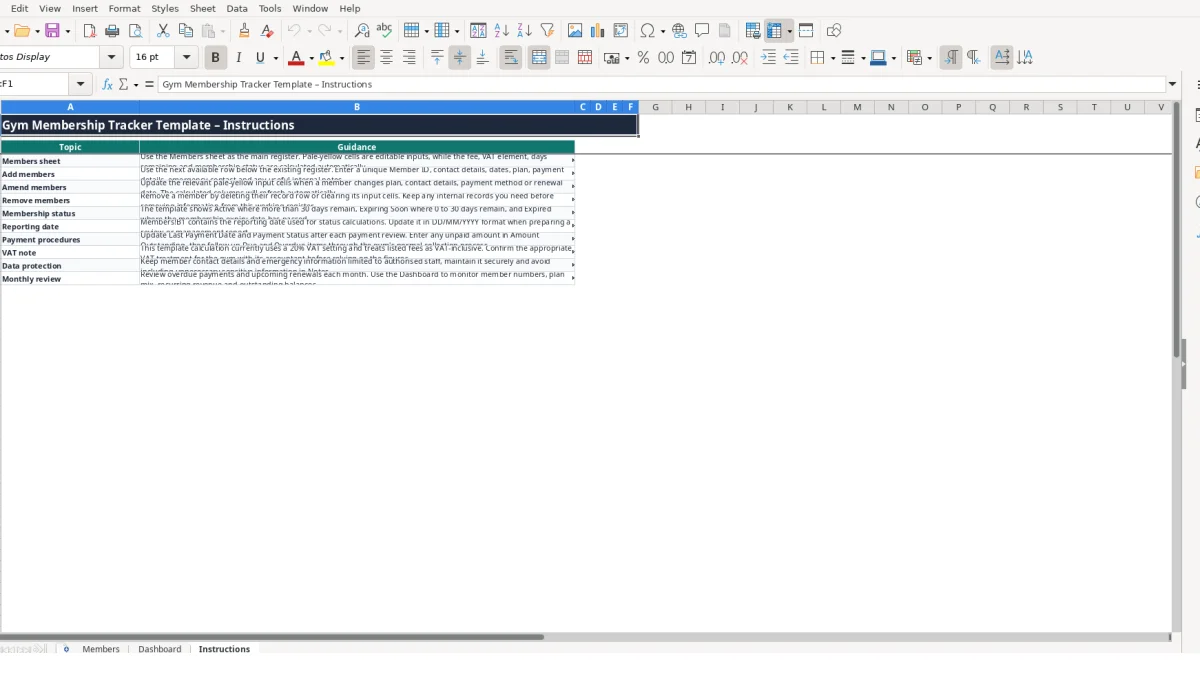
Keep the Instructions sheet available for anyone who updates the file. It explains the editable input cells, calculated outputs, reporting date, payment procedure, VAT setting and handling of contact information. Restrict access to authorised staff because the register contains member contact and emergency-contact details.
It contains Members, Dashboard and Instructions sheets. Members stores contact, plan, payment and expiry information; Dashboard summarises key figures; Instructions explains the intended workflow.
The prepared Members register runs from row 4 to row 103, providing 100 available member rows. Use the next available row and keep Member IDs unique.
The workbook subtracts the Reporting date in Members!B1 from Membership Expiry. It shows Expired below zero days, Expiring Soon from 0 to 30 days, and Active above 30 days.
The workbook includes Basic, Standard and Premium with illustrative fees of £29.99, £44.99 and £59.99. The fee lookup uses those plan values, so review the plan list and calculation setting before relying on the totals.
Yes. Select Paid, Due or Overdue in Payment Status, enter the Amount Outstanding and update Last Payment Date. The Dashboard counts payment statuses and totals outstanding amounts.
Yes. Monthly Fee (inc VAT), VAT Rate and VAT Element are calculated on Members. The workbook uses a 20% VAT setting and treats listed fees as VAT-inclusive; confirm the appropriate treatment for your gym with its accountant.
Excel template by
Guide written by