Funeral Cost Planner Excel Template (2026)
0
Free download
Track ISA contributions, withdrawals and interest across account types with a 2026/27 dashboard, allowance settings and monthly summaries.


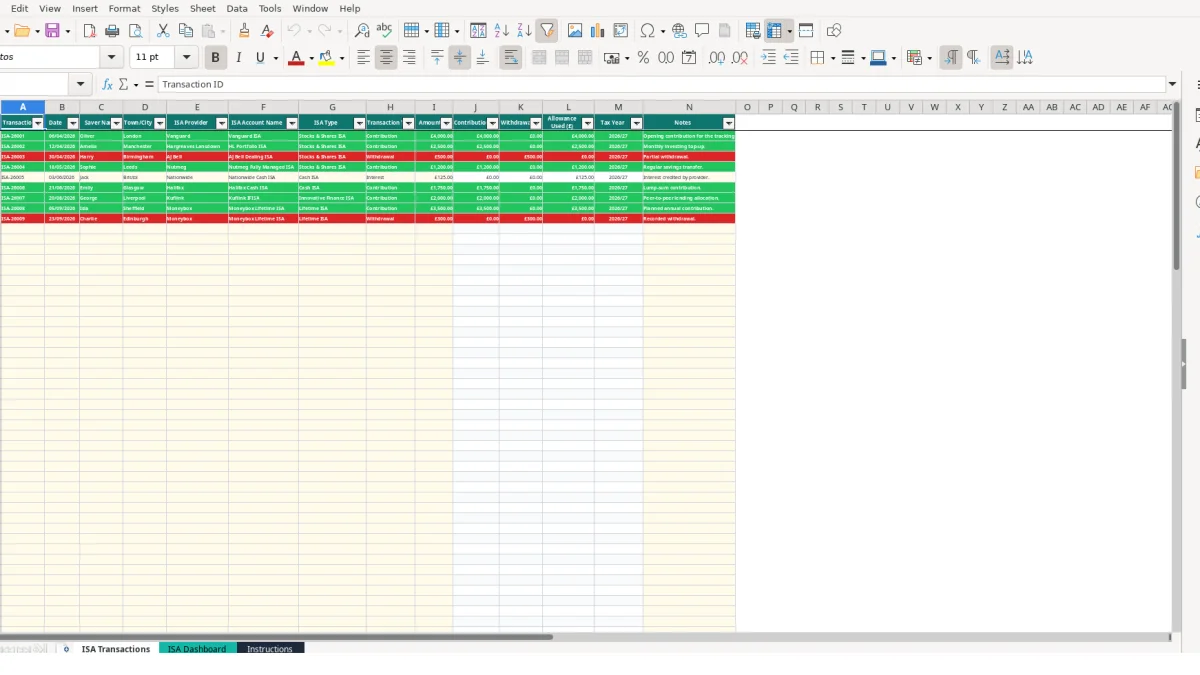
This ISA savings tracker Excel template records ISA contributions, withdrawals and interest by date, saver, provider, account and transaction type. It contains an ISA Transactions sheet for up to 100 entries, an ISA Dashboard with allowance and monthly summaries, and an Instructions sheet.
Use it to keep a consistent record across Cash ISA, Stocks & Shares ISA, Lifetime ISA, Innovative Finance ISA and Junior ISA accounts. The sample workbook includes entries such as Oliver’s £4,000 contribution, Amelia’s £2,500 top-up and Harry’s £500 withdrawal; replace these illustrative records with your own figures.
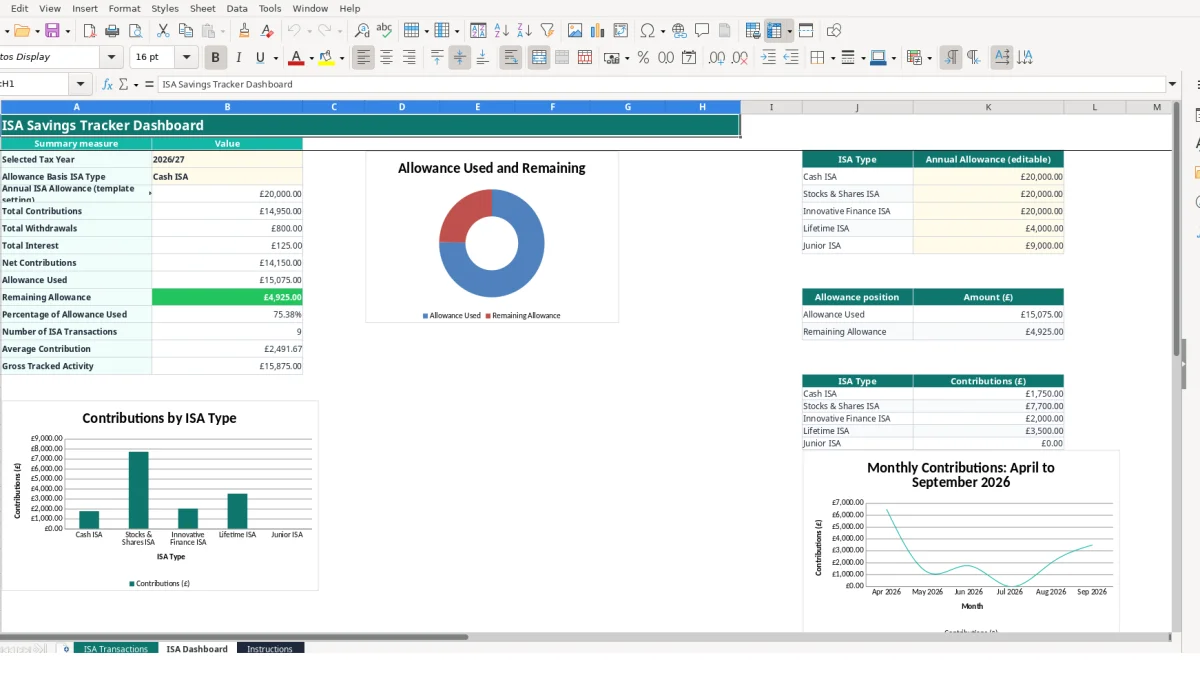
An ISA savings tracker is useful when your records are spread across several providers, account names or family members. A household might have a Cash ISA with one provider, a Stocks & Shares ISA with another and a Junior ISA recorded separately; the ISA Transactions sheet puts each movement into one searchable list.
The workbook is also suited to a self-employed person, employee or family administrator who wants a private planning record before reviewing figures with an adviser. It is not a replacement for provider statements or regulated financial advice. Use the workbook to organise information, not to make assumptions about your personal position.
Consider a hypothetical saver named Amelia. She enters a £2,500 contribution dated 12/04/2026, followed by monthly top-ups of £250 in May, June and July. The dashboard’s monthly section can show the contribution pattern, while the transaction row retains her provider and account name.
Another hypothetical record might be Harry’s £500 withdrawal dated 30/04/2026. Selecting Withdrawal places the amount in Withdrawal (£), rather than Contribution (£). This distinction matters when you review net contributions: £2,500 contributed less £500 withdrawn produces £2,000 before any other entries.
The ISA Type field accepts Cash ISA, Stocks & Shares ISA, Lifetime ISA, Innovative Finance ISA or Junior ISA. A saver with £4,000 in a Cash ISA and £1,200 in a Stocks & Shares ISA can enter both records and use the dashboard’s ISA-type summary to see the categories separately.
Enter the actual ISA Account Name as well as the provider. For example, Vanguard and Vanguard ISA are different fields: the provider identifies the organisation, while the account name identifies the account. That separation makes later checking against statements faster than keeping everything in a single notes field.
The workbook separates inputs from calculated outputs. You type values in the identifying fields, Date, Amount (£), Transaction Type and Notes on ISA Transactions. Columns J to M then calculate Contribution (£), Withdrawal (£), Allowance Used (£) and Tax Year for each of the 100 entry rows.
If Transaction Type is Contribution and Amount (£) is £4,000, Contribution (£) returns £4,000 and Withdrawal (£) returns zero. If the same row is marked Withdrawal with an amount of £500, Withdrawal (£) returns £500 and the contribution result is zero. The formulas remain blank where the transaction type or amount is missing.
Interest is treated separately in the workbook. A hypothetical £35 interest entry is included in the interest total and the template’s Allowance Used (£) calculation follows its stated logic for Contribution or Interest. Read the Instructions sheet before changing this treatment, because the workbook is a tracking model rather than a statement of external rules.
On ISA Dashboard, Selected Tax Year can be 2026/27 or Previous tax year. The dashboard’s Tax Year formula labels dates from 06/04/2026 as 2026/27 and earlier dates as Previous tax year, so a date entered incorrectly can move a transaction into the wrong summary.
The Allowance Basis ISA Type selector looks up the matching editable planning amount. The supplied examples show £20,000 for Cash ISA, Stocks & Shares ISA and Innovative Finance ISA, £4,000 for Lifetime ISA and £9,000 for Junior ISA. With £6,500 recorded as allowance-used value against a £20,000 setting, the dashboard’s remaining figure is £13,500.
Monthly contribution figures use date ranges for Apr 2026 through Sep 2026. A £4,000 contribution in April and £2,500 in May therefore appear in separate monthly results, provided their dates and selected tax-year label agree.
The most damaging errors in this workbook are classification errors, not typing speed. If a £500 withdrawal is selected as Contribution, the dashboard can show £500 too much in contributions and fail to show the withdrawal in its separate total. Correct the Transaction Type rather than overwriting the calculated columns.
The Tax Year formula uses 06/04/2026 as the dividing date in the supplied workbook. A contribution intended for 05/04/2026 but entered as 06/04/2026 will be labelled 2026/27 instead of Previous tax year. One mistyped day can therefore alter both the selected-period total and the allowance progress shown on the dashboard.
Dates should be entered as genuine Excel dates, displayed in DD/MM/YYYY format. Do not use a note such as April contribution as a substitute for the Date field: the monthly SUMIFS calculations rely on the date value, not the wording in Notes.
Entering only the provider and leaving ISA Account Name blank makes it harder to reconcile two accounts with the same organisation. For example, a £1,000 Cash ISA and a £1,000 Stocks & Shares ISA at one provider should have distinct account names and ISA Type values. Otherwise, the £2,000 combined total may be correct while the underlying record remains ambiguous.
The calculated columns contain formulas through row 101. Replacing a formula with a typed £4,000 may make one row look correct but disconnect it from later changes to Transaction Type or Amount (£). If a £4,000 contribution is changed to £3,500, the formula should recalculate; a hard-coded value will not.
Finally, do not treat the editable dashboard amounts as immutable external facts. They are template settings. If the selected £20,000 planning figure does not suit your purpose, change the setting and record why in your own supporting records.
A tracker works best when every provider statement creates a short, repeatable update rather than a large catch-up exercise. Set a fixed monthly review, open ISA Transactions, and enter each new movement while the statement or confirmation is available. Five entries take less time to verify immediately than 60 entries assembled at the end of a year.
For example, if April contains contributions of £4,000 and £750, the monthly dashboard result should be £4,750. If it shows £4,250, inspect the transaction dates and types before adding another row.
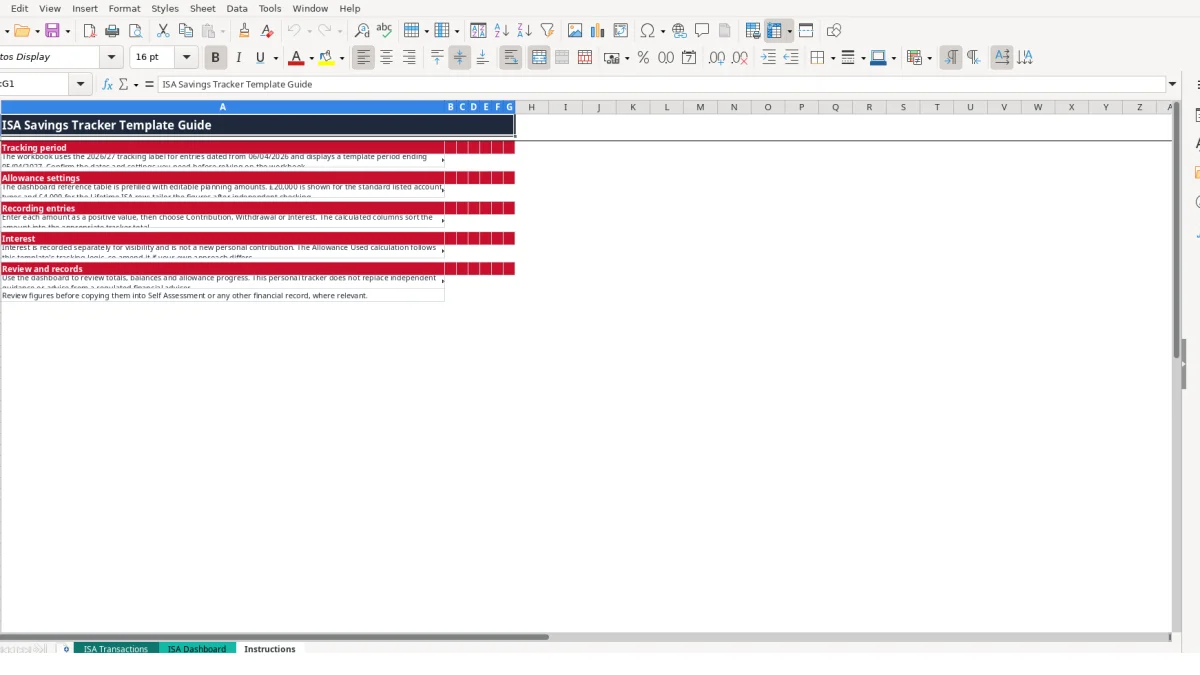
Use the Instructions sheet as the starting point for anyone else entering records. Keep the five permitted ISA-type labels and three transaction-type labels unchanged so the validation lists and SUMIFS calculations continue to match. Store a copy after each monthly review if you need a simple history of changes.
Review the dashboard’s allowance setting whenever your planning basis changes. The supplied table includes five account types and editable amounts, so you should not silently treat those sample settings as a universal answer. The workbook itself advises checking figures before copying them into Self Assessment or another financial record where relevant.
Consider a dedicated finance system when several people edit the file, provider records arrive in different formats, or more than 100 transaction rows are required. The workbook has no Excel table and no automated bank or provider connection in the manifest. At that point, preserving a controlled export and a clear reconciliation process is more dependable than adding unstructured rows indefinitely.
It records Transaction ID, Date, Saver Name, Town/City, ISA Provider, ISA Account Name, ISA Type, Transaction Type, Amount (£) and Notes. It calculates Contribution (£), Withdrawal (£), Allowance Used (£) and Tax Year for each transaction row.
The ISA Transactions sheet provides rows 2 to 101, giving space for 100 transactions. The calculated formulas and validation settings cover those same rows.
The validation list includes Cash ISA, Stocks & Shares ISA, Lifetime ISA, Innovative Finance ISA and Junior ISA. The dashboard also summarises contributions by these ISA types.
No. The dashboard contains editable template planning amounts, including £20,000 for several listed types, £4,000 for Lifetime ISA and £9,000 for Junior ISA. Confirm the figures and their relevance independently before relying on them.
Select Interest and enter the amount as a positive value. The workbook records it separately in Total Interest and includes it in its stated Allowance Used (£) calculation logic; read the Instructions sheet before adapting that treatment.
It can help you organise a personal record, but it does not replace provider statements, independent checks or financial advice. The Instructions sheet says to review figures before copying them into Self Assessment or another financial record where relevant.
Excel template by
Guide written by