Funeral Cost Planner Excel Template (2026)
0
Free download
Plan party costs in Excel with expense, VAT, payment, supplier and category tracking, plus summaries and charts for UK events.


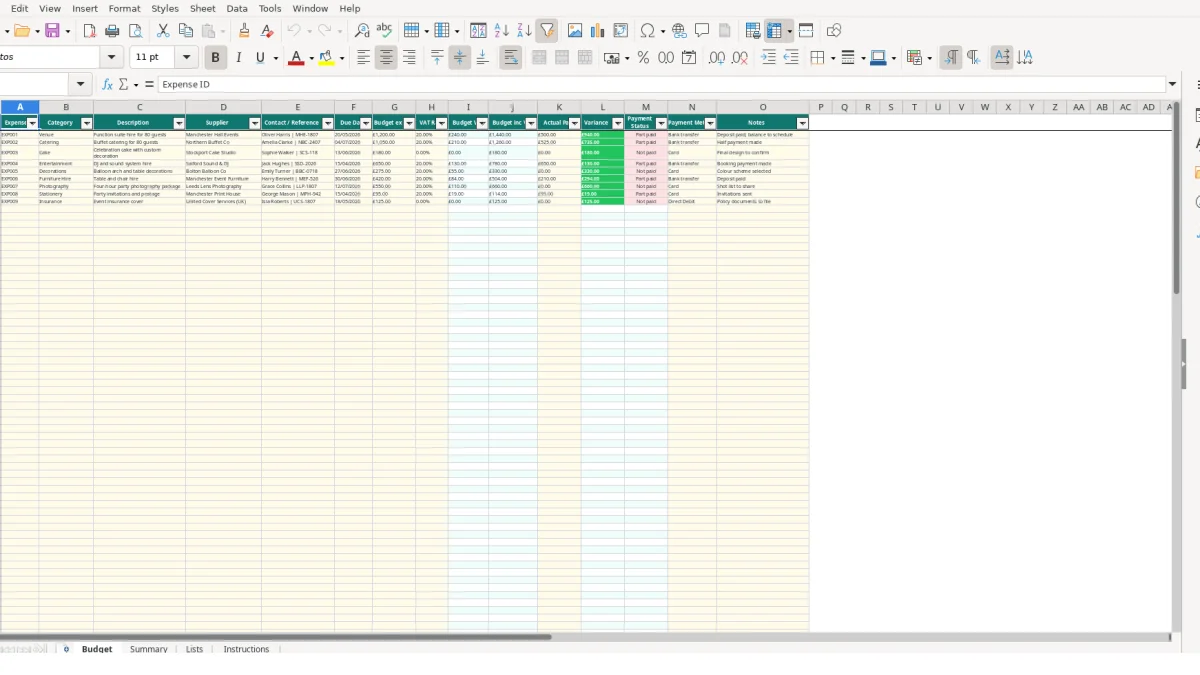
This party planning Excel template records each event expense, supplier, due date, VAT treatment, amount paid and payment status. It contains a Budget sheet for up to 109 expense rows, a Summary sheet with totals and charts, plus Lists and Instructions sheets.
Use it for a birthday party, wedding reception, anniversary, work event or community celebration. Enter planned costs such as venue hire, catering, cake and entertainment, then record deposits and later payments so you can see what remains to pay.
A party planning spreadsheet suits anyone responsible for turning a guest list and an event idea into a controlled spending plan. A private host can track a birthday celebration, while an office manager, wedding organiser, community group or small event supplier can use the same Budget sheet to monitor commitments to different suppliers.
The sample rows show how the workbook handles real planning stages. A function suite for 80 guests has a budget ex VAT of £1,200, a VAT rate of 20% and £500 recorded as paid. The sheet calculates £240 Budget VAT, £1,440 Budget inc VAT and £940 remaining through the variance calculation.
For a larger celebration, enter the venue, catering, cake, entertainment, furniture hire and photography as separate rows. The sample catering entry is £1,050 ex VAT at 20%, with £525 paid. That produces a £1,260 inclusive budget and a £735 difference between the planned inclusive cost and the amount paid.
This row-by-row approach is useful when deposits fall on different dates. The venue due date in the sample is 20/05/2026, while the catering due date is 04/07/2026. Keeping the dates, supplier names and contact references beside the financial figures gives you one place to check before contacting a supplier.
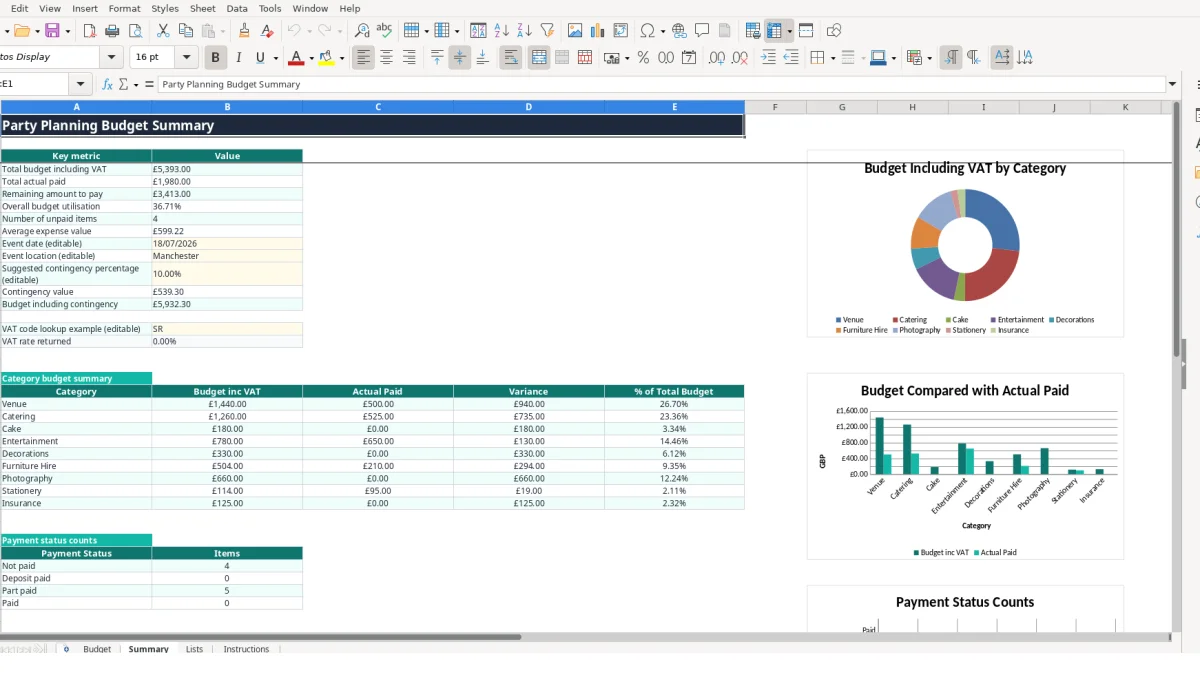
A host arranging an event in Manchester can set the Summary location to Manchester and review the nine category lines. An administrator organising a staff party can use the same structure without mixing venue, food and decorations into one unexplained total.
The Summary sheet also includes an editable event date, an editable contingency percentage and a VAT code lookup example. These are planning controls, not a substitute for confirming the VAT treatment of a supplier quote.
The Budget sheet separates information you enter from figures calculated by the workbook. You enter the budget ex VAT in column G, select the VAT Rate in column H and enter Actual Paid in column K. Columns I, J, L and M then calculate the VAT amount, inclusive budget, variance and payment status for prepared rows 2 to 111.
For example, a £180 cake budget with a zero VAT rate produces £0 Budget VAT and £180 Budget inc VAT. With £0 in Actual Paid, the payment status is Not paid and the variance is £180. The result changes when you enter a payment, without manually editing the calculated columns.
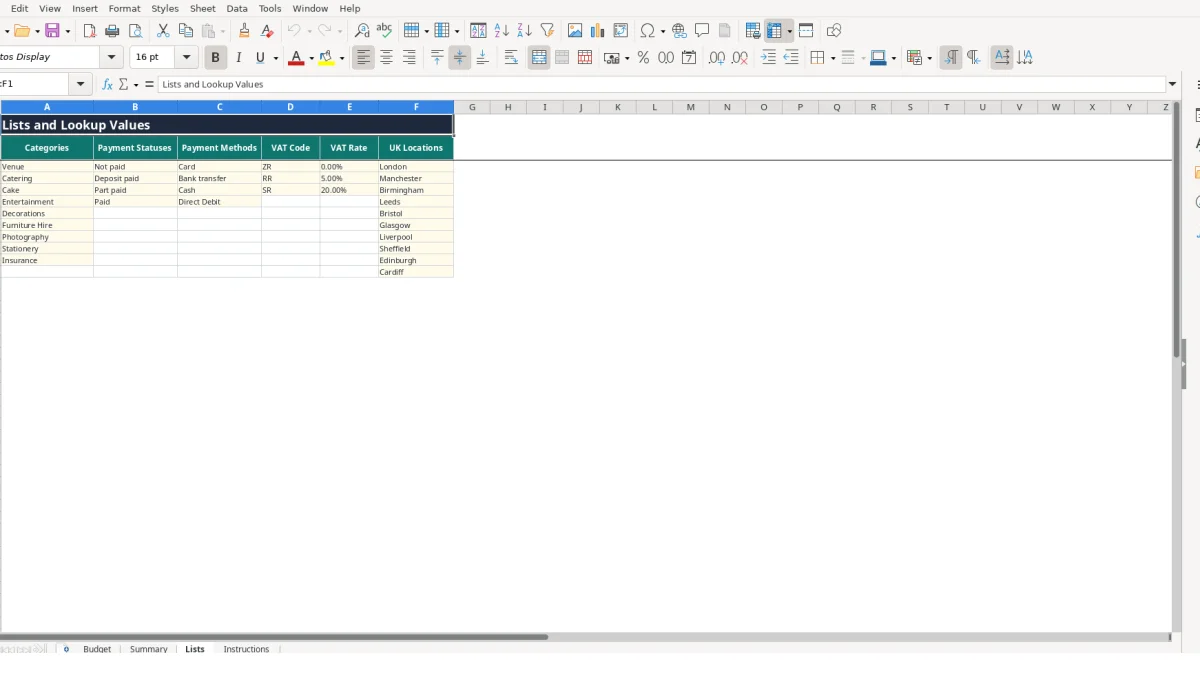
Category cells B2:B110 use the Categories list on Lists. VAT Rate cells H2:H110 use the three values held in Lists, and payment method cells N2:N110 use the available payment methods. This is a sound design choice: selecting Catering consistently is more reliable than typing variations such as catering, Food or buffet.
The Summary VAT code lookup accepts a code from the Lists range. Its VLOOKUP calculation returns the matching rate for codes such as ZR, RR and SR. The Lists sheet contains illustrative values of 0, 5% and 20%; confirm the correct treatment for each supplier before using a figure in your plan.
Summary B4 totals Budget inc VAT, B5 totals Actual Paid and B6 subtracts paid from budget. The category section uses SUMIF to group inclusive budgets and payments by category, while the payment section counts status results. A negative variance means recorded payment exceeds the planned inclusive amount; a positive figure means money remains against that row.
Party budgets often become unreliable when a deposit is treated as the full cost. In the sample, £500 is paid towards a venue budget of £1,440 including VAT. If you replace the planned cost with £500, the workbook can no longer show the £940 balance that still needs attention.
Use Budget inc VAT for the planned supplier cost and Actual Paid for money actually paid. The two columns answer different questions. A catering entry with £1,260 planned and £525 paid is not a £525 catering budget; it is a partly settled £1,260 commitment.
Another error is entering an inclusive quote in Budget ex VAT without adjusting it. A hypothetical £1,200 inclusive quote entered as £1,200 ex VAT at 20% becomes £1,440 in the workbook, overstating the planned cost by £240. Check whether each supplier figure is inclusive or exclusive before entering it, and confirm the treatment with the supplier.
Payment Status is driven by Actual Paid compared with Budget inc VAT. Leaving Actual Paid at zero makes a paid deposit appear Not paid. Entering £1,440 against the sample venue marks it Paid, but entering £500 correctly shows the part-payment position.
Do not type over calculated cells in columns I, J, L and M. If one formula is replaced with a hard-coded number, that row may stop changing when the budget, VAT rate or payment changes. A hypothetical £100 increase in the ex-VAT budget should alter both VAT and inclusive totals; a fixed result will hide that £120 change at a 20% rate.
Leaving Contact / Reference and Notes blank creates avoidable follow-up work. The sample venue row includes Oliver Harris and reference MHE-1807, while its note records the deposit arrangement. Without that information, checking one of 109 rows can require searching separate emails or bank records.
The workbook works best when you update it immediately after a quote, deposit or balance payment rather than waiting until the event is close. Set a recurring review point around your existing planning routine, such as the weekly supplier call or the day you reconcile the event bank account.
Use one row for each supplier commitment and keep the Expense ID stable. For example, retain EXP001 for the venue when its £500 deposit becomes £1,440 planned including VAT; update Actual Paid rather than creating a second row for the same contract.
Keep the Lists sheet controlled. If your event uses a category not already present, add it to the Categories list before selecting it in Budget. The same principle applies to payment methods and VAT code examples: consistent list values keep SUMIF groupings and lookups dependable.
Use the editable contingency percentage on Summary as a planning scenario. If the inclusive budget is £4,000 and the percentage is 10%, the contingency value calculates as £400 and the budget including contingency becomes £4,400. This is a budgeting assumption, not an external rule.
Consider a dedicated event or accounting system when several people need simultaneous access, supplier records need document attachments, or your process requires approvals beyond these four sheets. Until then, protect the habit: enter the transaction, update the payment, inspect the Summary.
It tracks expense IDs, categories, descriptions, suppliers, contact references, due dates, budgets ex VAT, VAT rates, calculated VAT, inclusive budgets, actual payments, variances, payment statuses, payment methods and notes.
The Budget sheet has prepared rows from 2 to 110 for data entry, giving you 109 planned expense rows with formulas, drop-downs and conditional formatting.
Budget VAT is calculated by multiplying Budget ex VAT by the selected VAT Rate. Budget inc VAT then adds the calculated VAT to the ex-VAT budget. The Lists sheet contains the illustrative rates 0, 5% and 20%.
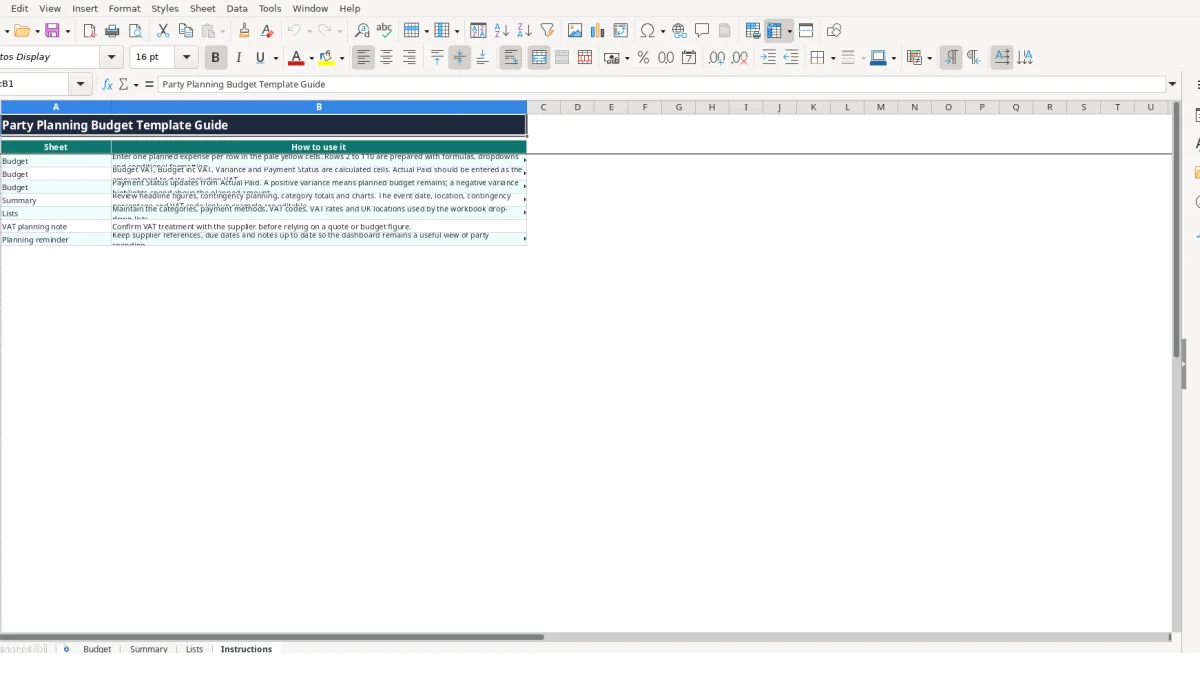
Yes. The Instructions sheet specifies that Actual Paid should be entered as the amount paid to date, including VAT. This allows it to be compared directly with Budget inc VAT.
Variance is calculated as Budget inc VAT less Actual Paid. A positive value means planned budget remains; a negative value indicates that the recorded payment is above the planned inclusive amount.
Summary includes total budget including VAT, total actual paid, remaining amount to pay, budget utilisation, unpaid item count, average expense value, contingency calculations, a VAT code lookup example, category totals, payment status counts and three charts.
Excel template by
Guide written by