Funeral Cost Planner Excel Template (2026)
0
Free download
Track business and personal subscriptions, renewal dates, VAT, monthly costs and annual commitments in an Excel workbook with dashboard.


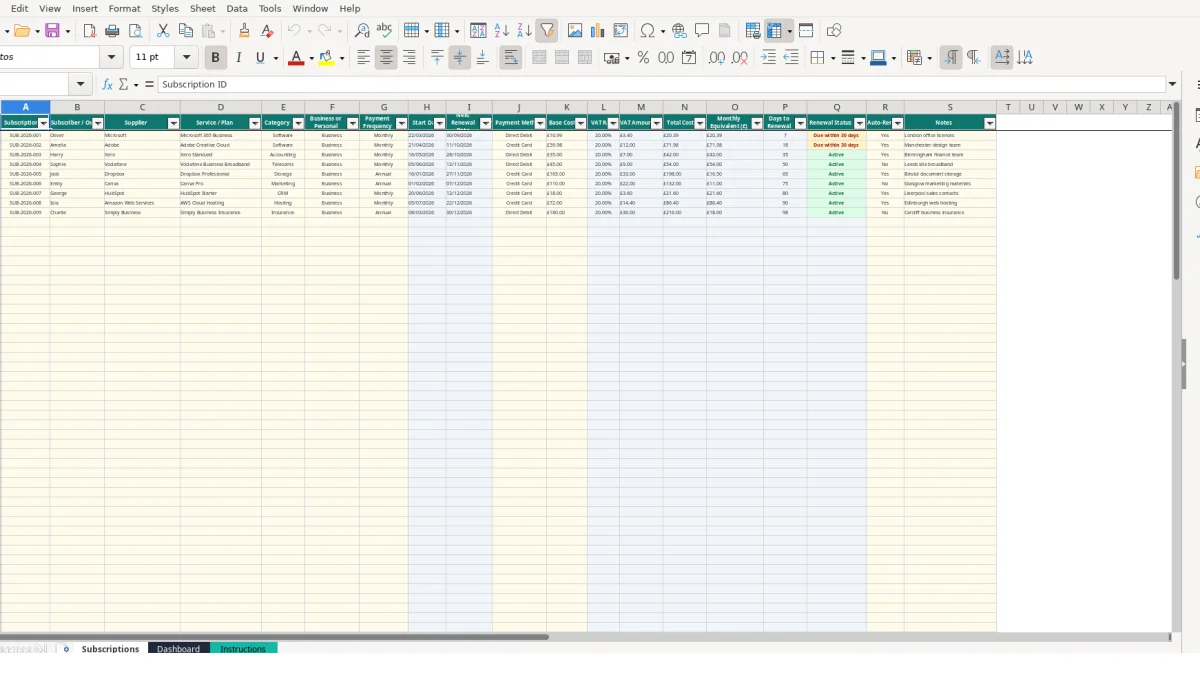
This subscription tracker Excel template records services, suppliers, owners, payment frequency, renewal dates, payment methods and costs. It calculates VAT, total cost, monthly equivalent, days to renewal and renewal status, then summarises the information on a Dashboard.
Use the Subscriptions sheet for up to 100 entries, including software, accounting, telecoms, storage, marketing, CRM, hosting and insurance services. The workbook also includes an Instructions sheet explaining inputs, calculated fields, VAT settings and renewal monitoring.
A small business owner, office manager or finance administrator can use this workbook to keep recurring services in one register. It suits a company with Microsoft 365 licences, Adobe Creative Cloud, accounting software and hosted services paid from different cards or bank accounts.
The sample rows show how the register works in practice. Oliver owns a Microsoft 365 Business entry for the London office at a base cost of £16.99 per month; Amelia owns Adobe Creative Cloud at £59.98 per month for the Manchester design team; and Harry has a monthly Xero Standard entry at £35. These are illustrative workbook values, not recommended prices.
An office manager can review the Subscriptions sheet every Friday and filter attention towards the Next Renewal Date, Renewal Status and Auto-Renew? fields. A service with a renewal date of 11/10/2026 is easier to investigate when the responsible owner and payment method are recorded on the same row.
The register also distinguishes Business and Personal entries. That matters when a mixed household or director-managed business has several recurring services and you need to decide which records belong in the business review.
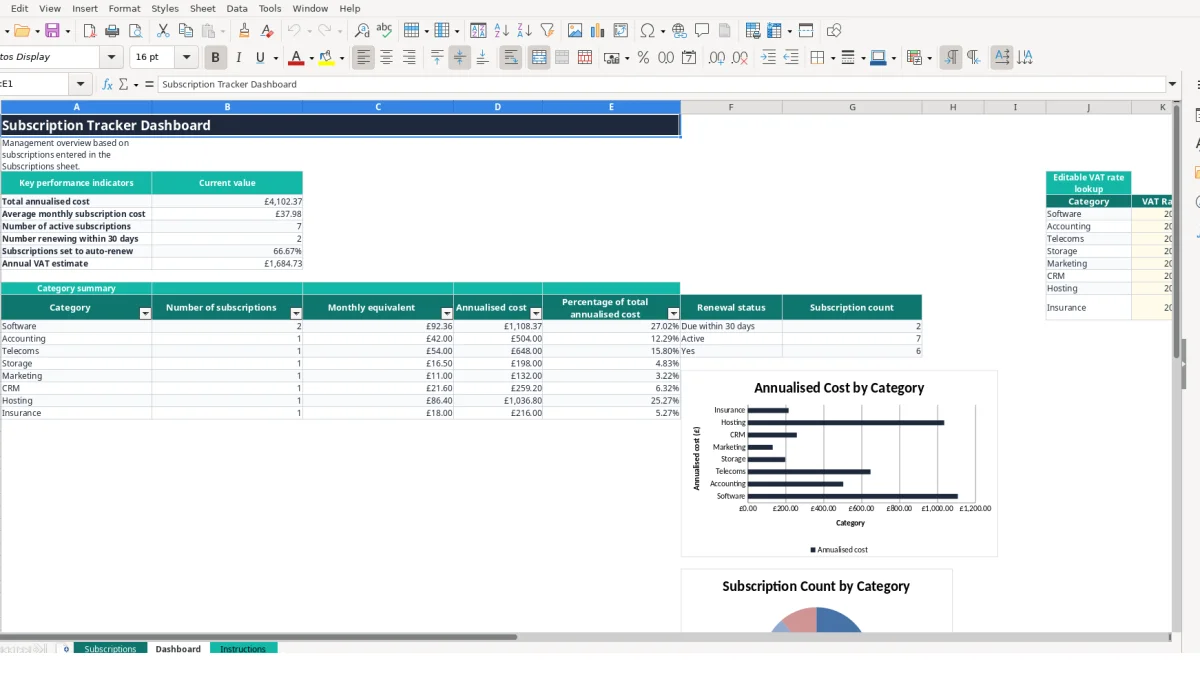
A bookkeeper can use the Dashboard after the monthly payment review to compare category commitments. If five software entries total £140 per month and two hosting entries total £60 per month, the category summary shows £200 of monthly equivalent spend and £2,400 annualised before considering other categories.
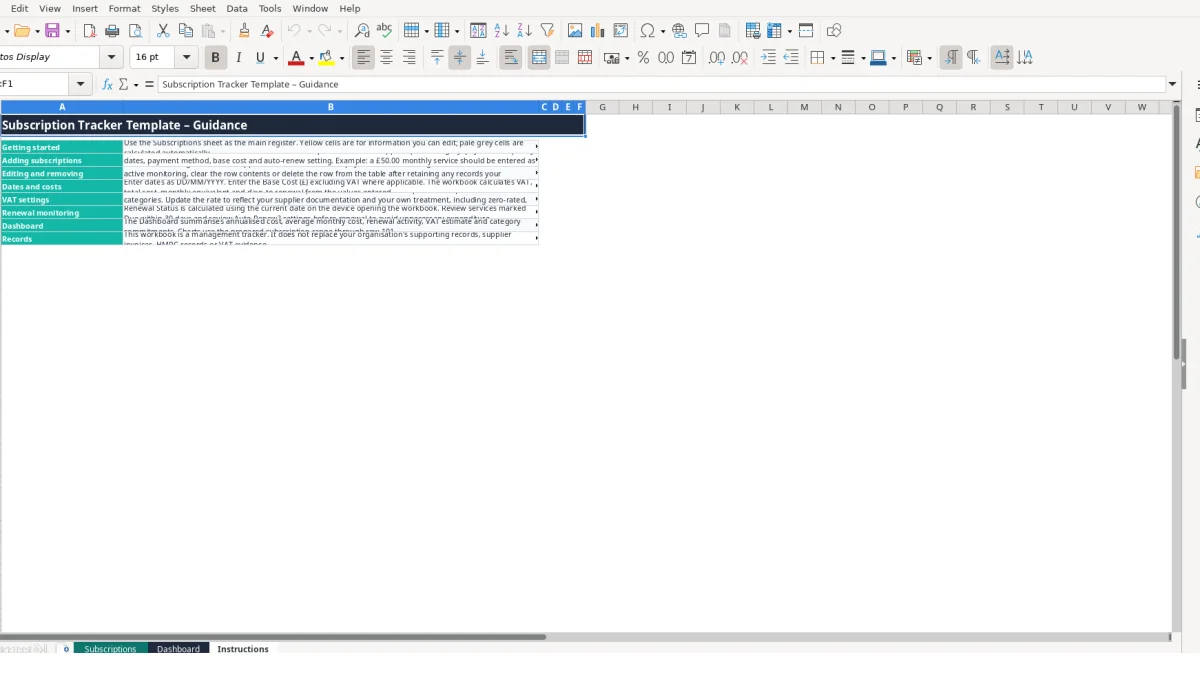
That is a management view, not a substitute for invoices or supporting records. The Instructions sheet specifically describes the workbook as a management tracker and says it does not replace supplier invoices, HMRC records or VAT evidence.
The Subscriptions sheet separates entered information from calculated outputs. You enter the category and base cost; the VAT Rate column retrieves the matching rate from Dashboard using VLOOKUP. The initial lookup table contains the eight listed categories and an illustrative 20% value, which you can edit in K5:K12 using the decimal validation from 0 to 1.
VAT Amount (£) multiplies Base Cost (£) by VAT Rate. Total Cost (£) adds the base cost and VAT amount. For example, a £50.00 base cost with a 20% lookup value produces £10.00 VAT and a £60.00 total. This is a worked example of the formula, not tax advice.
Monthly Equivalent (£) uses Total Cost (£) directly for a Monthly entry. For an Annual entry, it divides the total by 12. An annual total of £1,200 therefore produces a monthly equivalent of £100, allowing unlike billing frequencies to be compared.
Days to Renewal subtracts TODAY() from Next Renewal Date. Renewal Status then labels a negative result Overdue, a result from 0 to 30 as Due within 30 days, and a larger positive result Active. The result changes when the workbook is opened on a different date, so it should be reviewed rather than treated as a permanent stored status.
Validation reduces inconsistent entries: Category has eight permitted values, Payment Frequency has Monthly or Annual, Payment Method has five choices, and Auto-Renew? has Yes or No. Base Cost (£) accepts decimal values from zero upwards. Keep formulas in columns L:Q intact; replacing one with typed text breaks the calculated output for that row.
The Dashboard uses SUM, AVERAGE, COUNTIF and SUMIF formulas across rows 2 to 101. It calculates totals from the register rather than asking you to duplicate figures on the summary sheet.
The most expensive errors in subscription tracking usually come from incomplete rows, stale renewal dates or a mismatch between the supplier invoice and the register. If a £59.98 Adobe entry remains after the licence is no longer needed, the Dashboard continues to include it in category and annualised totals until you amend or clear the row.
Choosing Annual instead of Monthly changes the Monthly Equivalent calculation. A £1,200 annual service correctly becomes £100 per month; entering the same £1,200 as a monthly base cost makes the workbook report £1,200 per month and £14,400 annualised. The input choice therefore needs to match the supplier billing frequency.
A blank Next Renewal Date produces no Days to Renewal or Renewal Status. The service then disappears from the renewal-status counts even though its cost remains in other calculations. Similarly, leaving Subscriber / Owner blank makes it harder to decide who should check a renewal, particularly when 12 team members each manage five services and 60 rows need review.
Typing over VAT Rate, Total Cost (£) or Monthly Equivalent (£) creates a figure that no longer responds when the base cost or Dashboard lookup changes. For example, changing a category lookup from 20% to a different documented value should update every matching row; a hard-coded VAT amount will not.
Another failure is treating Auto-Renew? as proof that a payment has been cancelled. Yes or No is a recorded setting for review, not confirmation from a supplier. A sensible reconciliation compares the row with the supplier invoice, bank or card evidence and the responsible owner’s decision.
Finally, clearing only the supplier name leaves other row data behind. To remove a service from active monitoring, follow the Instructions sheet and clear the row contents or delete the row from the table as appropriate.
The workbook becomes useful when its review is attached to an existing task rather than left for an occasional tidy-up. Set a fixed monthly review after checking recurring bank and card payments. Open Dashboard first, note the annualised cost and upcoming-renewal count, then work through the relevant rows on Subscriptions.
For example, a review of 20 active rows might find three renewal dates within 30 days. Deal with those three rows first, then investigate any Overdue result and finally compare category totals with the month’s recurring payments.
Use the supplied lists instead of typing variations such as Software licences, software or SaaS. The validation options keep the eight Dashboard categories aligned with the VLOOKUP table and SUMIF summaries. Enter dates consistently as DD/MM/YYYY and leave calculated columns alone.
Use Notes for operational context such as London office licences or Manchester design team. Do not put confidential payment credentials in the workbook; the manifest provides a payment-method field, not a secure credential store.
This workbook has prepared rows through row 101 and is suitable for a controlled register. Consider a specialist system when several people need simultaneous access, you require approval history, automated supplier notifications, detailed invoice matching or permissions beyond a shared workbook. Retain the Excel file as a management view only if your organisation’s supporting records are held elsewhere.
It records subscription ID, owner, supplier, service or plan, category, Business or Personal status, payment frequency, start date, next renewal date, payment method, base cost, Auto-Renew? and notes. It calculates VAT, total cost, monthly equivalent, days to renewal and renewal status.
The Subscriptions table is prepared from row 2 through row 101, providing 100 entry rows. The Dashboard formulas and charts use this prepared range.
Yes. Dashboard cells K5:K12 contain an editable VAT rate lookup for the eight categories. The initial values are 20% template assumptions; check them against your supplier documentation before relying on calculated amounts.
Days to Renewal subtracts TODAY() from Next Renewal Date. The workbook labels a negative result Overdue, a result up to 30 days as Due within 30 days, and a later result as Active. A blank renewal date produces no status.
Yes. The Dashboard contains three charts: annualised cost by category, subscription count by category, and counts for the prepared renewal or auto-renew categories.
No. The Instructions sheet describes it as a management tracker. It does not replace supplier invoices, HMRC records or VAT evidence, so retain and reconcile the supporting records required by your organisation.
Excel template by
Guide written by