Childminder Register Excel – Free Template (2026)
1
Free download
Plan weekly cleaning tasks, assign cleaners, record checks and review workload, completion and reported issues in Excel.


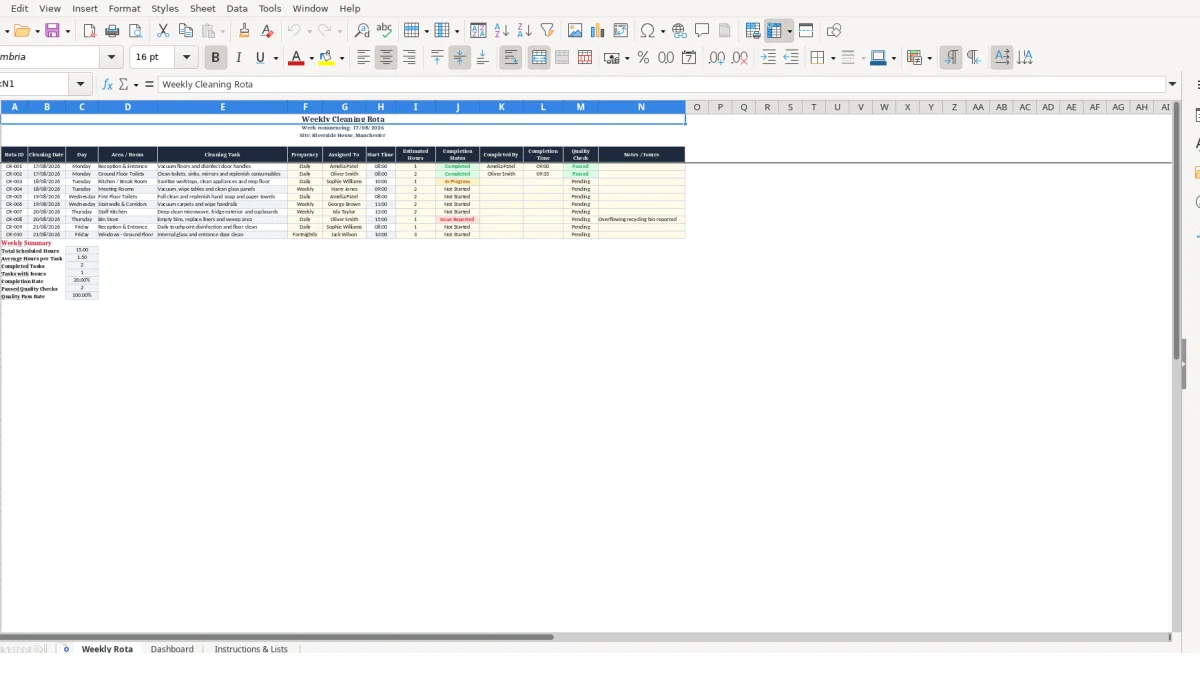
This weekly cleaning rota Excel template lets you schedule up to 10 cleaning tasks, assign each task to a cleaner, record completion and quality checks, and review results on a separate dashboard. It includes a Weekly Rota, a Dashboard and Instructions & Lists sheet for a controlled weekly cleaning record.
Use it for offices, communal buildings, schools, small facilities and managed sites where cleaning work must be clear to the team and easy for a supervisor to review. You enter the week, site details, tasks and assignments; the workbook calculates scheduled hours, completion measures and cleaner workloads.
A weekly cleaning rota is useful where several rooms, tasks and cleaners must be coordinated without leaving responsibility to a verbal handover. Office managers, facilities coordinators, school caretaking teams and property managers can use it to issue a clear list of work for a defined site each week.
The workbook’s example covers Riverside House in Manchester for the week commencing 17/08/2026. Its first two sample rows separate reception work from ground-floor toilet cleaning, rather than treating the building as one vague cleaning job.
An office manager might create separate rows for an entrance, toilets, meeting rooms and kitchen areas. For example, four daily tasks estimated at 1, 1.5, 0.75 and 1.25 hours add up to 4.5 scheduled hours; assigning all four to one person makes that workload visible before the rota is circulated.
The key judgement is to record each room-and-task combination on its own line. A single row saying cleaning for an entire floor cannot show whether toilet consumables were replenished, whether door handles were disinfected or who completed each part of the visit.
A supervisor can use the Assigned To, Completed By and Quality Check fields to distinguish planned responsibility from completed work and inspection. This matters when one cleaner is allocated a task but another finishes it after an absence or an urgent call-out.
For a hypothetical 10-row weekly rota, six tasks assigned to Amelia and four to Oliver should not be assessed by task count alone. If Amelia’s six tasks total 4.5 hours and Oliver’s four total 6 hours, the Dashboard’s scheduled-hours figure gives the more useful basis for balancing the next week.
The template suits sites with recurring daily, weekly or other regular work because Frequency is recorded beside the task rather than buried in a separate policy document. A caretaker can therefore see that a daily entrance task and a less frequent store-room task are different commitments, even when they appear in the same weekly rota.
Use the Notes / Issues column for exceptions to the normal visit: an empty soap dispenser, damaged fitting or spillage can be attached to the relevant room and date. The Instructions & Lists sheet also directs users to log and escalate hazards beyond routine cleaning, while use of cleaning chemicals remains subject to the organisation’s own COSHH assessments and supplier instructions.
That same distinction between routine visits and exceptions is easier to manage when the cleaner schedule is laid out in a weekly rota.
The Weekly Rota sheet has 10 task rows, from row 6 to row 15, and 14 columns that follow a task from planning through to inspection. You enter the rota ID, date, area, task, frequency, cleaner, times, estimated hours, status, completion details, quality result and notes; calculated outputs sit separately in the summary cells and Dashboard.
This separation is the right design choice. Do not type over the formulas in the Day column or the summary cells, because they turn the original task records into usable weekly measures.
Cleaning Date is the source for the Day field. The formula TEXT(B6,"dddd") returns the weekday name, so a date of 17/08/2026 displays Monday without you typing Monday separately and risking a mismatch.
Estimated Hours is a numeric input, including decimals. For example, the sample reception task is 1 hour and the toilet task is 1.5 hours; together they contribute 2.5 hours to the total scheduled-hours calculation, while the average changes as further task rows are added.
Use the supplied dropdown lists in Frequency, Assigned To, Completion Status and Quality Check. This is more reliable than free text: COUNTIF only counts an exact status such as Completed, so entries such as Complete or completed would weaken the reported completion figure if they were allowed.
The completion rate divides completed tasks by the count of rota IDs in the 10 available task rows. In a hypothetical rota with eight populated IDs and six entries marked Completed, the result is 75%; blank unused rows do not become scheduled work.
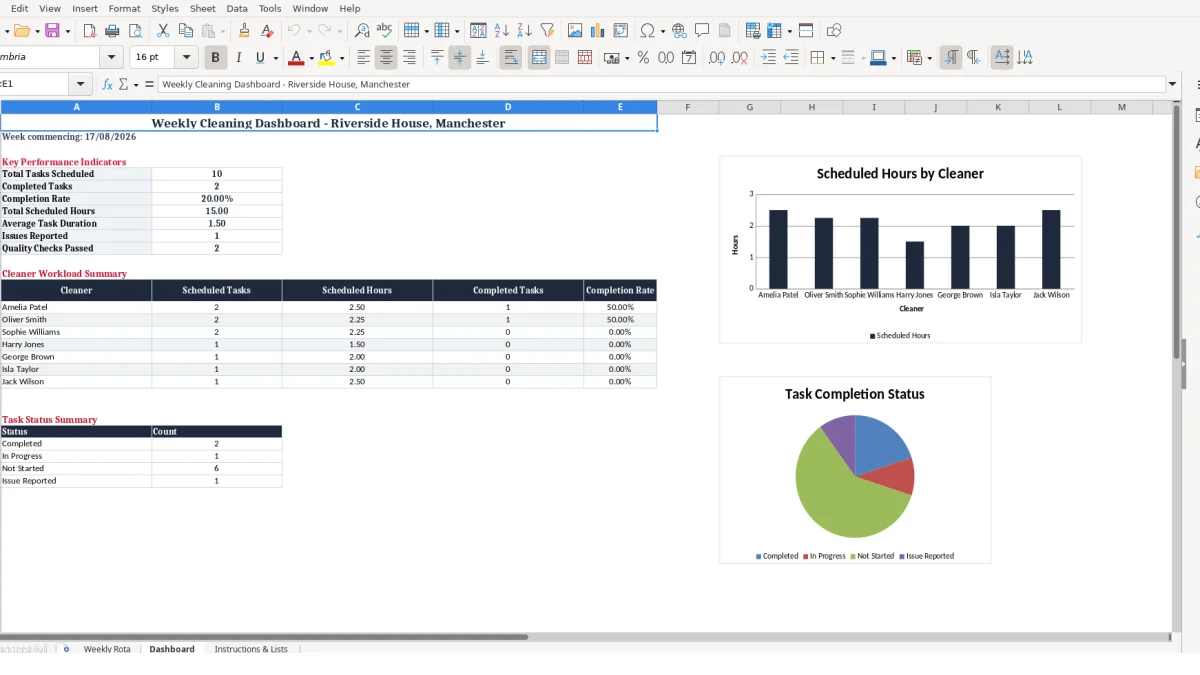
The Dashboard takes its headline figures from the Weekly Rota rather than asking you to re-enter them. It reports total scheduled tasks, completed tasks, completion rate, total scheduled hours, average task duration, issues reported and quality checks passed.
For each listed cleaner, the workload summary counts assignments, adds estimated hours with SUMIF, counts completed assignments and divides completed tasks by scheduled tasks. If a cleaner has no assigned rows, the completion-rate formula returns 0 rather than an error; keep cleaner names consistent with the supplied list so their work is attributed to the correct Dashboard row.
Cleaning rotas usually fail when the planned schedule becomes disconnected from the evidence of work done. This workbook avoids that gap only if you preserve the link between the rota ID, room, assigned cleaner, completion status and quality outcome on the same row.
A row without a completed-by name or completion time may still show Completed, but it gives a supervisor less detail when a task is queried later. Treat those fields as the operational record of the visit, not as optional decoration.
Writing Reception, toilets and kitchen in one Area / Room cell makes it impossible to identify which location caused a complaint or failed a check. It also distorts time estimates: a 2-hour combined task cannot be reassigned cleanly if one cleaner covers the reception and another covers the toilets.
For example, splitting a 2.5-hour combined visit into a 1-hour entrance task and a 1.5-hour toilet task allows two named completions and two quality outcomes. The workbook’s sample already demonstrates this approach with CR-001 for Reception & Entrance and CR-002 for Ground Floor Toilets.
The task-status summary counts Completed, In Progress, Not Started and Issue Reported entries. If someone types Issue reported with a different capitalisation or adds a phrase such as Completed - late outside the dropdown, it may not be included in the intended count.
Use the validated Completion Status field and explain the exception in Notes / Issues instead. That keeps the status count meaningful while retaining the detail that a consumable shortage, damage or hazard needs attention.
Completed and Passed answer different questions. A cleaner may complete a task at 09:35, but the quality check should only be set after inspection; recording Passed automatically at the same point removes the independent check the column is designed to provide.
In a hypothetical 10-task week, nine tasks may be marked Completed but only seven may have Passed quality checks. Reporting only a 90% completion rate would hide two tasks that still need follow-up, whereas the separate quality-pass count exposes the gap.
Finally, avoid copying a prior rota without changing dates, personnel or estimated hours. The day names are driven by dates, and the Dashboard is driven by the current 10 rota rows, so stale inputs create a polished-looking but inaccurate weekly record.
A cleaning rota becomes useful when it is updated at fixed points in the week, not when it is completed retrospectively from memory. Make one person responsible for issuing the next rota before work begins and another responsible for reviewing the final Dashboard figures after inspections are complete.
With only 10 available task rows, the weekly review is quick: check that every used rota ID has a date, assignment and completion status. A site with eight scheduled tasks can identify two missing updates far faster than a supervisor trying to reconstruct the whole week from messages.
Attach this sequence to an existing facilities handover or supervisor walk-round. For example, if a supervisor inspects reception and toilets at 10:00 on Monday, they can update the two relevant rows immediately rather than collecting paper notes at Friday close.
Retain the supplied dropdown lists and use them rather than pasting names or statuses from emails. This is a firm practical choice: consistent cleaner names allow the Dashboard to add their scheduled hours correctly, while inconsistent names can split one person’s workload across separate labels.
Copying the workbook for the next week is sensible only after clearing or replacing last week’s operational entries. Update dates and tasks first, then reset completion details, quality checks and issue notes so a previous Completed result is never mistaken for current work.
This template is designed around 10 rota rows and a listed cleaner summary. Move to a dedicated facilities or job-management system when you need substantially more tasks, multiple sites, live mobile updates, attachments or a wider approval trail; forcing those requirements into a small weekly sheet increases manual checking rather than reducing it.
Once the rota outgrows a small weekly sheet, a leave tracking sheet is the next way to keep absences and cover requests visible alongside the cleaner summary.
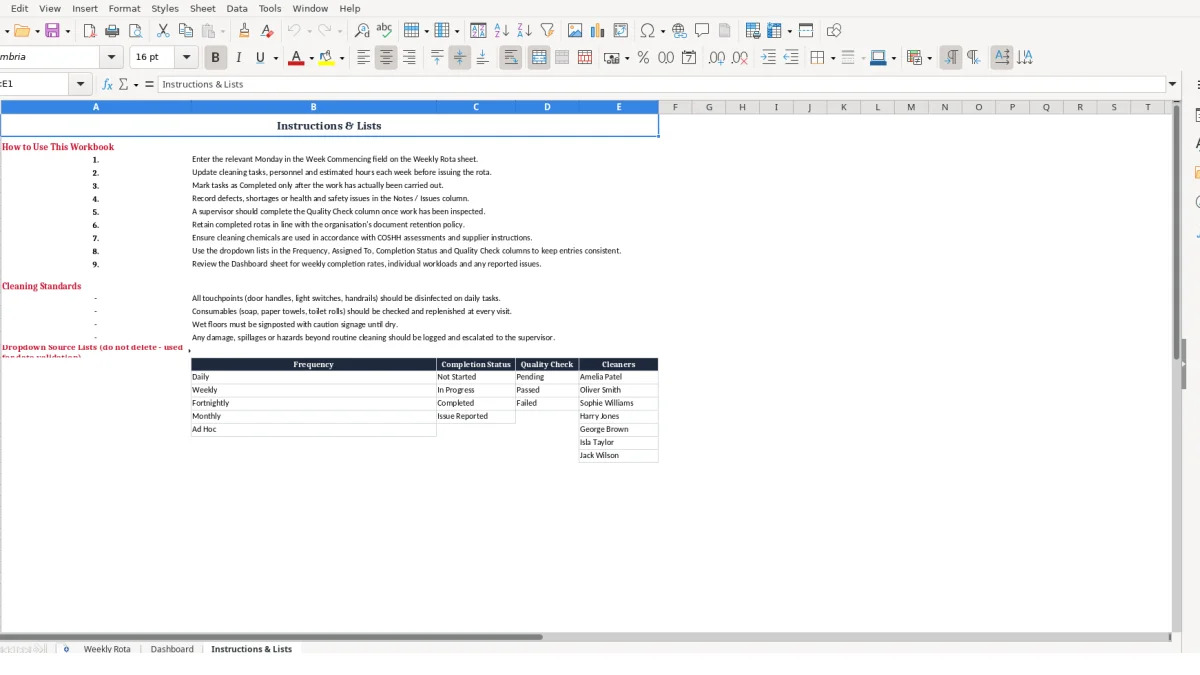
The workbook contains three sheets: Weekly Rota, Dashboard, and Instructions & Lists. The Weekly Rota holds task records, the Dashboard summarises them, and Instructions & Lists contains usage guidance and dropdown source lists.
The Weekly Rota provides 10 task rows, from rows 6 to 15. Each row can hold one rota ID, date, room or area, task, cleaner, estimated hours, completion record, quality check and notes.
Yes. It calculates total scheduled hours and average task duration from the Estimated Hours column. The Dashboard also totals scheduled hours for each listed cleaner using their assigned task rows.
Yes. The Quality Check column is separate from Completion Status, so you can record that work was completed and then enter the inspection outcome separately. The weekly summary includes a count of quality checks marked Passed.
The completion rate is calculated as the number of task rows marked Completed divided by the number of populated rota IDs. For example, six completed tasks from eight scheduled task rows produces a 75% completion rate.
Yes. Use Notes / Issues on the relevant task row to record defects, shortages, spillages or other concerns. The Instructions & Lists sheet also directs users to log and escalate hazards beyond routine cleaning to the supervisor.
Excel template by
Guide written by