Funeral Cost Planner Excel Template (2026)
0
Free download
Plan meals, servings, nutrition, costs and shopping in a weekly meal prep Excel template for UK households and busy professionals.


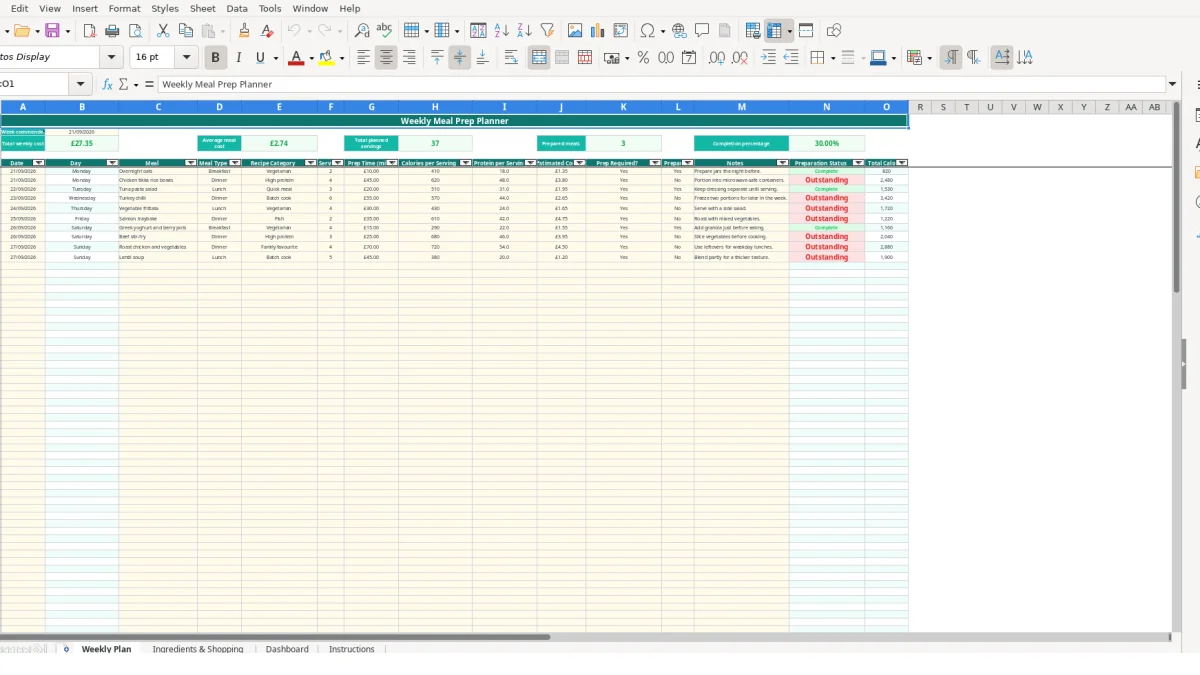
A weekly meal prep planner Excel template helps you schedule meals, record servings, preparation time, nutrition and estimated costs for one week. It includes a Weekly Plan, Ingredients & Shopping list, Dashboard and Instructions sheet, with formulas that calculate totals and preparation progress.
Use the sample week commencing 21/09/2026 as a starting point, then replace the example meals and ingredients with your own. The workbook supports up to 100 planning rows and uses DD/MM/YYYY dates.
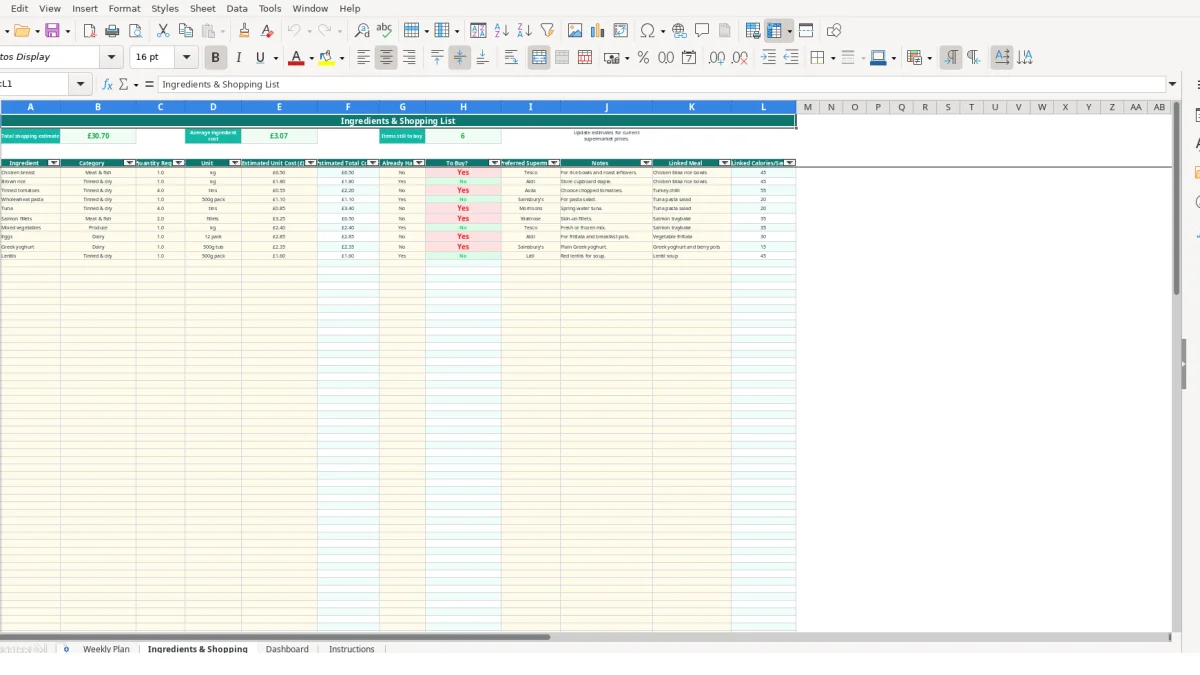
A weekly meal prep planner suits households, students, gym users, shift workers and anyone who wants to decide meals before the working week begins. It is particularly useful when several meals need to share ingredients, such as chicken breast used for rice bowls and leftovers.
Use the Weekly Plan sheet during a Sunday planning session or before a supermarket order. The sample rows show 2 servings of overnight oats at £1.35, followed by 4 servings of chicken tikka rice bowls at £3.80. Those entries give 6 planned servings and £5.15 of illustrative meal cost before other rows are added.
Enter Breakfast, Lunch, Dinner or Snack in Meal Type. Recipe Category choices include Vegetarian, High protein, Quick meal, Batch cook, Fish and Family favourite, so you can review the type of food being planned rather than relying on meal names alone.
A parent preparing family meals can enter 4 servings for a dinner and note Portion into microwave-safe containers in Notes. A single person might enter 2 servings for overnight oats and mark the meal as requiring preparation. The Prepared? field then gives a simple record of what has actually been completed.
The Ingredients & Shopping sheet supports a practical UK shop. For example, the sample list records 1 kg of chicken breast at £6.50 from Tesco, 1 kg of brown rice at £1.80 from Aldi and 4 tins of tomatoes at £0.55 each from Asda. Use these figures as examples only and update them for current prices.
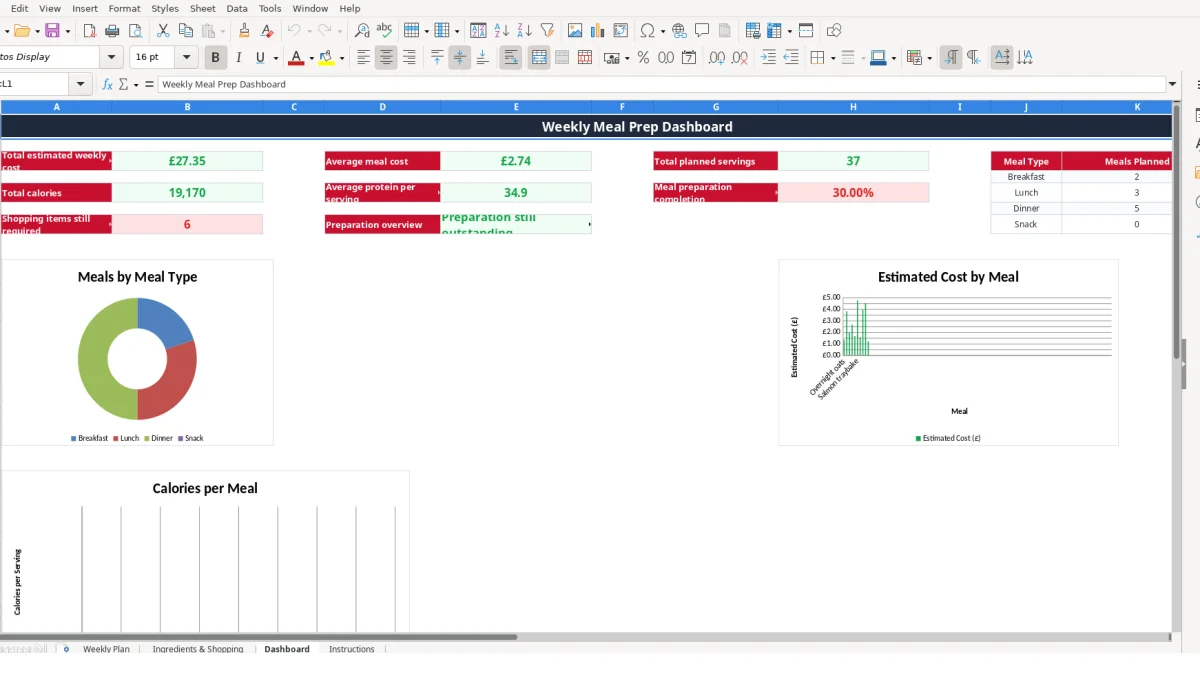
Complete the meal plan first, build the ingredient list before shopping, then update preparation status during the week. The Dashboard brings together the resulting weekly cost, servings, calories, protein, meal-type counts and shopping items still required.
The workbook separates entries from calculated results. On Weekly Plan, you enter meal details in rows 6 to 105; formulas calculate Day from the date, Preparation Status from Prepared?, Total Calories from servings multiplied by calories per serving, and summary measures from the planning range.
If a meal has 4 servings and 620 calories per serving, Total Calories becomes 2,480. If its estimated cost is £3.80, that amount contributes to Total weekly cost and to the average meal cost calculation. The workbook also sums servings and averages protein per serving.
Use the Yes and No validation lists consistently. Prepared? accepts Yes or No, while Preparation Status changes to Complete when Prepared? is Yes and Outstanding when it is not. Blank meal rows are handled by the formulas so unused capacity does not need to be deleted.
On Ingredients & Shopping, Estimated Total Cost (£) is calculated as Quantity Required multiplied by Estimated Unit Cost (£). A quantity of 4 and unit cost of £0.55 therefore produces £2.20. To Buy? changes according to Already Have?, allowing stock already held at home to be excluded from the shopping requirement.
The Linked Meal field uses a validation list based on meal names in Weekly Plan. Linked Calories/Serving uses a lookup from the plan, so matching meal names matter. If you rename a meal after linking ingredients, review those links rather than assuming the relationship has changed safely.
Enter numbers as numbers, not text with units attached: use 1 in Quantity Required and kg in Unit. Keep £6.50 in the cost field rather than typing a note into the calculation area. The Dashboard contains formulas and three charts, but it does not replace checking the source rows.
The main risk is not a complicated formula; it is inconsistent input. A meal entered as Dinner in one row and as a free-text variation elsewhere can make the Dashboard counts misleading. The validated Meal Type list prevents that particular drift when you use the supplied choices.
If 4 servings are entered for chicken tikka rice bowls but the ingredient quantity is only enough for 2, the workbook will still calculate the figures you supplied. For example, 4 servings at 620 calories gives 2,480 total calories, but the spreadsheet cannot judge whether the food quantity is realistic.
Similarly, entering £6.50 as the total price when it is actually the unit price changes the shopping estimate. One 1 kg item at £6.50 is clear; four tins at £0.55 should produce £2.20, not £0.55. Review quantity, unit and unit cost together.
Leaving Prepared? as No means the meal remains Outstanding. If 7 planned meals exist and only 5 rows are changed to Yes, the completion calculation reflects 5 completed meals out of 7 populated meal rows. Do not mark a meal prepared merely because it was planned.
Another failure occurs when an ingredient is marked Already Have? as Yes even though it has been used up. The automatic To Buy? result will show No, so the shopping list understates what is needed. Check cupboard, fridge and freezer quantities before changing that field.
Linked Calories/Serving depends on the meal name matching Weekly Plan. If the ingredient row refers to Chicken tikka bowls while the plan says Chicken tikka rice bowls, the lookup may return a blank. Correct the linked meal text instead of manually typing a substitute into the calculated output.
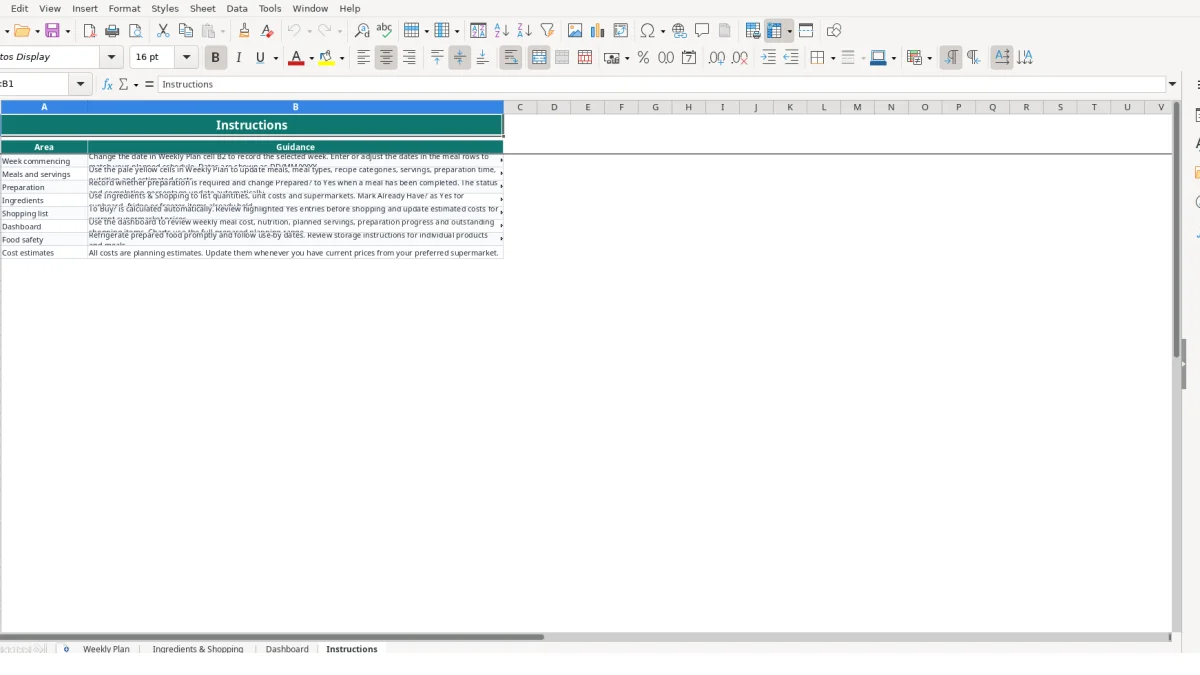
Use the workbook at three fixed points: plan meals before shopping, check ingredients while placing the order, and update preparation after cooking. A routine is easier to maintain when each stage has a defined action rather than treating the file as a diary.
For example, a household with 8 planned meals can reserve 15 minutes to confirm servings and ingredients, then use the Dashboard to see whether all 8 have been marked complete. If only 6 are complete, the preparation overview gives a prompt to investigate the two outstanding rows.
Use the drop-down lists instead of inventing categories. Keep meal names distinctive when linking ingredients, and update prices whenever the supermarket basket changes. The Instructions sheet specifically identifies costs as planning estimates, so treat £6.50 chicken or £1.80 rice as editable examples rather than fixed prices.
Do not overwrite formulas in calculated columns such as Total Calories, Estimated Total Cost (£), To Buy? or Preparation Status. If you need a different result, change the source inputs. Copying a completed workbook for a new week can work for a simple routine, but check dates, meal names and old preparation statuses before relying on it.
A spreadsheet remains suitable while one person or a small household can maintain the 100-row planning range and review the calculations. If multiple people need simultaneous editing, recipe-level stock control or a larger historical database, consider moving to a dedicated meal-planning or inventory system while retaining this workbook for straightforward weekly planning.
The workbook contains Weekly Plan, Ingredients & Shopping, Dashboard and Instructions. Weekly Plan stores meals and preparation details, Ingredients & Shopping calculates shopping estimates, Dashboard summarises the week and Instructions explains the workflow.
Yes. The Weekly Plan provides rows 6 to 105, so you can enter multiple breakfasts, lunches, dinners or snacks on the same date. The Day field is calculated from each row's date.
Weekly Plan sums the values entered in Estimated Cost (£). Ingredients & Shopping calculates each ingredient's estimated total as Quantity Required multiplied by Estimated Unit Cost (£), then sums those ingredient estimates separately.
Mark Already Have? as Yes or No. The calculated To Buy? field returns No when the item is already held and Yes when it is not, allowing you to review items marked Yes before shopping.
Yes. The sample entries, including overnight oats, chicken breast, brown rice and their illustrative figures, are intended to be edited. Replace them with your meals, quantities and current supermarket estimates.
The Dashboard shows total estimated weekly cost, average meal cost, planned servings, total calories, average protein per serving, preparation completion, shopping items still required and meal counts for Breakfast, Lunch, Dinner and Snack. It also contains three charts based on workbook data.
Excel template by
Guide written by