Chore Chart Excel Template – Free (2026)
0
Free download
Wedding guest list Excel template for UK couples, with RSVP tracking, meal choices, table numbers, guest requirements and estimated catering costs.


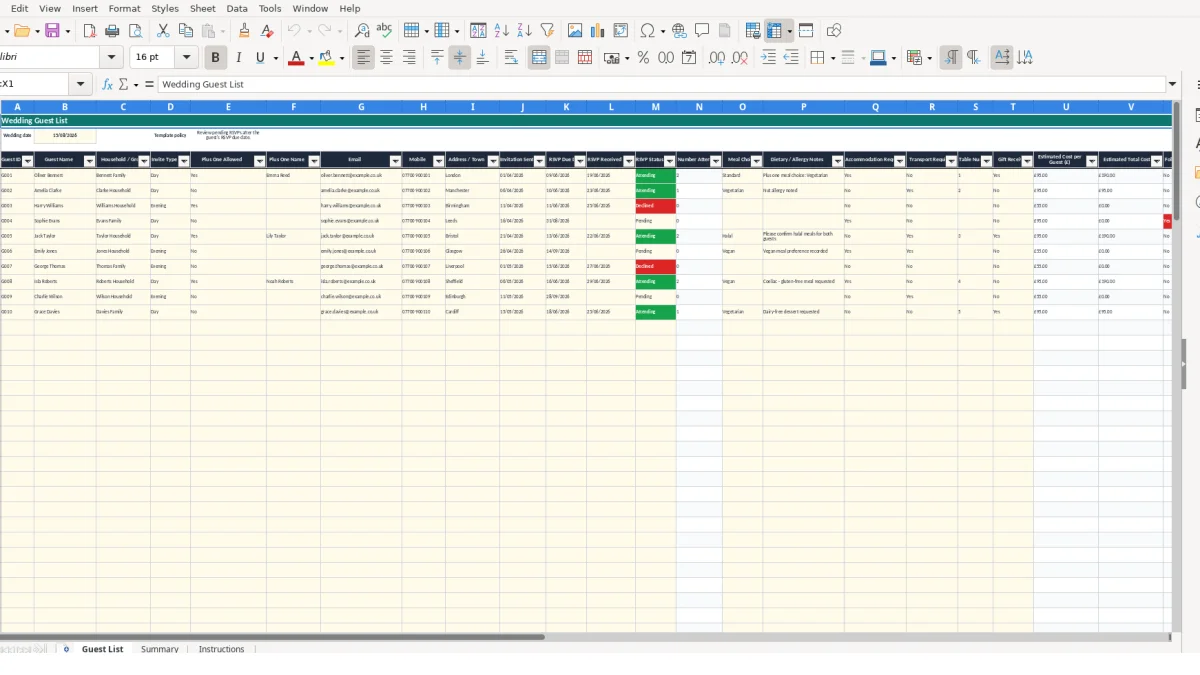
A wedding guest list Excel template is a structured workbook for recording invitees, households, invitations, RSVPs, meal choices and practical requirements. This workbook contains a Guest List sheet for up to 100 guest rows, a Summary dashboard for attendance and estimated catering costs, and an Instructions sheet.
Enter each guest or household on the Guest List sheet, then use the calculated fields to monitor RSVP progress, attending numbers and estimated costs. The sample wedding date is 15/08/2026, with example day and evening invite costs of £95 and £55 per guest.
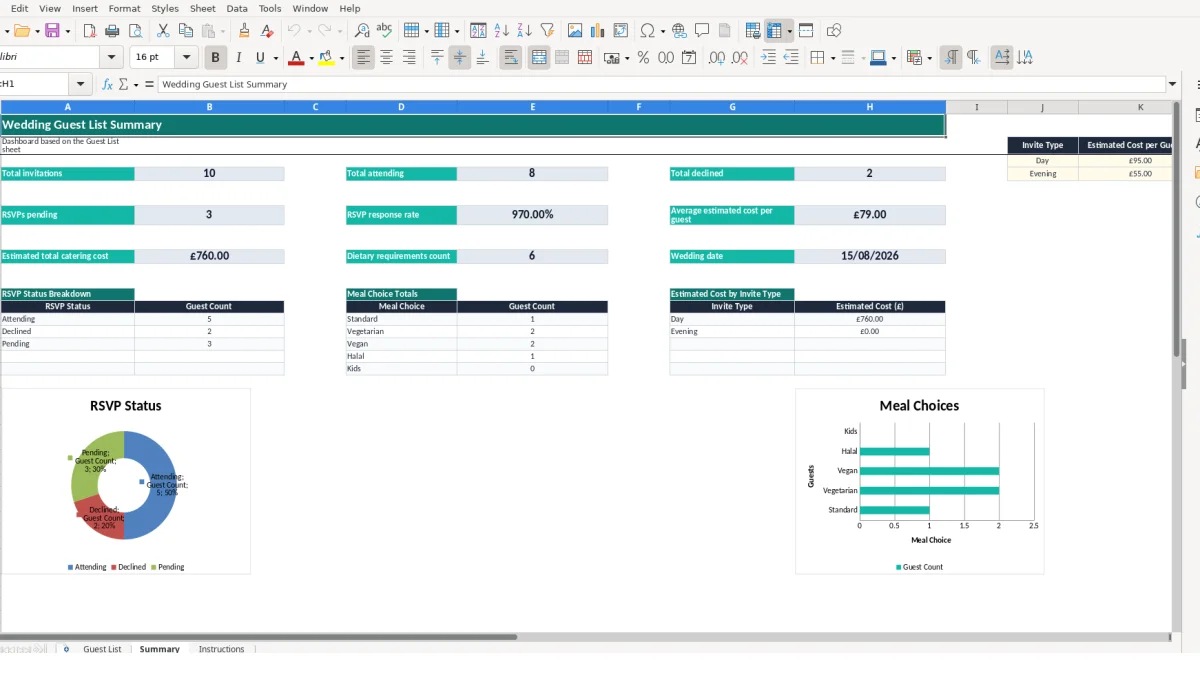
This workbook suits couples organising their own wedding, a maid of honour coordinating responses, or a family member managing invitations on the couple’s behalf. It is particularly useful when guest information arrives through email, messages, paper replies and conversations rather than through one booking system.
Use the Guest List sheet during the weekly planning session. For example, a row for Oliver Bennett records the Bennett Family household, a Day invitation, a plus one named Emma Reed, London as the town and the email address used for correspondence. Keeping those details beside the RSVP record avoids searching across separate notes.
The Household / Group column helps you view connected invitees together while Guest ID keeps each row identifiable. A coordinator handling 60 invitation rows can filter or scan the table by group, then record whether each invitation was sent and when its RSVP is due.
Invite Type is useful where the event has different attendance arrangements. The supplied example uses Day and Evening categories. The Summary lookup assigns £95 to Day and £55 to Evening, so 40 Day guests and 20 Evening guests would produce an illustrative estimated cost of £4,900 before any changes to the list.
After replies arrive, record the received date and select Attending or Declined. An attending guest can also have a meal choice, dietary or allergy notes, accommodation requirements, transport requirements and a table number, giving the people arranging catering and seating a shared reference.
For example, Amelia Clarke is marked Attending, Vegetarian, with a nut allergy note and transport required. That combination is more useful than a simple tick because it gives the catering and transport conversations a specific record to check.
The workbook separates information you enter from outputs it calculates. Guest details occupy columns A to T, while columns N, U, V and W contain formulas. Do not overwrite those calculated cells: changing their formulas would weaken the link between each guest record and the Summary dashboard.
Number Attending returns 1 when RSVP Status is Attending and adds another 1 when a plus one name is present. In the sample row, Oliver Bennett is Attending and Emma Reed is entered as the plus one, so the calculated number is 2. Amelia Clarke is Attending without a plus one name, so her calculated number is 1.
This is a deliberate technical choice: attendance follows the RSVP status and the actual plus one name, rather than relying on a manually typed total. If a guest is changed from Attending to Declined, the calculated count falls automatically.
Estimated Cost per Guest uses VLOOKUP to read the invite type from Summary J3:K4. The supplied reference values are £95 for Day and £55 for Evening. Estimated Total Cost then multiplies Number Attending by that lookup result; two attending people on a Day invitation therefore produce £190.
Summary uses COUNTA, SUM, COUNTIF, AVERAGE and SUMIF formulas to report totals. With 50 invitations, 72 people attending and 8 declined invitations, the dashboard would show those values from the underlying rows rather than from separate manual entries.
Dropdown validation limits Invite Type to Day or Evening, RSVP Status to Pending, Attending or Declined, meal choice to five options, and several requirement fields to Yes or No. Use those exact options: typing alternatives such as Maybe or Veg can prevent the Summary counts from matching your records.
The most expensive errors in a guest list are usually mismatches between an invitation, a person and the arrangements attached to that person. A duplicated household row can inflate both attendance and catering estimates, while a missing plus one name can understate the number of meals needed.
Suppose Oliver Bennett is entered twice, with both rows marked Attending and one plus one on each row. The calculation would count four people instead of the intended two, adding an illustrative £190 to the estimated cost if both rows use the £95 Day value. Use Guest ID and Household / Group to spot duplicate entries before relying on the dashboard.
Blank Guest Name cells are treated differently from a partially completed row. A row with a name but no RSVP status can still affect invitation counts, so remove unused rows or complete them consistently rather than leaving abandoned details in the table.
Meal totals use the exact meal-choice labels supplied by the dropdown: Standard, Vegetarian, Vegan, Halal or Kids. If a note says vegetarian but the Meal Choice cell remains blank, the dietary count will not represent that requirement. The sample Amelia Clarke row shows the stronger approach: Vegetarian is selected and the nut allergy is recorded separately.
Do not place multiple people’s dietary requirements into an unstructured note while leaving their meal choices unclear. For a hypothetical list of 80 attendees, five blank meal choices create five decisions for the caterer to chase rather than five confirmed meals.
Follow-up Required returns Yes only when the status is Pending, an RSVP due date exists and TODAY() is later than that date. A missing due date therefore does not create a flag. Check dates in DD/MM/YYYY format and review the status after a reply arrives, otherwise a settled response may continue to appear as pending.
Finally, remember that the cost is an estimate based only on invite type and attendance. It is not a complete wedding budget: supplier changes, extras and arrangements outside the listed fields are not calculated by this workbook.
A guest list becomes useful when it is updated at a fixed point rather than whenever someone remembers. Set aside one short review after each batch of replies, then use the Summary dashboard to decide which records need attention. For a list of 70 invitations, reviewing 10 new or changed rows at a time is easier than rebuilding the entire list before a supplier conversation.
Keep the Guest List as the working record and use Summary for decisions and discussions. This is preferable to manually copying totals into messages: the formulas recalculate when attendance or invite type changes. For example, changing six Evening guests to Day invitations increases the illustrative estimate by £240, because the difference is £40 per guest.
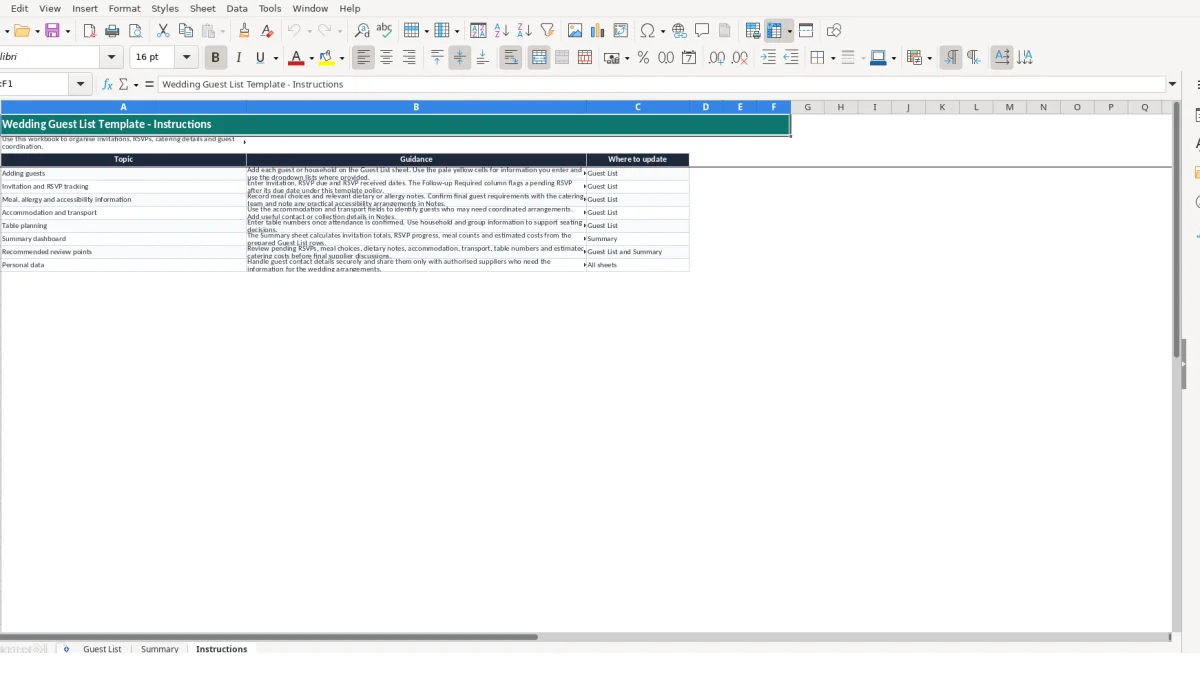
Use the supplied dropdowns rather than free-text alternatives, and enter dates as soon as invitations or replies are processed. Guest contact details are personal data, so follow the Instructions sheet guidance to handle them securely and share them only with authorised suppliers who need the information.
The workbook is suitable while the list fits its prepared 100 guest rows and the planning team can maintain one shared file. Consider a dedicated guest-management system when several people need simultaneous editing, automated communications, permissions, audit history or more complex household rules than these columns support.
The Guest List table runs from row 5 to row 104, providing 100 prepared guest rows. If you need more rows, extend the table and formulas carefully so the Summary ranges continue to include every record.
Yes. Select Yes or No in Plus One Allowed, then enter the person’s name in Plus One Name where appropriate. Number Attending adds one for a named plus one when the RSVP Status is Attending.
The dropdown contains Pending, Attending and Declined. The Summary sheet counts each status, while Follow-up Required flags a Pending record when its RSVP due date has passed under the template policy.
Day and Evening invite types are matched to the values on Summary: £95 and £55 in the supplied sample. Estimated Total Cost multiplies the applicable cost per guest by Number Attending, so two Day attendees show £190.
Yes. Meal Choice supports Standard, Vegetarian, Vegan, Halal and Kids. Use Dietary / Allergy Notes for relevant details, and use the Accommodation Required, Transport Required and Notes fields for practical arrangements.
Yes. The Summary sheet reports total invitations, total attending, total declined, pending RSVPs, response rate, average estimated cost per guest, estimated total catering cost and dietary requirements count. It also contains charts for RSVP status, meal choices and estimated cost by invite type.
Excel template by
Guide written by