Chore Chart Excel Template – Free (2026)
0
Free download
Track five-a-side fixtures, results, standings, form, goals and league statistics with a three-sheet Excel template for UK organisers.


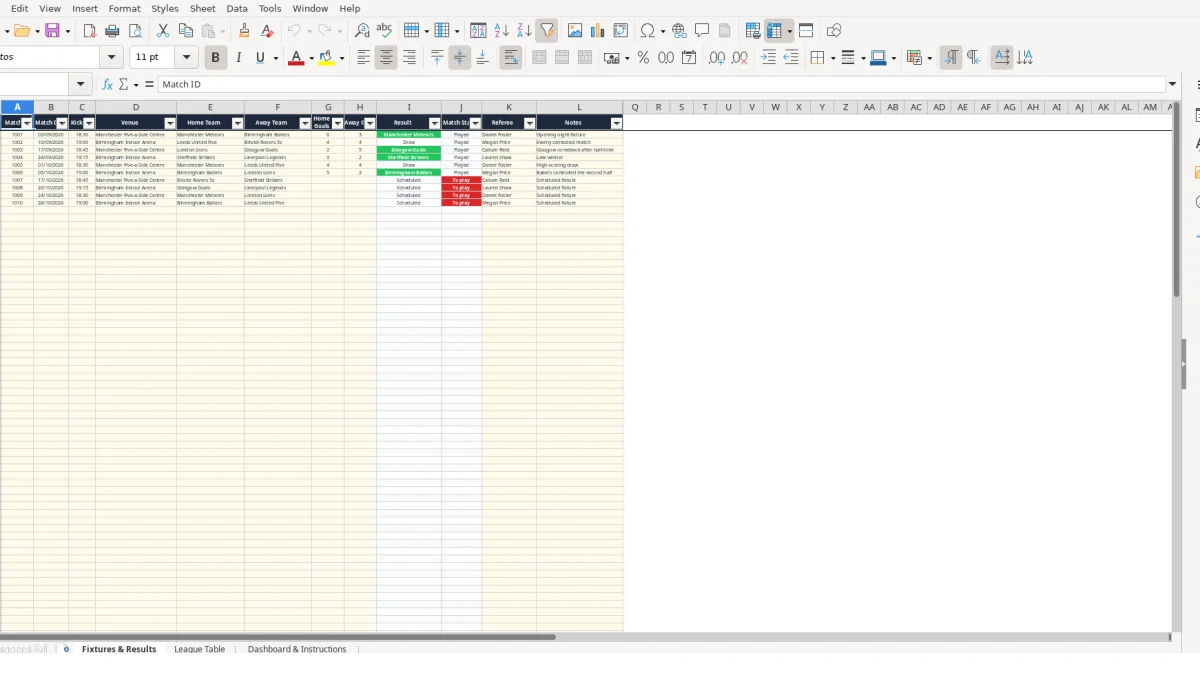
This five-a-side football league table Excel template records fixtures, scores, teams and match status, then calculates league positions, points, goal difference, form and goal statistics. It contains Fixtures & Results, League Table, and Dashboard & Instructions sheets for organisers running a small football competition.
Enter each match on a separate row, using the supplied team and venue lists to keep names consistent. Leave both goal cells blank for future games; once both scores are entered, the result changes to a completed match and the standings update.
The workbook includes space for 110 fixture rows, eight team reference rows, three dashboard charts and sample 2026 Manchester five-a-side league data. Replace the illustrative teams, managers, towns and fixtures with your own competition details.
A five-a-side football league table is useful for the person who books the pitch, collects results and publishes the standings. That may be a workplace sports organiser, a leisure-centre coordinator, a football club volunteer or a community league secretary. The key requirement is a single result record that can be checked after each round.
Suppose a Thursday competition has eight teams and two fixtures each week. The organiser can enter Match ID 1001 for Manchester Meteors against Birmingham Ballers, with a 6–3 score, then record Match ID 1002 as Leeds United Five against Bristol Rovers 5s at 4–4. The Fixtures & Results sheet keeps the match date, 18:30 or 19:00 kick-off, venue, referee and notes beside the score.
That detail matters when several games take place at Manchester Five-a-Side Centre and Birmingham Indoor Arena. A referee or venue coordinator can identify the correct game without relying on a message such as last Thursday’s 6–3 match.
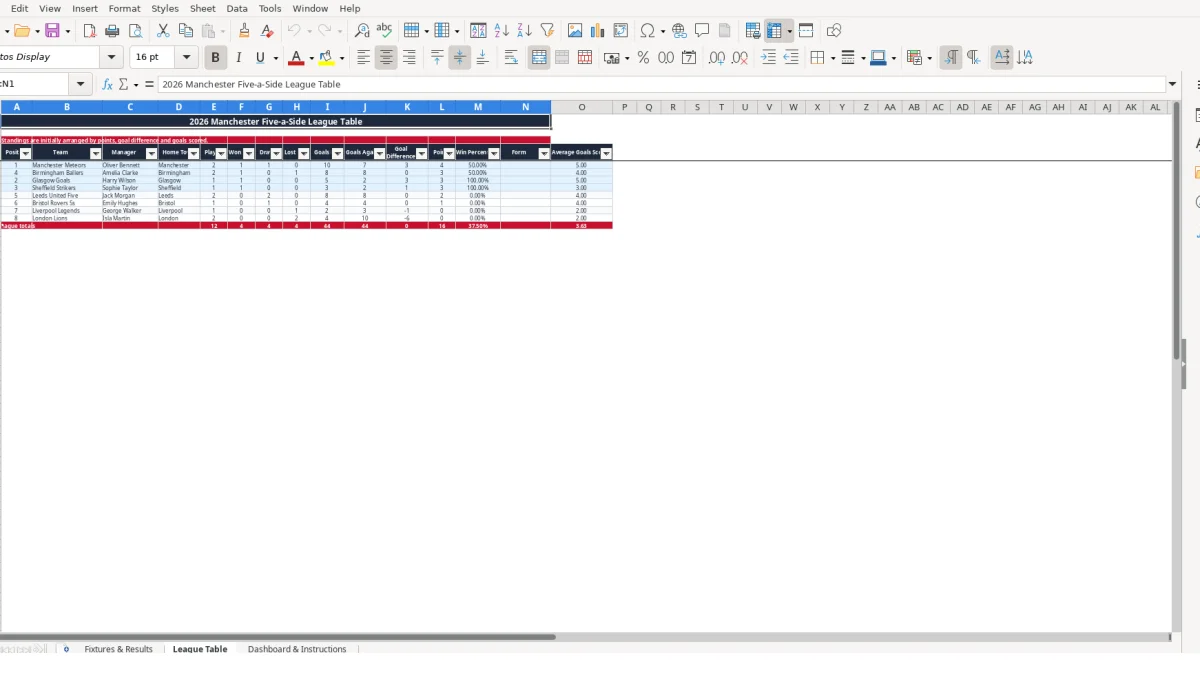
After entering the scores, the organiser can move to League Table and inspect eight team rows. A 6–3 win contributes one played match, one win, six goals for, three goals against and a three-point total under the workbook’s stated scoring method. A 4–4 result contributes a draw and one point for each team.
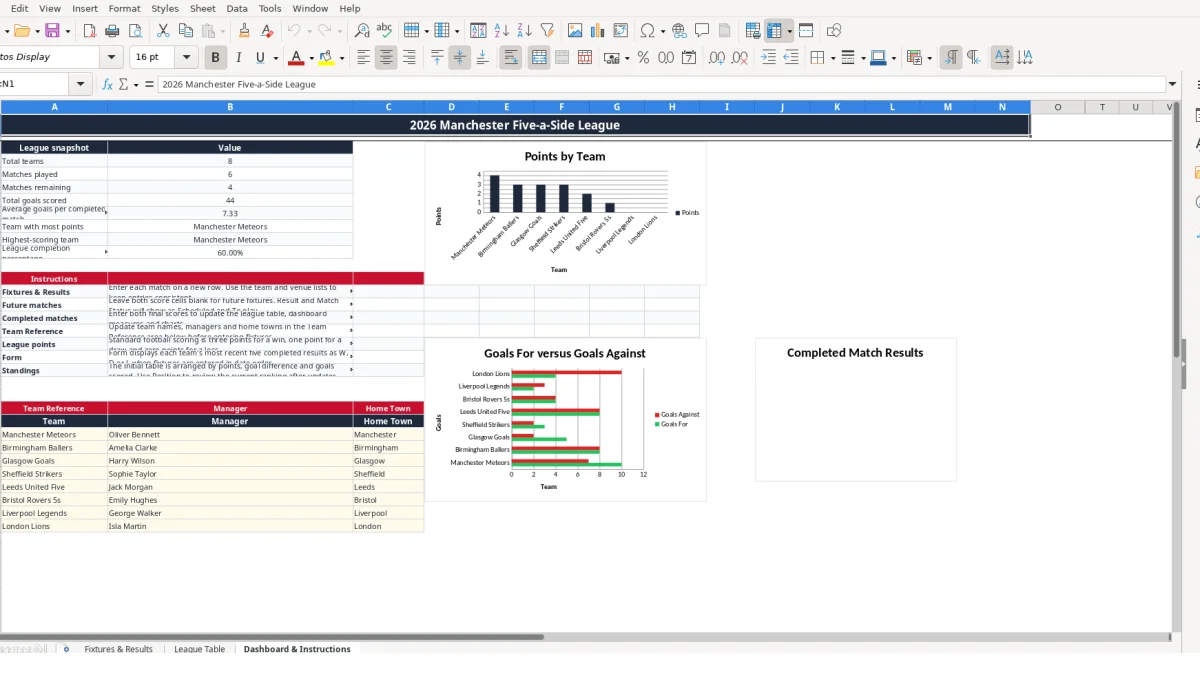
The Dashboard & Instructions sheet gives a shorter operational view. It counts matches marked Played and To play, totals the goal cells, identifies the team with most points and provides charts using the League Table values. This suits a weekly update before sending standings to captains.
Team names, managers and home towns sit in the Team Reference area on Dashboard & Instructions. The sample register contains eight teams, including Manchester Meteors, Birmingham Ballers, London Lions and Glasgow Goals. Replace those illustrative values before entering your own fixtures so the table’s references return the right details.
The workbook separates entered match facts from calculated competition outputs. You type the fixture identity, date, time, venue, teams, scores, referee and notes on Fixtures & Results. Result, Match Status, Home Form Result, Away Form Result, Home Game No. and Away Game No. are formula-driven fields, so you should not overwrite them.
If either goal cell is blank, the result formula returns Scheduled and the status returns To play. If both scores are present, the status returns Played. For example, entering 2 for Home Goals and 5 for Away Goals identifies the away team as the result and assigns the home side L and the away side W. A 4–4 score produces Draw and D for both teams.
Whole-number validation permits scores from 0 to 99. This is a useful control: it prevents text such as four or an accidental decimal from entering the calculation ranges. Team and venue validation also reduces the risk that Manchester Meteors and Manchester Meteor are treated as different names.
Played counts completed home and away appearances. Won, Drawn and Lost use the completed result logic. Goals For and Goals Against sum the relevant home or away score, while Goal Difference is Goals For minus Goals Against. Points are calculated as wins multiplied by three plus draws, matching the instructions shown in the workbook.
Position compares points first, then goal difference, then goals scored. A team with 10 points, a goal difference of 8 and 21 goals scored therefore ranks above a team with 10 points, a goal difference of 8 and 19 goals scored. Win Percentage divides wins by played matches, while Average Goals Scored divides goals for by played.
Form uses the latest five completed game numbers when fixtures are entered in date order. The dashboard’s average goals per completed match is based on total goals and the completed-match count, so leaving a future score blank prevents an unfinished fixture from being treated as played.
The most damaging errors in a five-a-side league spreadsheet usually start in the fixture list, not the ranking formulas. A misspelled team, an incomplete score or a wrongly labelled status can make a match disappear from a team’s record or leave the league looking incomplete.
Suppose one row uses Birmingham Ballers and another uses Birmingham Ballers FC. The team reference and validation list are designed around the registered name, so the second version can break the link between the fixture and the League Table row. Across 10 matches, even one inconsistent name can understate a team’s played count and goals.
Use the team drop-down in E2:F111 rather than typing names manually. The same principle applies to the two venue choices: Manchester Five-a-Side Centre and Birmingham Indoor Arena. Consistency is more valuable than shortening names to save a few characters.
A common match-night shortcut is to enter the winning team’s score but leave the other score blank. The workbook deliberately treats that row as Scheduled and To play whenever either score is missing. For example, entering 5 and leaving the opposing score empty does not create a 5–0 result; it keeps the game out of the completed standings.
This protects the table from guesswork, but it also means the dashboard may show one more match remaining than expected. Enter both final scores, including 0 where a side failed to score, then check that Match Status changes to Played.
Replacing a formula in Result or Points with a typed value can create a plausible figure that no longer responds to later edits. If a 6–3 result is corrected to 6–4, the formula should recalculate the winner’s goals against and goal difference. A typed value will not necessarily follow that correction.
Another avoidable issue is entering fixtures out of date order. The form calculation uses game numbers and is intended to display the most recent five completed results in entry order. If a match from week two is added after week eight, the displayed sequence may not represent chronological form.
A league table becomes dependable when updating it is attached to an existing football routine. Set a fixed point after the final match, such as the same evening or the following morning, and complete every finished fixture before publishing the standings. With two matches in a round, that means checking two rows rather than trying to reconstruct a month of results later.
For example, if 12 fixtures are scheduled and 10 have both scores entered, the dashboard should distinguish 10 played from 2 remaining. If it shows 9 played, inspect the rows with blank scores before questioning the table formulas.
Use the supplied validation lists every time, and keep team names in the Team Reference area rather than creating new spellings in the fixture sheet. The workbook has frozen headings and an auto-filter on Fixtures & Results, so filter the Match Status or date columns when checking a particular round.
Keep the sample 2026 Manchester data only as a reference while testing. Once your own team list is ready, replace the illustrative register and verify one known result, such as a hypothetical 3–1 win, flows into played, won, goals and points correctly.
This workbook is suitable for a controlled league with eight team rows and up to 110 fixture rows. Consider a dedicated league-management system when several administrators edit simultaneously, you need player registration, automated communications, payments, disciplinary records or a larger competition structure. Until those needs arise, a fixed post-match routine keeps the three-sheet workbook practical.
The League Table contains eight team rows, linked to the eight-row Team Reference area on Dashboard & Instructions. The Fixtures & Results sheet has team validation covering those registered names.
Enter the fixture details but leave both Home Goals and Away Goals blank. The workbook then shows Scheduled in Result and To play in Match Status.
The workbook calculates points as three multiplied by wins plus draws. Losses contribute no points in the formula described in Dashboard & Instructions.
Yes. The Form column displays each team’s most recent five completed results as W, D or L when fixtures are entered in date order. Future matches are excluded because they are not marked Played.
Home Goals and Away Goals use whole-number validation from 0 to 99. Enter both final scores, including 0 where necessary, so the match is counted as completed.
Dashboard & Instructions contains three charts: one based on league points by team, one comparing goals for and against, and one showing team wins, draws and losses.
Excel template by
Guide written by