Christmas Dinner Planner Excel Template – Free (2026)
0
Free download
Chore chart Excel template for UK families, with child assignments, due times, points, completion tracking and a summary by child.


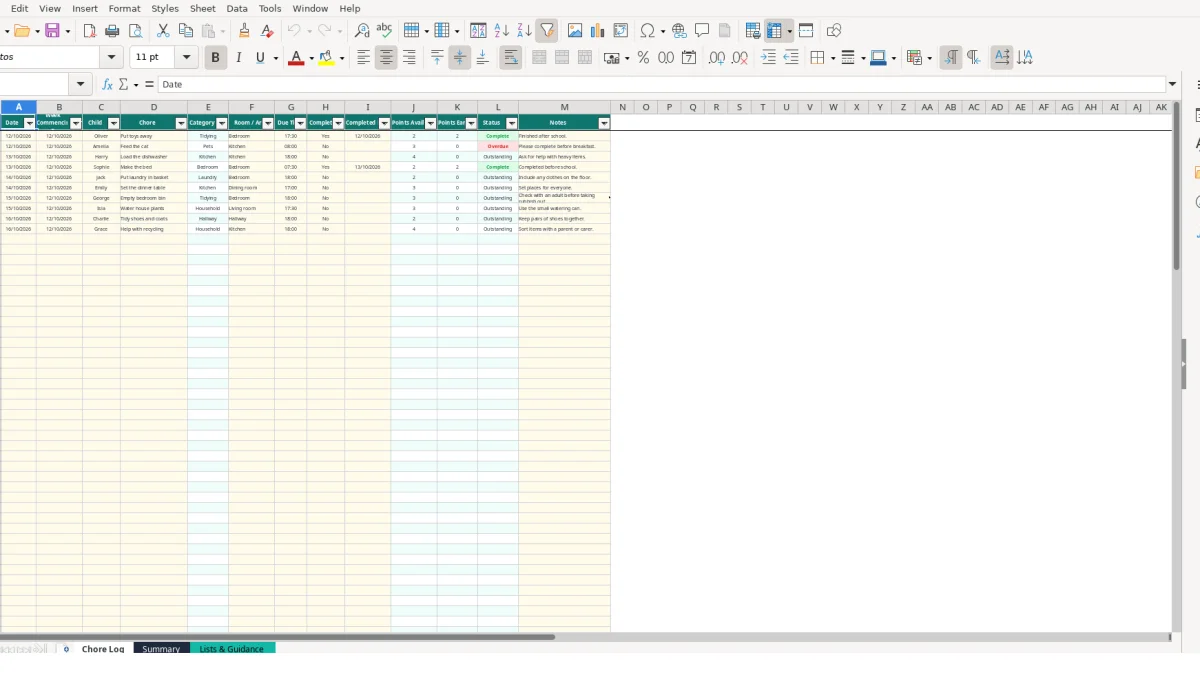
This chore chart Excel template records children’s tasks, dates, due times, completion and points in one workbook. It contains a 100-row Chore Log, an automatic Summary sheet showing completion by child, and Lists & Guidance for custom chores, children and parent notes.
Use it to organise recurring household jobs such as putting toys away, feeding a pet, loading the dishwasher and making the bed. The sample entries include Oliver, Amelia, Harry and Sophie, but you can replace them with your own children and chores.
A chore chart Excel workbook suits parents, carers and families who want a repeatable record rather than a handwritten list that disappears after a few days. It is useful when several children share jobs, when tasks happen at different times, or when you want to connect completed work with a points system.
Suppose Oliver is assigned Put toys away on 12/10/2026 at 17:30 and Amelia is assigned Feed the cat at 08:00. The Chore Log keeps those assignments separate, including the child, room or area, due time and any note about supervision. A parent can filter the log to check one child without rewriting the whole week.
The sample workbook also includes Harry loading the dishwasher at 18:00 and Sophie making the bed at 07:30. These are illustrative sample values, not fixed tasks that you must keep. Replace them with jobs that fit your household and the level of responsibility you have agreed.
The sheet works particularly well where a weekly plan contains different types of work. A child might have a 2-point tidying task, a 3-point pet task and a 4-point kitchen task. Those figures come from the sample lookup table: Put toys away has 2 default points, Feed the cat has 3, and Load the dishwasher has 4.
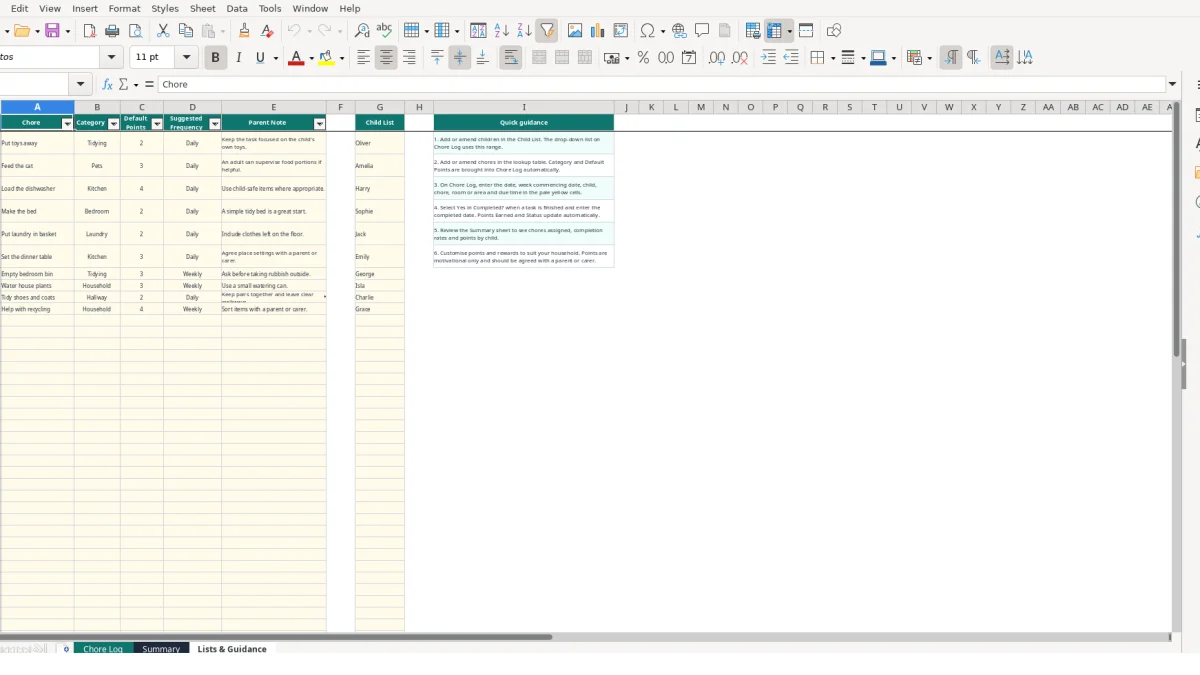
Lists & Guidance also records Suggested Frequency and Parent Note for each chore. That makes it a useful planning reference when you are deciding whether a task should appear daily and whether an adult should supervise part of it, such as food portions or heavy items.
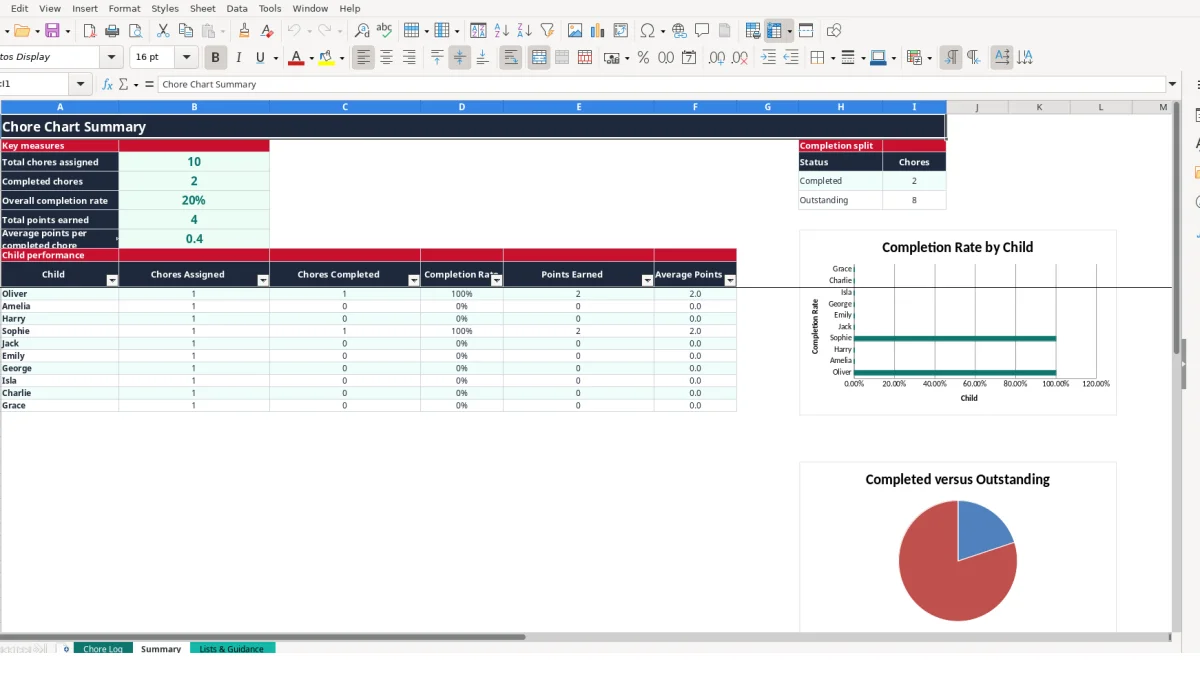
At the end of a weekday or week, Summary gives a numerical view of the record. If 20 chores are assigned and 15 are marked Yes, the completion rate formula returns 75%, while the outstanding count is 5. The child table then shows how those figures are distributed across the named children.
This is not a behaviour assessment or a safety judgement. It is a structured household log: use the Notes column for context and adjust the chores, points and supervision guidance to suit your family.
The workbook separates information you enter from outputs calculated by Excel. On Chore Log, the main inputs are Date, Week Commencing, Child, Chore, Room / Area, Due Time, Completed?, Completed Date and Notes. Category, Points Available, Points Earned and Status are formula-driven, so keeping those columns intact is the right technical choice.
When you select Put toys away in the Chore column, a VLOOKUP formula searches Lists & Guidance and returns Tidying in Category and 2 in Points Available. Select Feed the cat instead and the linked values become Pets and 3. This is more reliable than typing the category and points separately on every row.
If a chore name does not match the lookup table, the formulas use IFERROR and return a blank result. That is a useful warning: check the spelling and confirm that the chore exists in Lists & Guidance rather than manually filling the calculated cells.
Points Earned uses an IF formula. With Points Available of 4 and Completed? set to Yes, the row earns 4 points; with No, it earns 0. For example, three completed chores worth 2, 3 and 4 points produce 9 points earned, while leaving one unfinished produces no points for that row.
Status also changes from the entered data. Yes produces Complete. If the task is not complete and its Date is earlier than TODAY, the result is Overdue; otherwise it is Outstanding. Entering a future date therefore does not label an unfinished chore overdue.
Summary counts Chore Log rows rather than maintaining a second set of entries. If there are 12 assigned chores and 9 completed, the overall completion rate is 75%. Child-level formulas then count assignments and Yes entries for each name listed in rows 10 to 19, and SUMIF adds each child’s Points Earned.
Use the existing Yes or No validation and the supplied child and chore lists. That input discipline protects the references used by the 400 row-level formulas and the Summary calculations.
A chore chart usually stops being useful when the record no longer describes the work that was actually assigned. In this workbook, the main risks are unmatched chore names, incomplete dates, incorrect completion selections and changes to formula columns. Each can distort the Summary even when the spreadsheet still opens normally.
Category and Points Available are retrieved from the A2:E101 lookup range. If you type a new chore into a log row but do not add the same name to Lists & Guidance, the lookup returns a blank. A row for Wash the bike may therefore show no category or points, while the family assumes it has been counted like the other tasks.
The practical cost is visible in a hypothetical example: five assigned chores might appear in Total chores assigned, but only four may contribute useful points if one has no matching points value. Add the chore to the lookup table first, then select it from the validated list.
The points formula responds to Completed? rather than the presence of a Completed Date. If Yes is selected for two chores worth 2 and 3 points, the total is 5 points earned. If the date is entered but Completed? remains No, the row earns zero and remains Outstanding or Overdue according to its Date.
The reverse problem is also misleading: selecting Yes without entering Completed Date gives credit without a completion date. Use both fields together so the record can be checked later.
Deleting the formula in Status removes the automatic distinction between Complete, Overdue and Outstanding for that row. Overwriting Points Earned with a typed number creates the same problem in Summary, because SUM and SUMIF trust the row values they receive.
For example, changing a 4-point incomplete task to a typed 4 would add points even though Completed? is No. Restore the formula instead of correcting the Summary figure manually. Filtering the 100-row log and reviewing blank calculated fields is a faster reconciliation method than inspecting every formula cell individually.
A chore chart becomes dependable when updating it is attached to a moment that already happens. Use the workbook at the start of the week to assign work, during the day to record completion, and at the end of the week to review the Summary. A fixed routine is more effective than waiting until the log has accumulated 30 unconfirmed rows.
Choose one regular planning session and prepare the next set of entries on Chore Log. For a family of four, entering 2 chores per child creates 8 rows to review; that is manageable before the week starts. Set Week Commencing consistently so the records can be filtered and compared as a group.
When a task is finished, select Yes and add the Completed Date immediately. For four children completing two chores each, eight quick updates are easier to verify than a Friday reconstruction where you must remember who did what and when.
Use the Summary as a weekly conversation starter rather than editing its figures. If 16 chores are assigned and 12 are complete, the 75% rate and four outstanding chores show what needs attention without manually counting the log.
This template is designed for 100 log rows, a child list covering rows 2:101 and a fixed Summary list of 10 child names in rows 10:19. If your household needs more records, several separate households, permissions, reminders or a long history with audit controls, move to a system designed for those requirements.
Until then, preserve the formula columns, use the three validation lists, and keep the source chores and children in Lists & Guidance. That combination gives you a repeatable routine without duplicating the same information across several worksheets.
The workbook contains three sheets: Chore Log, Summary, and Lists & Guidance. Chore Log has 100 entry rows, Summary calculates household and child measures, and Lists & Guidance contains chore details, child names and usage instructions.
Yes. Amend the Child List in Lists & Guidance and add or change chore names in the lookup table in columns A:E. The Chore Log drop-downs use those ranges, while Category and Points Available are retrieved from the chore table.
Points Earned equals Points Available when Completed? is set to Yes. If Completed? is No, the formula returns zero. For example, a completed chore with 4 available points earns 4 points, while an incomplete 4-point chore earns none.
Complete appears when Completed? is Yes. If the task is not complete and its Date is earlier than the current date, Status shows Overdue; otherwise it shows Outstanding. Status is calculated from the row values.
Yes. Enter the relevant Room / Area and Due Time in Chore Log for each assignment. The sample includes Bedroom and Kitchen areas and times such as 07:30, 08:00, 17:30 and 18:00, which you can replace.
Summary shows total chores assigned, completed chores, overall completion rate, total points earned and average points per completed chore. It also lists up to 10 named children with assigned chores, completed chores, completion rate, points earned and average points, plus two charts.
Excel template by
Guide written by