IR35 Status Excel Template – Free UK (2026)
3
Free download
Childminder Excel template with attendance, arrival times, charges, funding rates, collection details and summary reporting for up to 999 records.


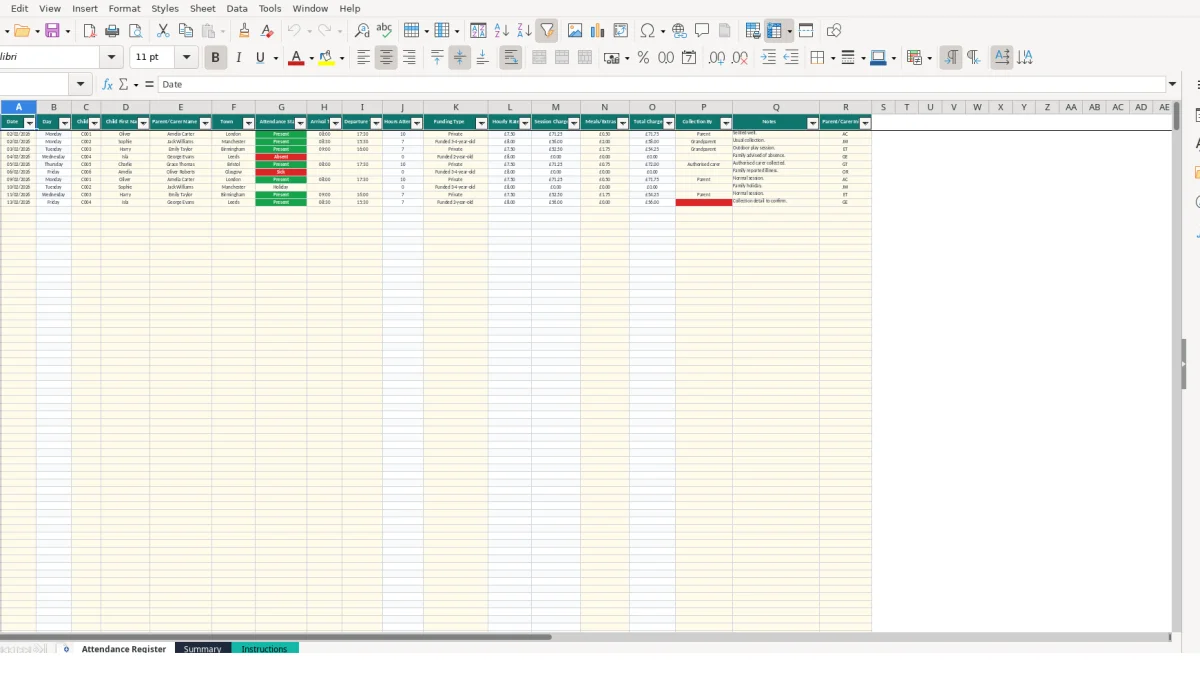
This childminder attendance register Excel template records each child’s date, attendance status, arrival and departure times, collection arrangements and parent or carer initials. It calculates hours attended, session charges and total charges, while the Summary sheet reports attendance, hours and charges by child.
The workbook contains Attendance Register, Summary and Instructions sheets. It includes space for 999 attendance rows, lists for consistent status and funding entries, and sample values such as Oliver’s 08:00 to 17:30 session on 02/02/2026.
A childminder can use this workbook during the daily arrival and collection routine, rather than reconstructing attendance from messages or a separate diary. Each row joins the child, date, status, timings and collection information, so a February record for C001 can show Oliver arriving at 08:00 and leaving at 17:30 on 02/02/2026.
The register suits a setting where several children attend different patterns during the week. For example, C001 may be present for 9.5 hours, C002 from 08:30 to 15:30 for 7 hours, and C003 from 09:00 to 16:00 for 7 hours. Those times become a consistent record rather than three handwritten descriptions.
Enter the date, Child ID, Child First Name, Parent/Carer Name and Town before selecting the attendance status. The Collection By list provides Parent, Grandparent or Authorised carer, while Notes can capture a practical detail such as an agreed change to the usual collection arrangement.
At collection, add the departure time and Parent/Carer Initials. The manifest’s sample rows show how this works: Oliver is linked to Amelia Carter and AC, Sophie to Jack Williams and JW, and Harry to Emily Taylor and ET. These are illustrative sample values, so replace them with your own records.
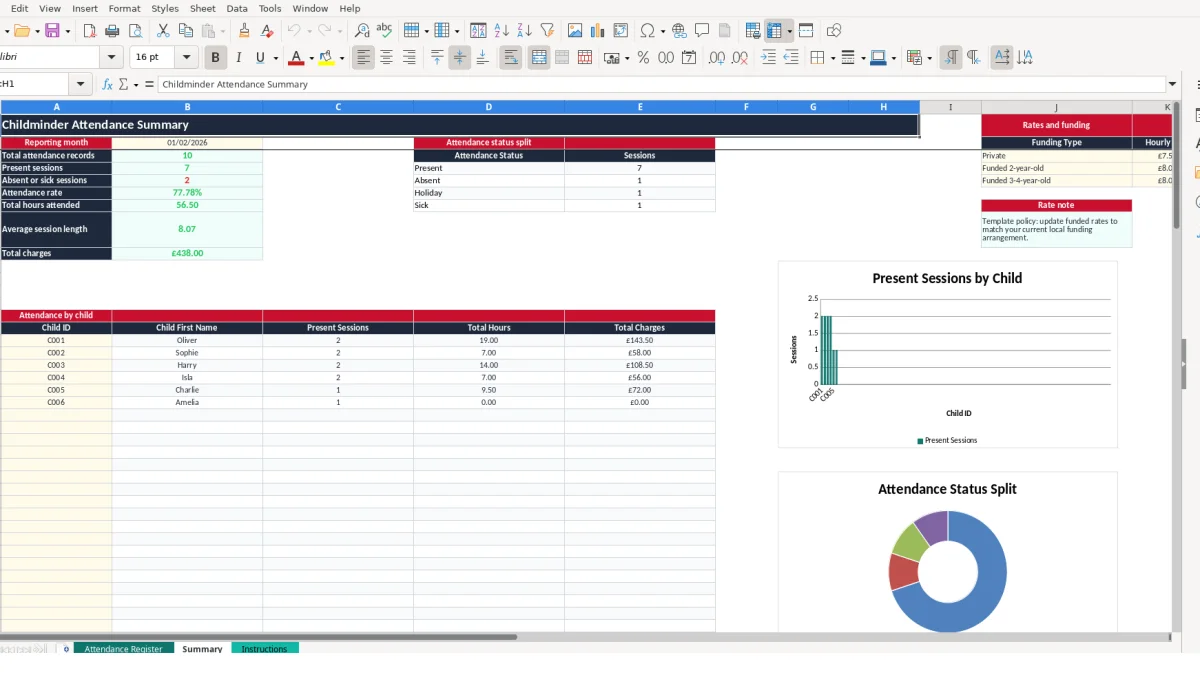
A childminder can review the Summary sheet after the final session of the week or at month-end. It reports total attendance records, Present sessions, absent or sick sessions, attendance rate, total hours, average session length and total charges.
The child-level area supports up to 100 listed Child IDs, beginning with C001 to C006 in the supplied workbook. If six children each have five records in a week, that creates 30 rows to check; the Summary table then groups sessions, hours and charges by child rather than requiring a manual count.
The workbook separates daily inputs from calculated outputs. You enter Date, attendance details, times, Funding Type and Meals/Extras on Attendance Register; formulas populate Day, Hours Attended, Hourly Rate, Session Charge and Total Charge. That is the right design for this task because it avoids retyping the same rate or calculating every session on a calculator.
The Day formula converts a date into a weekday. Hours Attended uses the time difference multiplied by 24, but returns 0 when the status is not Present or either time is blank. For example, 08:00 to 17:30 gives 9.5 hours, while an Absent row does not create attended hours merely because times have been entered.
Enter times as times, not text such as 8am written into a free-text note. The workbook uses the HH:MM number format, so 08:30 to 15:30 calculates as 7.00 hours. A departure earlier than arrival is not a valid session entry and should be corrected before reviewing charges.
Funding Type uses a list containing Private, Funded 2-year-old and Funded 3-4-year-old. The Hourly Rate formula uses VLOOKUP against Summary J3:K5. The supplied illustrative rates are £7.50, £8.00 and £8.00 respectively; update these cells when your own arrangement changes.
Session Charge equals Hours Attended multiplied by Hourly Rate. Total Charge adds Meals/Extras. Using the sample Private rate of £7.50, a 9.5-hour Present session gives a £71.25 session charge; adding £0.50 produces a £71.75 total. This is a workbook calculation, not a statement of any external rate or entitlement.
Summary uses COUNTIF, SUM, AVERAGE and SUMIF formulas to aggregate the register. Keep funding labels unchanged unless you also update the validation and lookup design, because a spelling variation can return a zero rate.
The most damaging mistake in this register is recording a Present session without both times. The Hours Attended formula then returns 0, so the Session Charge and Total Charge also understate the day. A hypothetical 8-hour session at £7.50 would omit £60.00 from the session charge before any extras are added.
A row marked Absent, Holiday, Bank Holiday or Sick produces zero attended hours even if arrival and departure times remain in the cells. That behaviour is deliberate, but it can hide a data-entry mistake if you change the status after entering times. Review the status alongside the times, especially where a child was expected but did not attend.
Do not type a new status such as Not attended. The validation list contains five choices only, and the Summary formulas count specific labels. A variation such as Sick day may not be included in the intended split, leaving the monthly figures incomplete.
The rate lookup depends on an exact match between Funding Type in the register and the three labels in Summary J3:J5. If Private is changed to Private rate in one row, VLOOKUP cannot find it and the linked rate becomes £0.00. At 12 affected sessions of 6 hours, a missing £7.50 rate would represent a hypothetical £540.00 difference in session charges.
Repeated or inconsistent Child IDs create a different problem. C001 and C-001 are treated as different identifiers in the child-level Summary area, making one child’s sessions appear split. Choose one format and use it consistently.
Leaving Collection By or Parent/Carer Initials blank weakens the usefulness of the daily record, even though those cells do not drive the charge formulas. If a grandparent collects Sophie, select Grandparent rather than leaving a note that could be interpreted differently later. Keep supporting documents separately where you use them; this workbook states that it is an attendance and charging aid, not a complete record system.
The register becomes reliable when you complete it at the point of arrival and collection, not several days later. A fixed two-minute check after the last collection can confirm that every Present row has both times, the right funding type and any meals or extras entered.
For example, five children attending four days can create 20 weekly rows. A Friday review of those 20 rows is more manageable than trying to recreate four days of arrivals from memory.
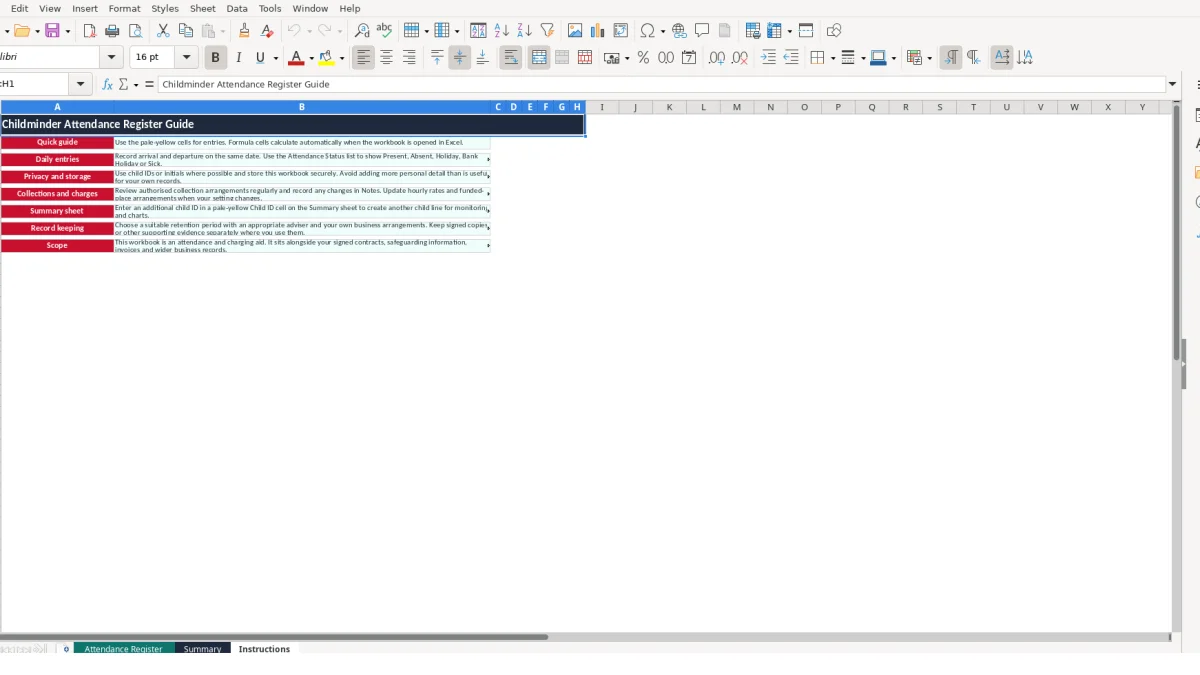
Keep the input labels intact and update rates in Summary J3:K5 rather than typing different rates into individual rows. The formula design then applies one controlled rate to every matching Funding Type. Use the Instructions sheet to remind yourself that formula cells calculate when the workbook is opened in Excel.
Use Child IDs or initials where possible and store the file securely. The Instructions sheet also advises avoiding unnecessary personal detail and reviewing authorised collection arrangements regularly. That is a practical privacy control, but it does not replace your own record-keeping decisions or advice.
This workbook has 999 register rows and a Summary monitoring area for 100 child lines. If you need several settings, concurrent users, automated invoicing, access permissions or a fuller audit trail, moving to a dedicated childcare or accounting system may reduce duplication. Until then, a fixed daily entry habit and a weekly 20-row review keep the spreadsheet usable without adding unsupported complexity.
It records Date, Day, Child ID, Child First Name, Parent/Carer Name, Town, Attendance Status, Arrival Time, Departure Time, Funding Type, Collection By, Notes and Parent/Carer Initials. It also calculates Hours Attended, Hourly Rate, Session Charge and Total Charge.
The Attendance Register provides rows 2 to 1000, giving space for 999 attendance records. Each row represents one child’s record for one date or session.
The validated list contains Present, Absent, Holiday, Bank Holiday and Sick. Use these labels exactly so the Summary formulas count the records correctly.
For a Present row with both times, Hours Attended is calculated from Departure Time minus Arrival Time. Session Charge is hours multiplied by the linked Funding Type rate, and Total Charge adds Meals/Extras.
Yes. The rates are held on the Summary sheet in J3:K5 beside Private, Funded 2-year-old and Funded 3-4-year-old. The supplied values are illustrative; update them to match your current arrangement and keep the funding labels consistent.
No. The Instructions sheet describes it as an attendance and charging aid that sits alongside signed contracts, safeguarding information, invoices and wider business records. Store it securely and decide how it fits your own record-keeping arrangements.
Excel template by
Guide written by