IR35 Status Excel Template – Free UK (2026)
0
Free download
Weekly staff timesheet with break tracking, payable hours, gross pay checks and a payroll dashboard for UK employers.


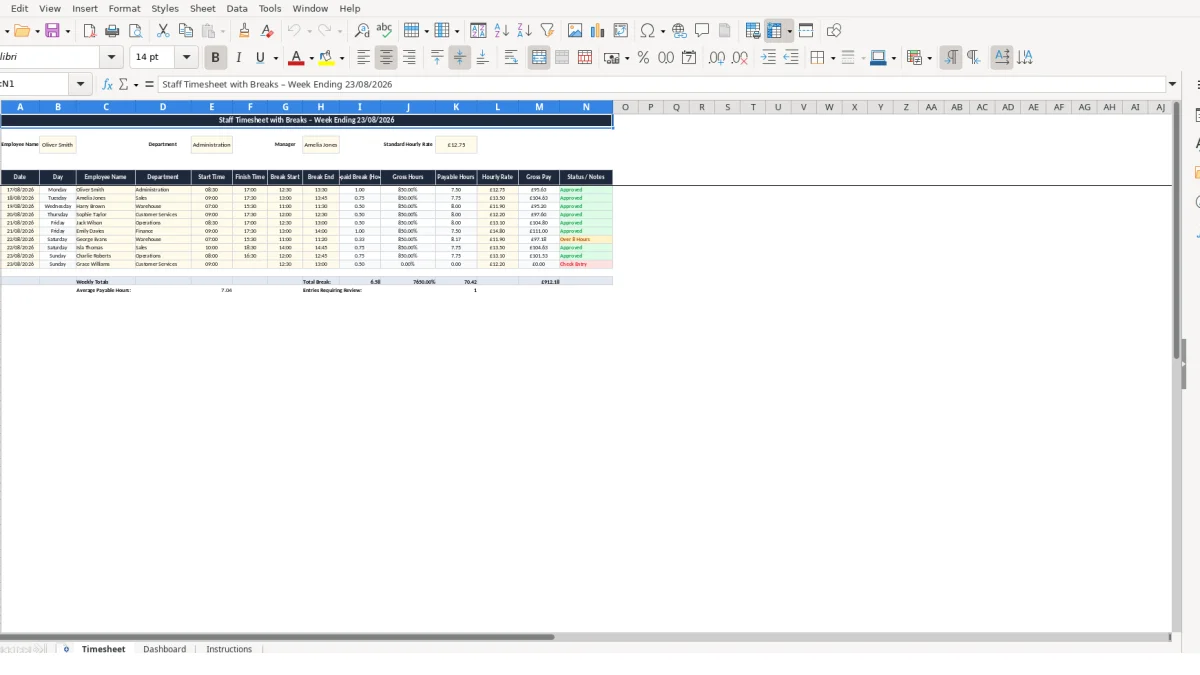
This staff timesheet Excel template records each employee shift, including start and finish times, unpaid breaks, payable hours and indicative gross pay. It includes a Timesheet sheet for up to 10 shift entries, a Dashboard for weekly totals and employee analysis, and an Instructions sheet.
You enter the date, employee, department, shift times, break times and hourly rate. The workbook calculates unpaid break hours, gross hours, payable hours and gross pay, then flags incomplete, invalid or long shifts for review.
Use it to prepare clear weekly hours records before your payroll process. The template supports ordinary daytime shifts and overnight shifts where the finish time falls after midnight.
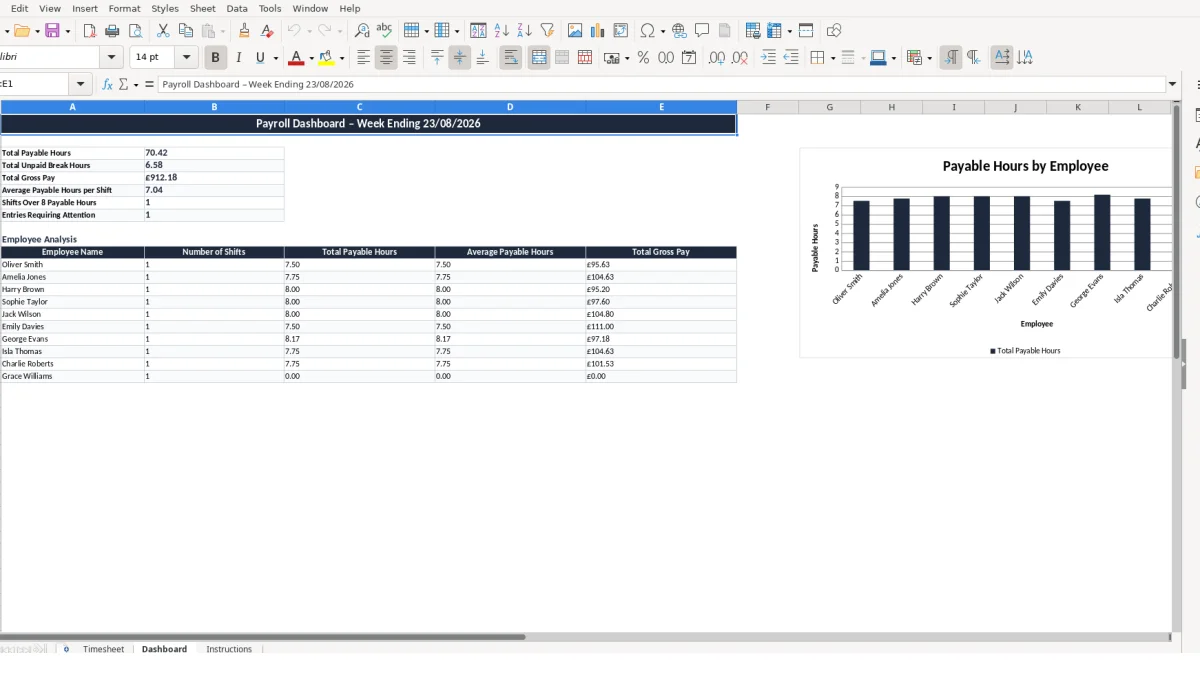
A weekly staff timesheet with breaks Excel template suits a manager who needs a simple record of when people worked and how much unpaid time was taken from each shift. It is particularly useful for small office teams, retail supervisors, hospitality managers and department heads who collect hours before sending approved information into a separate payroll process.
The workbook is designed around shift rows rather than one fixed employee schedule. That matters where one person works several short shifts, covers a colleague, or moves between departments during the same week.
A team leader can enter one row per shift in the Timesheet sheet, from rows 7 to 16. For example, a receptionist working 08:30 to 17:00 with an unpaid break from 12:30 to 13:30 has 8.50 gross hours, 1.00 unpaid break hour and 7.50 payable hours.
At an illustrative hourly rate of £12.75, the row’s gross pay calculation is £95.63: 7.50 multiplied by £12.75. The figure is an indicative gross-pay output, not a replacement for a payroll calculation.
The template does not restrict the weekly entries to the employee name shown in its sample data. A manager can replace the illustrative names and departments, then record different people across the 10 available rows; the Dashboard groups entries by employee name in its analysis area.
For instance, two shifts for one worker of 6.00 and 7.50 payable hours produce 13.50 hours in the employee summary. A second worker with one 8.25-hour shift remains separate, provided their name is entered consistently on every row.
This workbook is best used as an approval record before hours are processed through suitable payroll software. The Instructions sheet states that PAYE, National Insurance and other deductions should be processed through payroll software, so do not treat the gross pay column as a final payslip figure.
Use image 1 for the shift-level record and image 2 for the weekly management view. That separation is a sound choice: staff hours are entered once on Timesheet, while Dashboard totals remain formula-driven rather than being copied into a second manual summary.
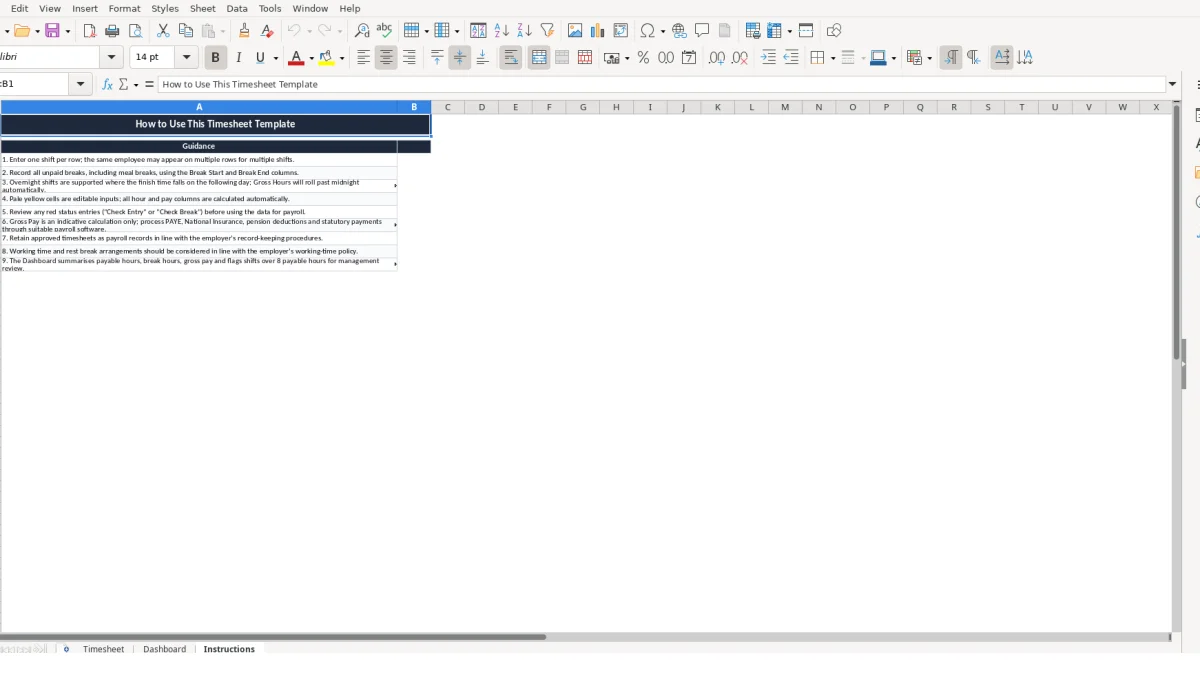
The Timesheet sheet separates the fields you enter from the fields Excel calculates. You enter Date, Employee Name, Department, Start Time, Finish Time, Break Start, Break End and Hourly Rate; columns B and I to N contain calculated day, hour, pay and status outputs.
Keep that division intact. Entering values into calculated columns creates competing records and makes the Dashboard less reliable because its totals draw directly from the Timesheet calculations.
Gross hours are calculated from Finish Time less Start Time. The formula uses MOD, so a shift beginning at 22:00 and ending at 06:00 calculates as 8.00 hours rather than a negative value; this is the correct technical approach for the workbook’s overnight-shift support.
Unpaid break hours are Break End less Break Start. A 13:00 to 13:45 break calculates as 0.75 hours, and a 09:00 to 17:30 shift calculates as 8.50 gross hours; payable hours are therefore 7.75.
The payable-hours formula subtracts break hours from gross hours but never returns a negative number because it uses MAX. If a user enters a 9.00-hour break against an 8.00-hour shift, payable hours become 0 rather than -1.00, while the status field identifies the issue as Check Break.
Gross pay is payable hours multiplied by the hourly rate in the same row. At £15.00 per hour, 7.75 payable hours produce £116.25; changing the rate to £16.00 changes that row to £124.00 without altering the recorded times.
The Dashboard uses SUM to total payable hours, break hours and gross pay across Timesheet rows 7 to 16. It uses COUNTIF to count shifts marked Over 8 Hours and entries beginning Check, giving a concise review queue rather than requiring a manager to inspect every row again.
The employee analysis uses SUMIF and AVERAGEIF against the employee-name column. Names must match exactly in practice: use one consistent form such as Oliver Smith, rather than mixing Oliver Smith and O. Smith, otherwise their shifts will be split across summary lines.
That same exact name form also carries into payroll, where a payslip record keeps the employee’s paid hours and gross pay aligned with the dashboard totals.
Most timesheet errors arise when the shift record is incomplete or when a time is entered in the wrong field. This template exposes several of those problems through Status / Notes, but the flag is only useful if somebody reviews it before hours are used elsewhere.
The important distinction is between a missing input and a genuine zero result. A shift with no Start Time or Finish Time is not a zero-hour shift: it is marked Check Entry and needs confirmation from the employee or manager.
Entering 12:30 in Break Start and leaving Break End blank makes the unpaid-break formula return 0. The row is not silently approved, however: the status remains dependent on the supplied shift times and can show Approved unless both break fields are considered during review, so managers should treat a partly recorded break as an incomplete record.
A practical check is to compare the physical record against the shift. If a worker says they took a 45-minute unpaid meal break but the row shows 0.00 break hours, payable time is overstated by 0.75 hours. At a hypothetical £14.00 rate, that is £10.50 on one row.
If Break End minus Break Start exceeds gross hours, the row is labelled Check Break. For example, a 09:00 to 13:00 shift has 4.00 gross hours; entering a 10:00 to 15:00 break produces 5.00 break hours, which cannot fit inside the recorded shift.
The payable-hours formula protects the total from becoming negative by returning 0. This is a safety net, not a correction: correct the times rather than accepting a zero-payable-hours row with an invalid break.
The Dashboard’s employee analysis uses employee names as its matching reference. If Amelia Jones is entered once as Amelia Jones and once as Amelia J., two rows may be reported separately, obscuring a combined 15.50 hours as, for example, 7.50 and 8.00 hours.
Rates also need row-level attention. The £12.75 value in the sample row is illustrative, and a rate entered on one shift is not automatically carried to another; check each row before approving gross pay. Use the Dashboard’s total gross pay as a cross-check, not as proof that the source entries are correct.
That same row-by-row review is useful before annual leave is approved, which is where a staff holiday planner keeps each employee’s dates consistent.
A timesheet becomes useful when it is completed at the same point each week, not reconstructed after payroll preparation has started. Set a short approval routine around the end of the working week, then keep the completed file with your internal payroll records.
The workbook has 10 shift rows, so it is most effective for a small weekly batch. If your team produces 25, 50 or 100 shifts in a week, copying rows or files increases the risk of missed entries and you should consider a system built for higher-volume time capture.
For example, checking 10 rows every Friday takes less effort than investigating 10 incomplete records several weeks later. The Dashboard’s count of entries requiring attention tells you whether the sheet is ready for approval without manually scanning all rows.
There are no data-validation lists in this workbook, so disciplined entry is essential. Choose one employee-name format, use times rather than text descriptions such as late finish, and enter monetary rates as numbers so the £ currency format can display them correctly.
Freeze panes begin at A7 on the Timesheet sheet, keeping the headers visible while you work down the shift rows. Use that structure rather than adding ad hoc notes in the calculation columns, because Dashboard formulas only summarise the established ranges.
Move to dedicated time and attendance or payroll software when you need staff self-service, approvals across many managers, automatic importing, audit trails or more than the workbook’s 10 rows per weekly sheet. This template remains a practical controlled record for a small, reviewable weekly set of shifts, while your payroll software remains responsible for formal payroll processing.
Yes. Enter Break Start and Break End on the Timesheet sheet and the workbook calculates unpaid break hours. If either break time is blank, the unpaid-break result is 0, so review partly completed break records carefully.
Yes. The Gross Hours formula uses MOD, which allows a Finish Time on the following day to roll past midnight. For example, 22:00 to 06:00 calculates as 8.00 gross hours.
Payable hours equal gross hours less unpaid break hours. The formula will not return a negative result; if recorded break time exceeds gross shift time, the row is flagged Check Break and payable hours return 0.
No. Gross Pay is an indicative calculation of payable hours multiplied by the entered hourly rate. The Instructions sheet states that PAYE, National Insurance, pension deductions and statutory payments should be handled through suitable payroll software.
The Status / Notes formula displays Over 8 Hours when a row has more than 8 payable hours. Use it as a management review prompt and consider the shift against your employer’s working-time policy.
Yes. Enter one shift per row and repeat the employee’s name on each relevant row. The Dashboard uses SUMIF and AVERAGEIF formulas to summarise their shifts, hours and indicative gross pay when the name is entered consistently.
Excel template by
Guide written by