Chore Chart Excel Template – Free (2026)
0
Free download
Plan garden watering by crop, area and rainfall with an Excel template for UK gardens, allotments and small growing spaces.


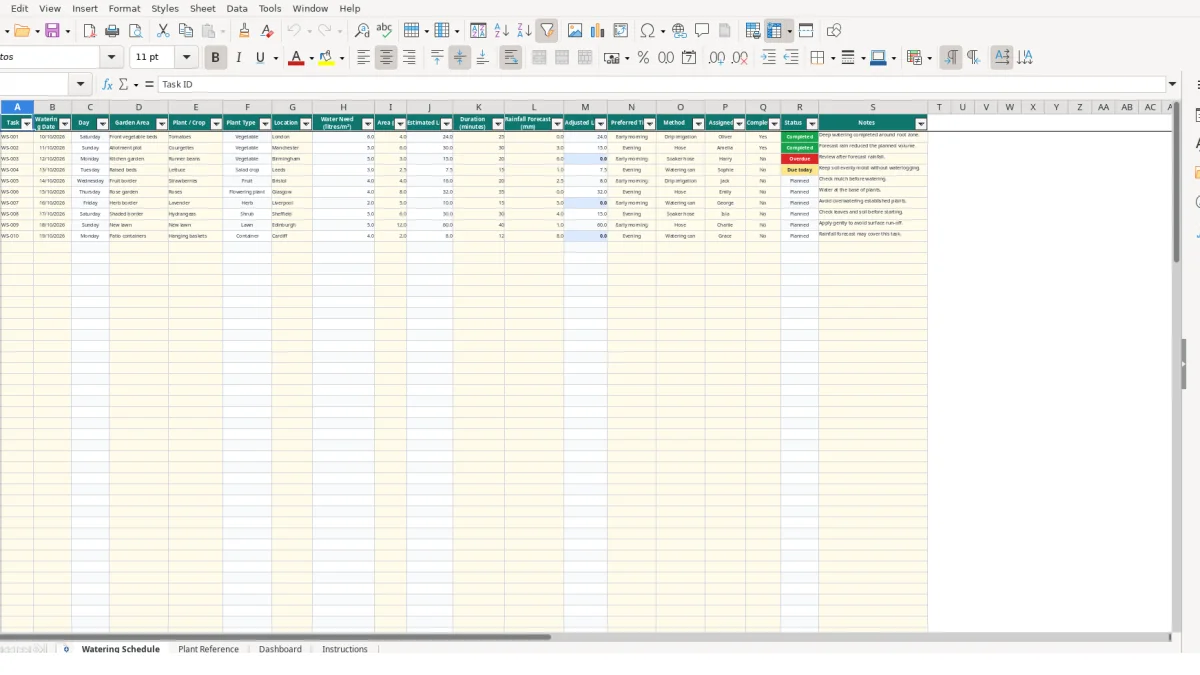
This garden watering schedule Excel template records watering dates, garden areas, crops, locations, water requirements, rainfall forecasts and completion status. It calculates estimated and adjusted litres for up to 100 tasks, helping UK gardeners, allotment holders and small growing teams organise watering work.
The workbook includes Watering Schedule, Plant Reference, Dashboard and Instructions sheets. Select a crop from the built-in list, enter its area and rainfall forecast, then use the calculated volumes and status fields to manage each task.
A garden watering schedule suits anyone responsible for repeated watering across several beds, containers or growing areas. A home gardener may use it for a kitchen garden, while an allotment holder can record separate tasks for vegetables, fruit and flowers. A community garden coordinator can also assign work to named volunteers without relying on separate notes or messages.
Imagine a gardener managing a 4 m² front vegetable bed of tomatoes. The Plant Reference sheet supplies the example tomato requirement of 6 litres/m², so Estimated Litres becomes 24 litres. The gardener can select Early morning, Drip irrigation and Oliver, then record whether the task was completed.
A second task might cover a 6 m² allotment area of courgettes. The reference value is 5 litres/m², producing 30 estimated litres before rainfall is considered. Keeping the area and crop in the same row makes it easier to distinguish that job from a smaller container or border task.
An allotment holder can use Garden Area for labels such as Allotment plot or Raised beds, then use Location to record the town or site. The workbook includes sample locations such as Manchester, Birmingham and London, but these are illustrative entries to replace with your own information.
For a shared garden, Assigned To identifies who is responsible for each task. The Completed? list accepts Yes or No, while Status turns an unfinished past task into Overdue and a task dated today into Due today. This gives a practical weekly handover view without requiring a separate task list.
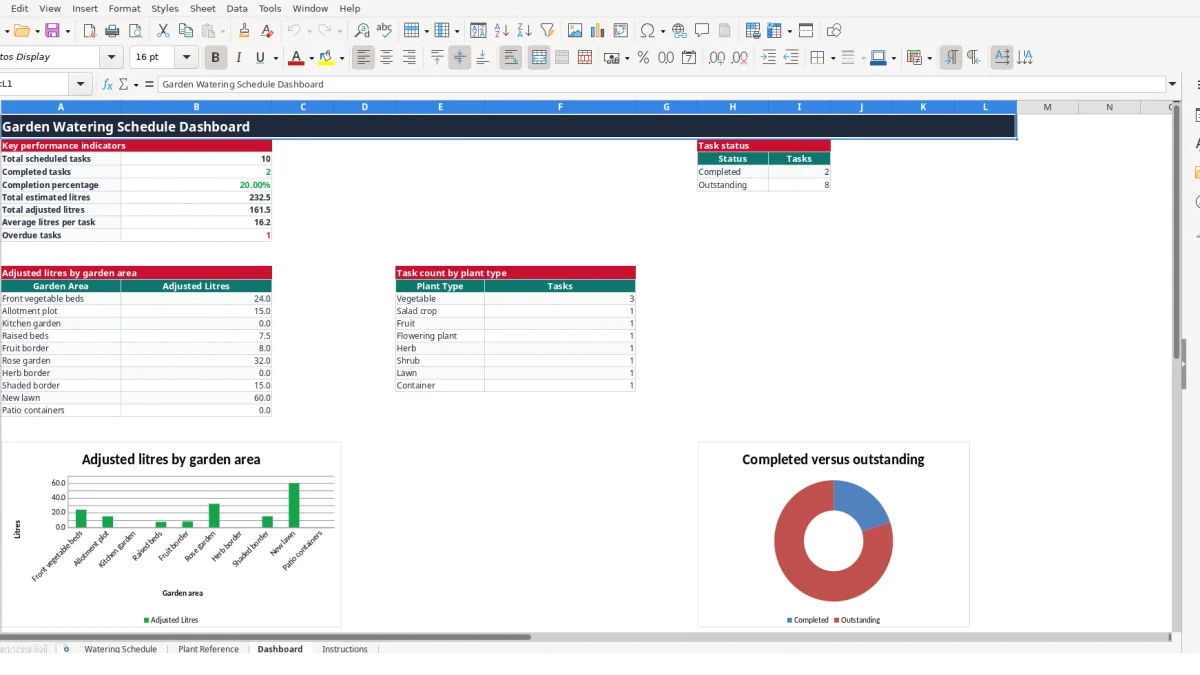
The Dashboard summarises scheduled tasks, completed tasks, completion percentage, total estimated litres, total adjusted litres, average litres per task and overdue tasks. Its garden-area summary and plant-type count help you see whether the workload is concentrated in one bed or spread across several planting categories.
The workbook separates editable inputs from calculated outputs. You enter the crop, area and rainfall forecast on Watering Schedule; formulas then retrieve plant information and calculate the working volume. This is preferable to typing the same water requirement into every task, because changing a reference value can update linked rows consistently.
Selecting Tomatoes in E2 returns Vegetable in Plant Type and 6 in Water Need (litres/m²) through VLOOKUP from Plant Reference. With Area set to 4 m², the Estimated Litres formula multiplies 6 by 4 and returns 24 litres. If either the crop or area is blank, the relevant calculated result remains blank rather than displaying a misleading zero.
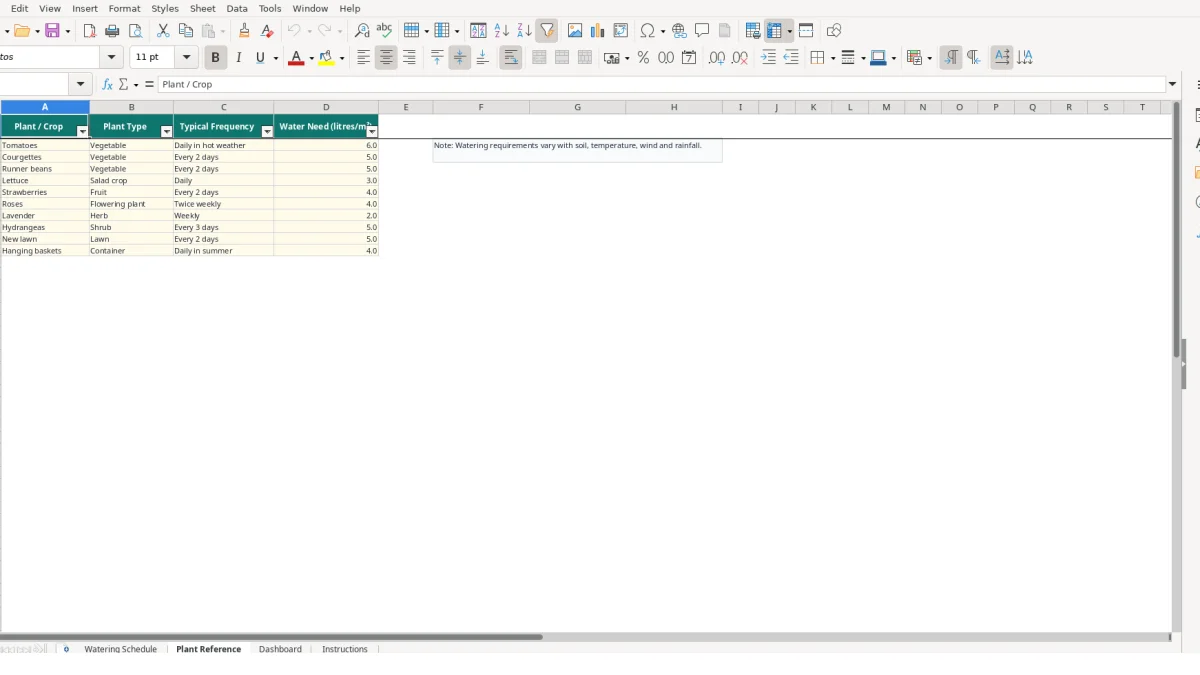
The reference list contains 10 crops, including Lettuce at 3 litres/m², Lavender at 2 litres/m² and New lawn at 5 litres/m². The reference sheet also records typical frequencies, but these are working guidance rather than automatic scheduling rules. You can amend the reference values to suit your garden conditions.
Adjusted Litres uses the Rainfall Forecast (mm) entry. With an estimated volume of 30 litres and a forecast of 3 mm, the formula returns 15 litres because forecasts from 2 mm to under 5 mm halve the estimate. A forecast of 6 mm returns zero, while a blank forecast leaves the estimated volume unchanged.
This calculation is deliberately visible and predictable: it does not fetch weather data automatically. You must enter the forecast yourself and use the Instructions sheet guidance to consider soil, temperature, wind and rainfall before acting.
Data validation restricts Area to decimals at or above zero, Rainfall Forecast to decimals at or above zero and Duration to whole numbers at or above zero. Preferred Time accepts Early morning or Evening; Method accepts Hose, Watering can, Drip irrigation or Soaker hose. The Status formula then uses Completed?, the date and TODAY() to produce Planned, Due today, Overdue or Completed.
Watering records become unreliable when one task mixes several areas, when the crop name is typed differently each time or when rainfall is noted in a message rather than beside the job. In this workbook, those errors affect lookups, litres and Dashboard totals, so the cost is a distorted plan rather than merely untidy wording.
Suppose a tomato bed is actually 4 m² but is entered as 14 m². At the reference value of 6 litres/m², Estimated Litres changes from 24 litres to 84 litres: a 60-litre difference for one row. Check the unit before entering Area and avoid putting a length, plant count or hose duration into the square-metre field.
The opposite error is also possible. Entering 0.4 instead of 4 reduces the same estimate to 2.4 litres. Because the validation accepts decimals, Excel cannot decide whether 0.4 is correct; you must check the physical bed measurement.
For a 30-litre courgette task, entering 3 mm produces 15 adjusted litres, while entering 6 mm produces zero. If 30 is entered instead of 3, the formula follows the stated threshold logic and returns zero. Record rainfall in millimetres and review unusual values before relying on the Dashboard total.
A row without a Task ID is excluded from the task count used by the Dashboard, even if other cells contain information. A crop that does not match the validated list will not provide the intended Plant Type or Water Need lookup. Use the drop-down lists rather than typing alternatives such as Tomato, tomato plants or veg.
Finally, marking Completed? as Yes changes Status to Completed regardless of whether the date is past or future. If a task was planned but not actually done, leave it as No and use Notes to explain the reason. This keeps the completion percentage and overdue count meaningful.
The workbook works best when updating it is attached to a fixed garden habit rather than treated as a one-off planning exercise. Set aside a short review at the same point each week: check upcoming dates, enter the latest rainfall forecast, assign people and confirm completed tasks. A consistent routine matters more than adding unnecessary detail.
For example, if you have 12 scheduled rows and complete 9, the Dashboard completion percentage calculates 9 divided by 12, or 75%. The outstanding figure then shows 3 tasks, giving you a clear starting point for the next review.
Use Plant Reference as the single place for working water requirements. If you change Tomatoes from 6 to another value to reflect your own conditions, review every linked tomato row afterwards because Estimated Litres and Adjusted Litres may change. Do not overwrite calculated cells on Watering Schedule with manual litres.
Use the existing lists for Early morning and Evening, and for the four available methods. Consistent entries make filtering and handovers easier, while the Dashboard's plant-type counts remain useful.
This workbook is suitable for a schedule of up to 100 task rows and a reference list of 10 crops. If several people need simultaneous access, you require automatic weather imports, irrigation sensor data or a much larger asset and site structure, move to a dedicated garden-management or operational system rather than adding uncontrolled extra columns.
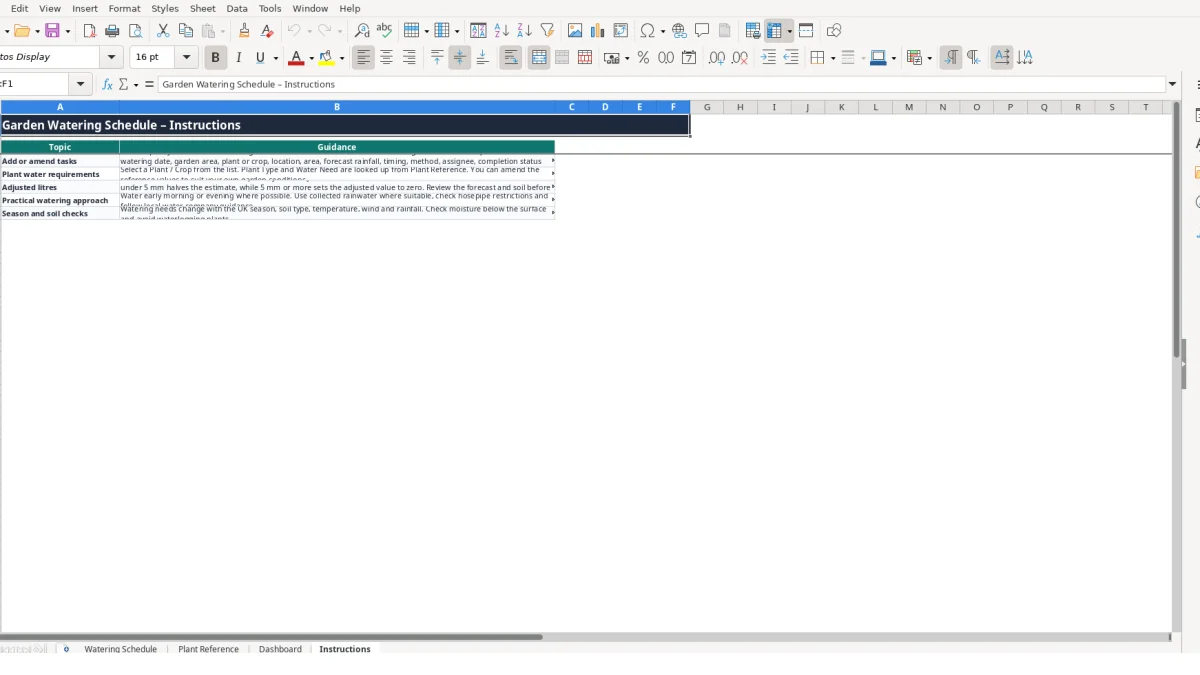
There are four sheets: Watering Schedule, Plant Reference, Dashboard and Instructions. Watering Schedule holds the task records, Plant Reference contains 10 example crops and working water requirements, Dashboard summarises the schedule, and Instructions explains the intended workflow.
The Watering Schedule table runs from row 1 to row 101, providing 100 task rows below the header. Each row includes fields for the date, area, crop, litres, rainfall, assignment, completion and notes.
Estimated Litres equals Water Need (litres/m²) multiplied by Area (m²). For example, a tomato task using 6 litres/m² across 4 m² produces 24 estimated litres.
When Rainfall Forecast is blank, Adjusted Litres follows the estimate. From 2 mm to under 5 mm, the estimate is halved; at 5 mm or more, the adjusted volume is set to zero. These are workbook calculation rules, not a substitute for checking actual garden conditions.
Yes. Plant Type, Typical Frequency and Water Need are stored on Plant Reference, and the Instructions sheet says you can amend the reference values for your garden conditions. Review linked watering rows after making a change because calculated litres may update.
Status shows Completed when Completed? is Yes. Otherwise, it shows Overdue when the watering date is before today, Due today when it matches today, or Planned when it is later. A blank Task ID prevents the row from being treated as a scheduled task.
Excel template by
Guide written by