Chore Chart Excel Template – Free (2026)
0
Free download
Plan UK content by date, channel, owner and campaign, then track reach, engagement, leads, budget and approval status in Excel.


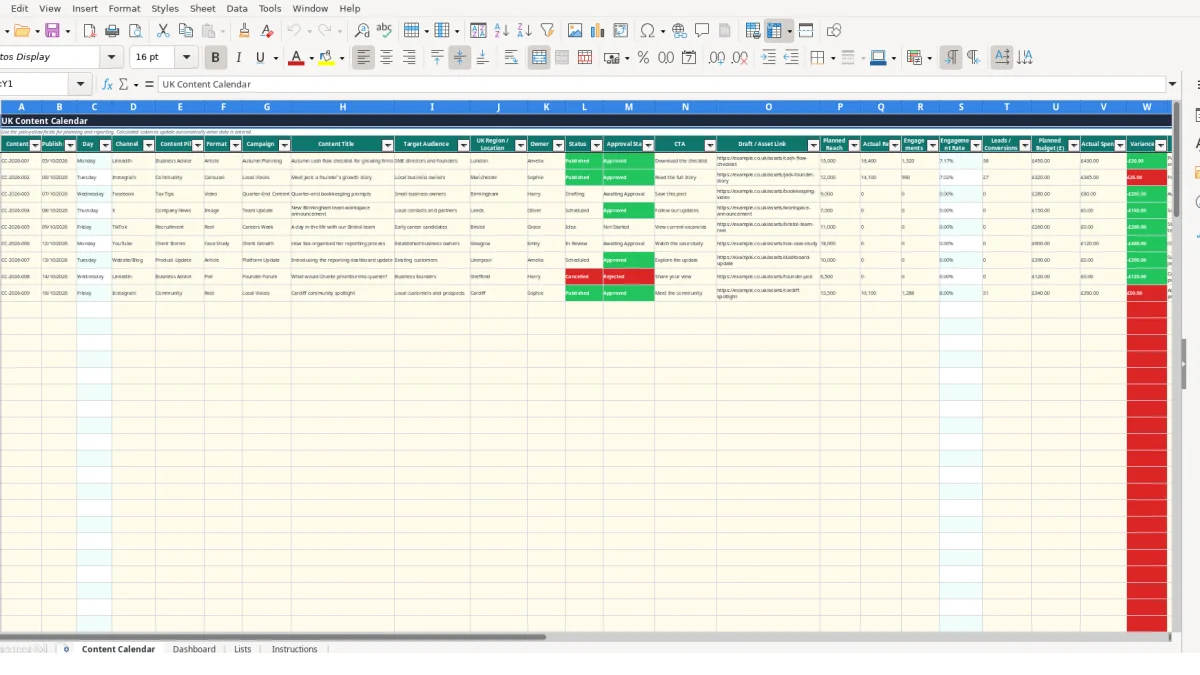
A content calendar Excel template is a planning and reporting workbook for scheduling marketing activity by publish date, channel, content pillar, format, campaign, owner and status. It contains a 100-row Content Calendar, a Dashboard for period metrics, controlled Lists and an Instructions sheet.
You can record UK regions, target audiences, CTAs and asset links alongside planned and actual performance. Calculated fields show the day, engagement rate, spend variance and a performance flag, while the Dashboard summarises posts, reach, leads, budgets and approval progress.
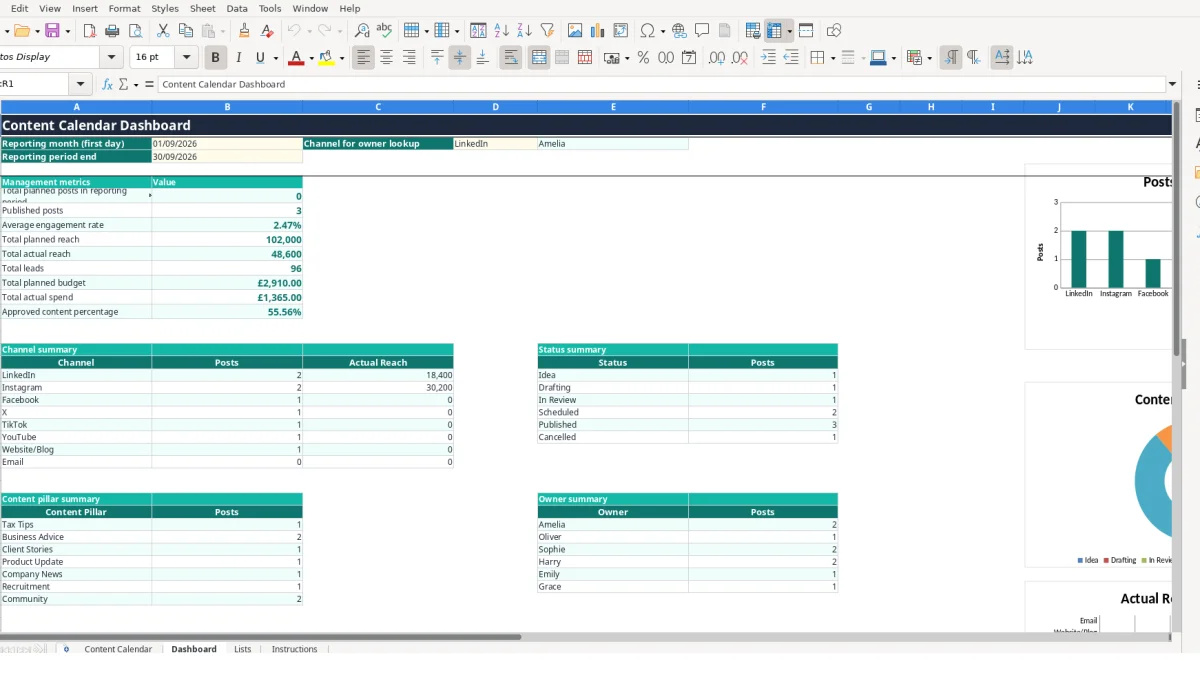
A small business marketing manager can use the Content Calendar sheet to coordinate a week of LinkedIn, Instagram and Facebook activity without maintaining separate lists. For example, the sample rows schedule an article for LinkedIn on 05/10/2026, a carousel for Instagram on 06/10/2026 and a video for Facebook on 07/10/2026.
Each row gives the team more than a publishing date. The fields for Content Pillar, Format, Campaign, Content Title, Target Audience, UK Region / Location, Owner and CTA connect the editorial idea with its intended audience and action. A campaign such as Autumn Planning can therefore contain a checklist article aimed at SME directors and founders in London, rather than an unassigned headline in a separate document.
Content leads can allocate work to named owners such as Amelia, Sophie, Harry, Oliver, Grace or Emily. The Lists sheet pairs channels with default owners, while the Dashboard channel lookup uses VLOOKUP to return the selected channel's owner. This is useful when a weekly meeting covers several channels but responsibility must remain visible.
The prepared calendar has rows 4 to 103 available for entries. A team publishing 12 items each month could use the same workbook for more than eight months before needing to extend the prepared range; that is a planning example, not a promise about future capacity. Keep one content item per row so filters and summaries can distinguish a campaign article from its supporting social post.
The UK Region / Location field supports entries such as London, Manchester, Birmingham, Leeds and Bristol. A regional business could therefore separate a Manchester founder story from a London cash-flow article, while Target Audience records whether the intended reader is a local business owner, small business owner or SME director.
Use Approval Status alongside Status when several people review content. The available approval choices include Not Started, Awaiting Approval, Approved and Rejected, allowing a Friday planning review to identify items that are drafted but not ready for publication.
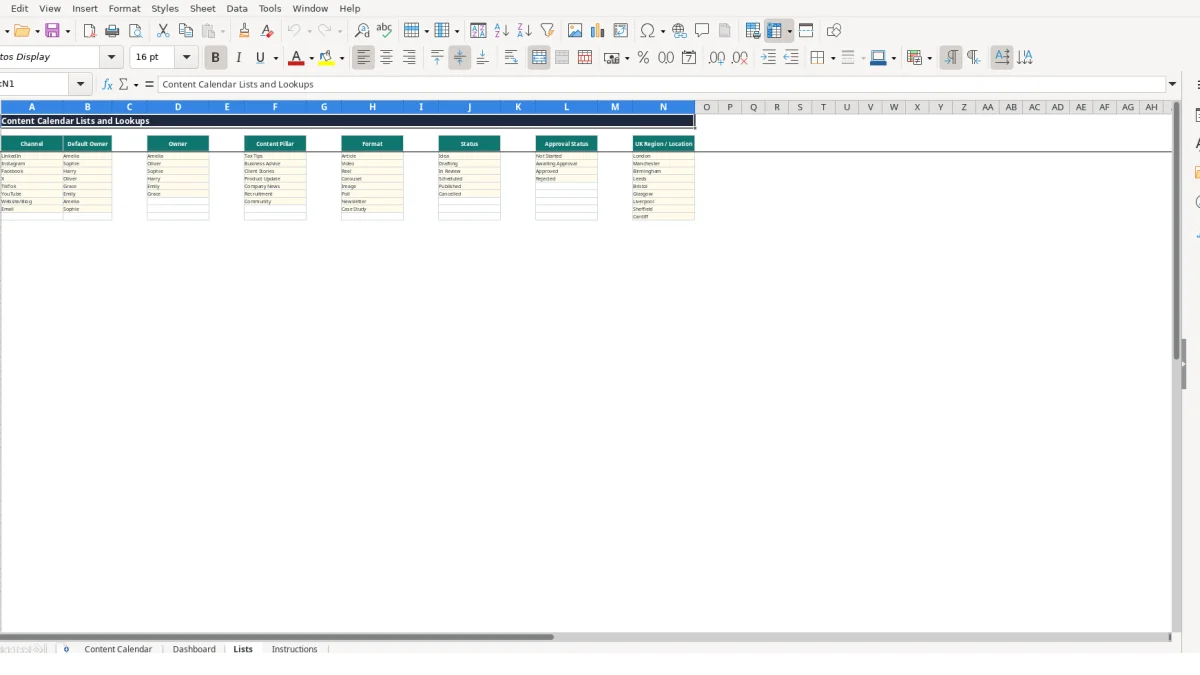
Most planning and reporting fields sit on Content Calendar. You enter values such as Publish Date, Channel, Content Pillar, Format, Campaign, Owner, Status, Actual Reach, Engagements, Leads / Conversions, Planned Budget (£) and Actual Spend (£). Seven dropdown validations use the Lists sheet for Channel, Content Pillar, Format, Owner, Status, Approval Status and UK Region / Location.
This is a deliberate control: selecting LinkedIn from a list is safer than entering LinkedIn, Linkedin and Linked In as three separate labels. The Dashboard uses COUNTIF and SUMIF summaries, so inconsistent wording would split one channel across several results.
Day copies the Publish Date when a Content ID and date are present. Engagement Rate uses Engagements divided by Actual Reach; if Actual Reach is zero, the formula avoids division by zero and returns 0 in the prepared calculation. For the sample LinkedIn item, 1,320 engagements divided by 18,400 actual reach equals about 7.17%.
Variance is calculated as Actual Spend less Planned Budget. The sample item has a planned budget of £450.00 and actual spend of £430.00, producing a variance of -£20.00. Performance Flag returns Awaiting data when Actual Reach is zero; otherwise it returns Strong when the engagement rate reaches 5% or more, or Review when it does not.
Dashboard reporting dates control the count of planned posts in the selected period. Other metrics use the prepared calendar range, including published posts, average engagement rate, planned reach, actual reach, total leads, planned budget, actual spend and approved content percentage.
Four charts draw on channel posts, status posts, channel actual reach and the calendar's planned and actual reach series. Use the reporting dates as a review control, but remember that the Instructions sheet states that charts use the full prepared calendar range.
A common workflow failure is creating a row with a title and date but leaving the owner, status, approval status and CTA blank. The item may appear in a publishing list, yet a reviewer cannot tell who is responsible, whether it has passed internal review or what action the audience should take.
For example, three rows for one campaign with only titles entered may count as three planned posts on the Dashboard, even though none has a usable asset link or confirmed approval. That inflates the apparent workload and makes a weekly review less reliable.
Typing alternatives to the Lists values can undermine the summaries. If one person enters Insta instead of Instagram, or writes In review instead of In Review, COUNTIF may treat those records separately from the standard category. With 12 posts split between two spellings, the channel or status summary can show two smaller groups rather than one accurate total.
The technical judgement is clear: use the seven validated dropdown fields whenever they are available, and update Lists rather than inventing a new spelling in the calendar. Keep Content IDs unique as instructed; duplicated IDs make it harder to trace an asset, approval decision or performance result back to one item.
Entering 0 for Actual Reach before a post has run is different from entering a measured zero after publication. The Engagement Rate formula protects against division by zero, but a zero reach value produces a rate of 0 and the Performance Flag remains Awaiting data. That distinction matters when a planned Facebook video has 9,000 planned reach but no actual reach yet.
Budget errors can also hide in sign conventions. If planned budget is £450.00 and actual spend is £430.00, the calculated variance is -£20.00. Entering actual spend as a negative number would reverse the meaning of the calculation, so record spend as a positive pound amount and let the workbook calculate the difference.
Choose one regular planning slot for new rows and one reporting slot for results. A practical example is to plan the next four weeks on the first working day of a month, then update reach, engagements, leads, budget and spend during a Friday review. Four weekly reviews create four opportunities to correct an owner, approval status or missing asset link before the next publishing cycle.
Start each meeting on Content Calendar, not Dashboard. The source row contains the operational detail: a post such as CC-2026-001 has a date, LinkedIn channel, Autumn Planning campaign, CTA, asset link and performance inputs. Once those fields are reliable, the Dashboard becomes a useful summary rather than a substitute for missing information.
Copying old rows may be convenient, but do not carry forward the previous Content ID, asset link, approval status or performance figures without checking them. A stronger routine is to create a new unique ID, confirm the date and campaign, then review each controlled field from its dropdown.
This workbook suits a prepared range of 100 calendar rows and a team that can maintain one source sheet. Consider a dedicated content management or marketing platform when many people need simultaneous workflow permissions, automated publishing, audit history, recurring approvals or substantially more than 100 prepared entries.
Until that point, the fixed routine is simple: plan rows, validate ownership and approval, add performance figures, check the calculated outputs and review the Dashboard. That sequence turns a static calendar into a repeatable editorial control.
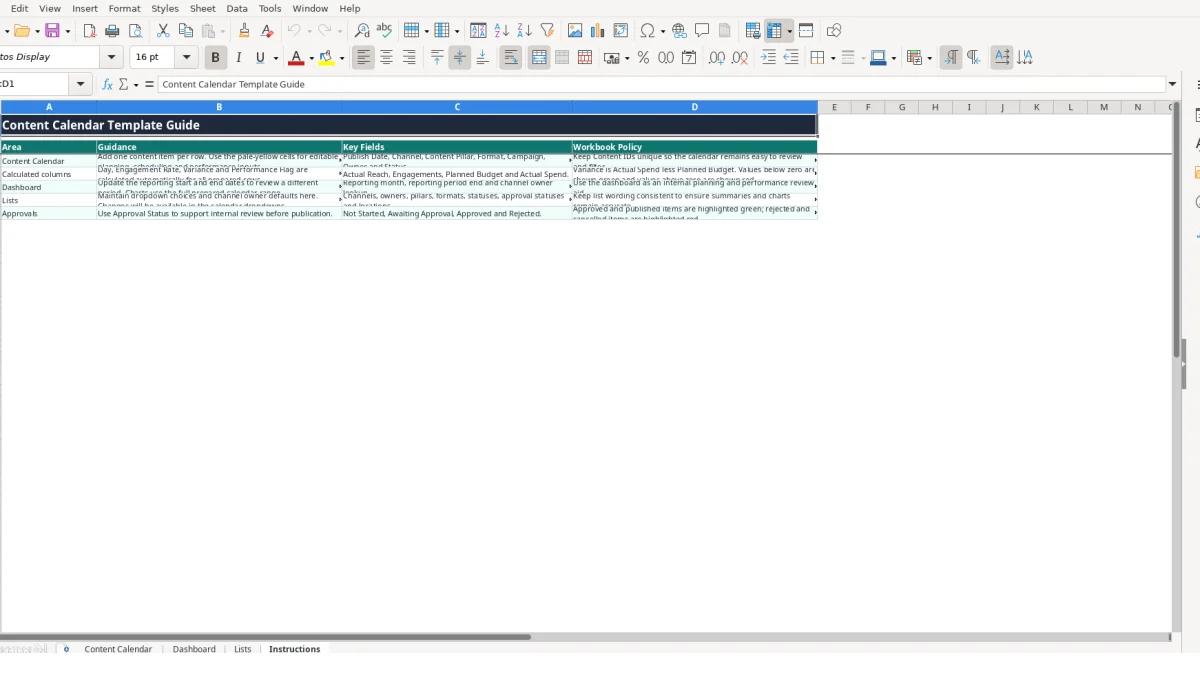
The workbook contains Content Calendar, Dashboard, Lists and Instructions sheets. Content Calendar holds the planning and reporting rows; Dashboard summarises metrics and charts; Lists supplies dropdown choices and owner defaults; Instructions explains the workflow.
The prepared Content Calendar range runs from row 4 to row 103, providing 100 prepared rows. Keep one content item per row and maintain a unique Content ID for each entry.
You can record Content ID, Publish Date, Channel, Content Pillar, Format, Campaign, Content Title, Target Audience, UK Region / Location, Owner, Status, Approval Status, CTA, Draft / Asset Link, reach, engagements, leads or conversions, budgets, spend and notes.
Yes. Engagement Rate is calculated from Engagements divided by Actual Reach. When Actual Reach is zero, the formula avoids a division error; Performance Flag shows Awaiting data until actual reach is available.
Yes. Enter Planned Budget (£) and Actual Spend (£) on Content Calendar. Variance is calculated as Actual Spend less Planned Budget, so £430.00 actual spend against a £450.00 plan produces -£20.00.
The Dashboard includes reporting-period post counts, published posts, average engagement rate, planned and actual reach, leads, planned budget, actual spend and approved content percentage. It also includes channel, status, content pillar and owner summaries, plus four charts.
Excel template by
Guide written by