Freelance Invoice Excel – Free Template (2026)
7
Free download
Track invoices, VAT, payments and outstanding balances with a freelancer income Excel template for UK freelancers and sole traders.


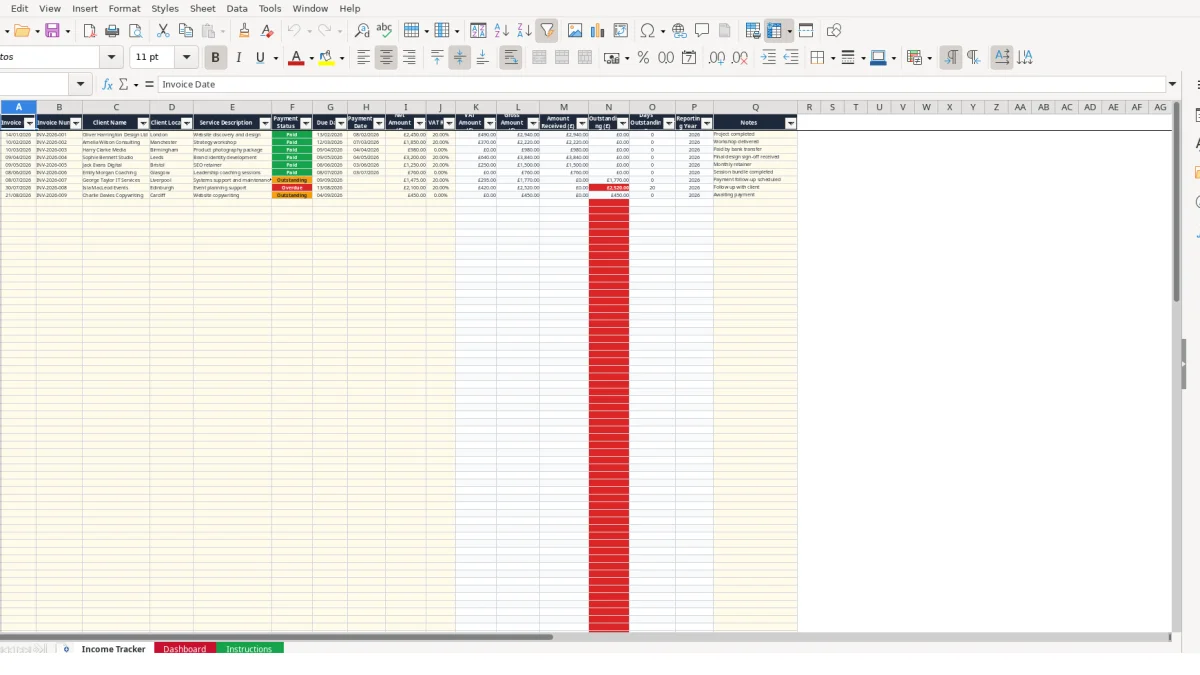
This freelancer income Excel template records invoices, clients, payment status, due dates, net amounts and VAT rates in one Income Tracker sheet. It calculates VAT, gross invoiced amounts, cash received, outstanding balances and days outstanding, then summarises the results by month on the Dashboard.
Use it as a practical income log for a UK freelancer or sole trader. The workbook contains 100 invoice rows, a 2026 monthly summary, three Dashboard charts and an Instructions sheet explaining the intended data-entry workflow.
A freelancer, sole trader or independent contractor can use this workbook whenever invoices are raised or payments arrive. A web designer might record a £2,450 website project, while a consultant could enter a £1,850 strategy workshop; each invoice remains a separate row with its own dates, client and service description.
The workbook is suited to a weekly bookkeeping session, particularly when several clients pay at different times. A photographer could enter a £980 product photography package with a 0% VAT rate, whereas another invoice may use 20% or 5% selected from the available list. The correct choice depends on the treatment you have decided applies to that invoice.
Start with the Income Tracker rather than typing totals directly into the Dashboard. For example, enter INV-2026-001 for Oliver Harrington Design Ltd in London, with an invoice date of 14/01/2026, a due date of 13/02/2026 and a net amount of £2,450. The sample row shows Paid status and a payment date of 08/02/2026.
A Manchester consultant and a Birmingham photographer can be recorded in the same way. Client Location and Service Description give you useful context when you later inspect a transaction, while Notes can hold a short reference such as Project completed or Paid by bank transfer.
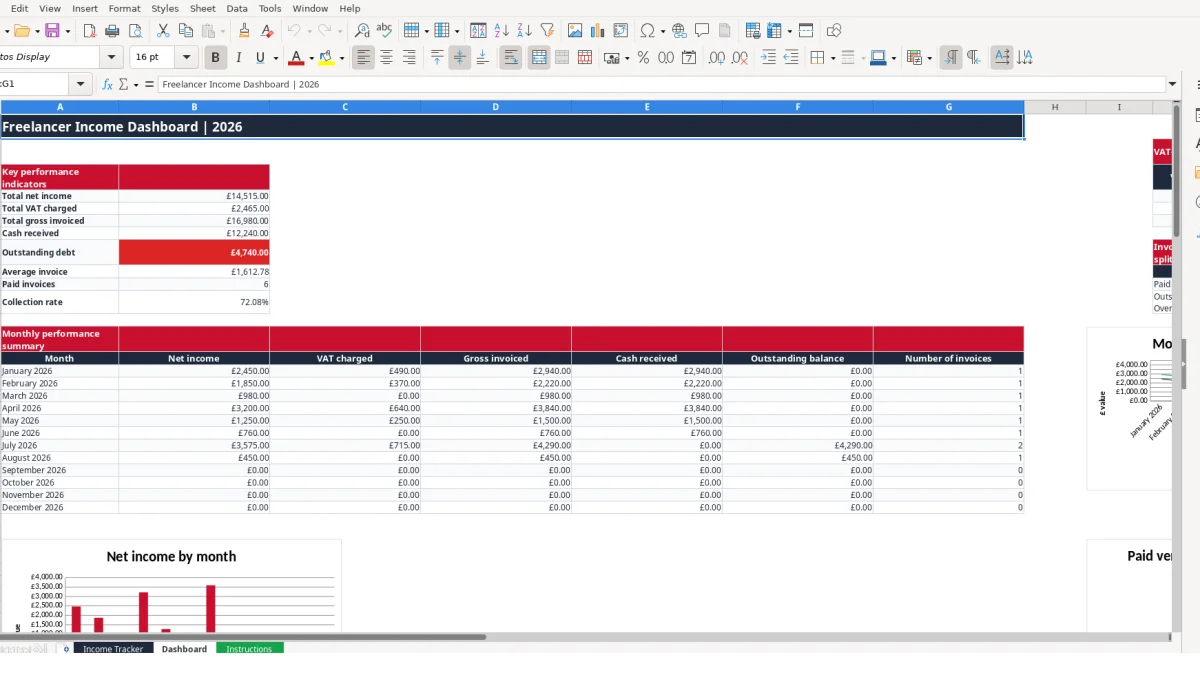
Use the Dashboard after entering the week's invoices and again when checking the bank account. Its monthly summary contains 12 rows from January 2026 to December 2026, with net income, VAT charged, gross invoiced, cash received, outstanding balance and number of invoices.
That distinction matters: £5,000 of gross invoices does not necessarily mean £5,000 has arrived in the bank. The Dashboard separates billed value from cash received, helping you identify whether a quiet cash month reflects low invoicing or delayed payment.
The Income Tracker separates manual inputs from calculated outputs. You enter the invoice date, number, client, location, service, status, due date, payment date, net amount, VAT rate and notes. Columns K to P calculate VAT amount, gross amount, amount received, outstanding value, days outstanding and reporting year.
For a hypothetical invoice with a net amount of £2,450 and a selected VAT rate of 20%, the VAT formula multiplies £2,450 by 0.20 to produce £490. The gross amount then becomes £2,940. If the status is Paid, Amount Received becomes £2,940 and Outstanding becomes £0.
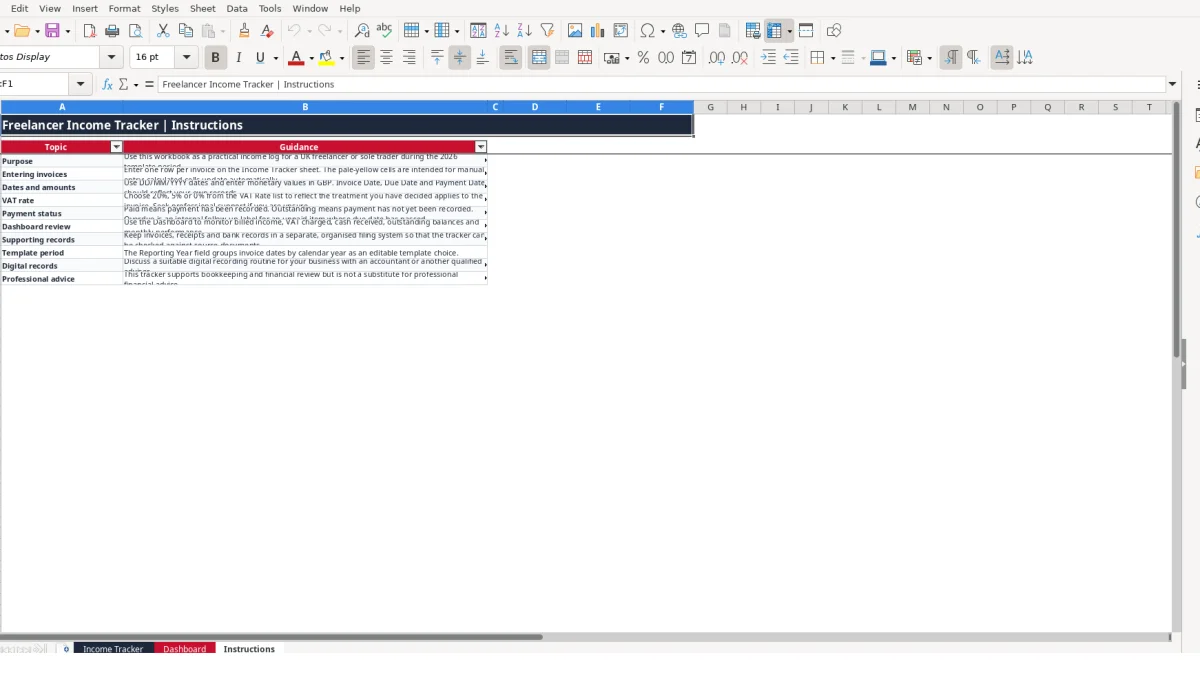
Payment Status in F2:F101 is restricted to Paid, Outstanding or Overdue. VAT Rate in J2:J101 is restricted to 0%, 5% or 20%. Use these lists instead of typing alternatives such as settled, unpaid or standard, because the Dashboard formulas look for the workbook's defined values.
The distinction between Outstanding and Overdue is operational rather than a legal conclusion. Instructions describe Overdue as an internal follow-up label for an unpaid item whose due date has passed. Keep the status aligned with your own invoice and payment records.
Days Outstanding uses the due date and TODAY() for unpaid entries, while Paid entries return zero. Reporting Year extracts the year from Invoice Date, so entering 14/01/2026 groups the invoice into 2026. Blank rows remain blank in the calculated columns rather than contributing empty invoice values.
The Dashboard uses linked SUM, AVERAGE, COUNTIF, SUMIF and monthly SUMIFS and COUNTIFS calculations. For example, its total net income adds the Income Tracker net amount range, while the monthly rows filter invoice dates between the relevant month's start and the following month's start. Review source rows if a total appears unexpected.
The most damaging error in this workflow is treating an invoice as paid because work is complete rather than because payment has been recorded. If a £2,940 gross invoice remains marked Paid after the client has not paid, the Dashboard can show £2,940 in cash received and £0 outstanding, overstating available cash by £2,940.
The opposite error also causes confusion. If a bank payment arrives but the status remains Outstanding, Amount Received stays at £0 and the same gross value remains in Outstanding (£). A weekly check against the bank record should correct this before you rely on the collection figures.
Monthly performance is grouped by Invoice Date, not Payment Date. If a £1,850 invoice dated 10/02/2026 is entered as 10/03/2026, February net income is understated by £1,850 and March is overstated by the same amount. Enter dates as DD/MM/YYYY and check the calendar year shown in Reporting Year.
Do not use a payment date as a substitute for an invoice date. Payment Date is a separate field and can remain blank when payment has not been recorded.
The VAT list contains 0%, 5% and 20%. Typing 20 rather than selecting 20% changes the stored value and can make the VAT calculation unsuitable for the intended rate. Similarly, a status such as Paid in full is not one of the three validated options and should not replace Paid.
Another avoidable problem is overwriting formula cells in columns K to P. If the £490 VAT result for a £2,450 invoice is replaced manually, later changes to the net amount or VAT rate will not flow through correctly. Treat the calculated columns as outputs and correct the input cells instead.
A tracker becomes dependable when you attach it to a fixed event rather than opening it only when a problem appears. Choose a weekly time after sending invoices, then make a second review part of your month-end routine. For example, check 12 invoice rows against the bank and supporting records before reviewing the Dashboard's monthly figures.
Keep the workflow deliberately narrow: enter the source transaction once, select the validated status and rate, then inspect the calculated results. If three invoices total £4,000 net and use a 20% rate, the expected VAT total is £800 and gross invoicing is £4,800; a different Dashboard result is a prompt to inspect the rows.
The workbook has 100 available invoice rows, so it can support a modest transaction volume without adding complexity. Keep the Income Tracker as the source of truth; changing Dashboard figures manually would break the purpose of its linked formulas.
Consider a more suitable system when your invoice volume regularly exceeds the 100-row range, several people need simultaneous access, or you require wider bookkeeping controls than this workbook provides. An accountant or qualified adviser can help you decide when the spreadsheet no longer gives you adequate review and record-keeping control.
It tracks invoice date, number, client name, location, service description, payment status, due date, payment date, net amount, VAT rate and notes. It calculates VAT, gross amount, cash received, outstanding value, days outstanding and reporting year.
The Income Tracker provides rows 2 to 101, giving you 100 invoice-entry rows. Each row is intended for one invoice.
The VAT Rate list contains 0%, 5% and 20%. Select the rate that reflects the treatment you have decided applies to the invoice; the workbook does not determine whether a rate is applicable.
Both represent unpaid items for the workbook's calculations. Instructions describe Overdue as an internal follow-up label for an unpaid item whose due date has passed, while Outstanding means payment has not been recorded.
Yes. The Dashboard summarises January to December 2026 by net income, VAT charged, gross invoiced, cash received, outstanding balance and number of invoices. It also includes three charts linked to the Dashboard figures.
No. Enter information in the invoice input fields and let columns K to P calculate the outputs. If a result is wrong, check the source dates, payment status, VAT rate and net amount rather than replacing the formula.
Excel template by
Guide written by