Freelance Invoice Excel – Free Template (2026)
7
Free download
Track PTA income, spending, funds, VAT, approvals and reconciliation across Transactions and Summary & Dashboard sheets.


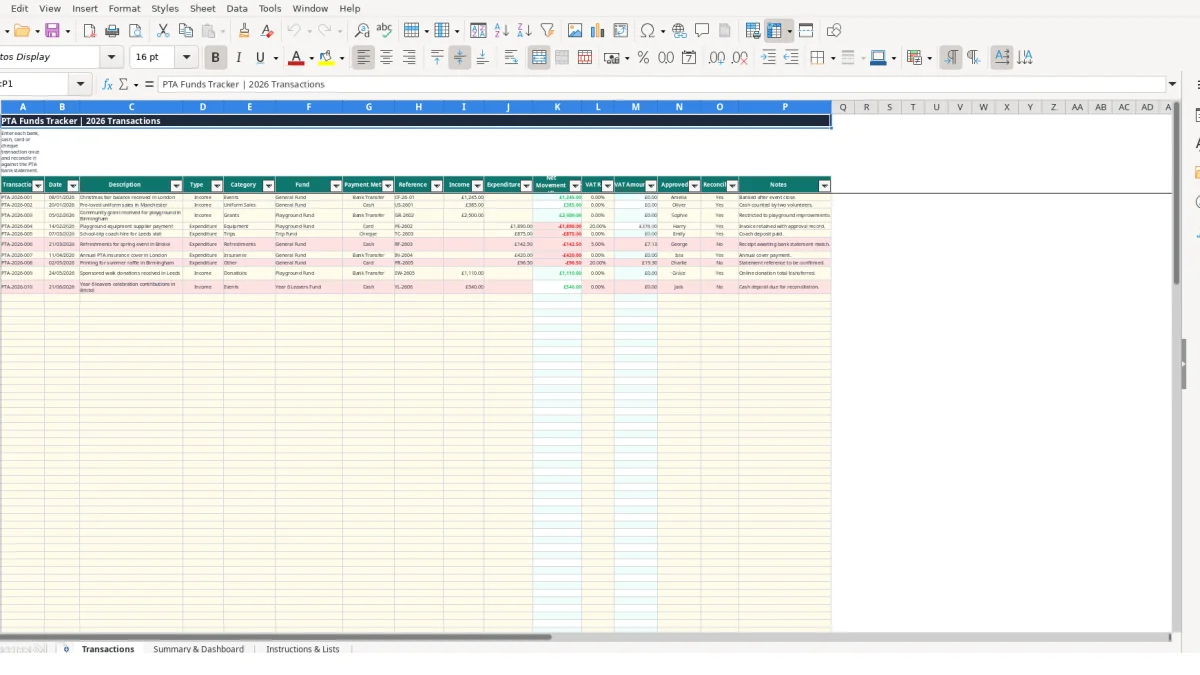
A PTA funds tracker Excel template records school fundraising income, expenditure and fund movements in one workbook. It contains a Transactions sheet for 100 entries, a Summary & Dashboard sheet for balances and monthly analysis, and an Instructions & Lists sheet for editable categories, funds, payment methods and VAT rates.
Enter each bank, cash, card or cheque transaction once, then use the calculated net movement and VAT amount fields to review the record. The workbook includes sample entries such as £1,245 from a Christmas fair, £385 from uniform sales and a £2,500 playground grant.
A PTA treasurer can use this workbook after each fundraising event, bank payment or cash collection. It suits a primary or secondary school committee that needs one transaction record rather than separate notes for events, grants, uniform sales and trips.
Suppose a Christmas fair produces £1,245 of income on 08/01/2026. The treasurer can enter the event in Transactions, select Income, choose Events and allocate it to General Fund. A later £385 uniform sale can be recorded separately, making it possible to distinguish two sources of money instead of combining them in a monthly total.
That distinction matters when several volunteers handle money. The workbook records Payment Method as Bank Transfer, Card, Cash or Cheque, while Reference provides a place for an event code such as CF-26-01 or US-2601. Approved By and Reconciled? add a practical handover between the volunteer collecting money, the person approving expenditure and the person checking the records.
A committee planning playground improvements can record a hypothetical £2,500 grant against Playground Fund rather than General Fund. A £1,100 playground supplier payment would then leave £1,400 from that fund before considering other entries. The Fund field keeps that activity separate from a Year 6 Leavers Fund or Trip Fund.
At a weekly meeting, the treasurer can review recent entries and outstanding No values in Reconciled?. At month-end, the Summary & Dashboard sheet provides January to December rows, allowing the committee to compare a particular month’s income and expenditure with the wider year.
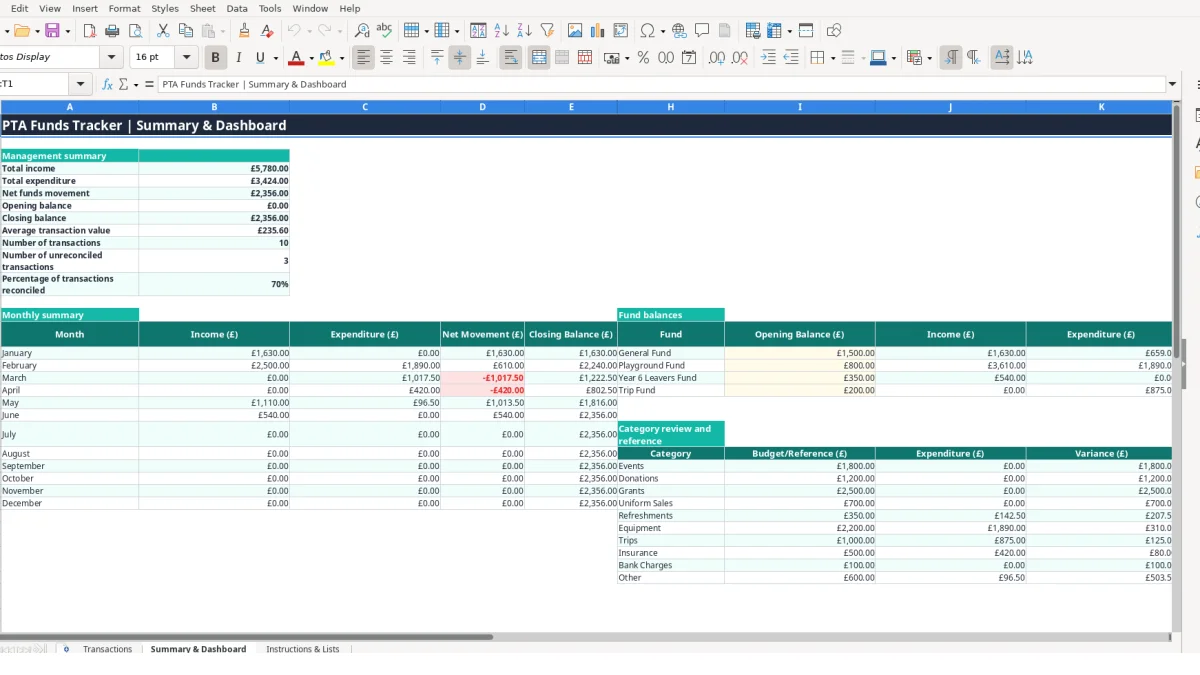
The dashboard is aimed at a committee that needs figures quickly: total income, total expenditure, net funds movement, closing balance, average transaction value and number of transactions. Its three charts use the monthly figures, fund income and current fund balances, so the meeting can discuss movement by month and purpose without rebuilding a report.
The Transactions sheet separates information you type from outputs calculated by Excel. You enter Income (£), Expenditure (£) and VAT Rate; the workbook calculates Net Movement (£) in column K and VAT Amount (£) in column M for rows 4 to 103.
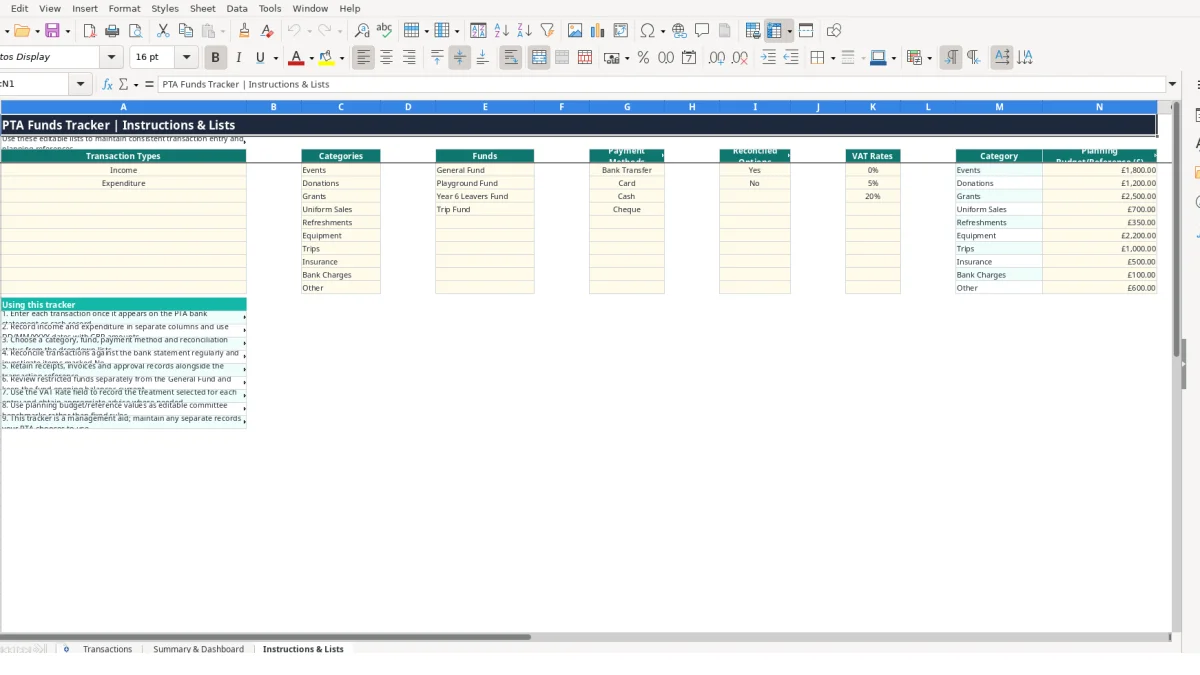
Type and status fields use lists rather than unrestricted text. Type is limited by the list containing Income and Expenditure; Fund uses General Fund, Playground Fund, Year 6 Leavers Fund and Trip Fund; Payment Method uses Bank Transfer, Card, Cash and Cheque. This is a sound design choice because General Fund and general fund would otherwise become separate labels in a summary.
Category also uses a controlled list, including Events, Donations, Grants, Uniform Sales, Refreshments, Equipment, Trips and Insurance. Reconciled? uses Yes or No. Amount entry in I4:J103 is restricted to decimal values from zero, which helps prevent text such as £100 cash from entering a calculation field.
For a hypothetical £600 income and £125 expenditure on one row, column K returns £475 because its formula subtracts expenditure from income. If the row has no Transaction ID, the formula returns a blank, keeping unused rows clear.
VAT Amount uses expenditure multiplied by the selected VAT Rate when expenditure is above zero; otherwise it returns zero. For example, £200 expenditure at the illustrative 5% list value gives £10.00, while £200 at 0% gives £0.00. Treat the listed rates as workbook inputs and confirm any treatment separately rather than treating the template as tax advice.
Summary & Dashboard totals the Transactions ranges with SUM and uses COUNTIF for transaction and unreconciled counts. Its monthly rows use date boundaries, while the fund section uses Fund values to total income and expenditure. A current balance of £900 is labelled On track when it is above zero and Review when it is not; that label is a workbook check, not a financial judgement.
The most damaging problem in a PTA record is often not a complex formula but an incomplete row. If a £450 trip payment is entered in Expenditure but the Fund field is left blank or assigned to General Fund, the overall expenditure total may still be correct while the Trip Fund balance is wrong. The committee could then approve spending against an inaccurate fund position.
Each row is intended to represent one transaction, with income and expenditure in separate columns. If a volunteer enters £900 in both columns for a transfer that should have been recorded once, Net Movement becomes £0 rather than the intended £900 movement. On 12 similar entries, that could hide £10,800 of movement in a clearly hypothetical example.
Do not replace the formulas in K4:K103 or M4:M103 with typed figures. If a calculated £475 net movement is overwritten with £500, the row may look plausible but no longer agrees with the £600 income and £125 expenditure behind it. Correct the source amounts instead.
Cash and cheque entries need a reference and a clear reconciliation decision. Imagine 15 transactions in a month, including three cash collections totalling £620. If those three rows remain marked No, the dashboard’s unreconciled count identifies the issue; changing them to Yes without checking the supporting record removes the warning without resolving the difference.
The monthly summary uses date ranges for January through December 2026. A £300 event receipt dated 31/03/2026 appears in March, but a mistyped date of 01/04/2026 moves it to April. That can change two monthly totals and the cumulative closing balance even though the annual total remains unchanged.
Make the Transactions sheet part of the PTA’s existing money-handling routine rather than a task saved for the end of term. A treasurer might enter receipts every Friday, update expenditure after the weekly approval meeting and reconcile the bank records before the monthly committee pack is prepared.
Work from the source documents in the same order each time: assign the next Transaction ID, enter the date and description, select the fund and category, add the amount, then complete approval and reconciliation. For example, reviewing 12 monthly entries in one sitting is more manageable when each row follows the same sequence.
When the PTA introduces a new activity, update Instructions & Lists and use the relevant list consistently. Planning references such as Events £1,800, Donations £1,200 and Grants £2,500 can provide a committee discussion point, but they are not connected to the transaction formulas in the manifest, so compare them manually with actual results.
Save a dated copy after each month-end review and restrict formula editing to the person maintaining the workbook. The Transactions sheet has 100 prepared rows, so review the remaining capacity before adding a new term’s records.
Consider a more formal finance system when several people edit the file simultaneously, the 100-row capacity is regularly exceeded, or the PTA needs audit trails, bank-feed matching or more detailed permissions. Until then, consistent entry, documented references and a fixed monthly review make this workbook easier to hand over when committee roles change.
There are three sheets: Transactions, Summary & Dashboard, and Instructions & Lists. Transactions holds the records, Summary & Dashboard calculates management figures and charts, and Instructions & Lists contains editable reference values.
The prepared transaction area runs from row 4 to row 103, providing 100 rows. Each row includes fields for identification, dates, descriptions, amounts, funds, approval, reconciliation and notes.
The included fund values are General Fund, Playground Fund, Year 6 Leavers Fund and Trip Fund. You can review or maintain the lists on Instructions & Lists.
Yes. Select a VAT Rate and enter expenditure; VAT Amount (£) is calculated automatically. The list contains 0%, 5% and 20% values. Confirm the correct treatment for each transaction separately, as the workbook is not tax advice.
Yes. Mark each row Yes or No in Reconciled?. Summary & Dashboard counts entries marked No and calculates the percentage of transactions marked as reconciled.
It shows total income, total expenditure, net funds movement, opening balance, closing balance, average transaction value, transaction count and unreconciled transaction count. It also includes monthly, fund-income and current-fund-balance charts.
Excel template by
Guide written by