Freelance Invoice Excel – Free Template (2026)
7
Free download
Service charge budget Excel template for UK property managers, with VAT calculations, actual spend, forecasts, variances and category summaries.


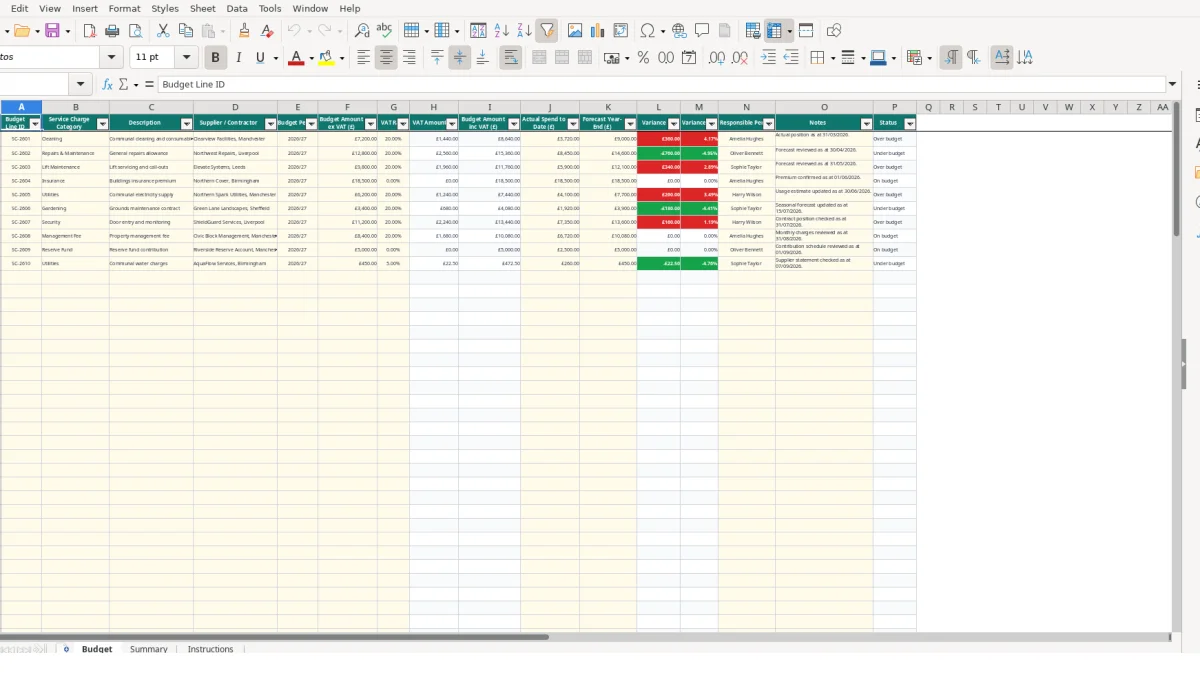
This service charge budget Excel template helps you plan and monitor property expenditure by category, supplier and budget period. It contains a detailed Budget sheet, a Summary sheet with calculated KPIs and charts, and an Instructions sheet explaining the workflow.
Enter budget amounts excluding VAT, select the applicable VAT rate, and record actual spend and forecast year-end costs. The workbook calculates VAT, inclusive totals, variances and status for up to 100 budget lines.
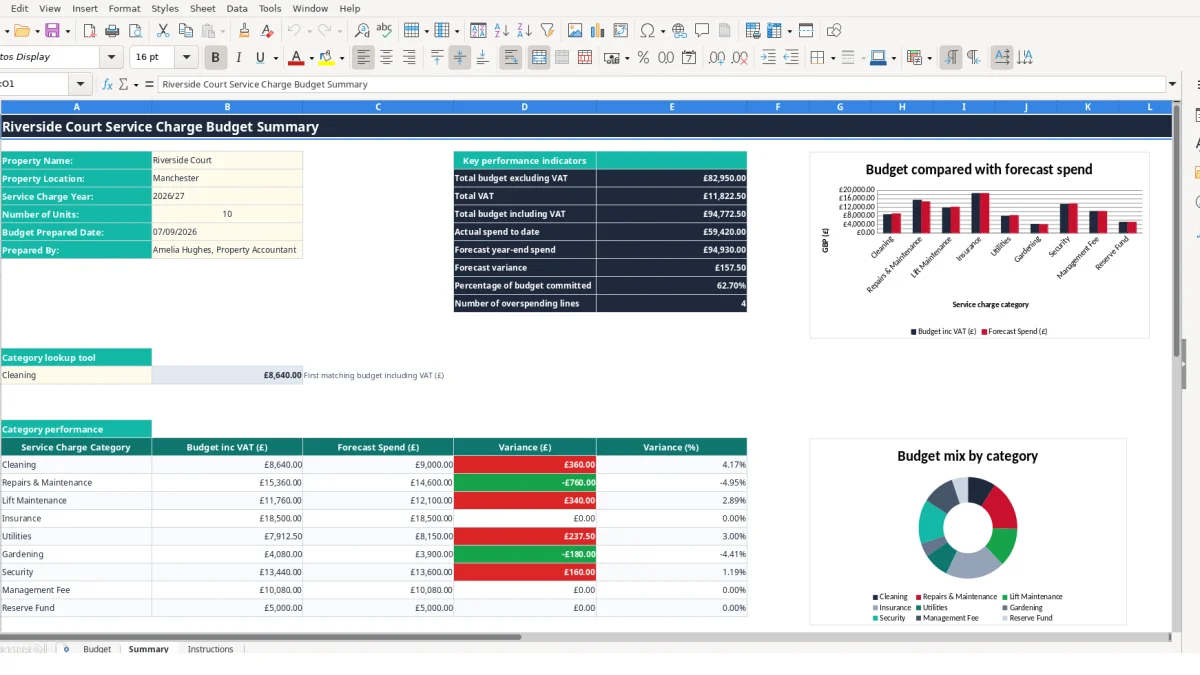
A property manager, managing agent, property accountant or residents’ management company can use this workbook when preparing a new service charge budget or reviewing the current year’s position. The sample Summary records Riverside Court in Manchester, with 10 units and a 2026/27 service charge year, so you can see how property-level information sits separately from individual expenditure lines.
Use the Budget sheet when supplier quotations, contracts and planned works are being brought together. For example, the sample Cleaning line has a £7,200 budget excluding VAT, a 20% VAT input, and a calculated inclusive budget of £8,640. The Repairs & Maintenance line starts at £12,800 excluding VAT, giving £15,360 including the sample VAT input.
This structure is useful when costs have different owners and supporting documents. One person can be responsible for communal cleaning while another monitors repairs, lift servicing or utilities. The Responsible Person field records that ownership beside the financial figures rather than leaving it in a separate email or note.
During a monthly property review, update Actual Spend to Date and Forecast Year-End for each relevant line. The sample lift maintenance row shows £5,900 actual spend and a £12,100 year-end forecast against an inclusive budget calculated from £9,800 excluding VAT. That gives the reviewer a specific line to investigate rather than relying only on a total.
The Summary sheet then groups the nine listed categories, including Insurance, Gardening, Security, Management Fee and Reserve Fund. This is particularly useful when a meeting needs both the overall position and a category-level explanation of movement.
The Budget sheet separates entered values from calculated outputs. You enter the amount excluding VAT in column F and select a VAT rate in column G; column H calculates VAT, while column I adds the two figures. For a hypothetical £10,000 budget at 20%, the workbook produces £2,000 VAT and £12,000 including VAT.
Actual Spend to Date is entered in column J and Forecast Year-End in column K. Column L calculates Forecast Year-End less Budget Amount inc VAT. A forecast of £14,600 against an inclusive budget of £15,360 produces a hypothetical variance of -£760, while the status formula labels that line Under budget.
Column M expresses the variance as a percentage of the inclusive budget. If the inclusive budget is £15,360 and the variance is -£760, the result is approximately -4.95%. Where the inclusive budget is zero, the formula returns zero rather than attempting a division by zero.
The Summary KPIs use the prepared Budget range from rows 2 to 101. SUM calculates totals for columns F, H, I, J and K; the forecast variance is forecast total less inclusive budget, and COUNTIF counts lines where the variance is greater than zero.
Category analysis uses SUMIF to compare inclusive budget and forecast spend for each category in rows 20 to 28. The lookup tool uses VLOOKUP against the Budget category-to-inclusive-budget range and returns the first matching budget value. This means category names should be selected from the validation list rather than typed inconsistently.
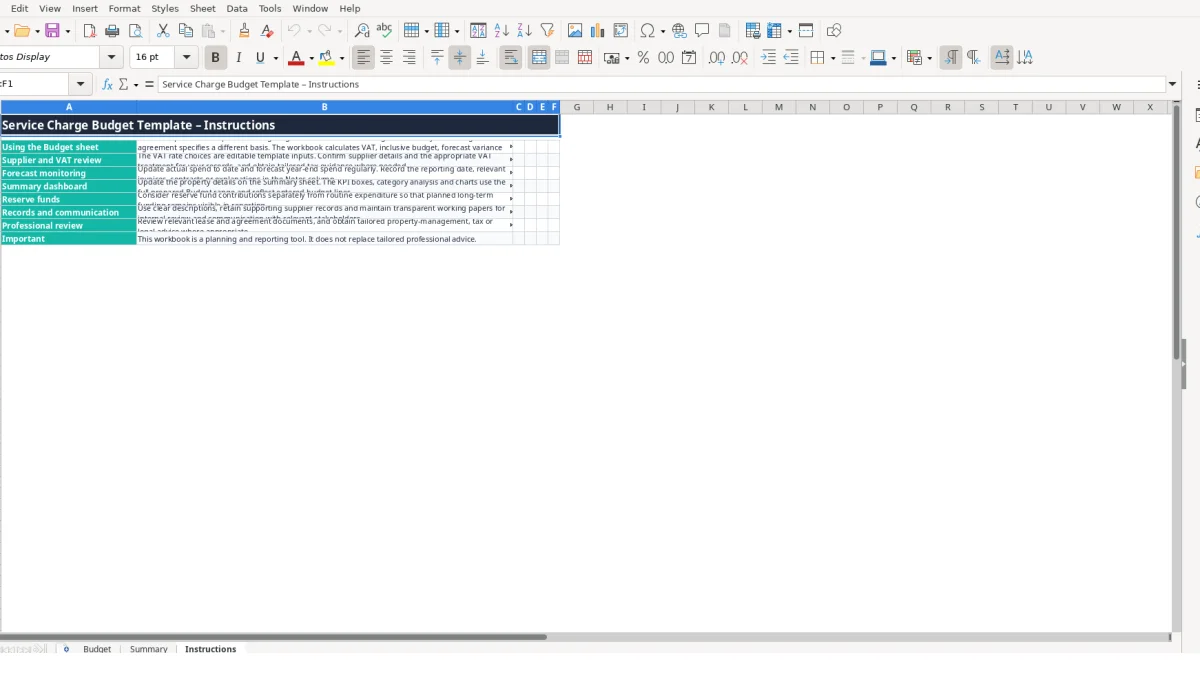
The most damaging error is mixing VAT bases between rows. If a £7,200 cleaning budget is entered excluding VAT but another cost is entered including VAT, the Summary compares unlike figures. The Instructions sheet specifically says that budget figures are entered excluding VAT unless the management agreement specifies a different basis, so record the chosen basis consistently and review supplier treatment separately.
A budget can appear controlled while the forecast is stale. In the sample Repairs & Maintenance row, £8,450 has been spent and the forecast is £14,600, compared with a calculated inclusive budget of £15,360. If a new quotation raised the expected year-end cost to £17,000 but column K remained unchanged, the apparent variance would be understated by £2,400.
That difference is large enough to change the conversation from monitoring to investigation. Add the review date and explanation in Notes so another reviewer can distinguish a current forecast from an old estimate.
SUMIF depends on the category text matching the labels in the Summary. Typing Lift servicing instead of selecting Lift Maintenance can leave the category analysis incomplete, even though the line still contains a valid amount. With 12 lines averaging £500, one omitted £500 forecast changes the category total and may distort the reported variance.
The validation list reduces this risk, but it does not replace review. Check blank rows, duplicate line IDs, missing suppliers and unassigned responsible people before relying on the KPI count. Also remember that the VLOOKUP tool returns the first matching category line, not a category total; use the category performance table for aggregation.
Set a fixed review point that already exists in your property-management routine, such as the monthly invoice review. Open the Budget sheet, update actual spend and forecast year-end figures, then record the review date and supporting explanation in Notes. A 30-minute review of 20 active lines is more manageable than reconstructing 12 months of movement at year-end.
Keep the Budget table as the detailed record and use Summary for communication. That separation is preferable to manually retyping totals into a report because the Summary formulas update from the Budget range. The two charts provide a quick comparison of category budget and forecast values, but investigate the underlying rows before drawing conclusions.
This template suits a controlled property budget with up to 100 prepared lines and a small group of named users. If several properties, frequent approvals, document attachments, audit trails or live accounting integrations are required, a dedicated property or finance system may reduce duplication and access risk.
Until then, keep one controlled working file, agree who updates each field and retain the supplier records that support the figures. The Instructions sheet is clear that the workbook is a planning and reporting tool, not a replacement for tailored property-management, tax or legal advice.
It calculates VAT amount, budget amount including VAT, forecast variance in pounds, variance percentage and a status for each Budget line. The Summary sheet also calculates property-wide totals and category performance.
The prepared BudgetLines table covers rows 2 to 101, providing space for 100 budget lines. The Summary formulas use this full prepared range.
The VAT Rate dropdown contains 0%, 5% and 20%. Review the appropriate treatment for each supplier and your records; the Instructions sheet recommends obtaining tailored tax guidance where needed.
Yes. Enter cumulative spending in Actual Spend to Date and the expected total in Forecast Year-End. The Budget sheet compares the forecast with the inclusive budget and calculates the resulting status.
The category list includes Cleaning, Repairs & Maintenance, Lift Maintenance, Insurance, Utilities, Gardening, Security, Management Fee and Reserve Fund. You can select these categories from the Budget dropdown.
No. The Instructions sheet describes the workbook as a planning and reporting tool. Review relevant lease and agreement documents and obtain tailored property-management, tax or legal advice where appropriate.
Excel template by
Guide written by