IR35 Status Excel Template – Free UK (2026)
0
Free download
Track daily attendance, working hours, lateness, overtime and absences with an Attendance Log, Dashboard and Instructions sheet.


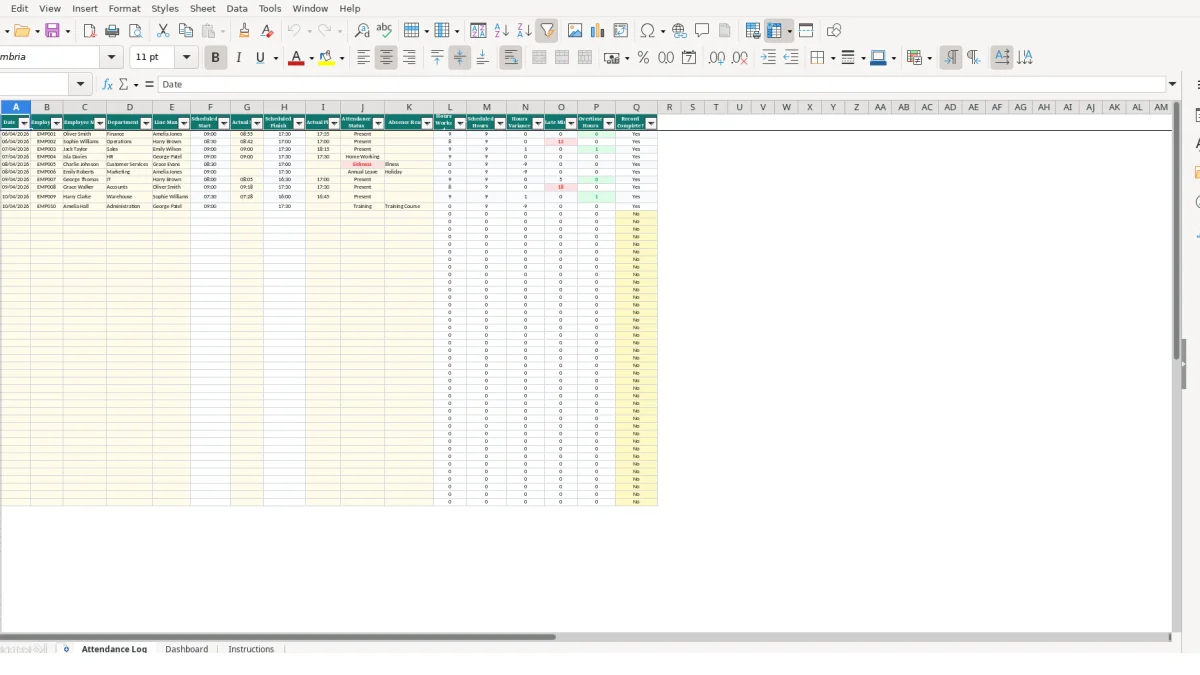
This employee attendance tracker Excel template records each employee’s daily attendance, scheduled and actual times, absence status, lateness and overtime. It includes an Attendance Log, a Dashboard with calculated summaries and charts, and an Instructions sheet for day-to-day use.
Use one row for each employee on each working day. Enter the date, employee details, planned and actual working times, then choose an attendance status; the workbook calculates worked hours, variances, late minutes and overtime hours.
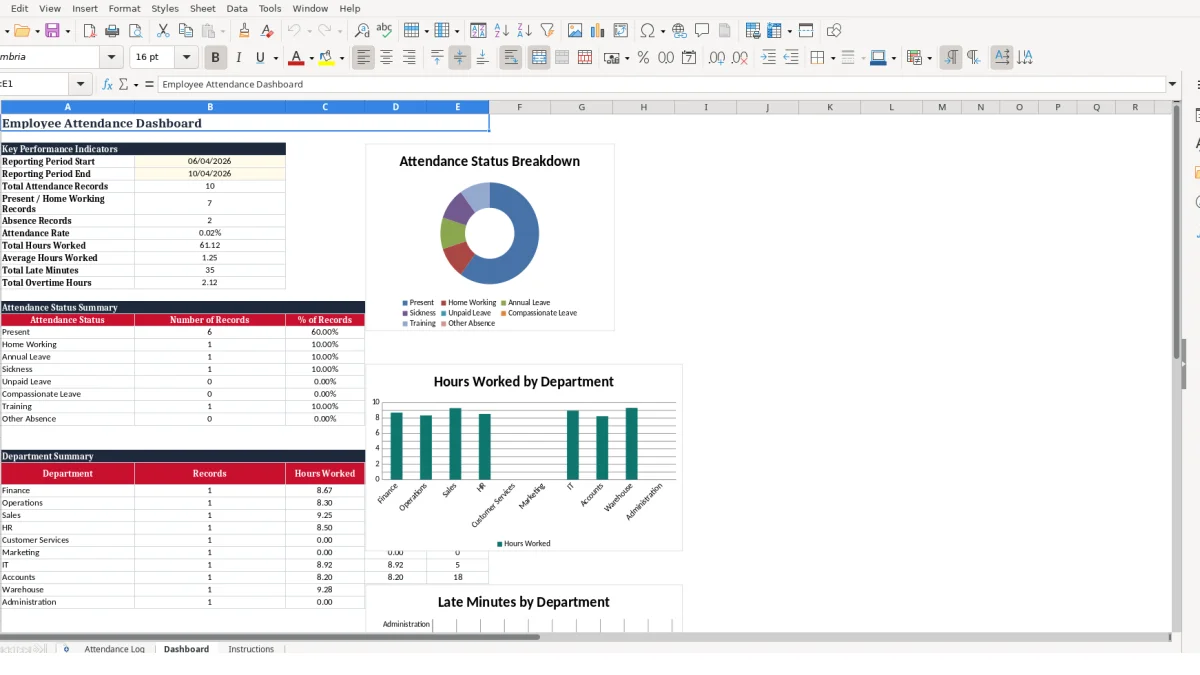
An employee attendance tracker Excel template suits a small business that needs a daily operational record without asking every manager to build their own worksheet. It is particularly useful where staff work different start times, move between office and home working, or report to separate line managers.
A facilities manager might enter 12 employees across five working days, creating 60 attendance rows for a single week. A line manager can then filter the Attendance Log by their name and review the actual start, actual finish and status for their own team.
Use the tracker during the working week when punctuality and cover decisions need current information. For example, an Operations team member scheduled from 08:30 to 17:00 but arriving at 08:42 produces 12 late minutes; that is visible in the Late Minutes column without manually subtracting times.
The supplied example also shows a Finance employee scheduled from 09:00 to 17:30 who works from 08:55 to 17:35. That row produces 8.67 hours worked against 8.50 scheduled hours, a 0.17-hour variance and 0 late minutes.
HR administrators can use one consistent status field for Present, Home Working, Annual Leave, Sickness, Unpaid Leave, Compassionate Leave, Training and Other Absence. This is a better operational choice than writing status descriptions in free text, because the Dashboard counts each listed status using COUNTIF.
Where an absence status is chosen, enter an Absence Reason as well. Keep the detail proportionate and restrict access to the workbook because the log holds employee names, IDs, departments, managers and attendance information.
At a weekly review, the Dashboard provides status totals, total hours worked, average hours, total late minutes and overtime hours. A manager comparing two departments can use the department summary rather than adding rows by hand.
Image 1 shows the Attendance Log sheet, while image 2 shows the Dashboard sheet. The workbook is designed for operational monitoring; it does not replace PAYE, holiday pay or statutory payment calculations.
The Attendance Log separates inputs from calculated results. You enter the employee and time fields in columns A to K, while columns L to Q calculate working-time measures and whether the row contains the core information needed for a record.
This separation is the right design for attendance data. Do not type over the formulas in Hours Worked, Scheduled Hours, Hours Variance, Late Minutes, Overtime Hours or Record Complete?, because a pasted value will stop that row updating.
Hours Worked uses the actual finish less actual start, multiplied by 24. If Actual Start is 08:42 and Actual Finish is 17:00, the result is 8.30 hours; if either time is blank, the formula returns 0.
Scheduled Hours follows the same method using Scheduled Start and Scheduled Finish. The Hours Variance field is simply Hours Worked minus Scheduled Hours, so a worker completing 8.30 hours against 8.50 scheduled hours has a -0.20-hour variance.
Late Minutes calculates Actual Start less Scheduled Start and multiplies the difference by 1,440. The MAX function keeps the lowest result at zero, so an 08:55 arrival for a 09:00 start is not reported as minus five late minutes.
Overtime Hours also uses MAX to show only positive differences between worked and scheduled hours. In the sample-style scenario of 08:55 to 17:35 against 09:00 to 17:30, the employee has 0.17 overtime hours, not a negative or duplicated value.
The Dashboard formulas read Attendance Log rows 2 to 100. Total Attendance Records counts rows marked Yes in Record Complete?, while present and home-working records are counted together for the relevant KPI.
The attendance rate divides complete records by the reporting-period end value held in B5 only where B5 is not zero, as defined by the workbook formula. Treat the Reporting Period Start and Reporting Period End fields as reporting labels and check the underlying log before relying on a summary.
The most expensive attendance errors usually start with incomplete rows, not complicated formulas. A missing employee ID, name, date or attendance status makes Record Complete? return No, so that row is excluded from the Dashboard’s total attendance-record count.
For example, if a manager enters 25 rows but leaves the status blank on three of them, the Dashboard counts 22 complete records. That difference can make a weekly status review look quieter than the underlying log actually is.
The workbook has two data validations, including the attendance-status selection workflow. Use the available status values exactly as provided rather than typing alternatives such as “WFH”, “off sick” or “holiday”, because Dashboard formulas count named status values including Home Working, Sickness and Annual Leave.
If four home-working rows are typed as WFH, they will not be included in the Home Working count. The technical judgement is clear: select from validation wherever it is available, and reserve Absence Reason for the supporting explanation rather than creating new categories.
Actual times drive worked hours, lateness and overtime. Entering 17:00 in Actual Start by mistake instead of Actual Finish can create a zero or implausible result, while leaving a time blank returns zero because the formula is designed to avoid errors.
Check time entries in pairs. A 09:00 scheduled start and 17:30 scheduled finish equals 8.50 scheduled hours, whereas an 08:55 actual start and 17:35 actual finish equals 8.67 worked hours; those figures provide a quick reasonableness check.
Overtime Hours is a time variance, not an instruction to pay overtime. A total of 2.50 hours across several rows may prompt a manager review, but the workbook does not calculate pay, National Insurance, holiday pay or statutory sick pay.
Keep a clear hand-off where payroll needs information. Confirm approved records separately rather than assuming every positive overtime value or absence entry is ready for payment processing.
That hand-off becomes clearer once the payroll team records approved amounts in a pay run record rather than treating overtime totals as a payment instruction.
An attendance tracker only becomes useful when updates happen close to the working day they describe. Set a fixed owner for each department and a fixed review point, such as the final 15 minutes of each working day or the first manager check on Friday.
A five-day team of eight people creates 40 rows each week. Leaving those rows until month-end means checking 40 dates, times and statuses from memory; entering them daily reduces the correction work to the day’s exceptions.
Use the frozen header row in Attendance Log when reviewing longer lists. The autofilter covering A1:Q50 is particularly useful for isolating a single department, a line manager or a status such as Sickness.
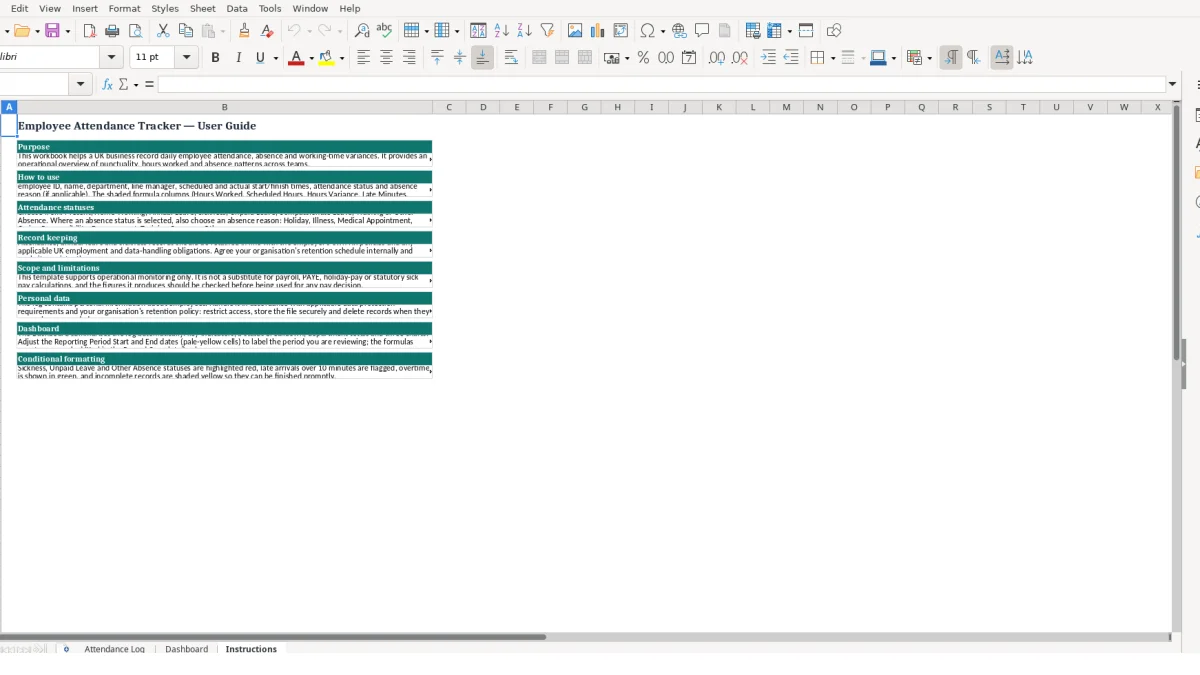
The workbook highlights Sickness, Unpaid Leave and Other Absence in red, flags late arrivals over 10 minutes, shows overtime in green and shades incomplete records yellow. Review these flags at the agreed weekly point, but check the source row before making a management decision.
For instance, two late arrivals of 12 and 18 minutes create 30 total late minutes on the Dashboard. That is a useful prompt to check the two actual start times and any relevant context, not evidence on its own of a pay or disciplinary outcome.
This workbook is practical for a controlled operational log, especially when one person maintains a consistent set of rows. Move to a dedicated system when multiple managers need simultaneous entry, audit trails, approvals, automated payroll links or detailed employee self-service.
Until then, keep one master file, control editing access and retain records according to your organisation’s HR policy and applicable GDPR requirements.
When multiple managers need simultaneous entry, weekly rota planning becomes the natural next step for keeping shifts, approvals and handovers in one controlled schedule.
For each row, it calculates Hours Worked, Scheduled Hours, Hours Variance, Late Minutes, Overtime Hours and whether the core record is complete. The Dashboard then totals attendance records, selected statuses, hours, lateness and overtime from the Attendance Log.
The workbook lists Present, Home Working, Annual Leave, Sickness, Unpaid Leave, Compassionate Leave, Training and Other Absence. Where you choose an absence status, also complete the Absence Reason field.
Late Minutes is calculated from Actual Start minus Scheduled Start, converted to minutes. The formula uses MAX so an employee arriving early receives 0 late minutes rather than a negative result.
Record Complete? shows No unless the Date, Employee ID, Employee Name and Attendance Status fields are all completed. Check those four fields first, then review the rest of the row for operational completeness.
No. The Instructions sheet states that the workbook supports operational monitoring only and is not a substitute for payroll, PAYE, holiday-pay or statutory sick pay calculations.
The Dashboard includes reporting period fields, key performance indicators, an attendance status summary, a department summary and three charts. Its formulas read Attendance Log rows 2 to 100, so keep source entries consistent with the listed status values.
Excel template by
Guide written by