Chore Chart Excel Template – Free (2026)
0
Free download
Plan posts, approvals, campaigns and performance across six platforms with this UK social media planner Excel template.


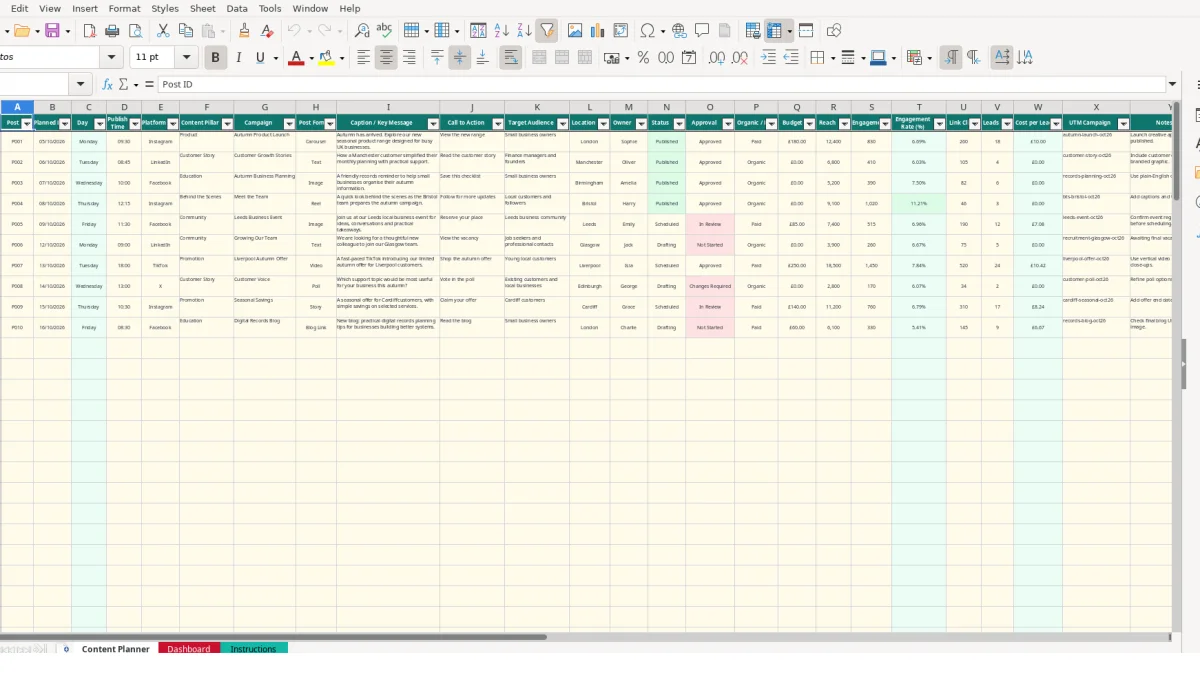
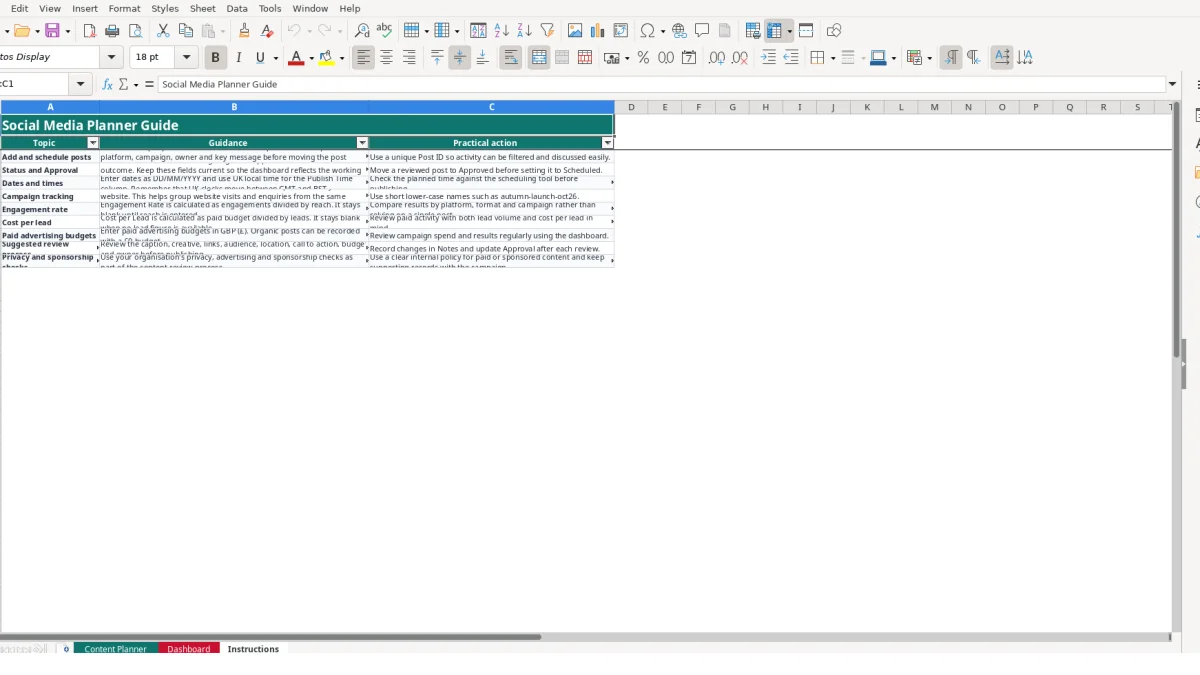
This social media planner Excel template organises up to 100 posts across Instagram, Facebook, LinkedIn, TikTok, X and YouTube. It contains a Content Planner for dates, captions, campaigns, approvals, budgets and results, a Dashboard for performance summaries, and an Instructions sheet for the working process.
Use one row for each post, from the first idea through drafting, approval, scheduling and publication. The workbook calculates the day from the planned date, engagement rate from engagements and reach, and cost per lead from budget and leads where the required figures are available.
A small business owner can use this workbook during a weekly marketing meeting to turn campaign ideas into dated publishing tasks. A social media manager can coordinate several brands, while a content executive can filter the Content Planner by owner, platform, campaign or Status before the next production session.
The workbook is built around a complete publishing record. For example, P001 is an Instagram carousel planned for 05/10/2026 at 09:30, assigned to Sophie, linked to the Autumn Product Launch campaign and aimed at small business owners in London. The row also records its message, call to action, approval state and paid budget.
The Content Pillar, Campaign, Post Format, Caption / Key Message, Call to Action and Target Audience fields help you check whether a week contains a useful mixture of product, education, customer story, promotion and community content. A coordinator planning 12 posts for a month can see who owns each item and whether it is an Idea, in Drafting or Scheduled.
Use Organic / Paid to distinguish unpaid publishing from advertising. A paid post with a £180 budget, 12,400 reach, 830 engagements and 18 leads provides a stronger review record than a caption and date alone. An organic LinkedIn post can remain in the same workflow with a £0 budget, 6,800 reach and 410 engagements.
The Location dropdown includes London, Manchester, Birmingham, Leeds, Bristol, Glasgow, Liverpool, Edinburgh and Cardiff. This lets you identify local campaigns consistently instead of entering several different spellings.
The workbook separates input fields from calculated outputs. You enter Planned Date, while the Day column uses a formula based on WEEKDAY to return Monday through Sunday. Entering 05/10/2026 therefore produces Monday; changing the date changes the result automatically.
Engagement Rate is calculated as engagements divided by reach. With 830 engagements and 12,400 reach, the result is approximately 6.69%. The formula remains blank when reach is empty or zero, avoiding a misleading result before performance data is available.
Cost per Lead is calculated as budget divided by leads. A paid post with a £180 budget and 18 leads produces £10.00 per lead. The output remains blank when the lead figure is unavailable or zero.
Seven validation lists reduce inconsistent entries. Platform values are limited to Instagram, Facebook, LinkedIn, TikTok, X and YouTube. Status values run from Idea to Cancelled, while Approval values include Not Started, In Review, Approved and Changes Required.
This consistency matters because Dashboard formulas use functions such as COUNTIF, COUNTIFS, SUM, AVERAGE, SUMIF and AVERAGEIF. If you type a different platform name instead of using the list, that row may not be included in the intended summary.
The Content Planner has an auto-filter on A1:Y101 and freezes row 1. Keep the 100 planning rows and calculated columns intact so the Dashboard continues to reflect the source records.
The most damaging error is allowing the same platform or status to appear under different spellings. Entering LinkedIn correctly in one row and a variation such as Linked In in another would split the platform totals because the Dashboard groups records by exact text. Use the dropdown rather than typing over validated cells.
A row with a date and caption but no owner, approval outcome or Status may look planned while remaining impossible to progress. If a team has 12 posts and four still show Not Started in Approval, the Dashboard's Posts not approved figure should expose that gap. Leaving Approval unchanged after review makes the approved percentage appear lower than the team's actual position.
Dates and times can also create publishing confusion. The Instructions sheet specifies DD/MM/YYYY and UK local time for Publish Time, including awareness that UK clocks move between GMT and BST. A post entered as 10:00 but interpreted differently by a scheduling tool could miss its intended slot.
Engagement rate is meaningful only when Reach and Engagements refer to the same post and reporting period. Pairing 830 engagements with 12,400 reach gives approximately 6.69%; entering reach from another campaign creates a precise-looking but invalid comparison.
UTM Campaign names can fragment website reporting too. Using autumn-launch-oct26 for one link and a different spelling for another separates activity outside this workbook. Finally, do not replace formulas in Day, Engagement Rate or Cost per Lead with typed values, because later changes to the source figures will not update those results.
Make the workbook part of an existing weekly marketing meeting rather than treating it as separate administration. Add new ideas on Monday, complete captions and creative details during production, review Approval before scheduling, and enter results after each platform reports its figures.
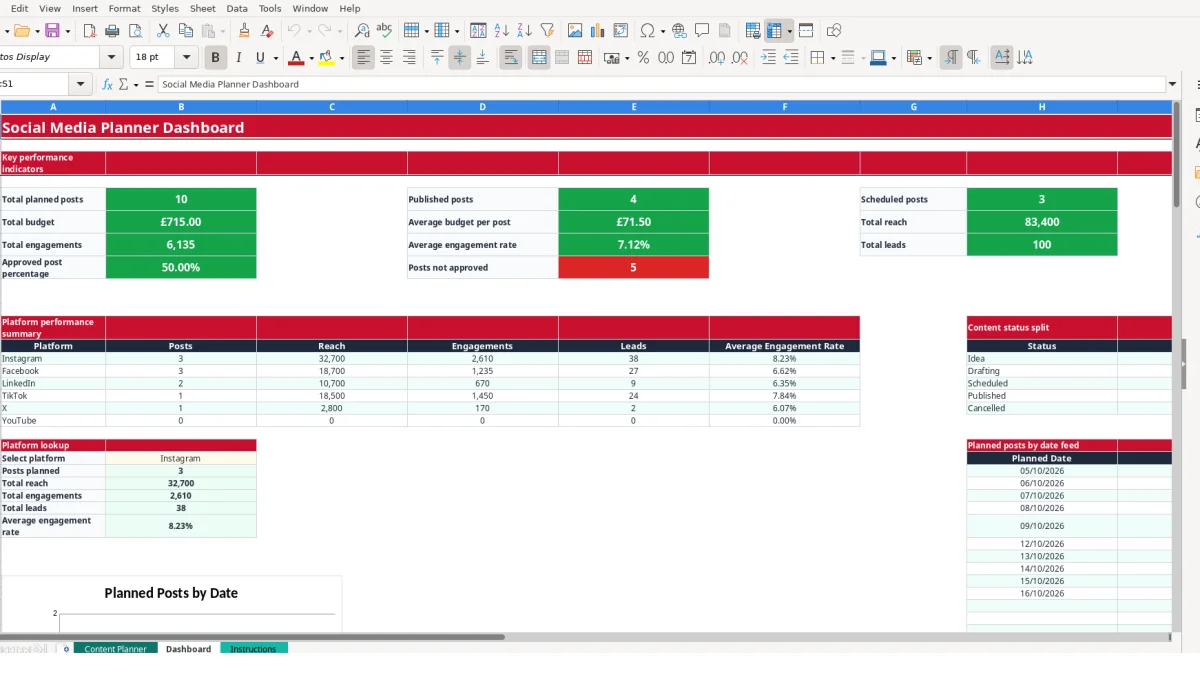
For example, a team with 15 planned posts can first review the status split, then use the platform summary to decide whether the next batch needs more LinkedIn, Instagram or another supported channel. The Dashboard's four charts and platform lookup provide a quicker starting point than adding figures manually.
Use the dropdowns every time and agree one campaign naming pattern, such as autumn-launch-oct26. Keep one row per post and use Post ID in meetings, so a discussion about P007 points to one record rather than several copied notes.
Review Dashboard after results have been entered. A total budget of £180, 12,400 reach and 18 leads is useful only when the underlying post has a current Status, Approval outcome and consistent campaign name.
You may have outgrown the workbook when several people need simultaneous editing, the 100-row range is regularly full, or you need automated imports and deeper historical analysis. At that point, assess a dedicated content management or marketing analytics system.
The Content Planner provides rows 2 to 101, giving you 100 post records. Each row has a Post ID and 25 columns covering planning, workflow, campaign and performance information.
The platform dropdown includes Instagram, Facebook, LinkedIn, TikTok, X and YouTube. The Dashboard summarises post count, reach, engagements, leads and average engagement rate for each platform.
Yes. Engagement Rate is calculated as engagements divided by reach. For example, 830 engagements divided by 12,400 reach gives approximately 6.69%; the cell remains blank when reach is empty or zero.
Yes. Select Paid in Organic / Paid and enter the budget in pounds. If leads are available, Cost per Lead is calculated as budget divided by leads; £180 and 18 leads gives £10.00.
Use Approval for Not Started, In Review, Approved or Changes Required, and Status for Idea, Drafting, Scheduled, Published or Cancelled. The Instructions sheet recommends moving a reviewed post to Approved before setting it to Scheduled.
The Dashboard contains key performance indicators, platform performance summaries, a content status split, a platform lookup and a planned posts by date feed. It also includes four charts and formulas for totals, averages and counts from Content Planner.
Excel template by
Guide written by