Freelance Invoice Excel – Free Template (2026)
7
Free download
Record sole trader income, expenses, VAT and receipts with a Transactions sheet, Dashboard and category lookup instructions.


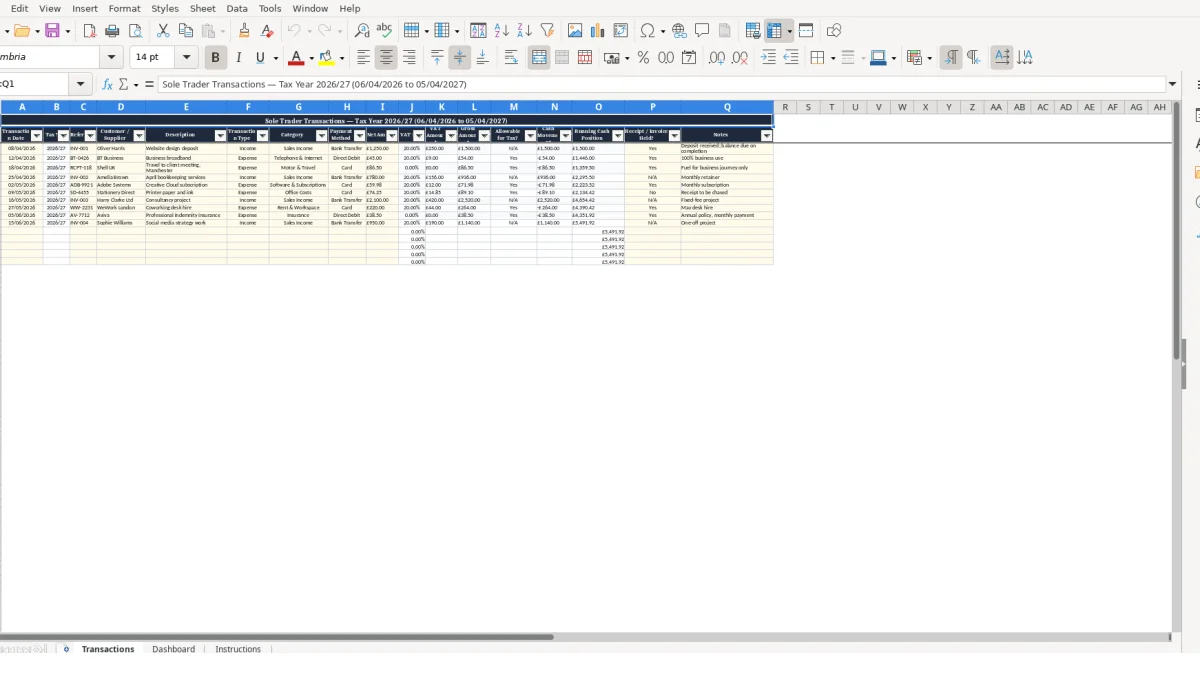
This sole trader accounts Excel template records business income and expenses in one Transactions sheet, then calculates gross amounts, cash movement, running cash position and dashboard totals. It is designed for UK sole traders who need orderly records for the 2026/27 tax year.
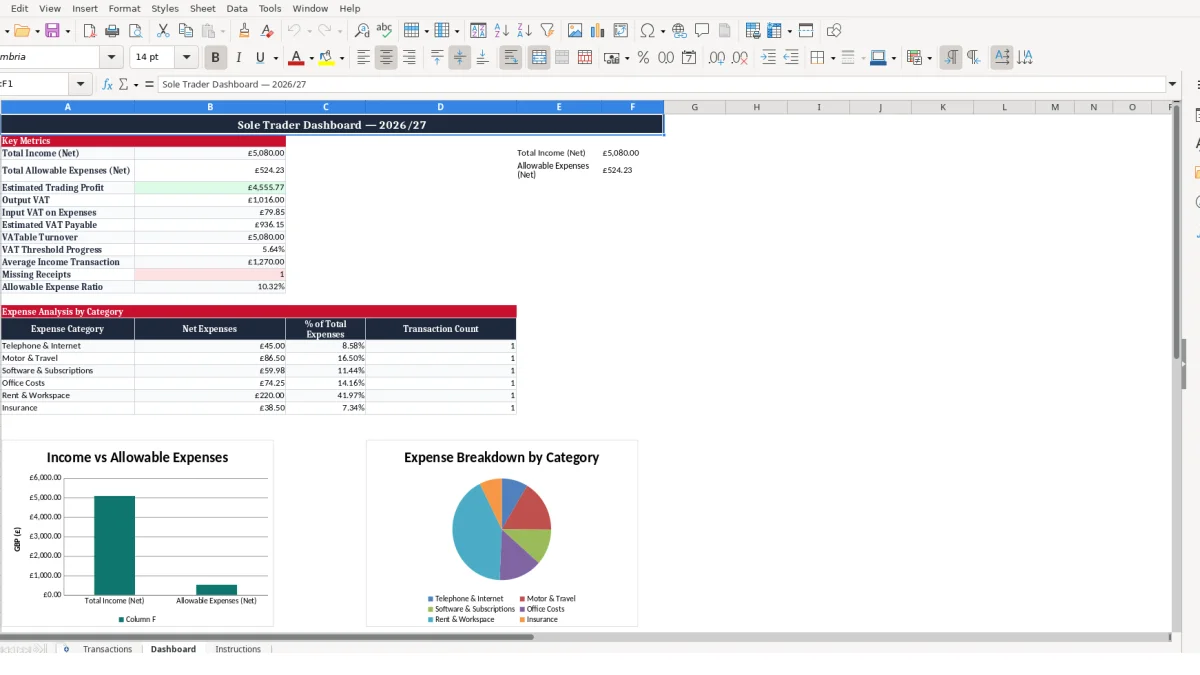
You enter the transaction date, reference, customer or supplier, category, payment method and net amount. The workbook uses the selected category to return its VAT treatment and allowable-status result, while the Dashboard summarises income, expenses, estimated trading profit and missing receipts.
A sole trader often needs a practical record before the year-end, not a complex accounting system. This workbook suits a freelance designer, tradesperson, consultant or online seller who receives payments directly and pays recurring business costs from a bank account or card.
The Transactions sheet is especially useful when your records arrive from several places: invoices, bank transfers, direct debits and card receipts. Instead of trying to reconstruct a quarter from a bank statement, you capture the commercial reason for each movement as it happens.
A web designer might record a £1,250 net website deposit as Income with reference INV-001, then add the customer name and a note that the balance is due on completion. The supplied sample row shows this exact type of transaction, with a bank transfer and a receipt or invoice held status.
If the same project involves £45 net business broadband by direct debit, that is entered separately as an Expense under Telephone & Internet. Two rows preserve the distinction between money earned from a customer and a supplier cost, rather than leaving one unexplained difference in a bank balance.
A self-employed photographer may have software subscriptions, travel and insurance across a month. The Dashboard groups expenses into six listed categories, including Motor & Travel and Software & Subscriptions, so you can see both the total cost and the number of entries behind it.
For example, four £30 software entries create £120 of net expenditure and a transaction count of 4 in that category analysis. That is more useful than a single monthly total when you need to question whether duplicate subscriptions have been recorded.
The Receipt / Invoice Held? field makes this spreadsheet useful at the point a transaction is recorded, rather than only when figures are needed later. A sole trader can mark a £275 supplier payment No while the invoice is still missing, then use the Dashboard count to chase it.
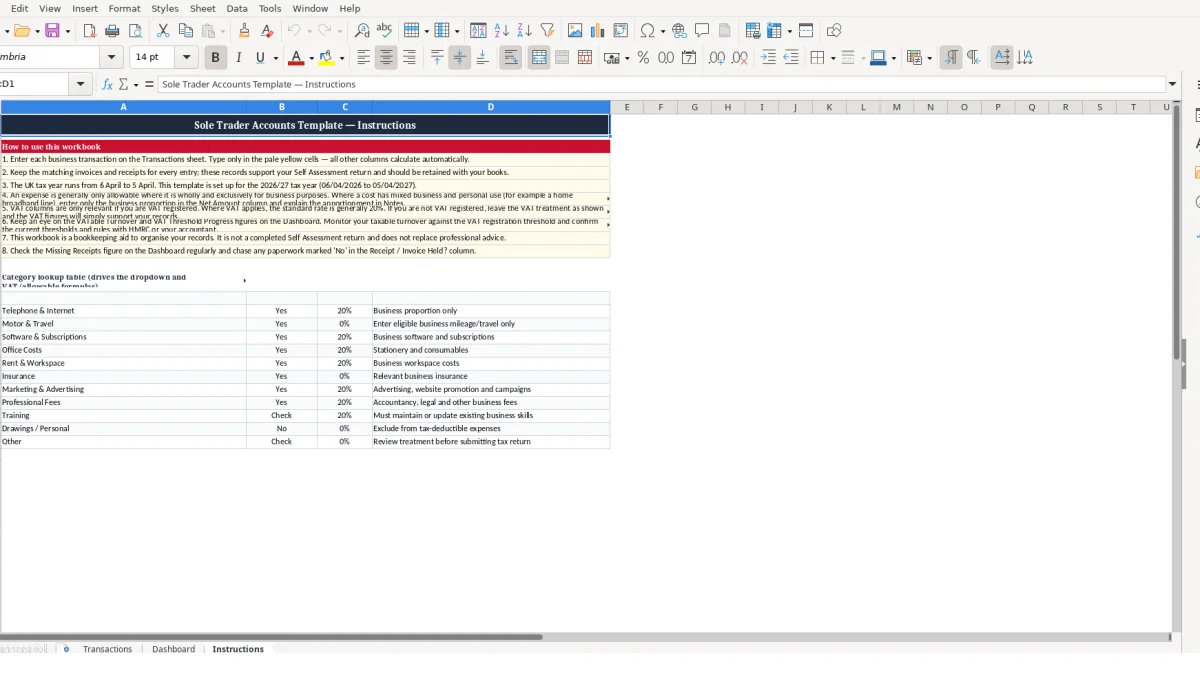
Image 1 shows the Transactions sheet and image 2 shows the Dashboard. Use image 3, the Instructions sheet, when you need to check the available categories and the notes attached to them.
The key technical choice in this workbook is to enter the net amount once and let the adjacent columns calculate the VAT amount and gross amount. This is safer than typing three related figures manually, because one input change updates the dependent values together.
For a net entry of £1,250 with a category lookup rate of 0.20, the VAT Amount formula calculates £250 and Gross Amount becomes £1,500. The rate is returned by VLOOKUP from Instructions, not typed into each transaction row.
The category field controls two outputs: VAT Rate and Allowable for Tax?. The lookup table includes categories such as Sales Income, Telephone & Internet, Motor & Travel, Office Costs, Rent & Workspace and Insurance.
When a selected category is not found in the lookup range, the allowable-status formula displays Check. Treat that as a data-quality warning: do not override a calculated column or assume the row has been classified correctly.
Cash Movement takes the Gross Amount as positive for Income and negative for Expense. The Running Cash Position starts with the first row's cash movement, then each following row adds its own signed value to the preceding position.
Using the supplied sample values, £1,500 gross income followed by a £54 gross expense produces a running position of £1,446. This calculation only works if Transaction Type is entered accurately; an expense marked as Income would increase cash rather than reduce it.
The Dashboard totals net Income with SUMIF and totals allowable net Expenses with SUMIFS. Estimated trading profit is the difference between those two outputs, so it reflects the rows currently recorded rather than a separate manually maintained profit figure.
It also calculates output VAT, input VAT on expenses, estimated VAT payable, average income transaction and missing receipts. VAT Threshold Progress divides VATable Turnover by an embedded £90,000 benchmark in the formula; use it as a workbook monitoring indicator and confirm any registration position independently.
For end-of-year reporting, those VAT and profit totals also sit neatly alongside a charity accounts workbook when the same records need to support formal accounts.
The most costly problem is not usually a missing formula; it is a transaction that cannot be identified or supported later. A £600 payment with no reference, supplier name or invoice status is much harder to review than the same £600 recorded with a bank reference, description and a clear No against Receipt / Invoice Held?.
This template has distinct fields for Customer / Supplier, Description, Reference and Notes because each answers a different question. Do not replace them with vague text such as bank payment when you can state who was paid and why.
Entering a supplier direct debit twice creates two expense rows and doubles its impact on both cash movement and the expense analysis. For example, two £45 net broadband records produce £90 of net Telephone & Internet cost before any VAT calculation, even though only one payment occurred.
Conversely, recording only a gross bank amount in Net Amount overstates the calculated Gross Amount again when the category returns a VAT rate. The workbook assumes Net Amount is exclusive of the calculated VAT figure, so use the correct source figure consistently.
Transaction Type drives the sign in Cash Movement and determines whether a row contributes to income or expense Dashboard formulas. A £300 expense incorrectly marked Income adds £300 to total net income and makes the running cash position £300 higher before gross calculations are considered.
That error also keeps the row out of Total Allowable Expenses because the Dashboard formula filters for Expense and Yes. Correct the type in the entry row; do not try to repair the Dashboard result manually.
Free-text categories would weaken the lookup, which is why the category field should follow the supplied list. A slight variation such as Software subscription instead of Software & Subscriptions may fail to match and return Check rather than a reliable allowable-status result.
Do not mark every cost as business-related simply to improve the estimated trading profit figure. The Instructions sheet flags that mixed-use costs require attention, and the workbook is an organising aid rather than a completed Self Assessment return or professional advice.
A useful accounts spreadsheet becomes routine when it is tied to a real event, such as checking the business bank account every Friday. Set aside 15 minutes to enter that week's payments and receipts while references, suppliers and documents are still easy to recognise.
If you make 6 transactions a week, a 15-minute weekly check creates roughly 24 reviewed entries in a four-week month. Leaving them for three months turns the same task into around 72 rows, with far more forgotten descriptions and missing invoices.
Keep the transaction date in DD/MM/YYYY format and use a stable reference pattern, such as INV-001 for sales invoices and a supplier or bank code for costs. Consistent references make it quicker to trace a £45 direct debit from the Dashboard back to its source row.
At month end, compare the running cash position with the sequence of entries you have recorded, then look at the expense category counts. Four Software & Subscriptions entries may be normal; eight may justify checking for duplicates or separate products.
The Dashboard uses fixed ranges from Transactions rows 3 to 12 in its formulas. If your records exceed that supplied range, extend the formula ranges carefully and consistently before relying on the summary; do not assume additional rows are automatically included.
Move to a dedicated bookkeeping system when transaction volume, multiple users, bank feeds, invoicing or more detailed reporting makes manual entry unreliable. Until then, this workbook is most effective when you update it little and often, preserve evidence with each line, and use the Dashboard as a review point rather than a replacement for source records.
That review point is also where a bank reconciliation template becomes the next practical check, because the workbook should still match the bank balance before you rely on the Dashboard as your summary.
It calculates tax year, VAT amount, gross amount, allowable-status result, cash movement and running cash position for each entered transaction. The Dashboard then calculates net income, allowable net expenses, estimated trading profit, VAT-related totals, average income transaction, missing receipts and expense-category analysis.
You enter the transaction date, reference, customer or supplier, description, transaction type, category, payment method, net amount, receipt or invoice status and notes. The Tax Year, VAT Rate, VAT Amount, Gross Amount, Allowable for Tax?, Cash Movement and Running Cash Position columns are calculated.
The selected category is looked up on the Instructions sheet to return a VAT rate, which is multiplied by the net amount. The Dashboard separately totals VAT on income and expenses, then calculates estimated VAT payable. The VAT columns are only relevant where they apply to your business records.
Check that the Category exactly matches an item in the Instructions lookup table. The result appears when the category cannot be found by the VLOOKUP formula, so correct the transaction classification instead of typing over the calculated result.
The supplied Dashboard formulas reference Transactions rows 3 to 12. If you add records beyond that range, extend the relevant SUMIF, SUMIFS, COUNTIF, COUNTIFS and AVERAGEIF ranges consistently so the Dashboard continues to include your entries.
No. The Instructions sheet describes the file as a bookkeeping aid for organising records and states that it is not a completed Self Assessment return or a replacement for professional advice. Keep supporting invoices and receipts alongside the spreadsheet.
Excel template by
Guide written by