Service Charge Budget Excel – Free Template (2026)
10
Free download
UK freelance invoice Excel template with invoice creation, VAT options, payment tracking, dashboard summaries and an invoice log for 100 records.


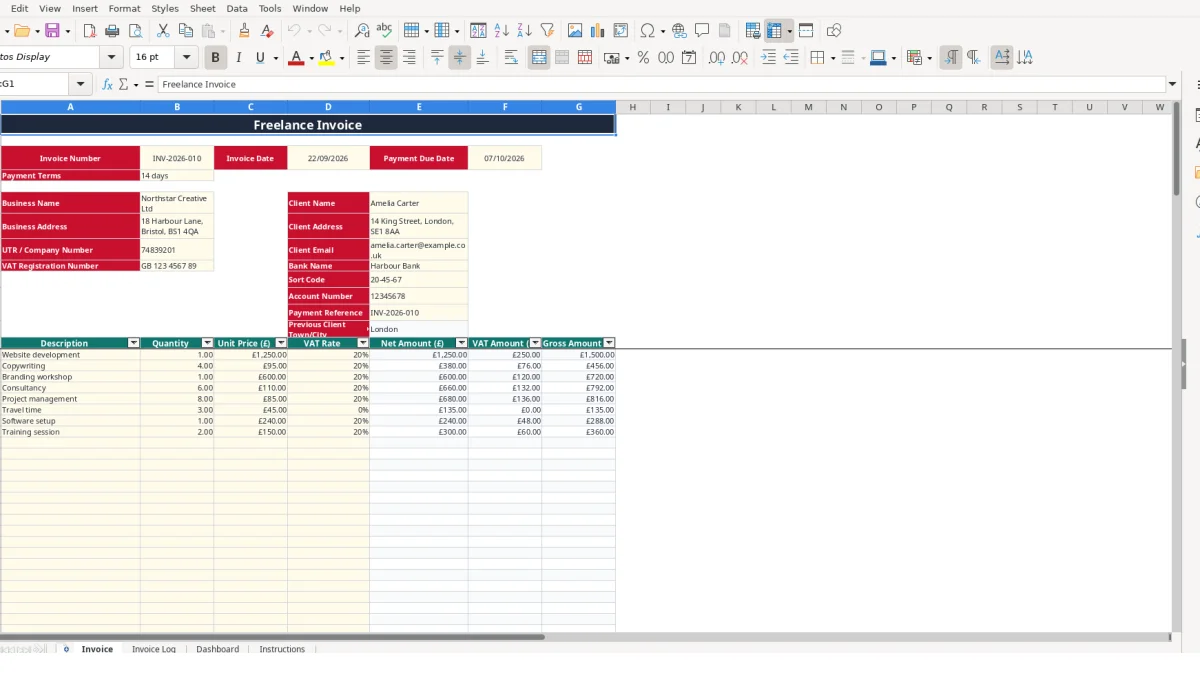
This freelance invoice Excel template is used to create itemised invoices, calculate net, VAT and gross amounts, record payments and monitor outstanding balances. It contains an Invoice sheet, an Invoice Log for up to 100 entries, a Dashboard with summaries and charts, and an Instructions sheet.
Enter your business and client details, select a VAT rate, add billable services and check the calculated totals before sending. The workbook also records payment status, days to pay, payment method and service category so you can keep your invoicing information together.
A freelance invoice spreadsheet suits a sole trader, independent consultant or small limited company that raises invoices for project work and wants a clear record without maintaining separate paper schedules. It is particularly useful when one client receives several service lines, because the Invoice sheet keeps descriptions, quantities, prices and VAT selections together.
A web developer might issue invoice INV-2026-010 to Amelia Carter for website development at £1,250 and four copywriting units at £95 each. The Invoice sheet calculates the line values from quantity multiplied by unit price, so the second line is £380 net before the selected VAT calculation. This is more reliable than manually typing a combined figure.
A branding consultant could use the same structure for a workshop, design revisions and project management. Each service remains visible to the client, while the Invoice Log stores the invoice as one receivable with its client name, service category, dates and payment method.
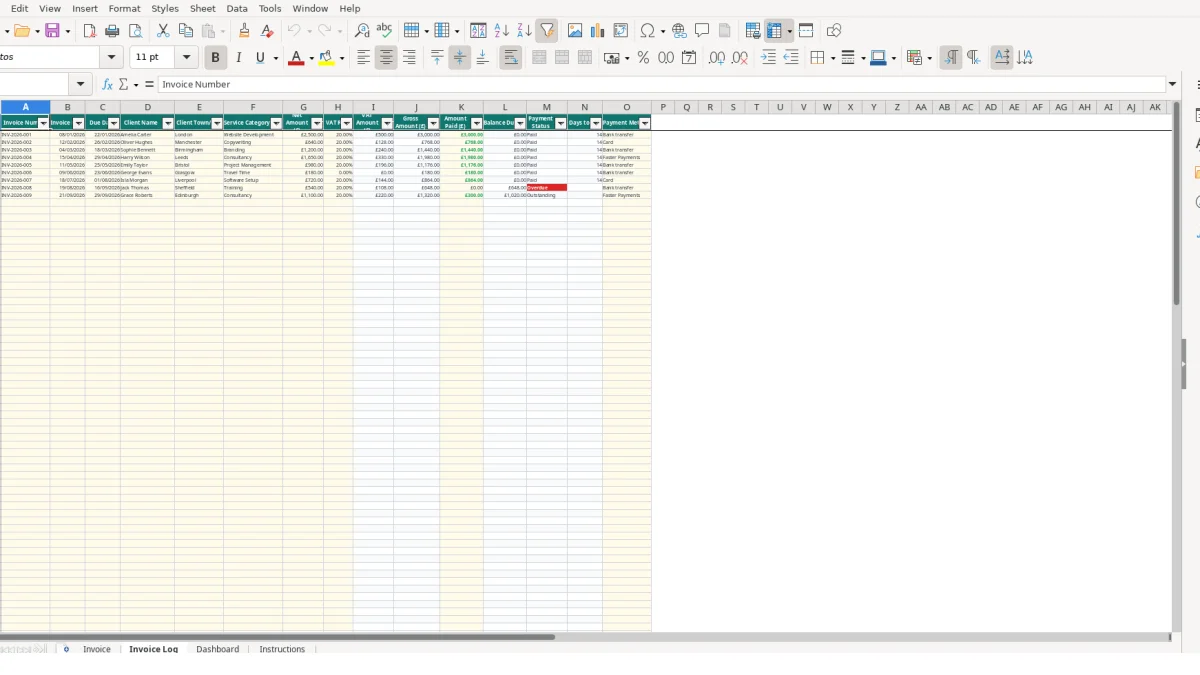
Use the workbook when you issue invoices during a weekly administration session or at the end of a project. After sending the document, copy the relevant invoice information into the next available Invoice Log row. The log has fields for net amount, VAT rate, VAT amount, gross amount, amount paid and balance due, allowing you to follow the transaction beyond the point of issue.
For example, an invoice with £640 net at a selected 20% VAT rate has £128 VAT and £768 gross. If £300 is entered as Amount Paid, the calculated balance is £468. The Dashboard then contributes that invoice to its totals and status summaries.
A small creative partnership can use the Service Category list to distinguish Website Development, Copywriting, Branding, Consultancy, Project Management, Travel Time, Software Setup and Training. The Dashboard includes service-category revenue figures, so a freelancer with 12 invoices can compare the gross revenue associated with different types of work rather than relying on memory.
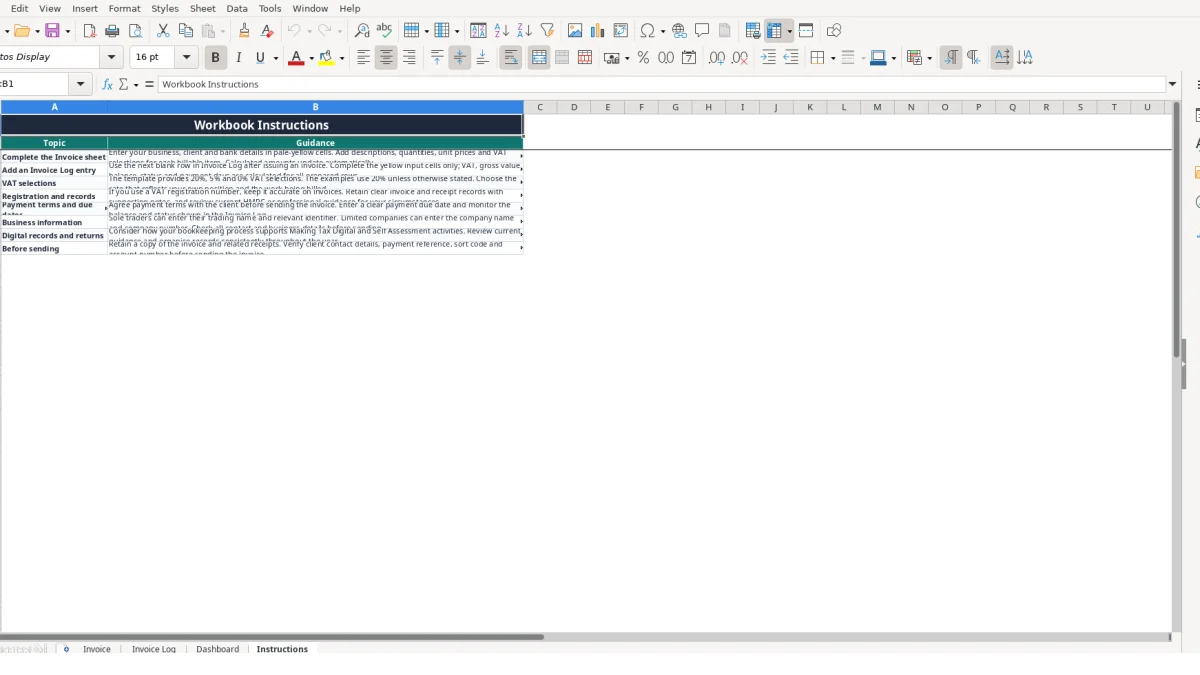
The workbook also includes an Instructions sheet covering business information, VAT selections, payment terms, registration and record-keeping points. Treat its sample entries as illustrative: replace Northstar Creative Ltd, Amelia Carter and the sample bank details with your own verified information before sending an invoice.
The workbook separates invoice preparation from invoice monitoring. Invoice is the working document for one itemised bill, while Invoice Log holds the continuing record. This is the right technical arrangement for a freelancer: the invoice can be checked and sent, while payment information can be updated without rebuilding the original line-item calculation.
Rows 15 to 114 contain the billable-item area. For each populated row, the Net Amount formula multiplies Quantity by Unit Price. VAT Amount then applies the selected VAT Rate to the net amount, and Gross Amount adds the two calculated amounts. A quantity of 4 at £95 gives £380 net; at a selected 20% rate, the VAT calculation gives £76 and the gross amount becomes £456.
Blank descriptions are handled by formulas that return blank outputs rather than displaying zeros throughout unused rows. The VAT Rate cells use list validation with 0%, 5% and 20%, which is preferable to free-text entry because 20%, 20 and 0.20 could otherwise be treated inconsistently.
The Invoice sheet uses VLOOKUP to retrieve a previous client town or city from Invoice Log when a matching client name is selected or entered. This reduces repeated typing, but client names must be consistent: Amelia Carter and Amelia Carter with an extra space may not behave as the same lookup value.
Invoice Log calculates VAT Amount as net amount multiplied by VAT Rate, Gross Amount as net plus VAT, and Balance Due as gross amount less Amount Paid. These formulas cover rows 2 to 103, while the input record area is designed for 100 invoice entries. Do not replace calculated cells with hard-coded totals; update the source amount or payment input instead.
Payment Status is calculated as Paid when Balance Due is zero or below, Overdue when the due date has passed while a balance remains, and Outstanding otherwise. Days to Pay is calculated for paid invoices from Invoice Date to the date recorded as Due Date in the log, so inspect the dates before relying on the result.
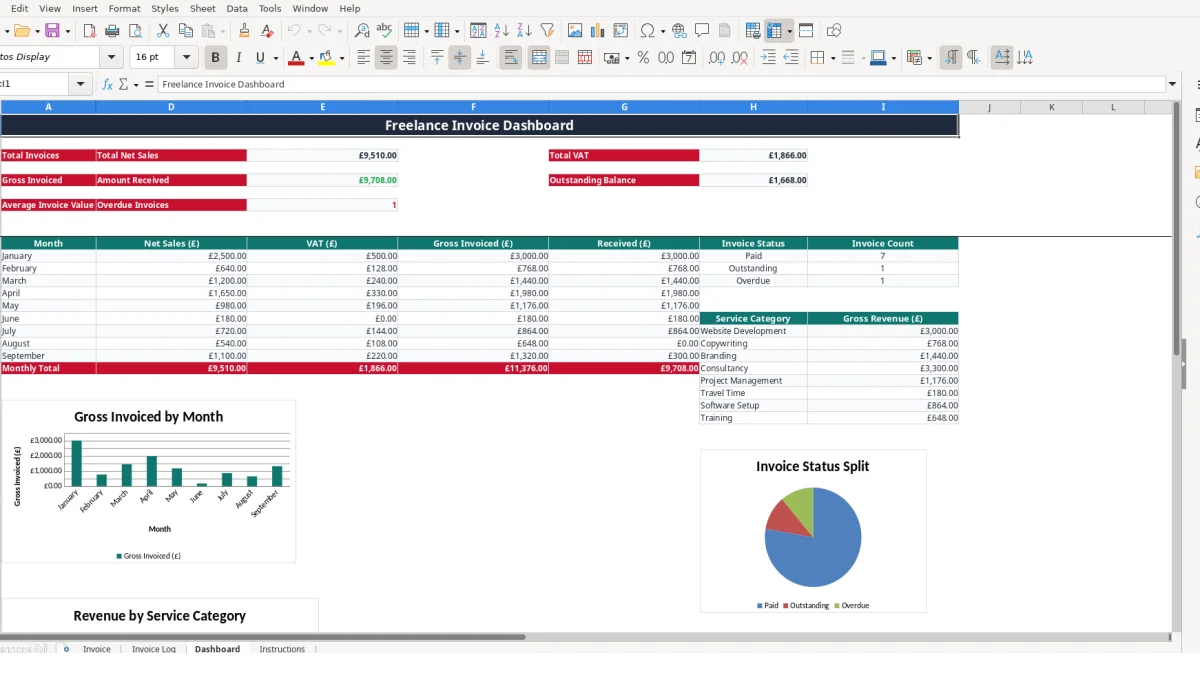
The Dashboard uses SUM, AVERAGE, COUNTIF and SUMIFS to summarise the log. It separates net sales, VAT, gross invoiced, received and outstanding values, preventing a £2,500 net invoice from being confused with its £3,000 gross example.
The most expensive errors in freelance invoicing are often small mismatches between the invoice sent, the log entry and the money received. This workbook makes the calculation chain visible, but it cannot correct a wrong invoice number, a duplicated entry or an amount entered in the wrong column.
A freelancer may create INV-2026-010 on Invoice, then enter INV-2026-001 in the log by copying an earlier row. The Dashboard will count both records, even though only one invoice was issued. If 20 invoices are entered and one is duplicated, the total invoice count and monthly summaries are overstated by 5% in that small example.
Use the same invoice number, invoice date, due date, client and gross amount in both places. The workbook does not include a duplicate-check formula or a table, so numbering discipline remains your responsibility.
Entering £768 into Net Amount when £768 is actually the gross charge creates a different result. At a selected 20% VAT rate, the log calculates £153.60 VAT and £921.60 gross. That hypothetical difference of £153.60 affects the client balance and every Dashboard total.
Record the net amount in Invoice Log because the workbook calculates VAT and gross from that field. On Invoice, let the line formulas produce the net, VAT and gross values; do not copy the gross figure into the net column simply because it is the amount the client will pay.
If an invoice has a gross value of £1,440 and £1,000 is entered as Amount Paid, the calculated balance is £440. Entering £1,440 too early changes the status to Paid even if the bank has only received £1,000. Entering the same receipt twice produces a negative balance and can make an underpaid invoice appear settled.
Check the bank record before updating Amount Paid, and use the Payment Method field to document whether the entry was Bank transfer, Card, Cash, Faster Payments or Direct debit. The workbook calculates status from the balance and due date; it does not verify a bank transaction.
The available VAT list is 0%, 5% and 20%. Selecting the wrong option changes every affected line, so review the rate against your own position and the work billed rather than assuming the sample 20% selection applies. The template is a calculation tool, not a decision on whether you should charge VAT.
Dates also matter. A due date entered as 07/10/2026 changes whether the log describes an invoice as Outstanding or Overdue when the workbook recalculates. Review DD/MM/YYYY entries and check the client details, payment reference, sort code and account number before sending.
A freelance invoice workbook is most useful when issuing an invoice and recording payment are treated as one routine. Set a fixed administration point, such as the end of each working day when an invoice is sent and a weekly review when receipts are checked. The objective is to keep Invoice Log current, not to rebuild the whole workbook at month-end.
For example, a freelancer issuing three invoices each Friday can record three new rows immediately, then review the 3 balances on Monday. If each invoice is £900 gross, the weekly log should show £2,700 gross invoiced before any receipts are entered; that simple comparison exposes a missed or duplicated row.
At month-end, compare Amount Received with Outstanding Balance and inspect the Overdue Invoices count. Review the monthly rows for net sales, VAT, gross invoiced, received and invoice count. The three charts give a quick view of monthly gross invoicing, status and service-category revenue, but the Invoice Log remains the source record for checking individual transactions.
Keep input discipline by using the supplied validation lists and by entering dates as actual Excel dates. Do not type over formulas in columns I, J, L, M or N of Invoice Log, because doing so breaks the calculated chain for that row.
This template is suitable for a structured list of 100 invoice records and a relatively simple freelance process. Consider a dedicated bookkeeping or invoicing system when several people need simultaneous access, you require automated reminders, records exceed the available log, or you need integrations that this workbook does not provide.
Before moving, export or retain a checked copy of the Invoice Log and Dashboard figures. Keep the transition controlled: compare the final workbook balance with your bookkeeping system rather than starting with an unverified opening total.
It includes Invoice, Invoice Log, Dashboard and Instructions sheets. You can create an itemised invoice, calculate net, VAT and gross amounts, record payments, monitor balances and review summary figures.
Yes. The VAT Rate fields provide list selections for 0%, 5% and 20% on both Invoice and Invoice Log. Choose the rate that reflects your own position and the work being billed; the template does not determine whether VAT should be charged.
The Invoice Log is designed for 100 entries, with the main record area running from row 2 to row 101. Check the available space before adding records beyond that range, as the Dashboard formulas and summaries are based on the workbook ranges.
Invoice Log calculates Payment Status from Balance Due and Due Date. It shows Paid when the balance is zero or below, Overdue when a balance remains after the due date, and Outstanding otherwise.
Enter the amount actually received against that invoice. For example, if the gross amount is £1,440 and £1,000 has arrived, enter £1,000; the workbook calculates the remaining £440 balance.
No. It provides calculations, lists and record-keeping fields, including a VAT registration number field and guidance referring to HMRC, Making Tax Digital and Self Assessment. Review current HMRC guidance or obtain appropriate professional advice for your circumstances.
Excel template by
Guide written by