School Trip Excel Template – Free Budget (2026)
9
Free download
Manage UK appointments, clients, staff, reminders, payments and VAT with this practical appointment scheduler Excel template.


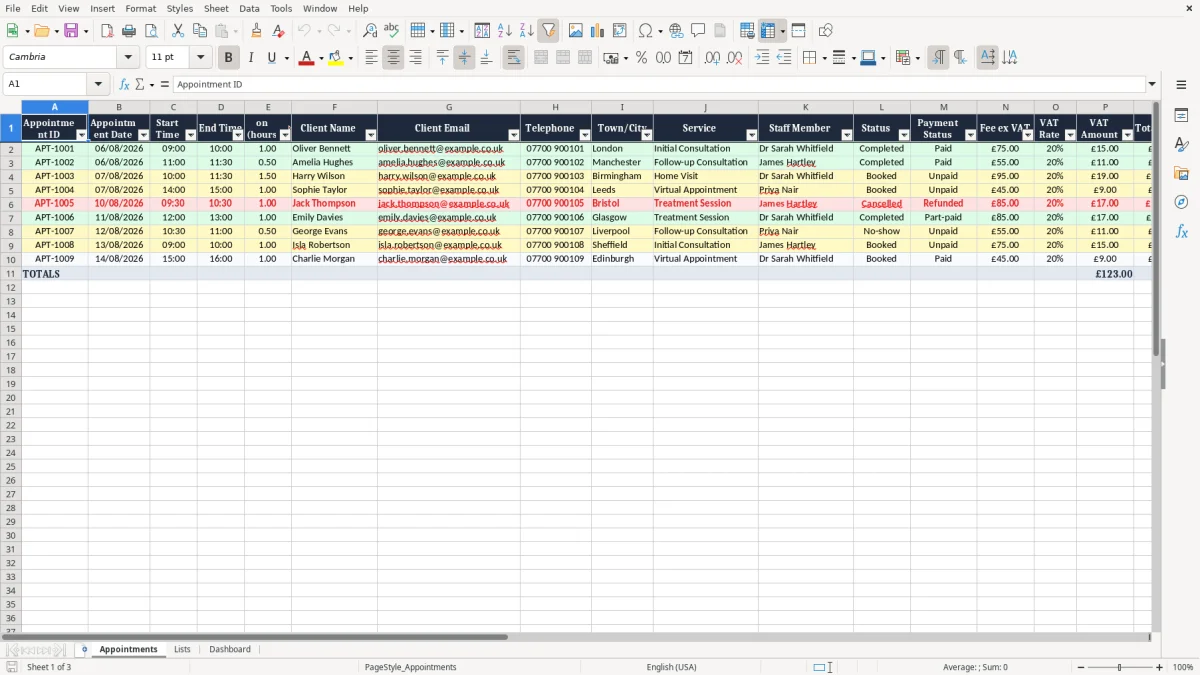
Organise bookings with this practical appointment scheduler Excel template for UK businesses, freelancers and service providers. Record appointment dates, times, client details, staff members, services, fees, VAT and payment status in one clear workbook.
It is a useful starting point for businesses that need a straightforward booking tracker without the cost or complexity of dedicated scheduling software.
Open the workbook in Microsoft Excel or a compatible spreadsheet application and go to the Appointments sheet. Add a unique appointment ID for each booking, then enter the appointment date, start time, end time and client details. Add the town or city, service and staff member responsible for the appointment.
Update the status and payment status as the booking progresses. Enter the fee excluding VAT, the applicable VAT rate and any payment information required by your business. Use the Reminder Sent?
and Reminder Flag columns to record whether a client has been contacted. Add preparation details, booking references or follow-up tasks in the Notes column.
Review upcoming appointments regularly, update cancellations promptly and save a backup copy of the workbook. If several people use the file, keep it in a secure approved location and limit access to staff who need the information.
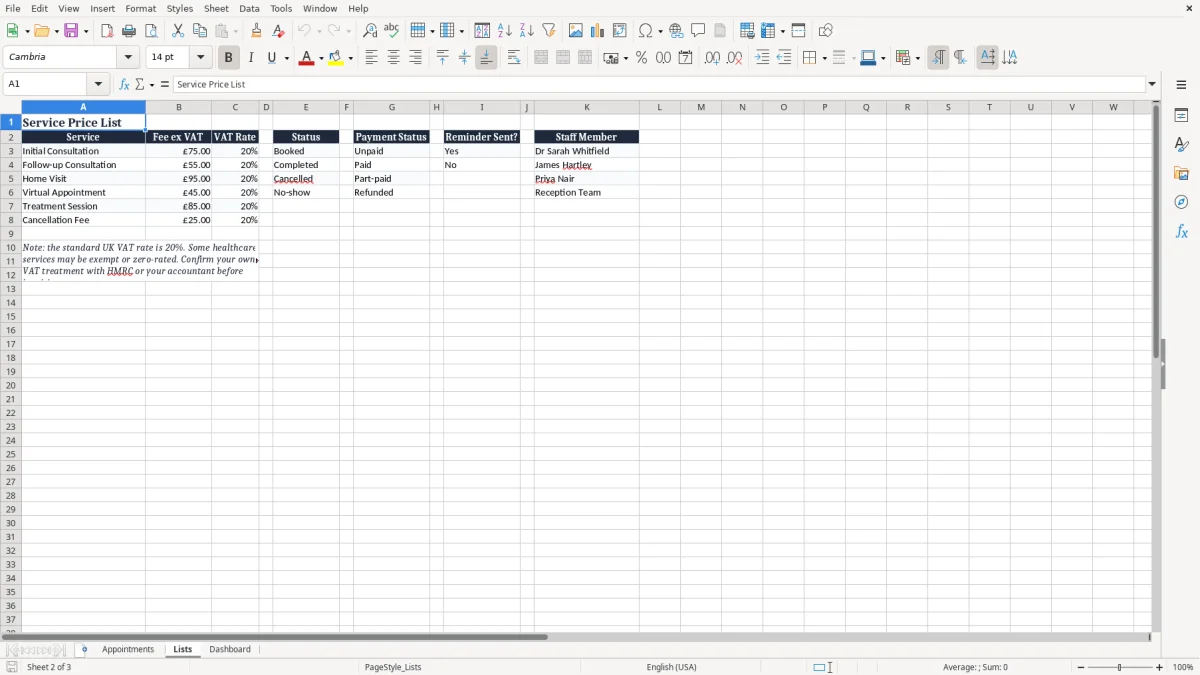
An appointment scheduler Excel template is a ready-made booking tracker that helps you plan appointments and keep important customer information together. Instead of building a schedule from a blank worksheet, you can enter each booking into a structured table and use consistent fields to monitor timings, services, staff, reminders and payments.
This makes the template suitable for businesses that want a simple administrative system they can understand and customise.
This UK appointment scheduler includes fields for appointment dates, start and end times, client contact details, towns or cities and service information. It also provides fee and VAT columns using pound sterling, which can be useful for businesses operating in the United Kingdom. The workbook can support a range of appointment-based services, including consultations, tutoring, beauty treatments, therapy sessions, coaching, photography and mobile services.
Excel is useful when you need a flexible tracker rather than an automated booking platform. You can add rows, change labels, filter records and adapt the layout to match your workflow.
The file can also provide an overview of upcoming work, completed appointments, cancelled bookings and outstanding payments. However, it does not replace specialist software for online self-booking, automated messages, calendar synchronisation or complex availability rules.
To use the template effectively, enter information consistently and update records as soon as an appointment changes. Give every booking a unique appointment ID, use the status field to show its current position and record reminder activity in the dedicated columns. Because the workbook may contain personal data, store it securely, restrict access and follow the UK GDPR and Data Protection Act 2018 requirements relevant to your organisation.
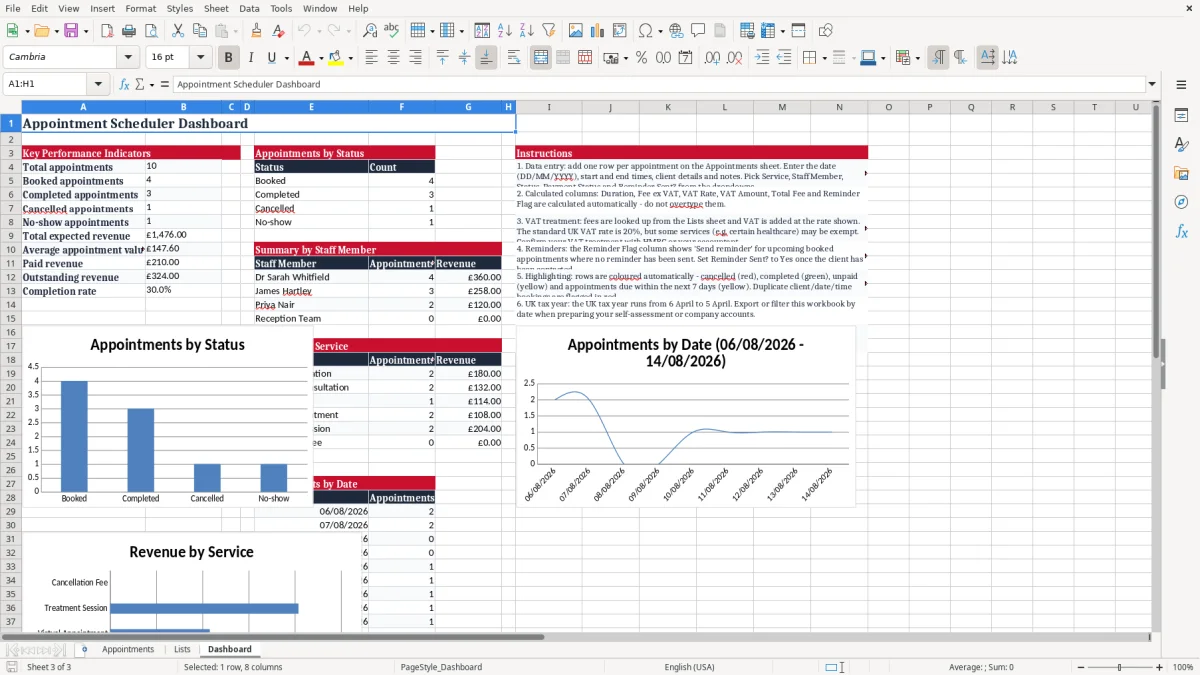
This appointment booking spreadsheet is designed for small businesses, independent professionals and teams that manage scheduled services. Consultants can use it to record client meetings and follow-up actions, while tutors can track lessons, learners, fees and attendance-related notes.
Salons, barbers, therapists, clinics and beauty professionals can use the service and staff fields to organise daily bookings. Coaches, photographers, tradespeople and mobile service providers can also adapt it to record locations and preparation requirements.
The worksheet is useful when a business needs a shared view of appointments but does not require a full customer relationship management system. A manager can review upcoming work, a staff member can check assigned bookings and an administrator can update payment or reminder information. The town or city field may help businesses serving different areas, although it should not be treated as a substitute for a complete address or travel planning system.
You can customise the workbook by adding your own service names, staff members, appointment statuses and internal notes. For example, a clinic might use statuses such as requested, confirmed, attended and cancelled.
A consultant might add proposal references, while a mobile professional might include travel notes. Keeping the original structure simple can make the file easier for a small team to maintain.
This spreadsheet is best suited to straightforward scheduling and moderate volumes of appointments. It may be less suitable where many users need to edit records simultaneously, clients must book online, availability changes automatically or reminders must be sent by email or text.
In those cases, dedicated booking software may provide stronger automation. Whatever system you use, protect client information, avoid unnecessary personal details and keep access limited to people with a legitimate business need.
The financial fields in this appointment scheduler help you record the fee excluding VAT, VAT rate, VAT amount and total fee for each booking. Using these columns can make it easier to review expected income and identify payments that still need attention.
The Payment Status field can be used for labels such as unpaid, part paid, paid, refunded or waived, depending on your business process. Keep the labels consistent so that filtering and reviewing the worksheet remains straightforward.
VAT treatment depends on your business, customers and services, so check the correct rate and calculation with HMRC or a qualified adviser. The template provides a place to record VAT information, but it does not provide tax advice and should not be treated as an accounting system. Reconcile amounts against your invoices, receipts and accounting records, and retain supporting documentation according to your normal procedures.
The Reminder Sent? and Reminder Flag fields provide a simple manual method for managing communications. Before an appointment, review bookings that need a reminder and update the relevant field once contact has been made.
You can use the Notes column to record a preferred contact method, a confirmation reference or an action still outstanding. These fields are helpful for reducing missed appointments, but the workbook does not automatically send emails, text messages or calendar notifications.
For best results, review the schedule at the start and end of each working day. Update cancellations, rescheduled bookings and completed appointments promptly.
If a client requests a change, edit the record rather than creating confusing duplicate entries, unless your internal process requires an audit trail. Regular backups and secure storage are also important because appointment records may include names, telephone numbers, email addresses and other personal information.
Begin by deciding which appointment statuses, payment labels and reminder terms your business will use. A short, consistent list is easier to understand than a different phrase for every record. Add a unique appointment ID to each row and enter dates and times in the intended format.
The template uses DD/MM/YYYY dates and UK pound sterling formatting, helping the worksheet match common UK administrative practices. Always check that the date and time are correct before relying on the schedule.
Review the table regularly for overlaps, missing information and appointments without an assigned staff member. The duration field can help you estimate capacity and identify days where too many bookings have been accepted.
The service field allows you to compare types of work, while the town or city field can help a mobile provider review travel requirements. Use Notes for relevant operational information, but avoid storing sensitive information that is not necessary for delivering the appointment.
A small business may keep the workbook on a secure computer or approved cloud service, with access limited to authorised users. If the file is shared, agree who is responsible for updates and create a backup before making major changes.
Consider using a separate copy for reporting if the main schedule is actively edited throughout the day. At regular intervals, archive completed records according to your retention policy rather than allowing the live worksheet to become unnecessarily large.
This Excel template is a practical starting point, not a replacement for professional scheduling, accounting or data protection advice. It does not automatically check availability, prevent double-booking or send reminders.
Those tasks require manual procedures or specialist software. Used with clear internal rules, regular reviews and secure handling, the worksheet can provide a useful overview of clients, appointments, staff responsibilities, reminders and payments.
Yes. It includes UK-style DD/MM/YYYY date formatting, telephone and email fields, towns or cities and pound sterling fee columns. VAT fields can be used where VAT applies.
Yes. Enter the responsible person in the Staff Member column. You can also add staff names, services, locations and statuses to suit your workflow.
Yes. Use the Status column to record stages such as pending, confirmed, completed or cancelled. Update the status whenever a booking changes.
No. The Reminder Sent? and Reminder Flag fields help you monitor reminders manually, but the workbook does not send emails or text messages automatically.
Yes. Enter the applicable rate for each appointment, but verify the correct VAT treatment with HMRC or a qualified adviser because rules vary.
Yes. You can add rows, services, staff members, statuses, notes and other fields. Save an original backup before making significant changes.
Excel template by
Guide written by