UK Appointment Scheduler Excel Template
3
Free download
Budget school transport, accommodation and activities with VAT, actual costs, payment status, variance checks and a summary dashboard.


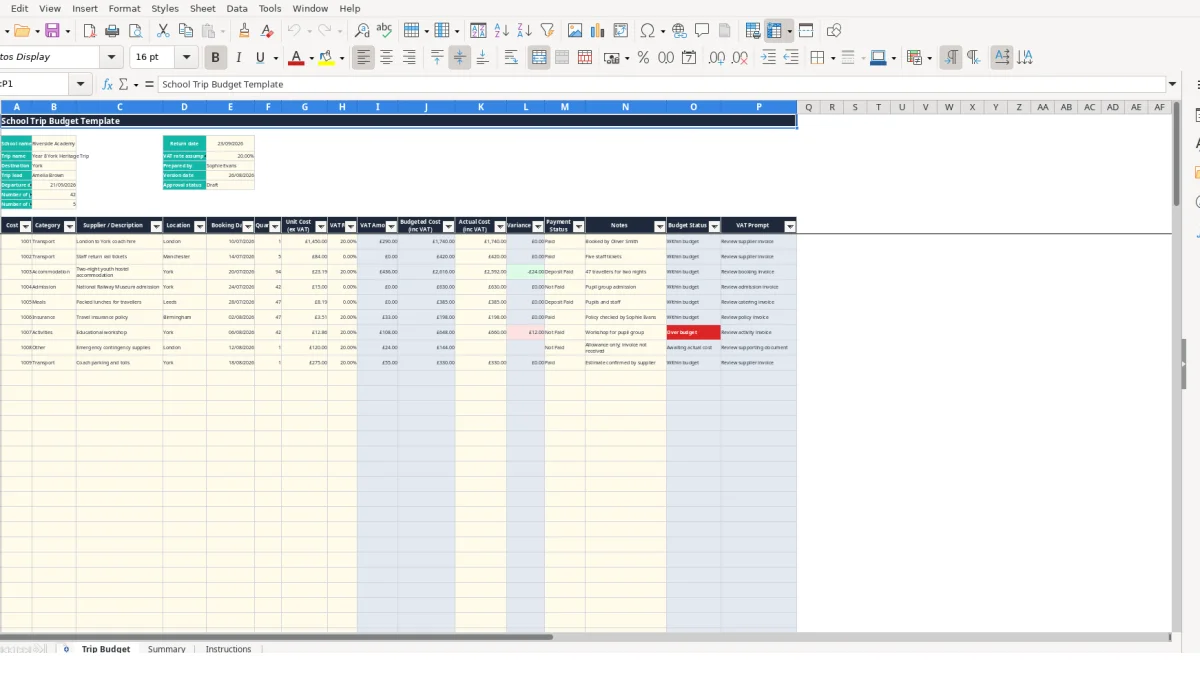
This school trip budget Excel template records planned and actual costs for transport, accommodation, admission, meals, insurance, activities and other expenses. It contains a detailed Trip Budget sheet, a calculated Summary dashboard and an Instructions sheet with editable VAT options.
Enter pupil and staff numbers, supplier details, quantities, unit costs and actual invoice amounts. The workbook calculates VAT, budgeted cost, variance, payment position and cost per traveller so you can review the financial position of a trip before and after it takes place.
Teachers, educational visits co-ordinators, school business managers and finance officers can use this workbook to assemble the financial plan for a residential or day visit. It suits a trip such as the illustrative Year 8 York Heritage Trip, where the Trip Budget sheet records a London to York coach hire, pupil numbers of 42 and staff numbers of 5.
The workbook is useful when a proposed itinerary is becoming specific enough to price. A trip lead can add transport, accommodation, admission and meal lines as quotations arrive, while the school office can update deposits and actual invoice costs without rebuilding the calculation.
Suppose a coach has a quantity of 1 and a unit cost excluding VAT of £1,450. The row calculates its VAT Amount and Budgeted Cost including VAT from the selected rate. If the trip has 42 pupils and 5 staff, Summary uses 47 travellers when calculating the cost per traveller.
For a second example, enter 42 admission places at £12 each before VAT. The workbook calculates the line from quantity, unit cost and VAT rate rather than requiring you to type a total. This makes the assumption visible and allows you to change the quantity if the attendance list changes.
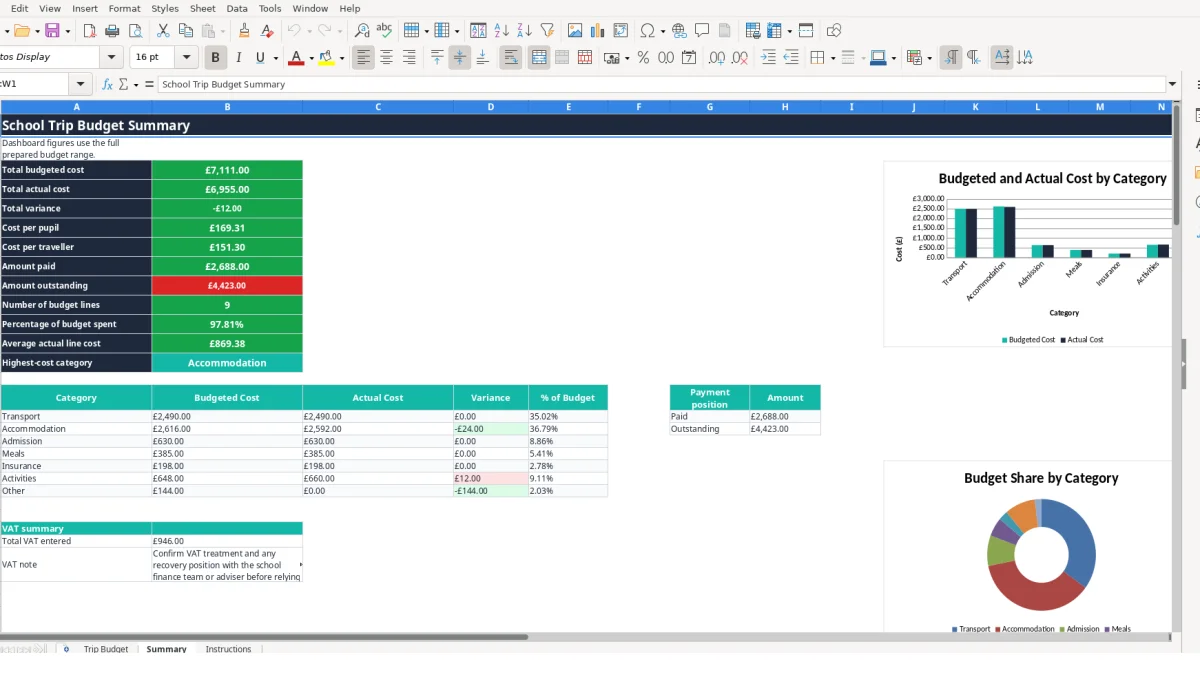
Use the category rows on Summary to see whether transport, accommodation, admission, meals, insurance, activities or other costs are driving the plan. The three charts on that sheet compare category budget and actual amounts, show category budget distribution and display paid against outstanding amounts.
This is particularly useful at a weekly planning meeting. One person can enter new supplier figures on Trip Budget while the trip lead uses Summary to discuss whether the proposed itinerary remains affordable and which costs still need confirmation.
Trip Budget separates user inputs from calculated outputs. You enter quantity in column F, Unit Cost (ex VAT) in column G, VAT Rate in column H and Actual Cost (inc VAT) in column K. Columns I, J, L, O and P calculate supporting results, so you should not overwrite those formula cells.
For a line with quantity 3 and unit cost £200, the pre-VAT amount is £600. With a selected 20% rate, the VAT Amount is £120 and the Budgeted Cost (inc VAT) is £720. This example describes the workbook’s arithmetic only; the Instructions sheet tells you to check supplier documentation and school finance guidance before selecting a rate.
Category uses a list of seven values, including Transport and Activities. Payment Status uses Not Paid, Deposit Paid, Paid and Refunded. Quantity, unit cost and actual cost accept decimal values of zero or more, which helps prevent negative amounts and spelling variations.
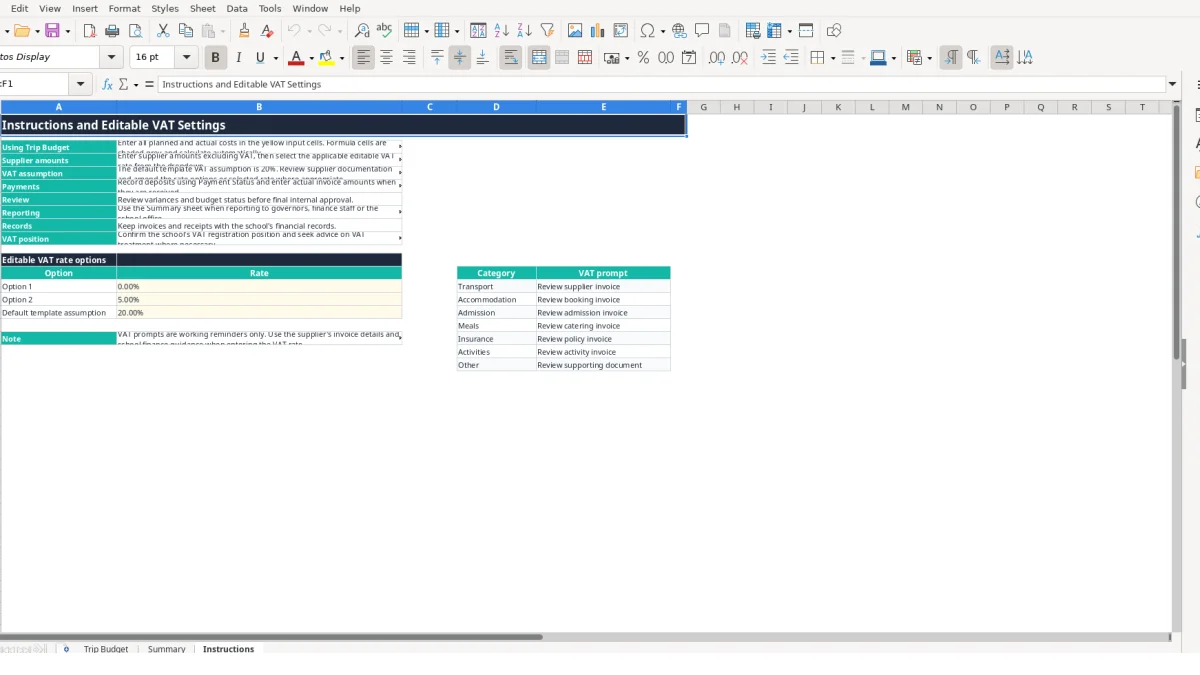
The Instructions sheet provides three editable VAT options: 0%, 5% and the default template assumption of 20%. It also maps each category to a VAT Prompt through VLOOKUP, such as Review supplier invoice for Transport and Review catering invoice for Meals. These prompts are reminders, not a substitute for checking the supporting document.
Variance is calculated only when both budgeted and actual costs are available. The Budget Status then shows Awaiting actual cost, Over budget or Within budget. A budget of £720 with an actual cost of £750 therefore produces a £30 over-budget variance, while an actual cost of £700 produces a £20 favourable difference.
Summary uses SUM for total budgeted and actual cost, SUMIF for category and payment totals, COUNTIF for the number of budget lines, and AVERAGE for average actual line cost. It also calculates cost per pupil from the pupil count and cost per traveller from pupils plus staff.
The most expensive errors usually start with mixing supplier figures and workbook assumptions. If a coach quotation of £1,450 excluding VAT is entered as though it already includes VAT, the calculated budgeted cost will be overstated when a VAT rate is added. Conversely, entering an inclusive invoice into Unit Cost (ex VAT) understates the starting figure and distorts the Summary totals.
Use the column labels carefully: G is Unit Cost (ex VAT), I is calculated VAT Amount, J is calculated Budgeted Cost (inc VAT), and K is the input for Actual Cost (inc VAT). A £2,000 supplier invoice placed in column G instead of K will change the planned budget but will not record the actual payment position.
A row with a description but no quantity or unit cost may not produce a useful budgeted result. If you add 42 pupils to an admission line but leave the unit cost blank, the line cannot show a meaningful total; entering £12 produces a budgeted amount based on 42 places instead.
Similarly, Summary can show a low actual cost when invoices have not yet been entered. For example, a budget containing ten lines totalling £6,000 may show only £1,500 actual cost if one invoice has been recorded. That is not evidence that the trip will cost £1,500; it means the remaining actual-cost fields are incomplete.
Payment Status records whether a line is Not Paid, Deposit Paid, Paid or Refunded, but the workbook does not split a deposit from a final payment within the Actual Cost field. If a £500 deposit is paid against a £1,800 accommodation line, record the status accurately and keep the supporting payment detail in Notes or the school’s financial records.
Do not treat the Amount paid figure as a replacement for checking invoices. Summary calculates it from lines marked Paid and their actual costs, so a wrongly selected status can move £1,800 between paid and outstanding totals and affect the payment-position chart.
Make one person responsible for updating Trip Budget after each quotation, booking confirmation or invoice. A short fixed review every Friday can catch a new coach charge, a changed pupil count or an accommodation deposit before the next internal approval discussion.
For example, if the first plan contains 42 pupils and 5 staff but two pupils withdraw, change the pupil count and review the affected quantity lines. A 42-place admission line at £12 may need to become 40 places, reducing the pre-VAT amount from £504 to £480 before the selected VAT rate is applied.
The dropdowns are a practical shortcut because they keep categories, payment statuses and VAT rates consistent across 100 available cost rows. Use the Summary sheet rather than manually adding rows from Trip Budget; its SUM and SUMIF formulas already use the prepared range through row 111.
This workbook is suitable while one trip lead or a small school team can maintain the entries and match them to invoices. Consider a dedicated finance or procurement system when several users need simultaneous access, when purchase orders and approval histories must be controlled, or when the school is managing many trips at once.
Keep the Excel file as a working budget, not as the only record. The Instructions sheet specifically advises retaining invoices and receipts with the school’s financial records, while its VAT note directs you to confirm the school’s position with the appropriate finance team or adviser.
It calculates VAT Amount, Budgeted Cost including VAT, Variance and Budget Status for each cost line. Summary also calculates total budgeted cost, total actual cost, cost per pupil, cost per traveller, amount paid and amount outstanding.
The Category dropdown includes Transport, Accommodation, Admission, Meals, Insurance, Activities and Other. Each row also includes supplier or description, location, booking date, quantity, unit cost, actual cost, payment status and notes.
Yes. The Instructions sheet contains editable options of 0%, 5% and 20%, with 20% shown as the default template assumption. Check supplier documentation and school finance guidance before selecting or changing a rate.
You enter the number of pupils and staff in the trip details area. The Summary formulas use those figures for cost per pupil and cost per traveller; the illustrative values are 42 pupils and 5 staff.
It means the workbook has not received an actual cost for a line, so it cannot calculate a completed variance. Enter the invoice or final actual cost in the Actual Cost (inc VAT) column when available.
It provides a Payment Status dropdown with Not Paid, Deposit Paid, Paid and Refunded. Enter the actual cost in the designated field and use Notes and your supporting financial records for further deposit or payment detail.
Excel template by
Guide written by