Freelance Invoice Excel – Free Template (2026)
7
Free download
Track rental property costs by tax year, category and property ID with an expense log, dashboard and tax notes for UK landlords.


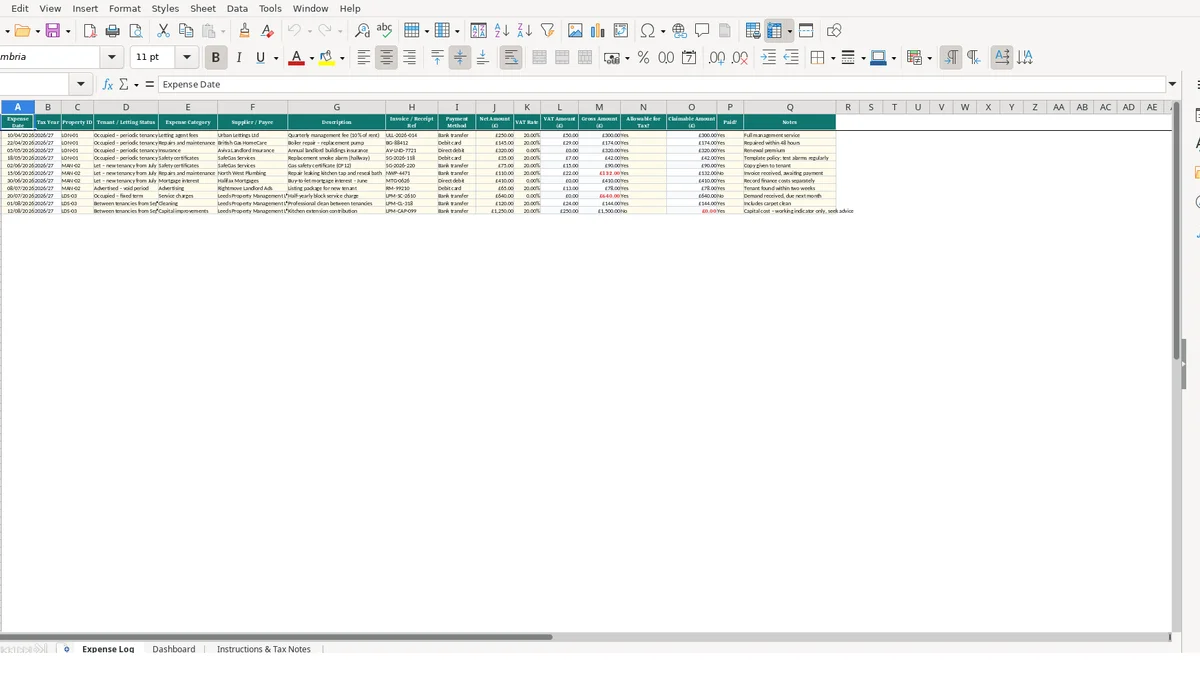
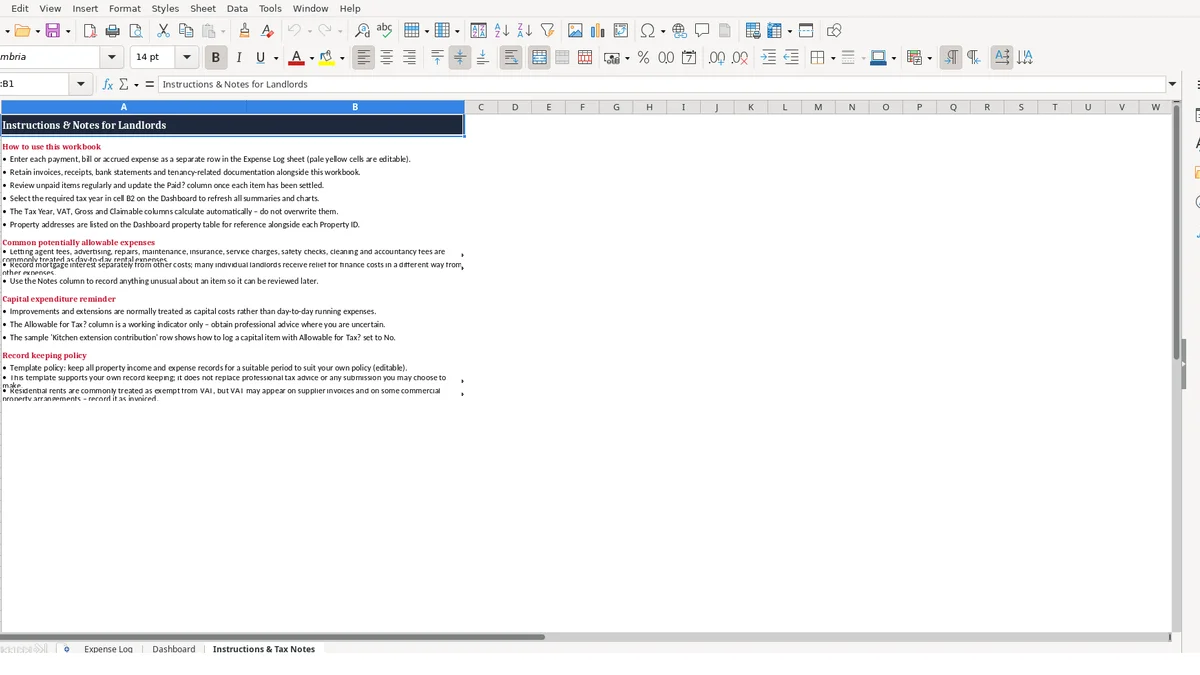
This rental property expenses Excel template records individual landlord costs by date, property, category and payment status. It includes an Expense Log for bills and receipts, a Dashboard for tax-year summaries and category analysis, plus Instructions & Tax Notes for keeping records consistently.
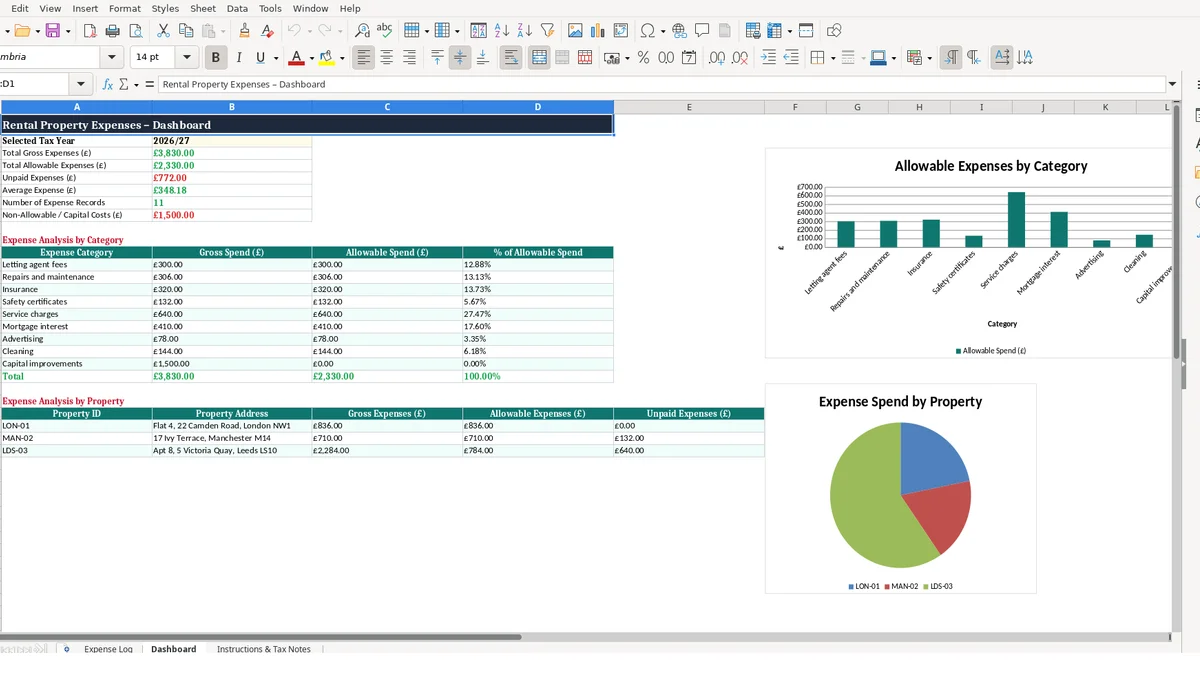
You enter each payment, invoice or accrued cost as a separate row, then use the calculated VAT, gross and claimable values to review spending. The Dashboard separates total gross expenses, allowable expenses, unpaid items and non-allowable or capital costs.
The workbook is designed for landlords managing one or more rental properties who need a clear working record before reviewing their figures or preparing information for Self Assessment.
A rental property expenses Excel template suits a landlord who receives bills from several sources and needs every cost tied back to the right dwelling. It is useful whether you manage the property directly, use a letting agent, or review statements supplied by an agent each month.
The workbook gives each transaction a Property ID, tenant or letting status, supplier and receipt reference. That matters when two flats receive similar invoices: a £145 boiler repair for LON-01 should not disappear into the costs of MAN-02 merely because both were paid in April.
A landlord with one occupied flat can enter the quarterly management fee, repair invoice, insurance and cleaning cost as separate rows. For example, a £250 net management fee with a 0.20 VAT rate calculates £50 VAT and £300 gross; the entry remains traceable through its invoice reference.
The status field provides context that a bank statement cannot. You can distinguish an occupied periodic tenancy from a void period or a property being prepared for a new tenant, then explain why advertising or cleaning occurred when you review the record.
The Dashboard includes reference rows for LON-01, MAN-02 and LDS-03, each with a property address. A portfolio owner can compare gross expenses, allowable expenses and unpaid expenses by ID instead of adding figures manually from separate property files.
Suppose LON-01 has £300 of agent fees and MAN-02 has a £480 gross repair invoice. The property analysis keeps the £780 total split between the correct properties, which is more useful than a single running total when deciding what needs attention.
An administrator can use the file as a controlled list of invoices awaiting settlement. Entering Paid? as No means that item feeds the unpaid-expenses figure on the Dashboard for the selected tax year.
For instance, six unpaid invoices of £125 each produce £750 in the unpaid summary if all belong to the selected year. The practical judgement is to record the invoice when it is received or accrued, not only after payment, because the dashboard then shows an outstanding commitment rather than an artificially low cost total.
The Expense Log separates user inputs from calculated outputs. You enter the date, property, supplier, amounts and Yes or No indicators; the Tax Year, VAT Amount, Gross Amount and Claimable Amount are formula cells and should not be overwritten.
This separation is the right design for a working ledger because each summary comes from one source row. There are 44 formulas on the Expense Log across the available entry rows, so duplicated hand calculations are unnecessary.
The Tax Year formula uses the Expense Date and a 06/04 boundary. An item dated 10/04/2026 is labelled 2026/27, while a date before 06/04 in the same calendar year falls into the preceding displayed year.
For amounts, the formula is direct: VAT Amount equals Net Amount multiplied by VAT Rate, and Gross Amount equals Net Amount plus VAT Amount. With £250 entered in Net Amount and 0.20 in VAT Rate, the workbook returns £50 and £300 respectively.
The Allowable for Tax? field controls Claimable Amount. If you select Yes, the formula returns the row’s Gross Amount; if you select No, it returns £0.00, allowing the Dashboard to distinguish allowable spending from non-allowable or capital costs.
This is a record-keeping control, not a tax decision engine. The Instructions & Tax Notes sheet specifically treats the indicator as a working prompt and directs you to obtain professional advice where an item is uncertain.
Cell B2 on the Dashboard selects the tax year used by the formulas. SUMIFS totals gross costs, claimable costs and unpaid costs against that chosen year, while AVERAGEIFS calculates average gross expense and COUNTIF counts matching records.
The category table covers 10 entries, including repairs and maintenance, insurance, mortgage interest and capital improvements. Its percentage column divides each category’s allowable spend by the total allowable spend, returning 0 where the total is zero; that is a sound guard against a divide-by-zero error.
Rental expense records usually become difficult to use when the row is incomplete, not when the total is wrong. A payment labelled only “bank transfer” cannot tell you whether it was a repair, a letting fee or an improvement, and it cannot reliably support a later review.
The Expense Log avoids this by providing separate fields for supplier, description, receipt reference, payment method and notes. Use them as distinct evidence fields rather than repeating the same short description in every column.
The Dashboard lists Repairs and maintenance separately from Capital improvements, while the log has an Allowable for Tax? indicator. Recording both types as repairs makes the category analysis misleading and can cause the claimable total to include an item you intended to review separately.
Consider a £2,400 gross kitchen extension contribution. Marking it as Repairs and maintenance and selecting Yes would add £2,400 to allowable spend; recording it as Capital improvements with No keeps the same gross cost visible but makes Claimable Amount £0.00.
Entering “London flat” in one row and “Flat 4” in another breaks the property-level analysis because the formulas are built around matching Property IDs. Use LON-01 consistently and retain the supporting invoice under the reference recorded in column H.
A £300 agent invoice and £174 boiler invoice may total £474, but without invoice references you may spend time reopening emails and bank records simply to establish whether either figure has already been settled. The workbook has a dedicated Paid? field; use it rather than relying on memory.
Typing directly into Tax Year, VAT Amount, Gross Amount or Claimable Amount removes the formula for that row. A manual gross figure of £250 instead of the calculated £300 in the earlier example understates Dashboard gross expenses by £50.
Keep your edits to the input cells and preserve numeric precision in the Net Amount and VAT Rate fields. If a supplier invoice is unclear, record the available value, set a note for follow-up, and avoid forcing the row into a category or tax indicator simply to make the dashboard look complete.
The same invoice details can also be carried into a self assessment expenses record when you need a year-end tax summary from the same source data.
The file works best when it becomes the place where you record property costs as they arise, rather than a year-end reconstruction exercise. Link it to a fixed administrative event, such as reviewing the letting-agent statement or reconciling rental-property bank payments.
A landlord with three properties and four costs per property each month creates 12 rows monthly and 144 rows over 12 months. Entering each item in a short monthly session is materially easier than identifying 144 payments from old statements later.
Set a recurring appointment after your last monthly statement is available. Add new bills, attach or file the related evidence, then open the Dashboard and choose the relevant tax year in B2.
For example, if you expect three invoices for LON-01 but the log has only two records, resolve the missing £180 invoice before the next review. This is a better control than waiting for the annual total to reveal a gap.
Use the exact Property IDs shown in the Dashboard property table: LON-01, MAN-02 and LDS-03. The technical judgement is clear: stable IDs are safer than free-text addresses because the Dashboard property formulas match the ID, while addresses can vary in punctuation and abbreviations.
Do not copy formula values into a new period or alter the calculated columns. Continue entering new rows in the Expense Log, retain the formulas, and use the selected-year control to change the dashboard view.
This workbook is a practical record for the available expense rows and the listed properties and categories. Consider a dedicated system when you need a larger transaction history, automated bank feeds, multiple users, approval controls or property records beyond the fixed Dashboard references.
Until then, a 15-minute monthly review plus a longer quarterly check is a realistic habit. The two Dashboard charts can support that review, but the underlying row details and receipt references remain the evidence you need to investigate any total.
The same row details and receipt references also feed a simple profit and loss summary when you need to compare monthly totals against business performance.
It has three sheets: Expense Log, Dashboard, and Instructions & Tax Notes. The log records 17 fields per item, while the Dashboard summarises gross, allowable, unpaid and non-allowable or capital costs for a selected tax year.
The Tax Year column calculates from the Expense Date using 06/04 as the boundary in its formula. Enter dates consistently in DD/MM/YYYY format and leave the calculated Tax Year cell unchanged.
Yes. Each row has a Property ID field, and the Dashboard includes property analysis for LON-01, MAN-02 and LDS-03 with their reference addresses. Use the exact IDs consistently for the property summaries to match correctly.
You enter Net Amount (£) and VAT Rate. The workbook calculates VAT Amount as net amount multiplied by VAT rate, then calculates Gross Amount by adding the VAT amount to the net amount.
The Claimable Amount formula returns £0.00 when Allowable for Tax? is No. The gross cost remains in the log and Dashboard gross totals, while the Dashboard can show it separately within non-allowable or capital costs.
No. Do not overwrite Tax Year, VAT Amount, Gross Amount or Claimable Amount because these cells contain formulas. Enter information in the source fields instead, and use the Notes field to flag an item that needs later review.
Excel template by
Guide written by